Custom HTML Bios on JanitorAI
by @l7a · updated 2026-10-01
How it works
A styled bio with panels, grids and custom fonts can't be pasted into JanitorAI's Bio box. The editor keeps only basic text formatting. It turns every <div> into a plain paragraph and strips fonts, layout, borders and backgrounds.
The way around it is the card import. JanitorAI can read a character from a PNG card image, and the bio inside that card skips the editor. You write the bio as HTML, save it into a PNG card with a free card editor, then upload the PNG as your character's image and accept the import.
You don't need to code or install anything. You only need to copy the template below and change the text, the images and one color.
Use it fairly
This only works because JanitorAI's import trusts the card it reads. Don't use it to break JanitorAI's rules, hide things from moderators or mislead readers. If people abuse it, JanitorAI will close it, and nobody gets styled bios anymore.
What you need
- Your character image. It's the same picture you'd normally upload as the avatar.
- Your bio images, uploaded to JanitorAI. A bio only shows pictures hosted by JanitorAI, with links that start with
https://ella.janitorai.com/media-approved/. Imgur, Discord and Catbox links show as blank boxes. - A character card editor. This guide uses the KoboldAI Lite Character Card Editor. It's free, runs in your browser and needs no account. Its V1 PNG cards hold exactly the data JanitorAI's import reads (checked 2026-10-01).
- A plain text editor to fill in the template. Notepad works. Word and Google Docs don't, because they change the quote marks.
Step by step
- Upload your bio images first. Open the media library, click Upload and add your pictures. Then click Copy link under each one and paste it into the template. The link starts with
https://ella.janitorai.com/media-approved/. Images can't be added to the bio after the import. - Fill in the starter template (next section) in your text editor: the hook line, your text, your image links and your accent color. Don't indent lines and don't leave blank lines (see Troubleshooting).
- Open the card editor and set Format to V1. Click New Card, then click the picture area and choose your character image.
- Paste the whole bio into Personality, not Description. JanitorAI swaps these two on import:
- the card's Personality becomes your JanitorAI Bio
- the card's Description becomes your JanitorAI Personality (the character definition)
- Fill in the other fields as usual: Name, Description (your definition), Scenario, First Message and Example Messages. They import too.
- Click Export PNG.
- On JanitorAI, create a character (or edit one) and upload the exported PNG as the character image. When it asks "Would you like to import this image's information?", confirm.
- Check the fields, then save. The Bio box will look flat and broken. That's normal: the box only shows a simplified preview, and the real HTML is what gets saved. Judge the result on the published character page.
Never type in the Bio box after the import
One keystroke, or the box's own image button, re-saves the bio through the editor and flattens your design. To change anything, edit the card in the card editor, export a new PNG and import it again. A new import replaces every field the card holds, so keep the definition and greetings current there too.
The starter template
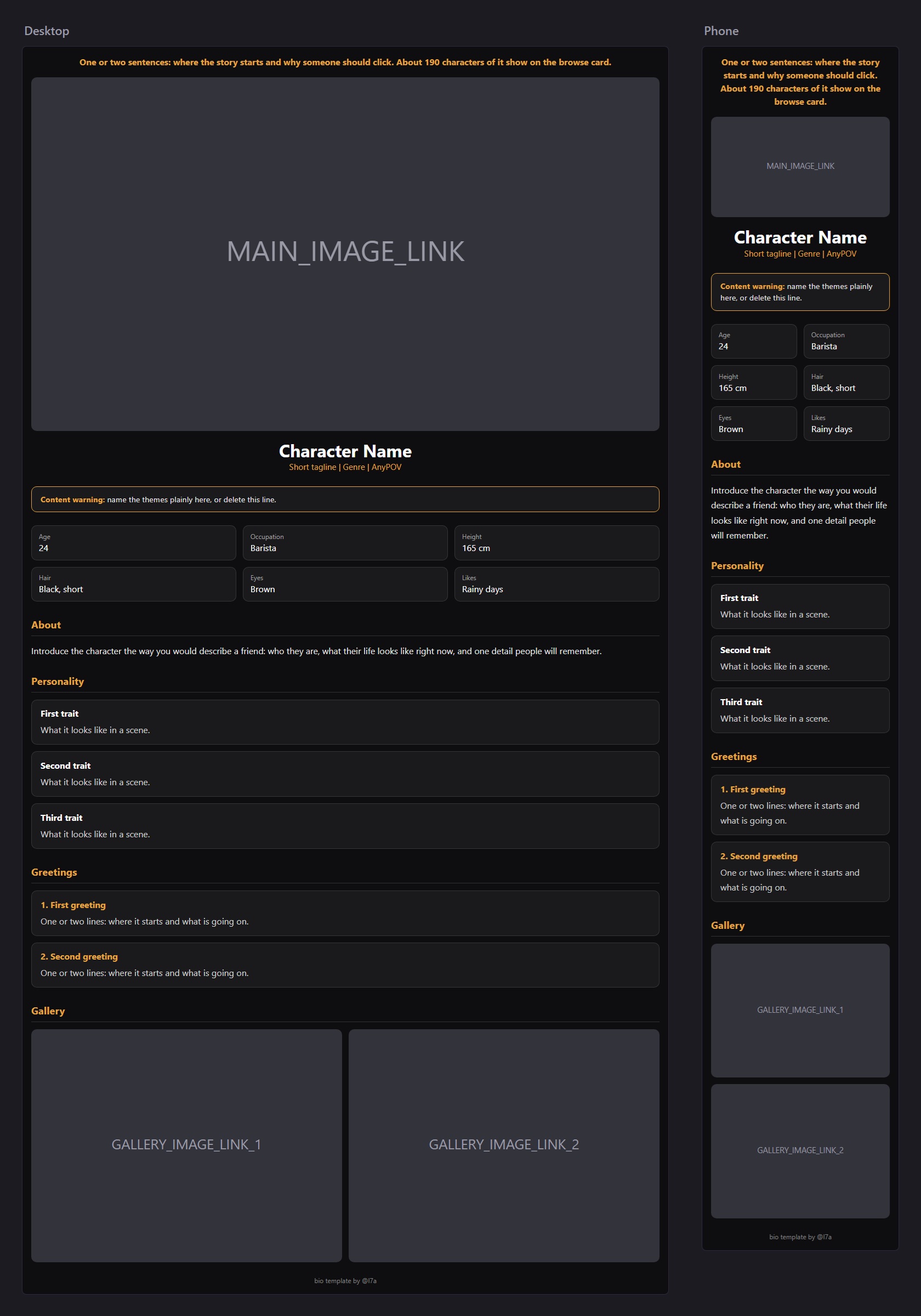
It's a plain default design: one accent color, dark panels, and a gallery that shows two pictures per row on desktop and one on phones. Copy the whole block, then change:
- The color. Find and replace
#E8A33D(orange) with your own color. It's the only accent in the template. - The images. Replace
MAIN_IMAGE_LINK,GALLERY_IMAGE_LINK_1andGALLERY_IMAGE_LINK_2with your JanitorAI image links. To add a gallery picture, copy one whole image line. - The text. Keep six fact boxes so the rows stay even on every screen. To add a trait or greeting, copy one whole line. To drop a section, delete its heading line and the lines under it.
Keeping the small credit line at the bottom is appreciated.
Editing without breaking it
You only ever change three things in the template: the words people read, the image links and the color. Everything else is layout, and it breaks easily.
- Change only the text between
>and<. In<span style="color:#ffffff">Barista</span>, replace onlyBarista. - Never delete quote marks,
<,>or semicolons. One missing"can hide everything after it. - Copy and delete whole lines. Each fact box, trait, greeting and gallery picture is one complete line. Copy a line to add one, delete it to remove one.
- Keep the lines that hold only
</div>. Each closes a group, like the fact boxes or the gallery. Deleting one breaks everything below it. - No blank lines, no indents. The bio has to stay one solid block.
- Check it before importing. Save the file as
bio.htmland open it in your browser. Light text will be hard to read on the white page, which is fine. What matters is that no raw code shows and the boxes line up.
Rules that survive JanitorAI
JanitorAI keeps most inline CSS but silently drops a few things. The template already follows every rule below, so keep them when you change it.
| Avoid | What happens | Use instead |
|---|---|---|
<style> blocks and your own class names |
Not applied | style="…" on every element |
CSS variables, like var(--accent) |
Colors and sizes vanish | The value itself, like #E8A33D |
position (absolute, relative, fixed) |
Dropped; overlaid text falls out of place | Normal page flow |
object-fit |
Ignored; pictures squeeze instead of cropping | Uncropped images: width:100%;height:auto |
max-height or crops on images |
Pictures get cut or shrink | width:100%;height:auto inside <div style="display:grid"> |
| Image links not hosted by JanitorAI | Blank box | ella.janitorai.com/media-approved/ links |
Fixed columns, like repeat(2,1fr) |
Tiny thumbnails on phones | auto-fit grids or flex-wrap rows, as in the template |
A max-width text column |
Text squeezed into the middle on desktop | Let sections run the full width |
Design for phones first. Many readers open bios on a phone, where the bio is about 360–390px wide, against about 1,150px on desktop. Keep grid minimums at 200px or less and don't nest panels more than two deep. Check the published page on your phone, not only on your computer.
Fonts. JanitorAI already loads these, so they work in font-family with nothing to import: Fraunces, Inter, Jura, JetBrains Mono, Crimson Text, Poppins, Lexend, Dancing Script, Berkshire Swash, Monoton, VT323, Press Start 2P, Rock Salt, and Noto Sans JP, KR and SC. Quote names that contain digits and add a fallback, like font-family:'Press Start 2P',monospace.
Troubleshooting
| Problem | Cause | Fix |
|---|---|---|
Raw code like <div style=…> prints on the page |
JanitorAI runs the bio through Markdown, and an indented line after a blank line becomes a code block | Delete every blank line, start every line at the left edge, re-import |
| The bio landed in the Personality box | The HTML went into the card's Description field | Move it to the card's Personality field, export again, re-import |
| No import question after uploading | The file lost its card data, or isn't a V1 card | Upload the exported PNG straight from your computer, with Format set to V1. Chat apps and image hosts can strip the card data |
| Images are blank boxes | The links aren't hosted by JanitorAI | Upload the images to JanitorAI and use their media-approved links |
| Fine on desktop, broken on phone | Fixed columns, wide minimums or deeply nested panels | Follow Rules that survive JanitorAI, check on a phone |
| Bio box looks broken right after the import | Normal: the box shows a simplified preview | Save, then check the published page |
| The design went flat after a small fix | Someone typed in the Bio box after the import | Re-import the PNG; make every change in the card editor |
See it live
Examples by @l7a: