General Lee Oliver of Anonininimum (GenAnon) presents...
A BEGINNERS GUIDE TO NOVELAI v4.5
DISCORD NEWS EDITION
This is a guide for NovelAI v4.5, written on February 8th, 2026. The contents of this are subject to change as new features are added, however, the base model will remain the same, and as such, such be appropriate until V5.
I have been using Opus since V3, and have been using NAI since before they even launched image gen, so this is written from that background, and in most cases, assuming you have Opus. If you don't, costs may be different, but the substance of the text remains.
If you have a suggestion for this rentry, be it an edit to something wrong or an additional point, or just something you want clarification on, your best bet is to post on /bwg/. If I am not posting, odds are, I am lurking, and I am eager to help.
Remember, you can upload someone else's image into NAI, and if the metadata wasn't scrubbed, see the EXACT SETTINGS that they used to make that image. This is very useful! Anyone who would be mad at you for using this tool is silly!
For every point I am going to make, there will be a counter argument. You are HIGHLY encouraged to find what works for you. Experiment! That is what makes these tools so fun. I make this so that newcomers can have a baseline to start finding what works for them, rather than stumbling in the dark.
If you want something objective, go to https://docs.novelai.net/en/image
This Rentry is a collection of things I have found to work and work well, your mileage may vary, but these should all generally be good tips, especially if you have no idea of what you are doing.
You will do something different that I say you MUST do at some point, and go "why did he say this when it still kinda worked". The AI is decent at making guesses as to what you mean, but if you do it wrong, it WILL add noise, WILL make it look worse, and WILL be worse than if you just follow things written as must. Everything else can generally be taken as recommendation found by trial and error if not an obvious fact.
Automatically Generated Table of Contents
- A BEGINNERS GUIDE TO NOVELAI v4.5
- Part 1: God I'm addicted to settings...
- Part 2: The Prompt Box(es!)
- Part 3: Tag Prompting and You
- Part 4: Prose Prompting Practices
- Part 5: Vibe Transfer: Or How I Learned To Stop Genning and Search for Reference Images
- Part 6: Precise Reference: New and Improved?
- Part 7: Cool TAGS that make you feel SPECIAL
Important Terms
Anlas: The currency you use to generate things.
Opus: The maximum subscription level. $25 a month for unlimited gens and a bunch of currency for the extra shit NAI offers. Well worth it if you gen a lot.
UC: Undesired Content. This is your blacklist tags that you want to not appear.
Tags: The main thing you'll type to get your picture to look like something. These are from Danbooru, and a good list of them can be found at https://danbooru.donmai.us/wiki_pages/tag_groups. Do note that this link does not have EVERY tag, just a good amount of them organized in a way that makes it easy to explore. I recommend delving into tags to find similar ones, and looking at different images that look similar to what you want for further inspiration in your search for the perfect tags.
Prose: Freeform typing for the purposes of getting the model to do specific things that tags don't account for
Cool Lynx for Cool Cats
https://danbooru.donmai.us/wiki_pages/tag_groups For tags
https://docs.novelai.net/en/image For official documentation
https://novelai.net/inspect For checking image metadata without replacing your own in the editor
https://mega.nz/folder/h4JWXYiS#eI2so-dPovtKQVUEVmQ1YA My MEGA. All the images should have metadata intact, so there is a ton of prompts, both new and old.
NEWS
2/27/26: The folks at NAI confirmed they are focusing on the development on V5. Don't expect it for several more months, but it seems they are pivoting from director's tools for 4.5 after the backlash against CR. Godspeed to them.
3/10/26: Finetune has mentioned Director's Mode, and that it will be coming after v5's release.
After this, it was asked if the update would be for 4.5 as originally planned, and it was strongly implied that it would not with the quote "i don't think we usually add features to older models. would be kinda weird".
To editorialize, this reads to me that they are cancelling 4.5 DT, and the PR that we have now will be the last update to 4.5 in terms of features. This is fair considering the backlash that they faced with PR, and I'm inclined to agree with the guy who said that they are pushing V5 into development specifically to improve DT compatibility (among other things), especially since they have said that the current PR tools are the most advanced tools they've made.
This also reads, to me, that V5 is closer than I was initially expecting. If I were to guess, I'd say we'll have it by summer. Let's see if I eat those words, I don't intend on deleting this part if I'm wrong. I probably won't update the below text since V5 is actively in the works, and changes will probably just be to the news section considering whatever is here will probably be outdated in a few months.

Part 1: God I'm addicted to settings...
So, you've just started using NAI and are eager to get started genning. The good folks at Anlatan did a good job at making everything seem pretty easy at a glance, but for some reason, you just can't get your gens to look like your favorite "artist". Odds are, you never touched the settings!
The reason I'm doing this first is because odds are, this is something you aren't going to want to touch for fear of breaking something. Especially if you don't have Opus, it can be scary to mess with since you don't have infinite gens. However, the default settings are NOT what most would consider optimal.
Also, make sure the model is set to 4.5 Full NOT Curated. If you want porn, curated is not the route for you. It is basically just there for streamers and legacy.
You can change this by clicking the button at the top of the screen that says the model name.
The Cogwheel
The first place to look is the cogwheel at the top of your main prompt. Inside, you'll find Add Quality Tags, Undesired Content (which from here on shall be referred to as UC) Preset, Disable Tag Suggestions, and Highlight Emphasis.
Quality Tags
Add Quality Tags will be turned on by default. TURN THIS OFF. If you use your own quality tags, all this will do is add duplicates. If you don't, you are running the risk of having tags you actively don't want on in certain situations. Several of the quality presets include <no text> and <location>. Sometimes you want text! Sometimes you want your character in a void! If you use the quality presets, doing these will be significantly harder.
Instead, at the bottom of your main prompt, add your own! Experiment with what you like! I use this as an area to put constants that will only change in specific scenarios. Newlines won't fuck up your prompt, and makes everything much easier to read, especially as a beginner.
Here is my preset:
, no text, location, best quality, top rated, masterpiece, absurdres, -1::comic, artist collaboration::,
<no text> makes it so it doesn't spawn text. If you want text, delete this and replace it with <english text>.
<location> tells it that you want a background, basically. If you want a void, delete this. <dark background> or <multicolored background> are good replacements for this.
<best quality>, <top rated>, and <masterpiece> are from the default prompts, and are there to pick from images that look good. Only remove this if there is an artist mix you are going for that looks better without it.
-1::comic:: helps to remove comics from sources which reduces text, in addition to reducing the amount of multi-panel bullshit it tries to make at weird aspect ratios. If you want multi-panel stuff, delete this. Text still looks fine with this in negative emphasis, though. (More on negative emphasis later).
-1::artist collaboration:: helps to make the artstyle consistent when doing prompts with multiple girls. Effectively pointless on solo stuff, but for me I feel like it helps blend my artist mixes together. Might be a placebo though.
Undesired Content
Undesired Content Preset, in addition, should ALSO BE TURNED OFF. Steal someone else's. Mine is bad and bloated, and effectively a slightly modified default preset, but I've been genning with it for a year now and it hasn't failed me too much. So if you need something to steal from, here it is.
[ai-generated], spotlight, monochrome, blurry, blurry foreground, lowres, artistic error, film grain, scan artifacts, worst quality, bad quality, jpeg artifacts, very displeasing, chromatic aberration, dithering, halftone, screentone, multiple views, too many watermarks, blank page, @_@, mismatched pupils, glowing eyes, bad anatomy, [censored], x-ray,
The Rest
Disable Tag Suggestions and Highlight Emphasis are, by default, off and on respectively. There is no reason to change these unless your computer is terrible and can't handle it.
Prompt Chunks
I know the previous section was called The Rest, but this is a new tab that has nothing to do with settings, but will be explained here anyway.
Prompt Chunks are a useful new feature that allows you to save groups of tags together which can be called later.
To use them, first click the <+> button in the Prompt Chunks tab. This will let you make a new one (wow!).
The Name field is what you will type to call it later, so don't name it "cool thing 1 :D" unless you will remember that's how you make everyone's hair blue.
The Content field is where you put the tags, verbatim. Don't add a description, just put the tags you want. For example, my generic Black Guy prompt is <{{dark-skinned male, very dark skin}}, black skin, muscular male>. This is all that is in there. Yes you can put emphasis in this tab, it works.
You can then choose the color, which is just how it'll look in the editor, and you're done!
From there you can call the chunk by typing in <@super cool prompt chunk name>. It will give you chunk suggestions in the tag suggestion bar, so you can just type the first couple letters and be fine.
Make sure to add a comma after your chunk if you don't have it in the chunk by default if you have any tags after.
.
The Bottom Area
This is the more advanced settings area which you'll be touching more frequently than the cogwheel. There isn't too much to say about it though, so this should be short.
Steps are how many times the generator does its thing. With Opus, 28 is the optimal number, since it is the max you can do without spending Anlas. If you don't give a fuck and put it at max, it may be overcooked and look weird, fair warning.
Prompt Guidance is how closely it follows your tags. (You) will never be good enough to invoke every single tag that could apply to your image. (You) are also too lazy, and understand that doing that is pointless. It will also make your image look bad and deepfry it if you put this too high.
Instead, I recommend setting this between 5 and 6. I generally gen at 5.8, but I genned at 5.2 for a long time and got good results. For new folks, you're better off with this low. A lower number means it'll be more creative and less strictly follow your tags. Too low and it'll look like soup, so being a bit above 5 is probably your best bet.
If you want something specific and it is being too inconsistent, feel free to slowly start cranking guidance up. If your image looks too saturated (super yellow or red, generally) or has a bunch of random lines, you may want to turn Prompt Guidance Rescale up. This should usually be at 0, since it can make your image look bad, but at high prompt guidances it is a necessity. It will remove artifacts and fix colors at the expense of occasionally deforming things. Keeping this as low as possible while fixing errors is suggested. For example, at Prompt Guidance 6, I tend to run a Rescale count of 0.04.
Seed is your random seed. This is how the image gets the noise that it converts into pretty art. This should be blank unless you are copying something else or if you are testing tags and want to see how tags effect a specific image.
Sampler is its decoding method. Just keep this on Euler Ancestral, doing anything else is just if you want purposefully weird shit and is there since different models are trained for different samplers.
Under advanced settings you will find the following
Prompt Guidance Rescale was talked about under Prompt Guidance. TL;DR is that you use it when the image starts deepfrying. Turn it up slowly, since the higher it is, the more it will overcorrect and make shit look weird again. The deepfrying can come from sources other than Prompt Guidance, such as an abundance of artist tags, using fake tags outside of a prose setting, or being retarded with emphasis, so this is a useful tool that can save a prompt from looking terrible when used sparingly.
Noise Schedule is, like Sampler, not even worth pretending exists. Changing it from Karras is for contrarians and people who want purposefully weird stuff. There was reason to change this in some cases in old models, but as far as I'm aware, there is basically none in v4.5.
Image Settings
This is for the part that literally says Image Settings. At the very bottom of your screen, but above the bottom area that is ever present. The only thing you'll want to touch is the aspect ratio.
If you click on the dropdown, it will give you a list of aspect ratio presets. These are pretty good and what 99% of genners use. The normal sizes, specifically, as that is the max size you can use for free with Opus.
However, something many people neglect, is the fact you can click on the numbers and change them to whatever you want. As long as it is under a certain amount of pixels, its free.
Changing the aspect ratio can completely change the outcome of your images, play with it. It should be pretty intuitive. Larger sizes lead to more details, but it usually isn't worth the expense. Manually making things very tall or very wide can lead to some interesting (and occassionally better!) results, assuming you decrease the other stat in turn. I find 1500 x 700 or vise-versa works great for full-body pics, or when you want 2 characters closer together and prompting just isn't cutting it.
Part 2: The Prompt Box(es!)
So you're done getting the settings set up to make your first gens look a bit better. Great! Now what?
Well son, it's time for you to prompt. But where do you do this?
Well, in that big text box on the side!
The Main Prompt
The main prompt, or Base Prompt, if you followed Part 1, should already have your quality tags in there. If not, that's fine, but I recommend adding whatever quality tags you want to use before generating anything. Unless you imported a prompt from someone else, this will probably be the only textbox you have on your screen.
Do you put everything in here? NO!
The main prompt can be effectively be split into 4 main purposes.
- Artists: This is where you'll put your artist tags. Not in the character boxes, you put them here. An example of a properly formatted artist tag would be <artist:namori,>.
a. This also includes artstyle choices. Tags such as <digital art> or <year 2025> go here.
b. For lack of a better place, I will also say that Series tags should go here (i.e. <hololive> or <monogatari (series)>). Series tags definitely go under the main prompt though. - Composition: This is also where you put how your "camera" is oriented. Things like <three-quarter view> and <1girl> can be catagorized under this. If you are a director telling the cameraman what to do, you tell him to do it in the main prompt.
- Setting: The main prompt is where you describe your setting. Are you on a mountain? Say so here. Sunset? Yep, that's here. Someone holding a guitar? Unless you want that guitar to be in a specific part of the photo, I recommend clarifying the guitar exists as a tag here in the main prompt.
- Quality Preset: This is where you should put your quality preset. If you refuse to not use a default one, it'll be put in the main prompt by default.
These 4 things are what you want to put here. When in doubt, it's main prompt. The order you do things doesn't strictly matter, aside from text (which will be covered later) and 1girl and 1boy (number changes based on the number of actors in your scene, obviously). 1 girl and 1boy MUST be put FIRST. Not after your series tag. Not after your quality tag. Before EVERYTHING. Don't ask me why, that's just how it is. Your image WILL look worse otherwise. The AI is smart enough to get what you mean without it most of the time, but not listing the exact amount of actors in your scene will lead to fuck-ups in otherwise perfectly fine prompts.
Character Prompts
Now you may say to yourself "Gee, he sure did make a point about putting main prompt and not just "prompt". I don't get it though! Where are these other prompts?!?!?"
Well Anon, that's simple. The other prompts are right below the main prompt! They are called Character Prompts! None will be populated at first, but you can add one with the "+ Add Character Button". Some people miss this! I've seen a lot of gens get posted that don't utilize this feature and it drives me insane! Don't be that guy!
Upon hitting the Add Character Button, you'll be given the choice between adding a male, female, or other. I will trust you know what you want to add. Other does NOT mean woke non-binary or shit from the homosexual underground (although it can if you really want), it means anything. An object that you want on its own, a person that you don't want prefilled. You name it my friend, and it can be yours.
The only difference between these 3 options are if it populates with girl, boy, or nothing automatically. You CANNOT remove girl or boy and expect your prompt to work. You NEED one of these if you want to generate a good looking character.
After adding a Character Prompt, you'll get a whole extra box, similar in nature to the main prompt box. This is where you will add things related to your characters. Their actions, their look, things they are holding, and things they create (like breath).
Note that when I say things they are holding, I mean you can put that and it'll more than likely be fine.
That little bar on the bottom? That is your context size. There is plenty of context available, if you reach the max without trying, that'd be a bit surprising. The white line is how much that specific prompt box is using. The grey line is how much everything else is using. Once you reach the end, it will turn red, and that means you need to trim it down before you can gen again.
There is plenty of tokens available. The only real reason to hold back is that too many things can make the AI confused on what to emphasize, or make it think that some things are okay to skip over. It can also add unnecessary noise. Unless you see somethings a problem, it's probably fine.
Finally, you can hit the trashcan in the top corner to delete your prompt, you can hit the checkmark to disable/reenable it, and you can hit the arrows to reorganize.
Position
There is one more thing special about Character Prompts. They have this funny little thing called Position. If you only have 1 character, this button is greyed out since there is nothing to position relative to one another. Once you have 2 or more, though, the fun begins.
First, if you want to edit positionality, you have to look at the first line below your character prompts. It will read Character Positions (Global). UNCHECK AI's Choice TO BEGIN PLAYING WITH POSITIONING.
Once you do this, the area under each character prompt that once read "AI's Choice" will now read "Adjust" along with coordinates. Click on "Adjust".
From there you will see a 5x5 grid. This grid allows you to see and select a character's position relative to the others. The highlighted spot is where your character is currently determined to be. Move this anywhere you want!
If you click on an already occupied spot, it will turn red. This is fine, but you shouldn't keep it like this. Move the other character if you know you want your current character to be in that spot. You can still hit "done" with 2 on the same spot. Keeping 2 on the same spot will mush them together when it comes time to generate.
If you put a character in a corner, it will mush them into the corner, probably far from focus. This is very useful, and can be great for cuck gens when you want the cuck far from the action going ":o omg my wife is getting bred in the foreground ;-;"
You may notice that this doesn't always work. As nice of a system as it is, it is pretty inconsistent no matter what you do. For that, I wish you luck. However, there is one more thing that influences it that may surprise you.
The order of your characters MATTERS. Seriously. The higher on the chart your character is, the further left they will spawn. Positioning doesn't even really fix this, if you want someone to the left, put them higher on the character list. It also helps up and down, though to a much smaller degree. If your position and order don't line up, your image will be inconsistent. Fair warning.
Part 3: Tag Prompting and You
Tags will be the basis of your revolution. This is how the model will best understand your desires, and will be the structural foundation of any good prompt. The reason I don't say this is the only option is because of Prose Prompting, which is the other method that should be used to do things tags can't, and will be covered in Part 4.
What is a tag?
I covered it in the definitions section if you really don't know. Go to https://danbooru.donmai.us/wiki_pages/tag_groups for a good selection of tags, look at images on there for tag inspiration, and steal from other genners without remorse if you find something good.
The tags don't actually exclusively come from Danbooru, there are a few other sites it pulls from, but these are not disclosed. Unless you are certain something works, just use Danbooru tags.
In addition, some of the tags go by old names that have since been recategorized on Danbooru (particularly artists). Beware.
An important note is that Tags with low counts on Danbooru generally won't be as good as those with high counts. This has 2 effects. One is that there will be more influence of the source images in tags with low counts, meaning there will be unintended consequences by adding them. Second is that you may not even get what you want in the first place. If something only has 20 images, there is a fair chance you are shit out of luck when trying to use it as a tag. 20 is about the minimum for something recognizable, be it in action, character, or series.
In the same way, a series or character with low counts will be tougher for the AI to get, especially consistently. I recommend using character reference on anyone with less than 10, and probably still with those with less than 30. More than that should be fine, assuming one final thing.
This model was trained around March of 2025. It has NOTHING after its training date. NEW STUFF CAN'T BE MADE, and tag counts may not be accurate to what they were nearly a FULL YEAR AGO. Keep that in mind, especially before going to the NAI discord and complaining. They can't update their model without a full retraining, just wait for V5 (and don't expect it until fall at the earliest).
In Search of the Lost Tag (New as of 2/20/26)
In case the link to the tag groups wasn't good enough, here is another way to do it! I don't know which way is more well known, but this way is useful, too.
What you want to do is go to the searchbar and type in something relevant. Let's say you are looking for a type of hat. If you just type in hat, you'll get every image (correctly labeled) with a hat. But you want a specific one! It must be a top hat, but you can't remember the word for it! What will you do, try to filter through every image in hopes you find the right one!? You can if you want, but you should exhaust your other options first.
Instead, you see that little question mark by the word hat on the left side of your screen, in that big column of tags? Click that! It'll take you to the hat tag's wiki page!

Don't get lost bro...

And then you make it here! Tag wiki pages are a great way to find other, similar tags for osmething you are looking for. The broader the better, since the more used a tag is, the more likely it is to have good pages with lots of subtags.
From here, you are probably going to want to look at the links, handily subdevided into different categories. To find tophats, you'll be going to the List of Hats section. If you can't find it from here, I'm sorry.
The other links here are useful, too, bringing you back to the main wiki page. Handy!
Also, another nice thing about being in the wiki system as that you can now easily search for whatever your heart desires in the searchbar. It'll take you straight to its wiki page! No looking for your tag in the unordered mess that is the normal search bar.
This also works well with character and series tags. If a character you like is popular enough, they'll have subtags for different outfits, making getting them in specific ones easy! And the easiest way to find the proper naming conventions is through here!
Series tags are great for when you can't remember the full name of a character, or how to spell it, since the majority of series tags will have a list of the characters from their show. If they don't its for one of two reasons.
- The show is really popular and has too damn many characters, which warrents a dedicated character list wiki seperate from the series. You can usually find the links to these at the bottom of the series text box. Idolmaster Cinderella Girls has a great example of this, and serves as a good overall character wiki in general.
- The show is not popular enough to get someone willing to write anything down for it. If you need help finding the characters, just click on the series name and it will take you to the normal booru view. Most of the character's names will be on the side tags for you to sift through!
And of course, when all else fails, rummage through pictures that look similar to what you are looking for. If you still can't find it, it might just not exist.
Good luck and happy hunting!
Using tags in your prompt
Tags have a pretty specific set of circumstances they must go through in order to work perfectly.
- They MUST be separated with a comma
- They MUST NOT have underscores. Use SPACES. If you just copy and paste underscores from Danbooru it will be picked up by the language interpretation part of the model, not the tag part of the model, and will lead to subpar results.
- They MUST NOT have capital letters. Same deal as above.
It may surprise you that you don't actually need a space after the commas. You can have one, it doesn't hurt anything, but it reads it without spaces normally. When sent to the generator, it automatically parses and filters any spaces after commas. You DO need spaces within tags, though. The ones before tags are purely for legibility, and as such, are still recommended and common practice.
Another interesting note about tags is that you can let them be picked up by the language model partially. For instance, although <black crop top> is not a tag, you can still put it and get a <black crop top>. This is not a generally recommended practice, but it does work.
ALL FAKE TAGS SHOULD BE PUT IN PROSE PROMPT FORMAT. ADDING FAKE TAGS WILL ADD ARTIFACTS AND LOWER YOUR IMAGE QUALITY CONSIDERABLY MORE THAN IF YOU JUST PROPERLY PROSE PROMPT. SEE PART 4 FOR MORE DETAILS.
(Fake tags in this case means tags that don't actually exist, but are presented as if they do (i.e. blowjob (which should be fellatio)).)
Emphasis
Emphasis is an important thing to know about! Emphasis allows you to add or subtract power on a tag, making the AI consider it more in its outcome, and generally making things better.
Emphasis can be added in 2 ways.
Classical Emphasis
Classical is how we used to do it in the olden days. Surround a tag, or any number of tags with { } ({tag1, tag2, tag3, yo mama even fits here}) to increase emphasis. In the same way, use [ ] to decrease emphasis. This will NOT make something go away, rather it will still call for the tag, but to a lesser degree. I.E. "Wow, I want this chick to look a little smaller, a little cuter, but not actually a child. I know! I'll add the loli tag and input it as [[[loli]]]! This will reduce the influence of the tag while still softening features overall!"
Yes, as the example illustrates, you can stack these. As many times as you want in fact! And within each other! For example: <{dark-skinned male, {{very dark skin}, black skin}}, muscular male>. This works as you expect it to, although it may be easier to just separate it like <{tag1}, {{{tag2}}}, {{tag3}}, tag4>. Up to you.
A final note on this, is if you highlight a tag/group of tags and input {, it will now automatically surround it so you don't have to count each side! Handy! It also works with [! Don't hit the closing bracket though, that will just delete your stuff.
Numerical Emphasis
Numerical is the new, easier method to emphasize things. It can be done by surrounding a tag or group of tags with X:: ::. In example: <1.6::tag1, tag2, yes, yo mama fits here too::>
This can be done with ANY number, although anything more than 3 will almost always be overkill. I, personally, NEVER go over 2. Decimals are fine.
For reference, 2:: :: is equal to 8 {} ( {{{{{{{{absurd}}}}}}}} ) (I think, someone please fact-check me on this). This should illustrate that there isn't much need to go overboard with this number. Brute forcing it by hitting the system with a 12:: :: will just make your image deformed and force you to use Prompt Guidance Rescale for no good reason.
Some people use big numbers for this. I, for one, prefer some subtlety in my images (and for my image to not have 10 billion scanlines and bloom the size of mars).
There is no handy hotkey for this :(
As a new user, using this is probably better to get in the habit of, since it allows for more exact figures. I use a mix of both. Do whatever feels good to you, as long as you use either correctly your images won't suffer.
One thing I forgot to do when I first wrote about this is clarify what Negative Emphasis is.
Negative Emphasis is NOT like using [ ]. It is instead more similar to UC. It tells the image to NOT use the tag that you put under its effect.
Ex: <-1::sex::> will tell the model to not take any images that have sex in it. If you have people fucking in your image without your consent, you can use this to leave room for Jesus in their dancing.
The effects are NOT the exact same as with UC. Their use-cases are different, but oftentimes it is easier to just use negative emphasis since seeing your entire prompt in one place is undeniably easier. Try different things out and see what works for you, although I find negative emphasis has yet to fail me.
That said, I do NOT recommend using it to remove things from a character. Using -1::hairpiece:: on a character who basically always has a hairpiece will just remove the vast majority of their images from the dataset and leave them looking like shit. This is where UC is better.
Special Tags/Artist Prompts
To prompt for an artist, do <artist:artist name>. That's it. NAI won't recommend you artists, so you have to do this on your own. Part of what makes NAI powerful is that it mixes artists together very nicely. Your job is to find artists that mix together to make something greater than its parts. Finding these is what separates a good genner from a great one, and is what separates genners from one another in the minds of the people.
When you start, it is perfectly respectable to steal an artist mix from someone. Just find a mix you think looks nice. Experiment with it, add your favorite artist and see how it changes the pictures. You'll come to find a style that fits you best.
Godspeed and good hunting. If you don't share cool artist mixes after reading this you are a homo by the way.
Random Selectors
If you want to do the same prompt over and over with different results for a fun surprise, you can set it up to randomly choose a tag from a list by putting || on both sides of the selection, and using a single | instead of a comma.
Example: <||red shirt|blue shirt|white shirt|black shirt||,>
I personally never use this, but it is in your toolkit should you so desire.
Part 4: Prose Prompting Practices
Prose Prompting is the act of writing in complete sentences so as to call for things that there simply isn't a tag for. Use proper English. Don't be flowery. Be strict, exact, and purposeful, but use proper grammar at all times.
Prose Prompts are called when ending with a period rather than a comma. Do not put periods after tags if you want to put another tag after. Do not put commas if you want to prose prompt after. Using commas in a prose prompt is okay, but don't lead with one. If you lead with a comma, it WON'T WORK CORRECTLY.
Prose prompting is not an exact science. The model gets some surprising things, and can't comprehend some simple things. Experiment, find what works. As an example, to prompt a Spade earring, I use <The girl is wearing shiny metallic spade-shaped earrings.> If they don't come out black, adding onyx or made of onyx in there works as well. There may be a better way, it is up to (you) to find it.
Generally, prose prompts should be at the end of your overall prompt. It doesn't strictly need to be, as you can transition from it back to tags with <.,>, but it will leave your prompt looking messy and should generally be avoided.
Text
Text is a part of prose prompting. You can generate readable text. Cool! How?
First of all, have the tag <english text> somewhere in your prompt, and make sure you don't have <no text> ANYWHERE in ANY prompt. Once you've done that, you then prose prompt. I find that having something like <She is saying "I like beans.".> is useful in getting more consistent results. It isn't strictly necessary though. What is strictly necessary is this:
YOU MUST HAVE <Text: blah blah blah> AT THE END OF THE PROMPT. Not in the middle. Not with the rest of the prose. It MUST be at the end of your prompt. End of character or main is fine, the specific prompt doesn't matter, but it must be at the end. the <Text:> WILL attempt generate everything after it as plaintext. The very last thing should be whatever you want to say.
You don't need a period in the <Text:> prompt if you don't want a period written, but you do need to lead with one, as it is considered part of Prose Prompting.
You also don't need quotation marks following <Text:>. Those are only needed in your Prose Prompting zone itself.
Want graffiti on the wall to say what you want? Use the <graffiti> tag and use prose to say that the following text will be written in graffiti.
Want a speech bubble? Same as above, but with <speech bubble>.
Want newlines? Just add them! Specifically after <Text:>. This can also be used to seperate different blocks of text, which is good for if you have multiple speech bubbles, thought bubbles, etc. It is a very useful part of text that I don't think many people realize!
Part 5: Vibe Transfer: Or How I Learned To Stop Genning and Search for Reference Images
Vibe Transfer is a very powerful tool that you can do a lot with, but it can and will fuck up your images if you use it too hard. I find that Vibe Transfers are amazing when used as a spice to add on top of a good prompt and a good artist preset.
Finding good images
Aside from the obvious "beg someone until they give you the choo-choo spoonfeed", looking for good images can feel random at the start. However, the process can be helped by not choosing images with watermarks, scanlines, or text. High resolution images are also greatly preferred, as low resolution will almost certainly lead to artifacts.
After that, it's honestly a dice-roll. Try to judge what the stand-out parts of your image are. Color is a big one, but so are how lines are formed. Angles and edges vs soft, round shapes can seriously change how a vibe transfer feels. You'll figure out the patterns with experimentation.
As my gift to the people, I will reveal a trade secret in that the Authority image from Disco Elysium is amazing for creating low-light images (which the AI tends to be against in most mixes I've worked with). I use it often, and it doesn't usually change the essence of a mix aside from the lighting (which can't be said for most other Disco pics). I leave the rest to (you).
Actually using the images
So you've found some stuff that you think looks good. What next?
I'll be the first to say I don't entirely understand vibe-transfer. If someone wants to make a better guide or link one, by all means, please do. I genuinely never touch the Information Extracted bar. Just leave it at 0.7.
However, I will say that for Reference Strength, do not be fooled by the default setting. If you leave it there, your image will quickly look extremely similar to your base image in terms of style. No, to get a good spice that still allows your artist mix to shine through, lower it to around 0.1. Plus or minus 0.05. That is enough to change your image significantly without changing it entirely. These things are best as spices, after all, especially when mixing them together.
You can use up to 4 Vibe Transfer images for free simultaneously. In my opinion, that is more than enough. Generally, you'll hover around 2. I have 1 for style (brush-strokes, facial structure) and 1 for color and composition, usually. Adding a second of either is usually fine, but once you get to 4 the transfers can begin to overwhelm your artist mix, and unless it is built around those specific transfers, it can begin to degrade.
This is another spot where you may need to increase Rescale to avoid scanlines and artifacts. It's just a fact of life when you use too many vibe transfers. As always, increase it slowly, until the issue goes away. Lowering reference strength can also help.
I know I said it a million times, but these are best used as spices. Low strength can do wonders for your image while still keeping your style intact.
Part 6: Precise Reference: New and Improved?
Precise Reference is a new thing that people don't really understand entirely, but can be pretty great when done right. This includes Character Reference and Style Reference.
These CANNOT be used with Vibe Transfer.
These COST 5 ANLAS A GEN EVEN WITH OPUS. Per image. You've been warned.
THESE TRANSFERS ARE WEIRD AND REQUIRE HIGH RESCALE VALUES. By default, if I am using style transfer, I raise my rescale to 0.1, and raise it more if needed.
Since this is new I'll keep this brief.
From the top, you have a trash can to delete images (all images must be deleted to get vibe transfer back), an enable/disable button like with Vibe Transfer, a dropdown menu to choose between Character, Style, or Character and Style Transfer, a Strength slider, and a Fidelity Slider.
Character Transfer will take the character from your image and attempt to generate it onto the appropriate gender in your image. It works pretty good, but not as good as it used to. Default settings of 1,1 are fine for this. You may need to help it out by specifying clothes on the character you want it to apply to.
Style Transfer allows you to mimic the style of the reference image with more percision than Vibe Transfer. It's actually really nice, but the fact it isn't free prevents me from using it frequently. I find a Fidelity of .9 and a Strength of 1.5 or so works pretty well, but it depends greatly on the image and the outcome you want. Yes, you can manually change strength by clicking on the numbers. Sliders need not apply.
Both. I don't use both. I have never felt the need to use both. Test it on your own.
Currently Character Transfer is on its third version, which is getting some intense heat for not being as consistent as the second version. It is pretty much universally agreed to not be as good as version 2, but it is still very much workable. You'll need to change your settings around, but Version 3 is usable. That being said, it being worse has reached the devs ears, and odds are they are going to try and figure out something. They usually do. It is in vogue to shit on Character Reference, and there is justification, but its still worth a try if you have spare anlas and want to use try it. Contrary to popular belief, it isn't completely broken.
NEW DISCORD POST:
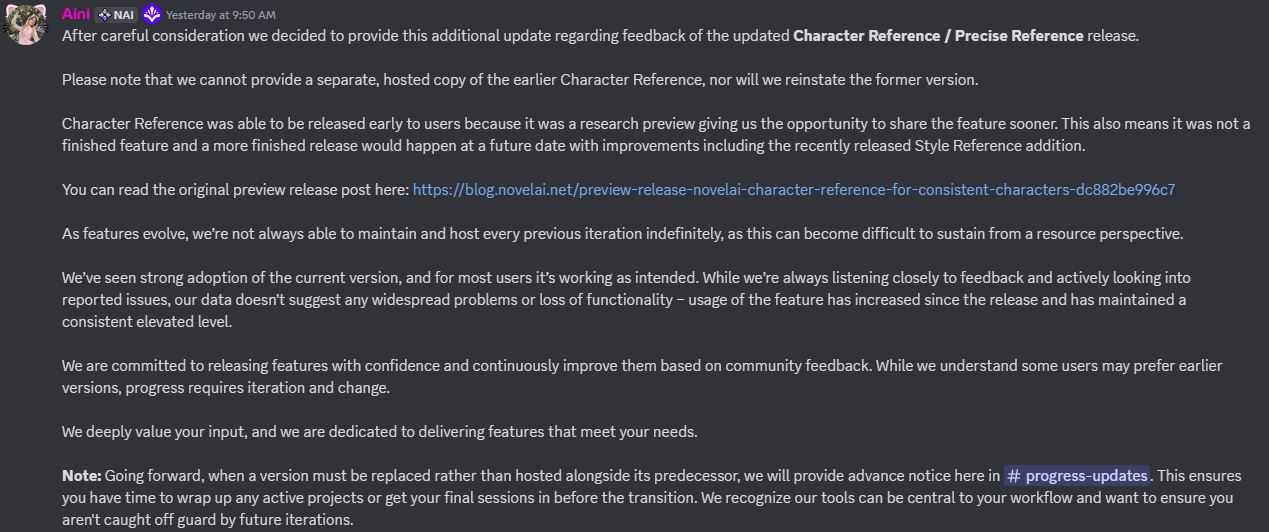
The dreams of reverting to CR V2 are over. RIP believers.
Part 7: Cool TAGS that make you feel SPECIAL
I am going to report on and organize cool tags that aren't intuitive that folks find here. Please post about tags you find for me to add, k thx.
unworn clothes: Adds clothes that are unworn from being undressed.
unaligned breasts: Combos nicely with bouncing breasts. Makes the breasts at different heights, be it by groping or movement.
three quarter view: Just a nice view that I don't see many people use
jitome: flat line above eyes.
sway back: Like leaning back, but keeping the head straight. Useful for standing with your arms crossed and what not.
taut clothes: Makes it so your bras and shirts don't cling to the boobs Zero-Suit Samus style. Have fabric be fabric, dammit.
shirt overhang: duh. I just like knowing its a thing.
see-through silhouette: Good in addition to see-through clothes, it gives that sexy light behind shirt effect that highlights a bodyline while still clothed.
come hither: A seductive look, not actually them curling their finger at the viewer or something, thats <beckoning>. Just a vibe for the face that works surprisingly well.
sexual coaching: Girl encouraging other girl during sex. Good for having a dominant girl during sex and fellatio towards another girl.
chiaroscuro: emphasizes light and dark in the image. Low-use tag, but I think it generally makes things look a bit nicer if you want that vibe.
1.5::production art:: : better than <official art> 80% of the time, used for show accurate stuff. promotional art is at times better, too.
Prompt Chunks
Fancy Lighting: sunbeam, light particles, light rays
Black Man: {{dark-skinned male, very dark skin}}, black skin, muscular male
Fancy Pussy: clitoris, pussy, fat mons,
Full Body Bukkake: cum, cum on hair, facial, cum on body, cum on breasts, cum on hands, bukkake, cum pool, cum drip, cum string
Artist Mixes
Here is a collection of Artist mixes for you to steal from if you want to make something but don't have a specific style you want.
GenAnon's v4.5 Mixes
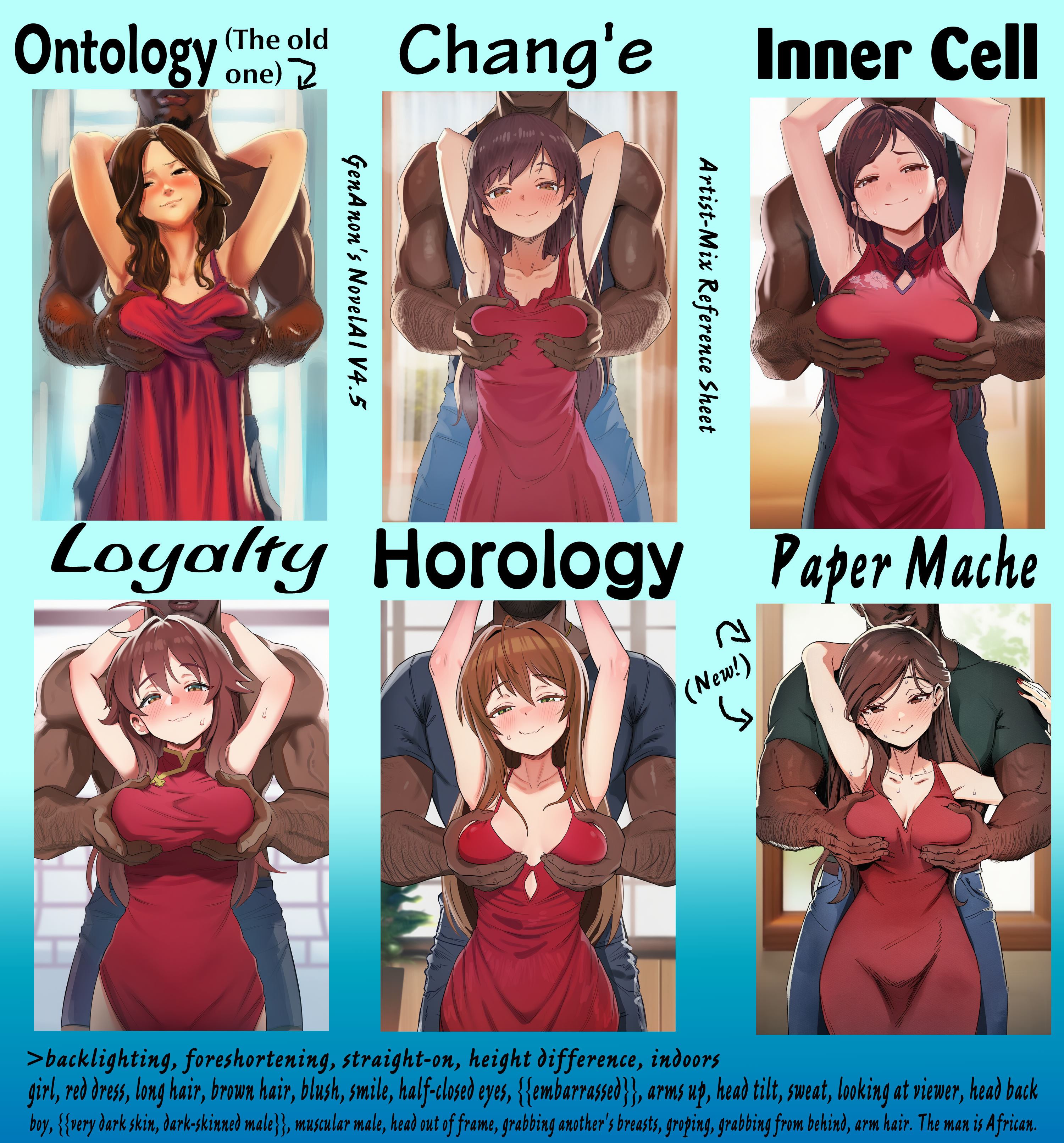
Above you can see a collection of mixes that I have developed. Ontology and Paper Mache have been by far the most popular of the two. As always, experiment with them. Add your own favorite artist(s) to the mix and find what works, or take them out and find how it changes things. If you are new and have Opus, the best way to get better is to see how tags change each other. Getting a good artist mix that (you) like will be the biggest step you can take to getting good results once you understand the basics, which you'll probably get after 30 minutes of fucking around.
-Ontology-
impasto, painterly, painting (medium), {{realistic}}, [artist:yd (orange maru)], [[[[[artist:kawakami rokkaku]]]]], [artist: butterchalk], [[[[artist:cutesexyrobutts]]]], , [artist:sozomaika], artist:hungry clicker,
-Chang'e-
impasto, painterly, painting (medium), [[artist: egami]], artist: ter (otokoter), {artist:wagashi (dagashiya)}, [artist: butterchalk],
The Inner Cell Trilogy of mixes
-Inner Cell-
digital art, {{realistic}}, {artist:ikuchan kaoru}, {artist:gin00}, [artist:freng], [[artist: renetan]], artist: akipeko, [artist:yd (orange maru)], [[[[[artist: butterchalk]]]]], artist:huyumitsu, year 2025,
-Loyalty-
digital art, {{realistic}}, {artist:wagashi (dagashiya)}, [artist:freng], [[artist: renetan]], [artist:yd (orange maru)], [[[[[artist: butterchalk]]]]], artist:huyumitsu, [[artist:blushyspicy]], [artist:boppin], [[[artist:namori]]], [[artist: ter (otokoter)]], year 2025,
-Horology- (This is the most experimental of the trilogy, photo-referenced and nsfw can give higher highs and lower lows in terms of results. I found myself adding and removing them depending on the prompt, both are included for the sake of showing they work and are tested as working well for the mix.)
digital art, [[photo-referenced]], nsfw, {{realistic}}, {artist:wagashi (dagashiya)}, [artist:freng], [[artist: renetan]], [artist:yd (orange maru)], [[[[[artist: butterchalk]]]]], [[artist:blushyspicy]], [artist:boppin], artist:hamanasu, [[[artist:namori]]], [[artist: ter (otokoter)]], [[[[artist:varniskarnis]]]], year 2025,
-Paper Mache- (Note: Adding [[sketch]] can yeild very different, occassionally superior results. Try it out!)
digital art, 2::watercolor (medium), watercolor pencil (medium), jagged lines::, chiaroscuro, impasto, painterly, [[[[[artist: butterchalk]]]]], {artist:namori}, [[artist: ter (otokoter)]], [[[[artist:varniskarnis]]]], [[artist:ixy]], [[[artist:typehatena]]], year 2025,
Song of the Day: Cardiacs - Men in Bed
https://www.youtube.com/watch?v=Pb-bpjNMkeg
**This page is a WIP. If I say something wrong, tell me and I'll fix it unless you're stupid. **
To add: Inpainting, and undoubtedly more obvious shit that I'm forgetting