Installing .emip mods for MiSide
Resources in this tutorial:
- UABEA for .emip file installation
- .NET 6.0 Desktop Runtime for Windows in case your Windows system doesn't have .NET 6.0 installed for some reason.
- Visual Studio C++ Redistributable for Windows in case your Windows system doesn't have VS C++ Redistributable installed for whatever reason. (This is very rare! You should have this installed already!)
Step 0. Installing .NET Desktop Runtime and Visual Studio C++ Redistributable
You should install .NET Desktop Runtime and VS C++ first; otherwise, you won't be able to open UABEA at all. However, most PCs these days should already have these installed.
- Download the .NET 6.0 Desktop Runtime.
- Run the installer and follow the on-screen instructions to complete the installation.
- Download the Visual Studio C++ Redistributable.
- Run the installer and follow the on-screen instructions to complete the installation.
Step 1. Getting UABEA
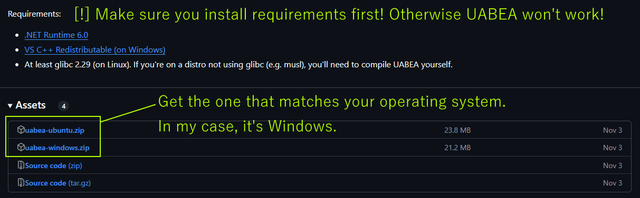
Download UABEA from the link provided above.
- Navigate to the UABEA GitHub releases page.
- Download the appropriate version for your operating system. For example, on Windows, download
uabea-windows.zip.
Step 2. Extracting UABEA
Once the ZIP file has been downloaded:
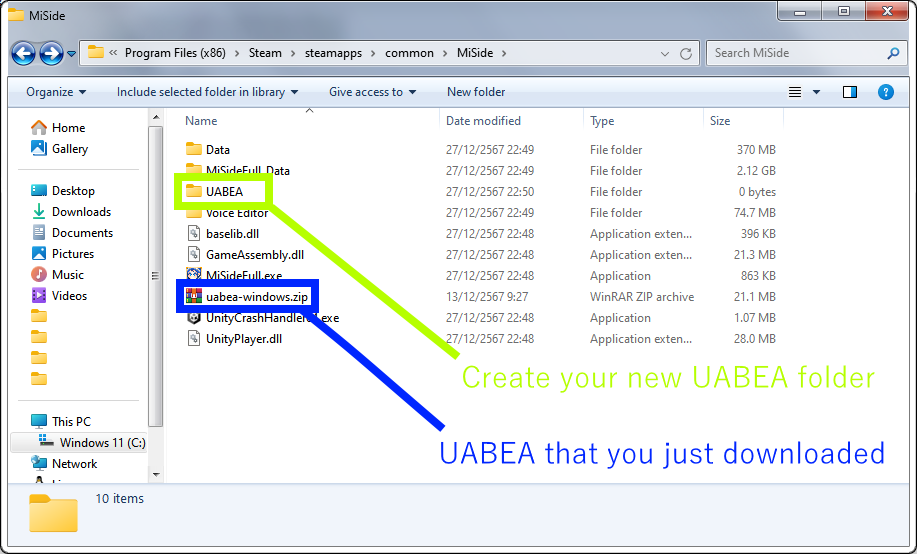
- Locate the ZIP file (
uabea-windows.zip) in your Downloads folder or wherever you saved it. - Create a new folder called "UABEA" (I recommend creating it in the game folder)
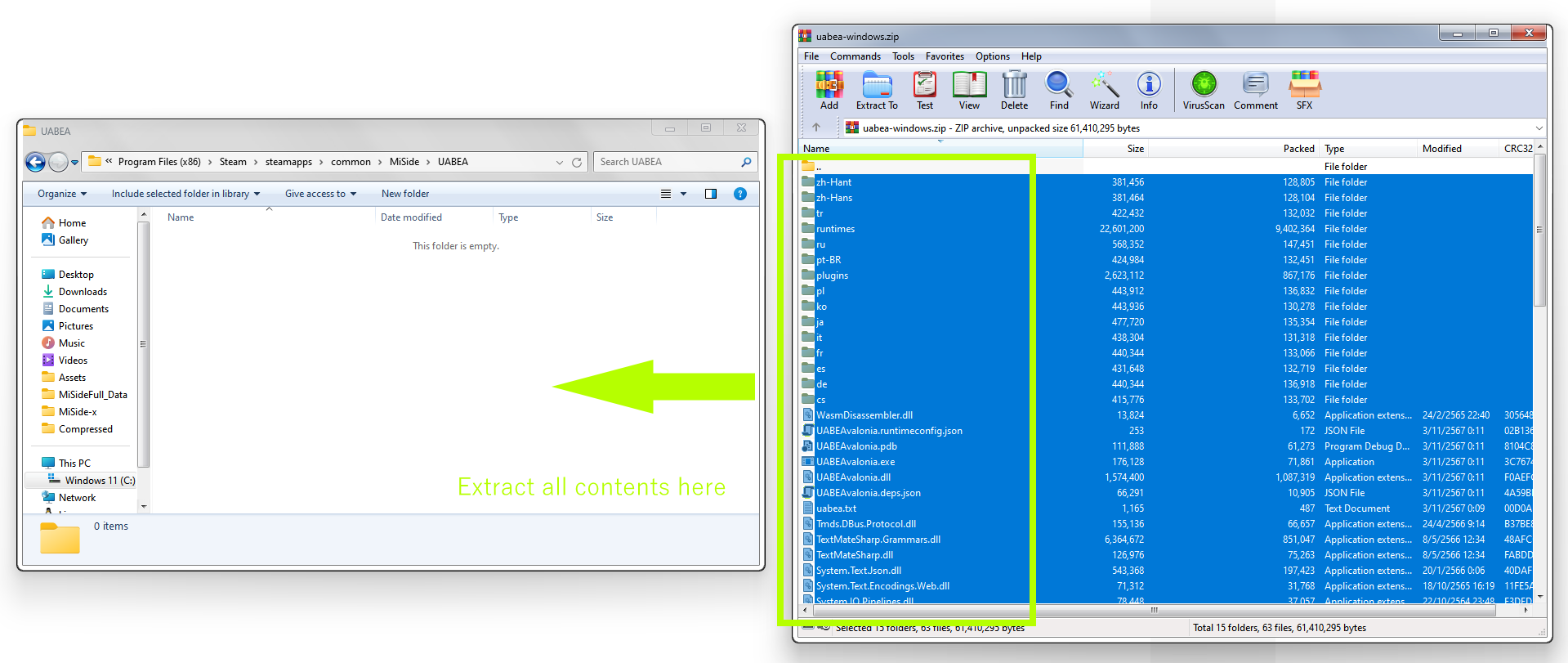
- Open UABEA folder that you created.
- Extract all contents in
uabea-windows.zipto UABEA folder (or use a file extraction tool like WinRAR or 7-Zip).
Step 3. Opening UABEA
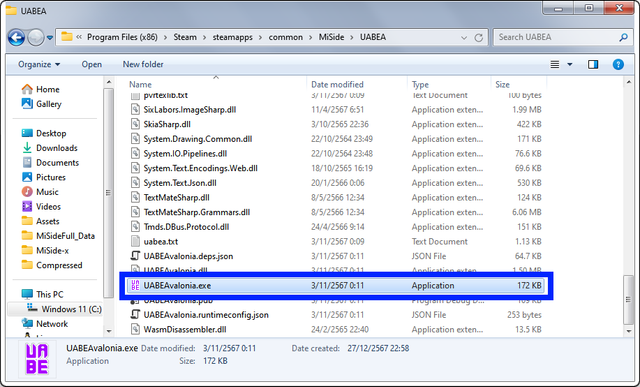
- Open the folder where you extracted UABEA.
- Double-click
UABEAvalonia.exeto launch the program.
* If prompted by Windows Defender, click "More Info" and then "Run Anyway".
* If the program doesn't open, right click on the program, go to Properties, and tick on unblock.
Step 4. Installing the .emip Mod
- Open UABEA.
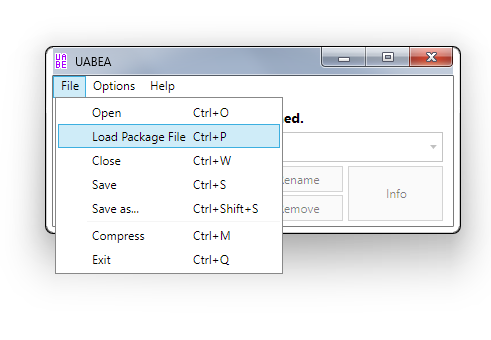
- Click on
File>Load Package File.
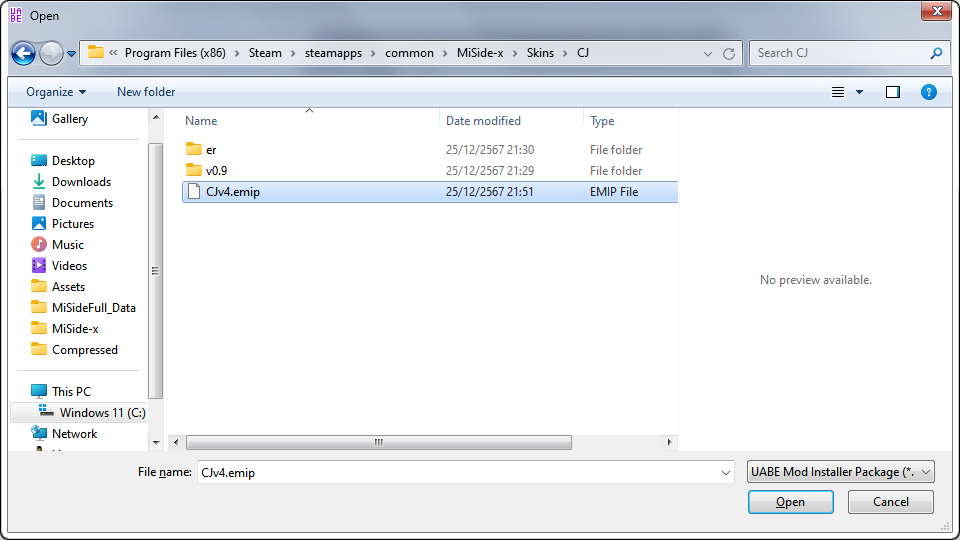
- Navigate to the
.emipfile you want to install and open it.
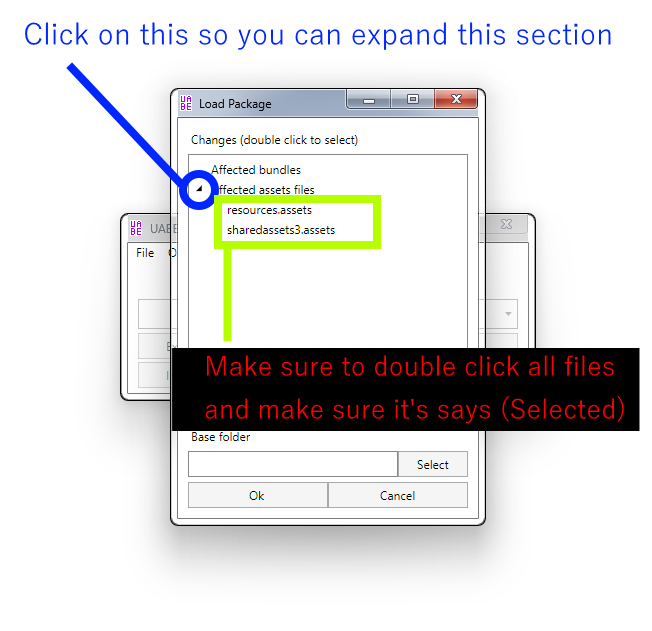
- Follow the on-screen prompts to apply the mod to the asset bundle.
- UABEA will let you select the Unity asset file where the
.emipmod will be applied.
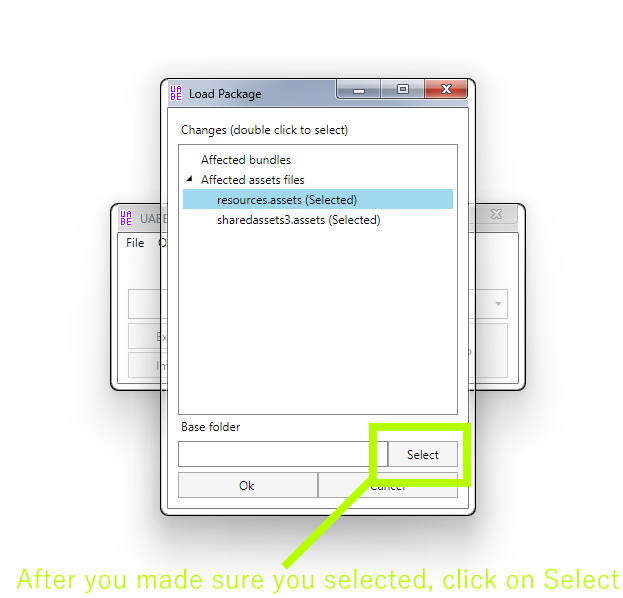
- Select the MiSideFull_Data folder, to finish the installation.
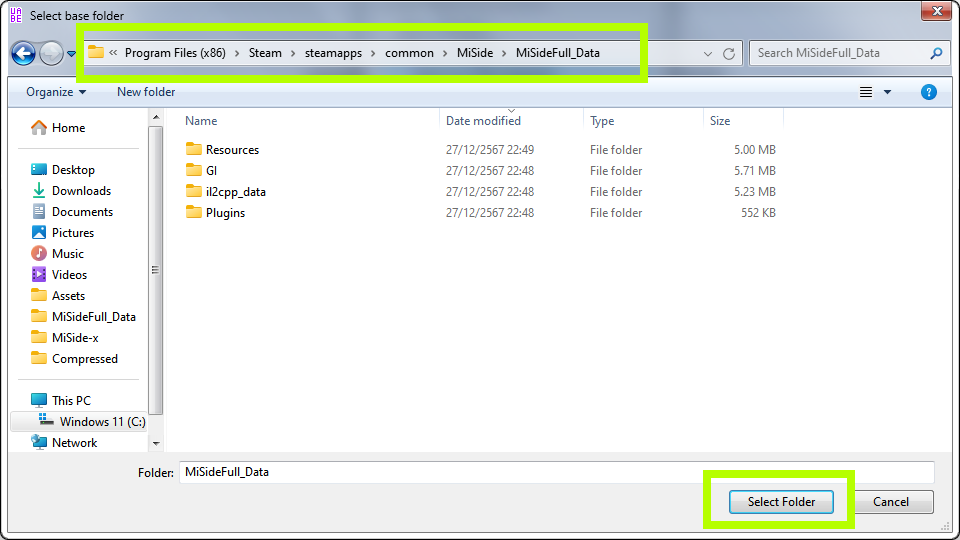
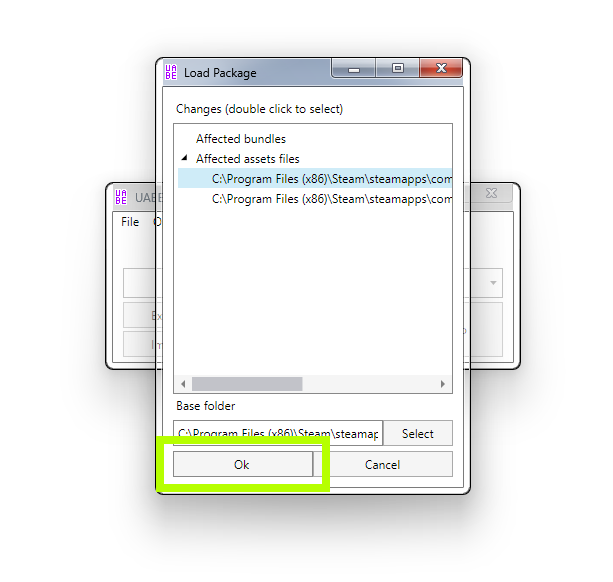
- UABEA will let you select the Unity asset file where the
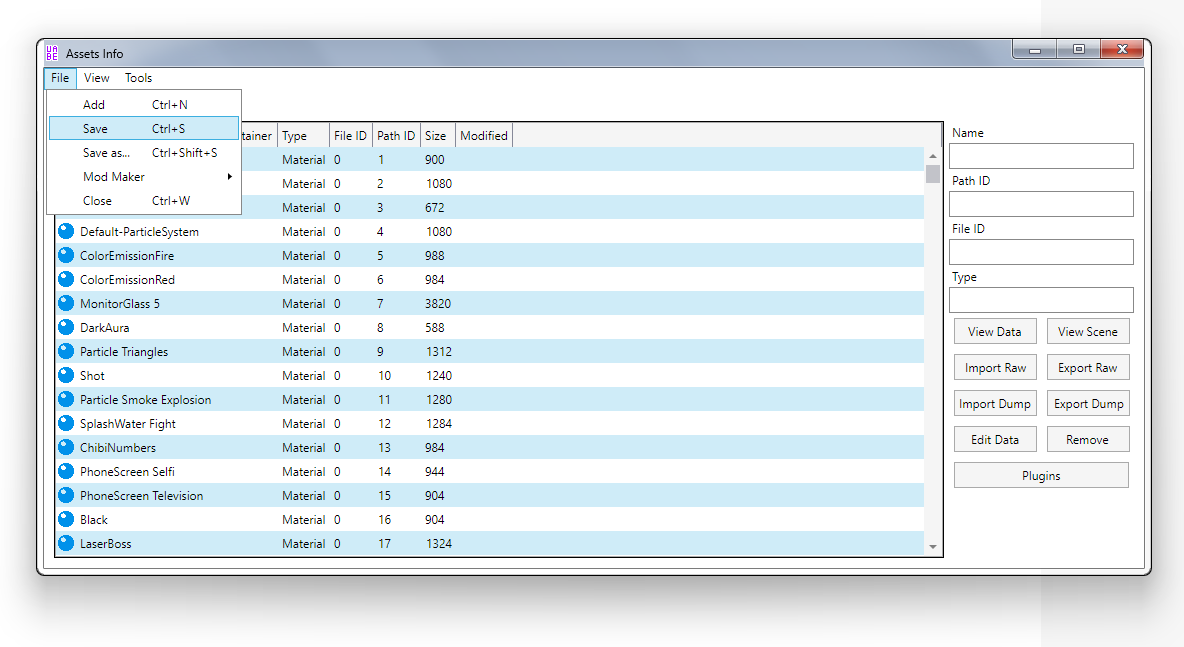
- After applying the mod, UABEA will show you the asset info data. Don't do anything, just go to
File>Saveand close UABEA.
Step 5. Verifying the Mod Installation
- Launch the game and check if the mod has been successfully installed.
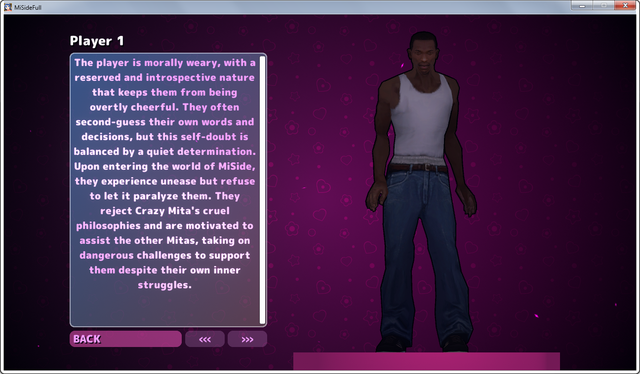
- If the game crashes or the mod doesn't work, repeat the process and ensure you selected all the specified files.
Troubleshooting
- UABEA doesn’t open: Ensure .NET Desktop Runtime and Visual Studio C++ Redistributable are installed.
- The game crashes: Verify the integrity of the game files and ensure you’re applying the
.emipto the correct asset bundle. - Mod doesn’t appear in the game: Double-check that the mod is compatible with your game version and that you followed all steps correctly.
- Mod is half working or doesn't work properly: One of your mods/addons might be conflicting. Try to disable all addons and verify again.
You’ve successfully installed a .emip mod for MiSide! Enjoy your new mod!
Written by: Aoba Suzukaze (@eaglejump)