How to use RVC Mainline Kaggle
This guide for Mainline Kaggle is an alternative option to the Mainline Colab notebook for training voice models
It is complete and should walk you through every step of the way since Kaggle has a difficult learning curve. However, it will be updated constantly to go over parts that need more clarification
Kaggle is a cloud computing site owned by Google and focuses on data science and machine learning. It gives you 12 hours of nonstop runtime and 30 hours of GPU per week, which should give you more time to train your model without interfering like Colab does.
The weekly quota resets on Saturday 12am GMT+0
Google Chrome will also be required so you can have access to the Imjoy GUI, or you'll just get a blank screen
Jump To The Important Sections
- Register for an Kaggle account
- Cloning the notebook and Configurations
- Filling out Ngrok Token and Custom Pretrain
- Executing all the cells
- The Imjoy Elfinder WebGUI
- Opening The RVC GUI
- Manually Syncing Your Graphs
- Resuming Your Training Session
- Monitoring Epochs and Graphs
- Full Precision Training (Optional)
Register for an Kaggle account
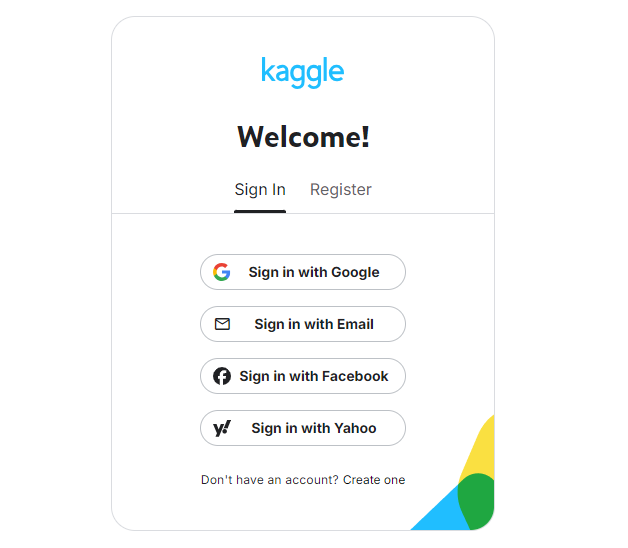
Pretty self explanatory. You need to register for a Kaggle account first
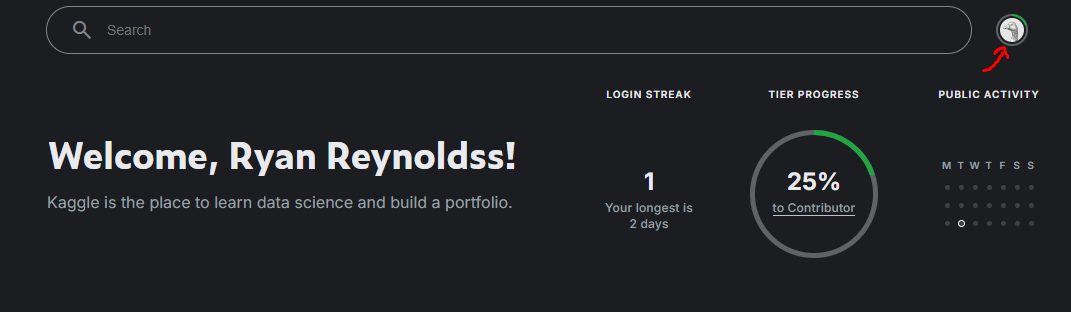
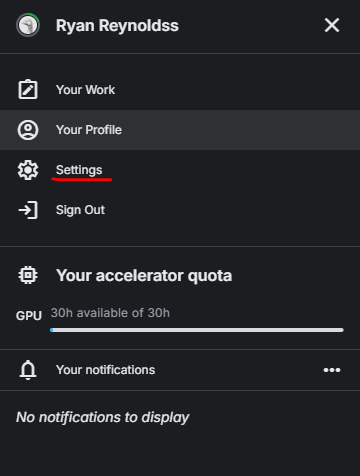
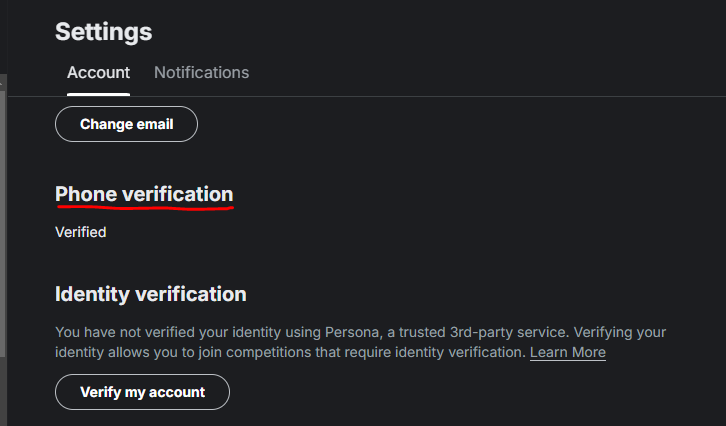
After that, you need to verify your phone number before you can turn on the "Internet" option for Kaggle
Cloning the notebook and Configurations
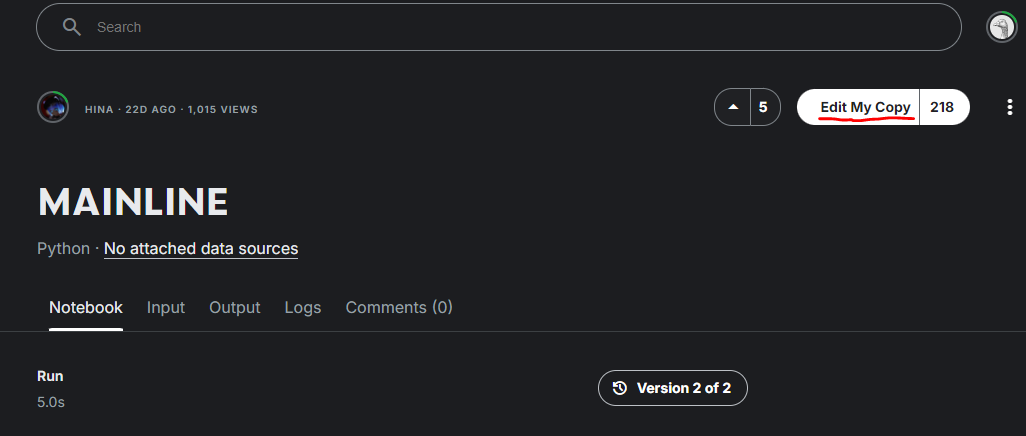
Click where it says "Copy and Edit" on the Hina Mainline and it will clone the notebook to your account. It says "Edit My Copy" because I already cloned the notebook
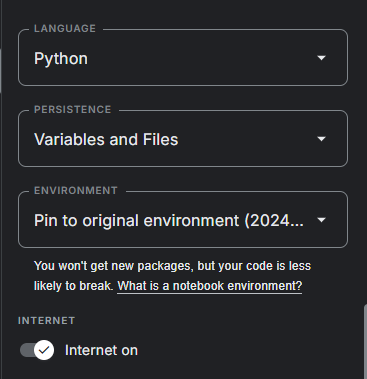
Under the session options on the sidebar, you want to turn on the "Internet" so you have access to Kaggle's GPU. Make sure Persistance is turned on for both files and variables.
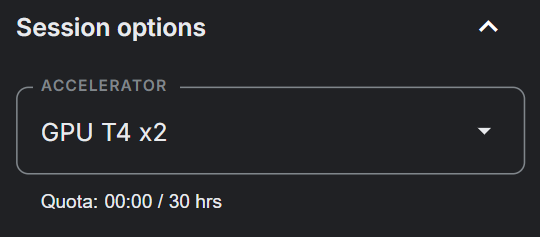
Turn on the T4 2X GPU's in the Accelerator
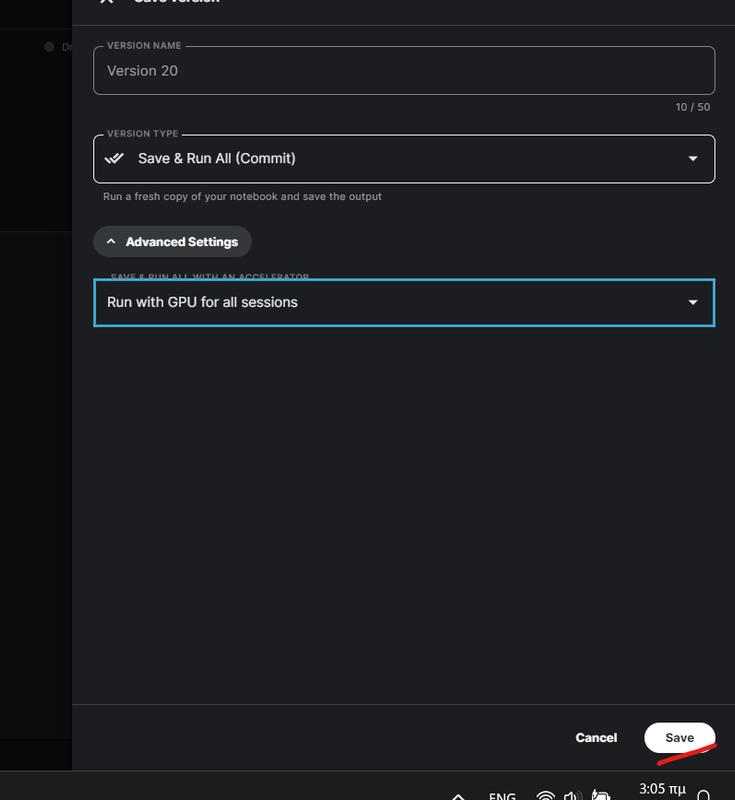
Turn on Headless mode so you can run the GPU for all sessions so it will save your progress if you leave the page. Keep in mind the GPU runtime will keep running if you stay on the page without a cell running and may consume usage without a browser running. This is optional if you feel like you can't train in one session without internet problems
Filling out Ngrok Token and Custom Pretrain
We're doing these steps early so don't be alarmed. We're not running any cells yet
Ngrok Token
Scroll down to the fifth and final code cell and you should see a section to insert your Ngrok token. You can register for Ngrok if you haven't done so already https://ngrok.com/ and you'll have a custom auth key that is assigned to your account
First, authenticate the ngrok tunnel agent for your account https://dashboard.ngrok.com/get-started/your-authtoken
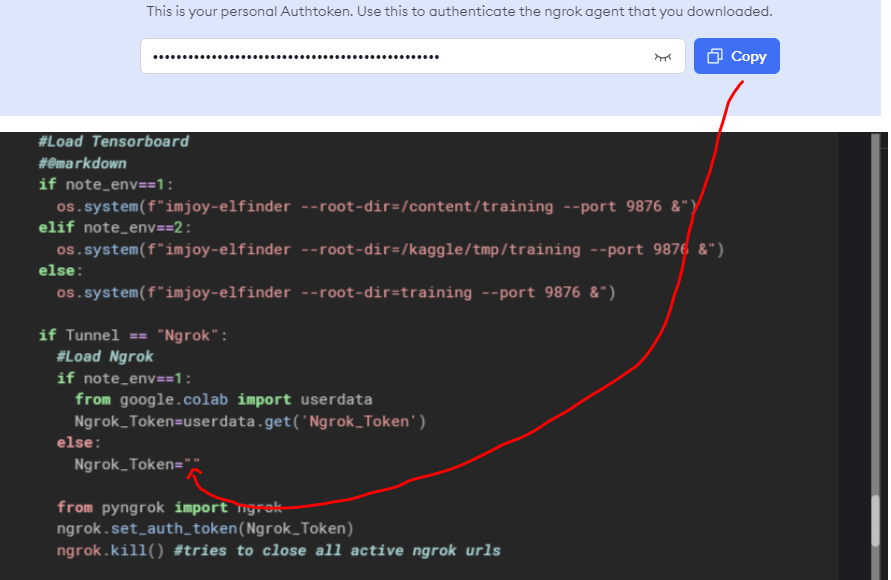
Insert the authentication key inside the quotation marks like so:
else:
Ngrok token = " "
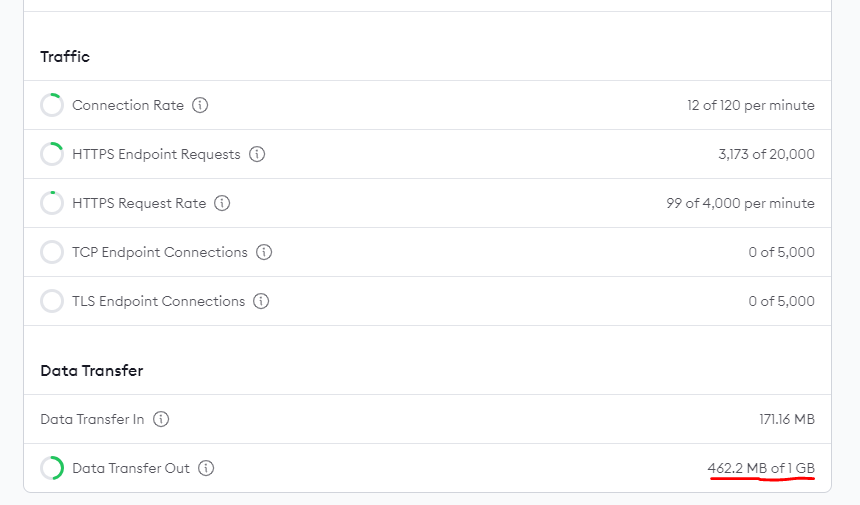
Keep in mind that there's a monthly limit rate with ngrok if the training is suddenly interrupted. It is based on "Data transfer out". You can view the usage of your account in the ngrok site. To bypass the bandwidth limit, you can make another ngrok account with a new phone number and register with a new kaggle account
Inserting a Custom Pretrain
If you don't see the custom pretrain that you want in the code, click + code and type in !wget like so. Do this twice as you want to use !wget separately for both G & D files.
Do not run the code yet
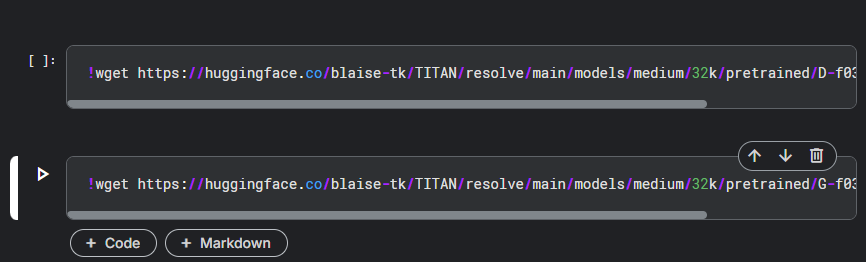
RVC automatically has the original pretrain set as the default so you don't need to go looking for the D & G files, however we still need to run !wget or the custom pretrain cell to fulfill the prerequisites in the code.
Skipping this step will result in the error:
print("No, Go back to the first cell and run it!!!")
Executing all the cells
Start from the top and execute all the cells manually. You can't skip this part anyways because that won't launch the ngrok links
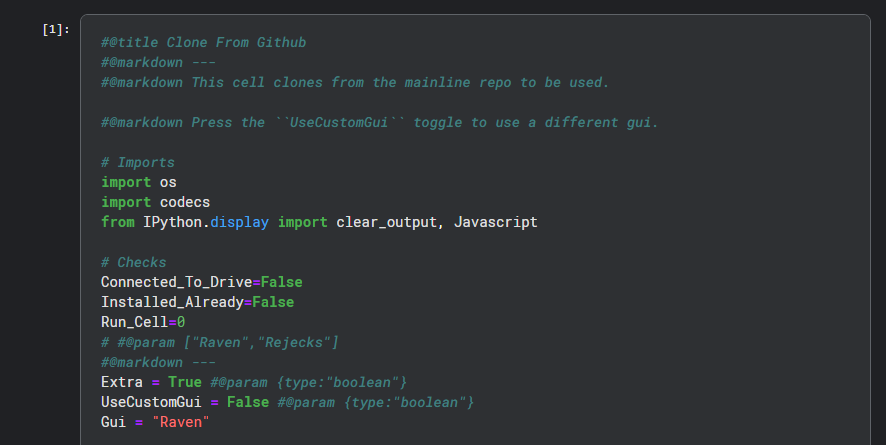
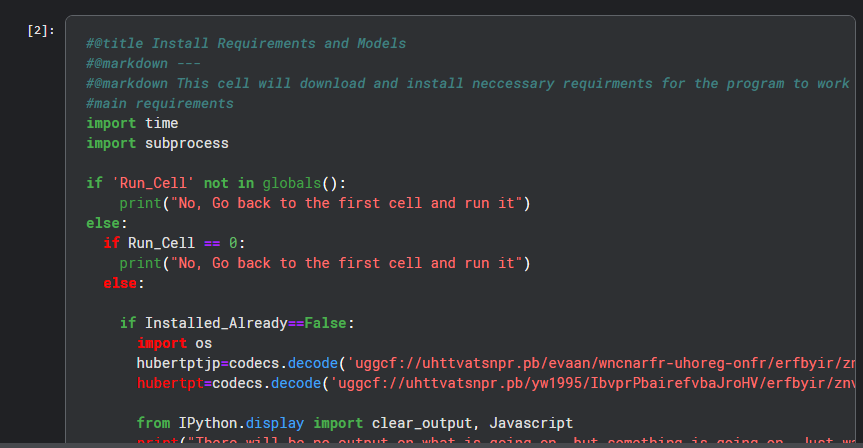
Cell #2 will take 3-5 minutes to load the original hubert base for us
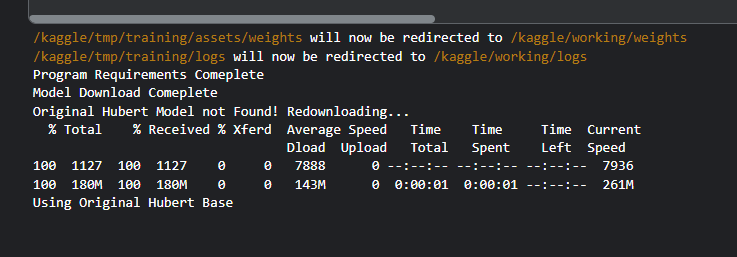
it will look like this when it's done
Now execute the cells for our !wget code to download D and G files. This is a requirement as you cannot skip it
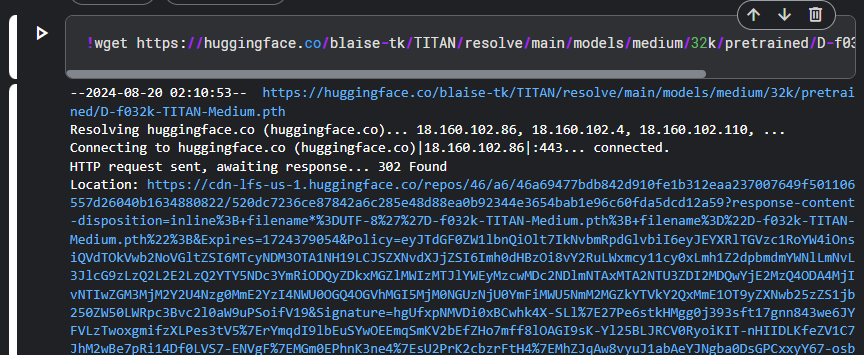
Run this
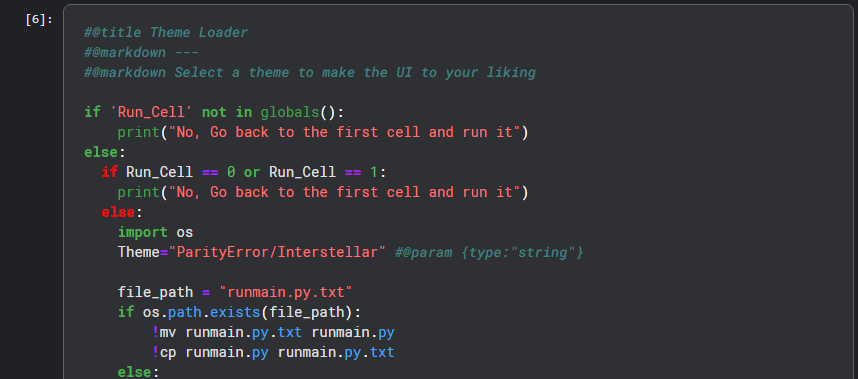
Run the final code cell and it should give you three links
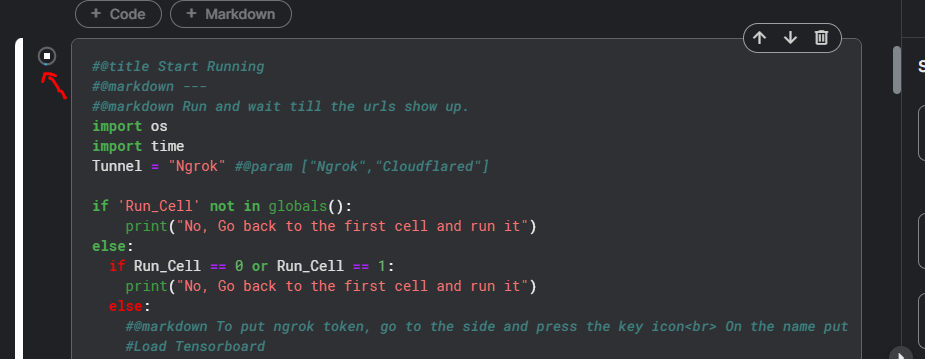
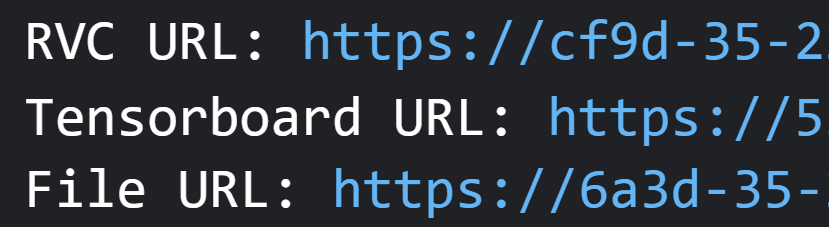
Click on the File URL to launch the ImJoy Elfinder WebGUI. Imjoy does not work on Firefox so you need to download Google Chrome
The Imjoy Elfinder WebGUI
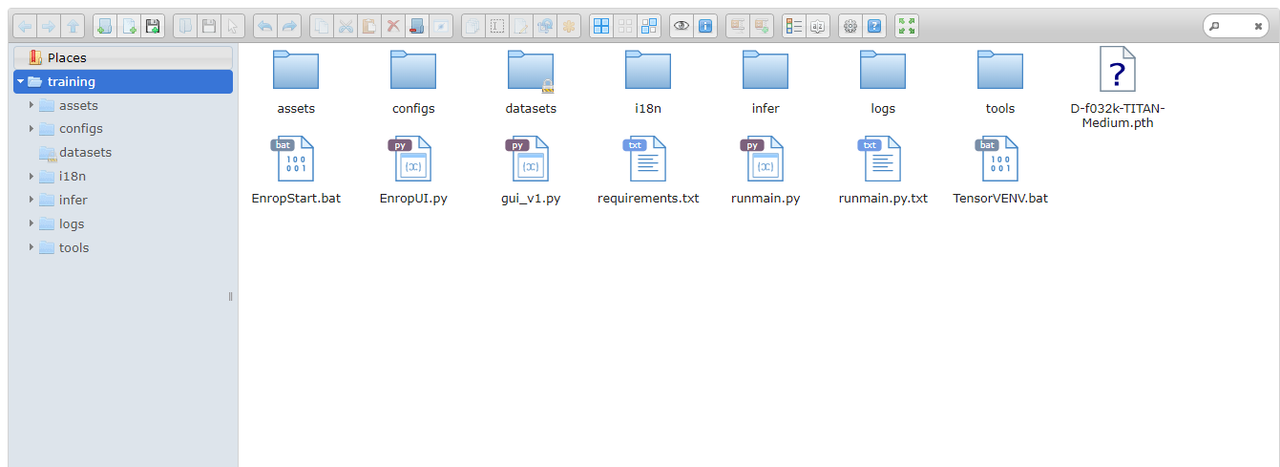
The interface should look like this with your D and G files being located here. This can manage your files within Kaggle. Whenever you want to download files from the Imjoy GUI, just double click. Double clicks uses up the Ngrok bandwith data, however it's more convenient than having to rename the connector files whenever we right click and "download"
Opening The RVC GUI
Now go ahead and open up the RVC URL and it should look like this:
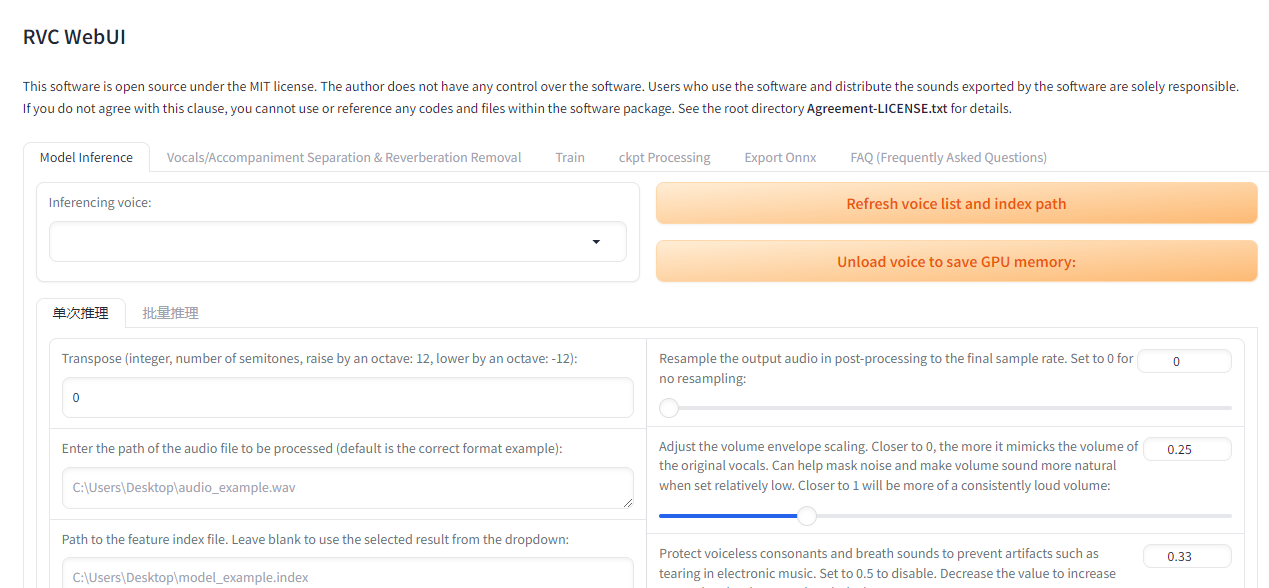
Click on the training tab

Running The Steps
For the target sample rate, make sure you are using the sample rate that is appropriate for your model. The screenshot is outdated, but it will be V2 by default.

Formatting The Dataset
For step 2a, open the Imjoy Elfinder GUI, make a new folder called dataset
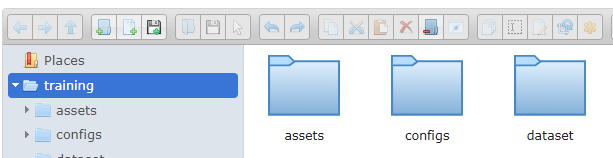
Inside the dataset folder, upload a folder of your dataset that contains the same name as the model and have either WAV, or Flac files inside. Do not zip it as it needs to be the raw files
- do not include duplicate files of the same audio/include metadata otherwise it'll cause an error with the training in the RVC GUI

Step 2a should preprocess without an error code popping up like so:
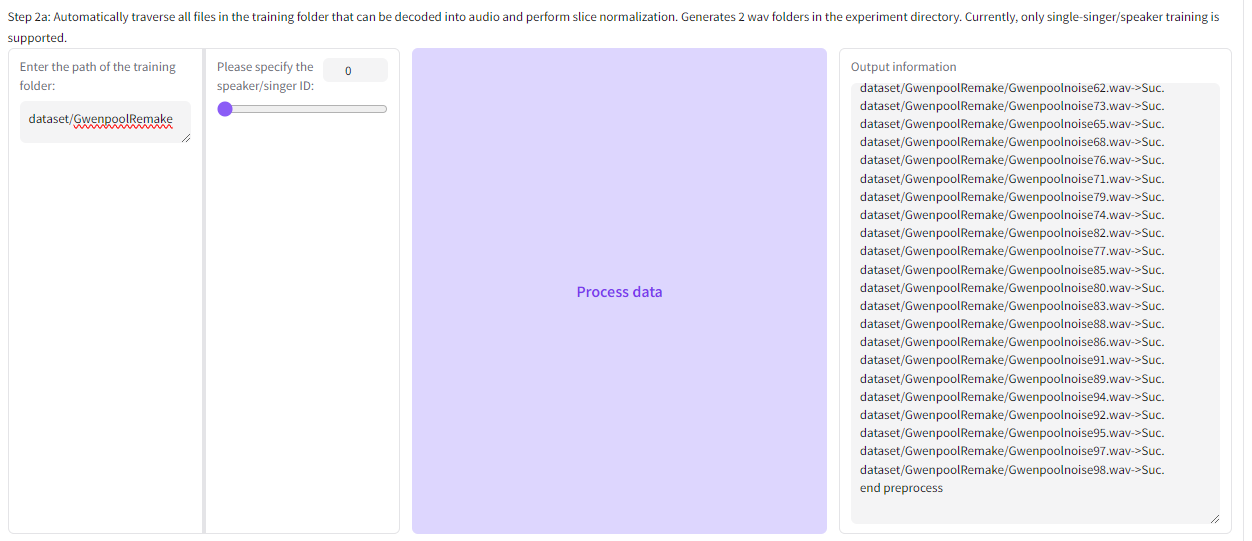
Now we can run the feature extraction in step 2b
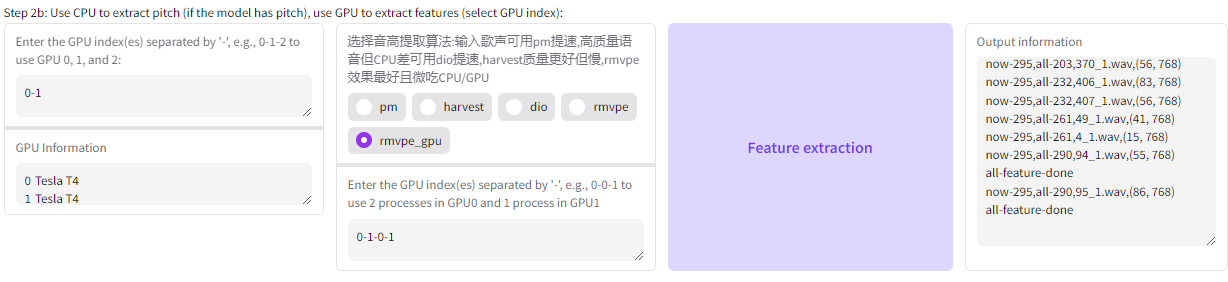
Configuring Training Settings
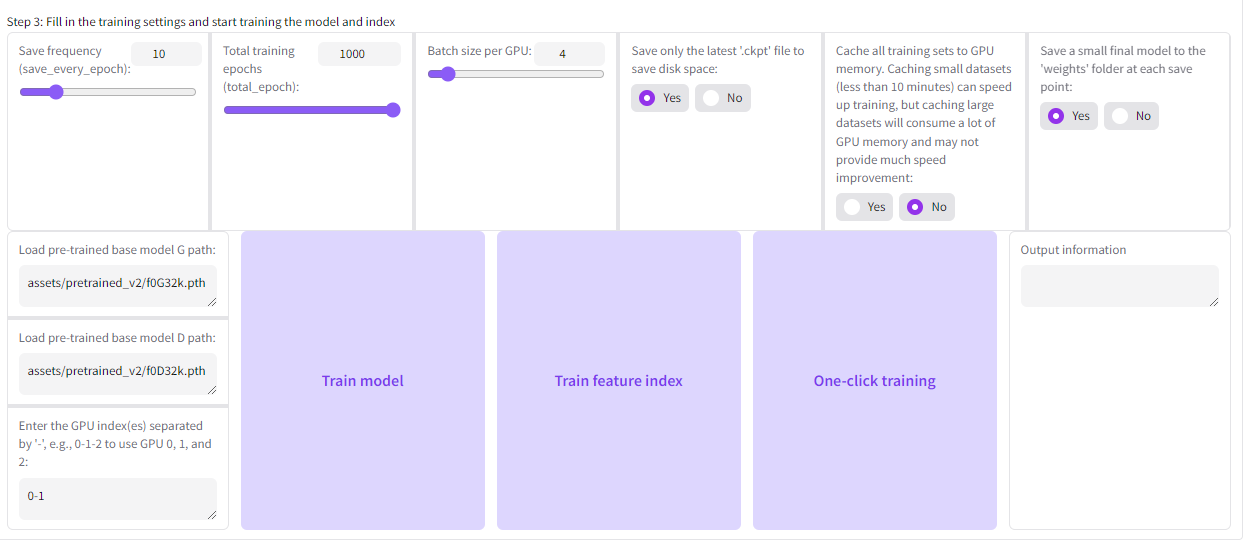
Make Sure To:
- Save only the latest '.ckpt' file to save disk space:
- Save a small final model to the 'weights' folder at each save point:
- if you want more control over monitoring steps/epochs accurately, use a save frequency of 1
- Take the number of your batch size x 2 and that'll be your actual size. This is because we are using T4 X2 GPU's. So 2 X 2 = batch 4 , and 4 x 2 = batch 8 and so on. The picture above shows me using batch 8 if you're confused
- Use batch sizes of 4 for short datasets, 8 for minimum length datasets (5-25 minutes), 12-16 for longer datasets
Under the Load Pre-train base model for D & G, you'll have to manually type in the D and G files names of the pretrain. By default, RVC has the original pretrain loaded in. I will be using the original pretrain because that is the best pretrain for making models.
You can now train the feature index of your model and the added_index will appear in the /log/ folder in the Imjoy ElFinder GUI. Double click the file to download it. Highly advised you read below before you start training the actual model
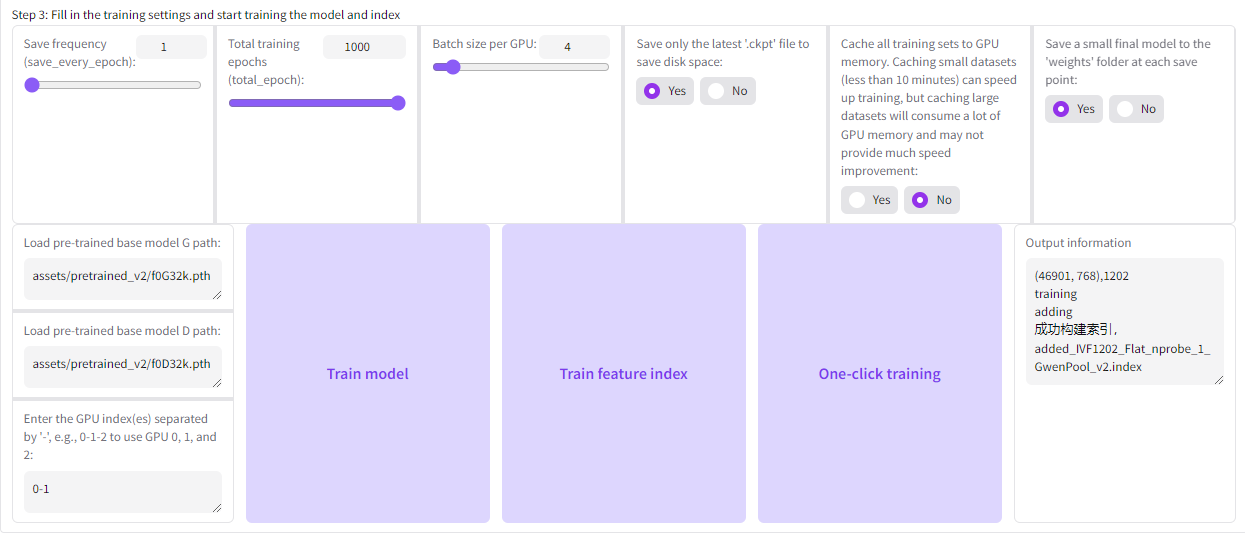
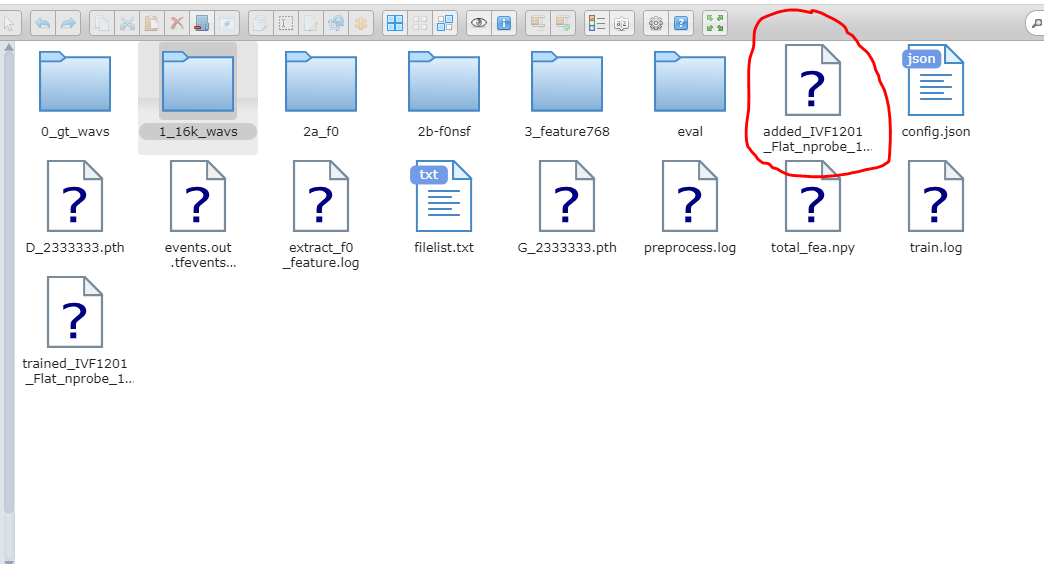
What if the feature index training doesn't stop training after 5 minutes?
It's possible that the train.log file in the /log/ folder got jammed. The usual training time would only take 10-20 seconds for the index. Index training can be done at any time so this is a non-issue
- to skip ahead to training the model, close out the RVC GUI, and re-do steps 1 and 3 again. Do not rerun processing or feature extraction
- a quick fix would be to generate an added_index in colab instead of restarting the kaggle notebook
Manually Syncing Your Graphs
This must be done before the training starts and not long after, otherwise your graphs will be desynced by default
I suggest reading this from here so you have the full context on how to do it https://github.com/IAHispano/Applio/issues/405
Open your Tensorboard URL if you can't load the tensorboard on Kaggle. Read here to learn how to use a tensorboard
For my model, the first epoch checkpoint had a step count of 35 since I chose a save frequency of 1.
e = epochs and s = step count
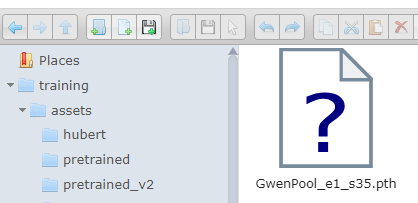
In my case, I forgot to stop the training since I should have logged it in the 32k.json file and config.json to sync the graph
To stop the training, you have to stop the final cell that is currently running on Kaggle. Close out the Imjoy GUI, Tensorboard URL, and RVC GUI links that you have open. If the button is jammed, reload the page and rerun all the cells
What if I used a save frequency of 10 etc?
If you set your save frequency as 10 or so on, you'll need to wait until the 10th epoch for it to be logged in the /weights/ folder of your Imjoy GUI then stop the training. This is located in the /assets/ folder on the home page of the Imjoy GUI. The Imjoy GUI is updated in real time so reload the page to check your epochs
After stopping the training, re-run the final cell again and open the new File URL.
In the weights folder, I deleted all the epochs generated while keeping in mind of step count 35. I'll delete the first epoch too
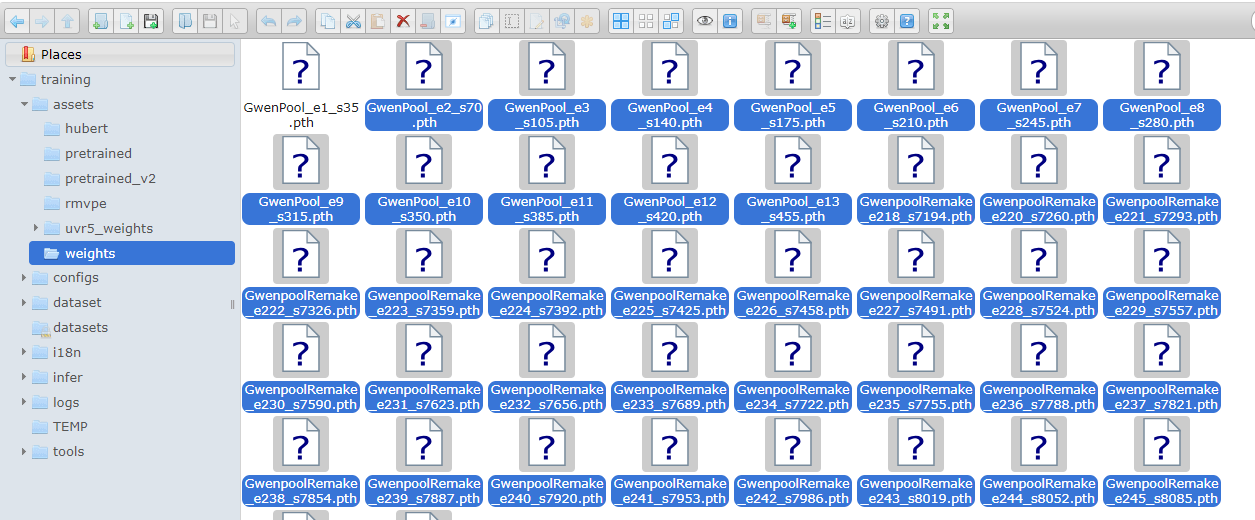
Download your 32k.json file located in the V2 folder of /configs/ by double clicking it.
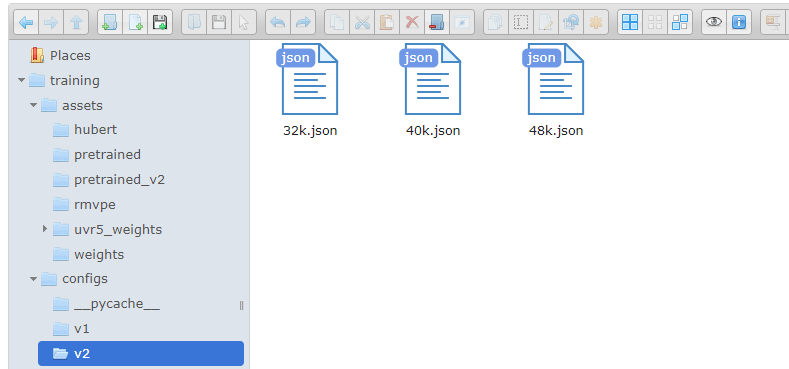
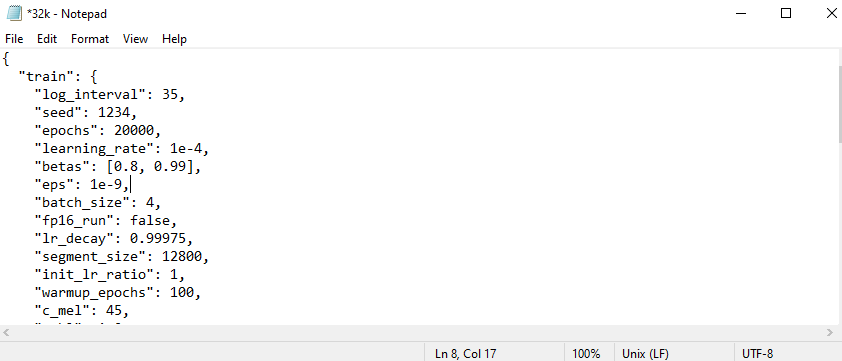
I modified the log interval value to "35" and clicked "Save as". Delete the original 32k.json on the GUI and replace it with your copy by uploading the file in the Imjoy GUI
Now go to your /logs/ folder and do the same thing. Modify the log interval of the config.json with your step count, click "Save as". Delete the config.json that's already in the /logs/ folder and replace it with your copy.
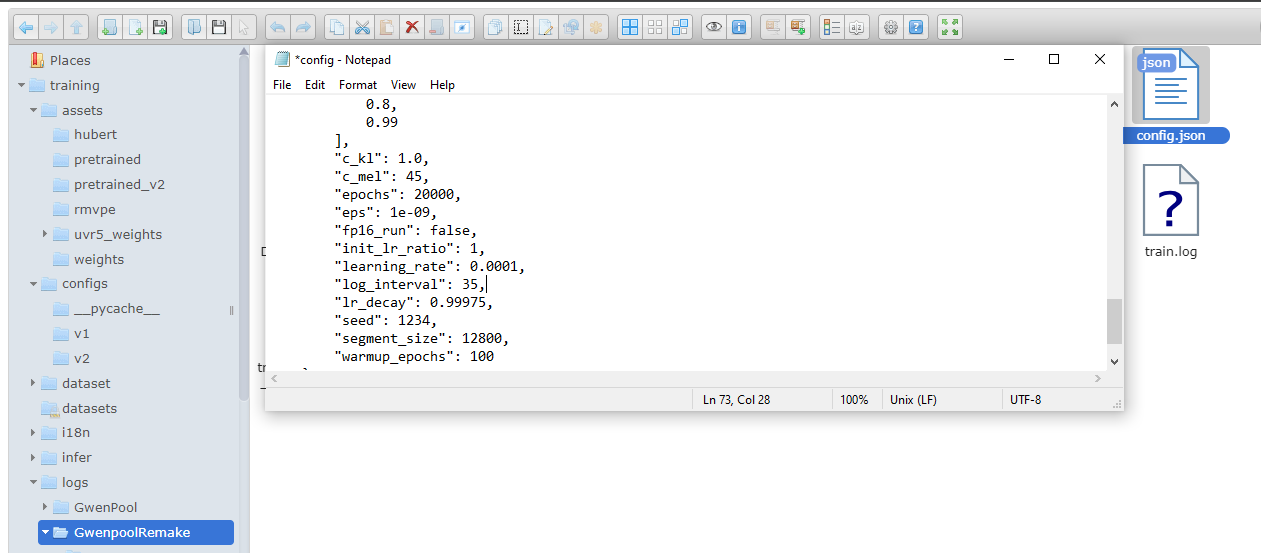
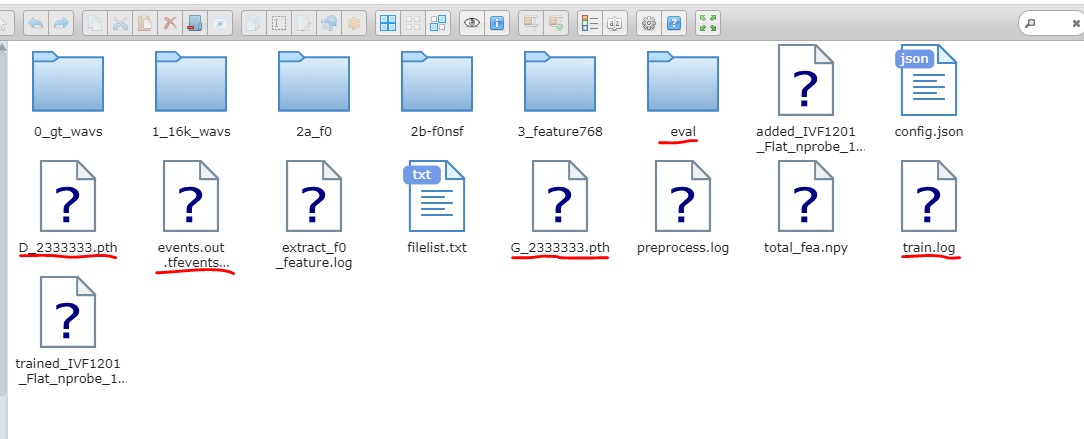
Delete the Eval folder, tf-events file, G & D_23333333 files and train log file in the /logs/ folder after you have done this and retrain!
Resuming Your Training Session
As said in the github, do not process and feature extract again because those files are already in the /logs/ folder of your Imljoy Elfinder GUI. Use the same model name, target sample rate, batch size, pretrain, and save frequency to train the model again in the RVC GUI
Monitoring Epochs and Graphs
In your Imjoy Elfinder GUI, click the /assets/ then /weights/ folder to find your epochs. These are updated in realtime whenever you reload the Imjoy GUI browser page so you do not need to stop the training to download the .pth files like Colab. Double click to download the lowest point before the tensorboard is overtraining. Reposting this link again: https://docs.aihub.wtf/rvc/resources/epochs--tensorboard/#-setting-up
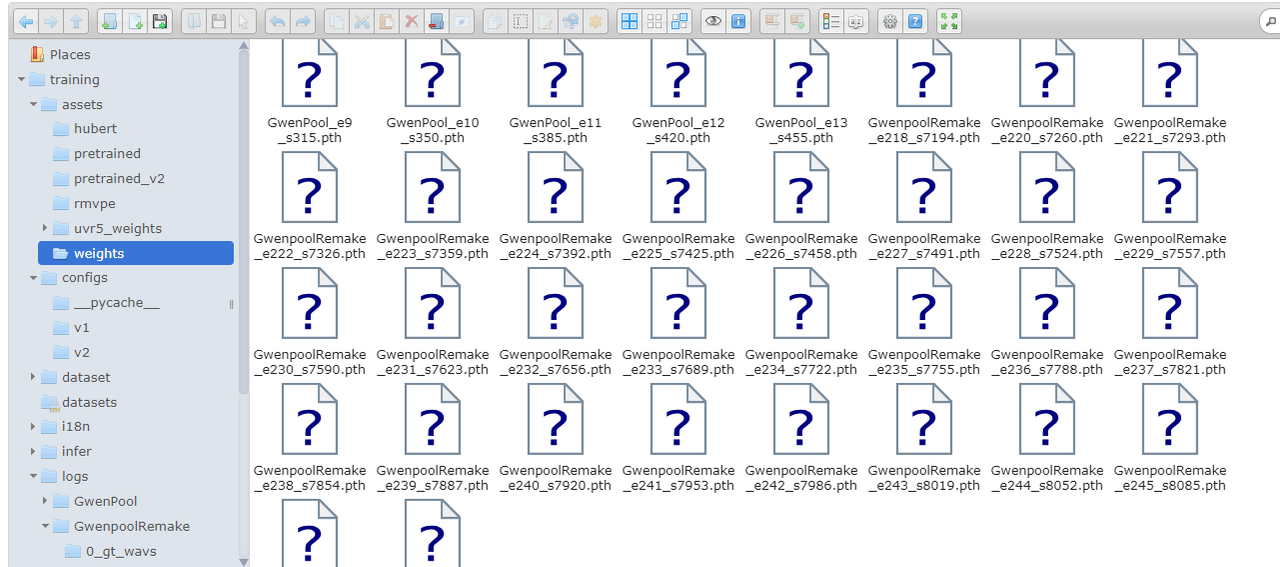
Overtime, it will consume space as Kaggle has its own limited drive storage so feel free to delete epochs that you don't want. It will give you an error on Kaggle if its overfilled
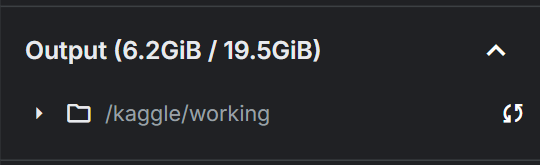
Finished training
When you downloaded your .pth file and added_index, you can turn off the headless mode for this session so it doesn't consume GPU, or just make sure there's no interactive session running before leaving the page. Zip both of the files up in a folder and you'll have your voice model!
Full Precision Training (Optional)
FP32 or Full Precision training will slightly improve the quality and breathes of your model while the performance will take a hit as the training will take longer. Unlike Colab, we have the benefit of the 30 hours of GPU to experiment with. RVC automatically trains with fp16 as the standard default, which is perfectly fine for most people. FP32 is only meant to support datasets that have been thoroughly cleaned to take advantage of the stability of the tensorboard graphs
This needs to be enabled before configuring the training settings in RVC GUI and syncing the graphs
Headless mode should also be turned off for this as we can't restart the Imjoy GUI with it on. You can reenable it after it is done
Go to your Imjoy Elfinder GUI / File URL and download a copy of your config.py
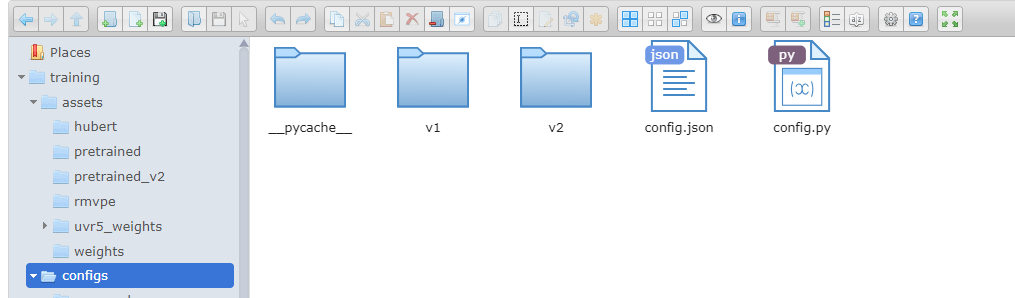
Open up the config.py in your notepad and scroll down to change "self.is_half" to False to enable fp32.
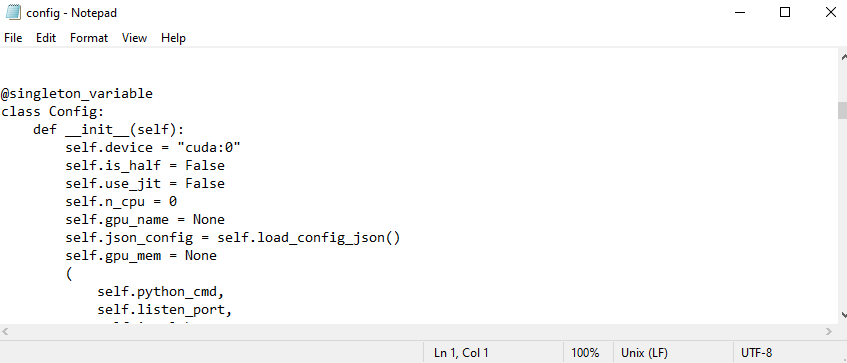
After that, "save as" the notepad and delete the original copy of the config.py in the Imjoy ElFinder GUI. You can replace it with your own copy in the Imjoy GUI.
You can also make sure it is fp32 by modifying the 32k config.json file under the /V2/ folder of /Config/ and changing the fp_16run to False. If your target sample rate is 40k/48k then modify those instead
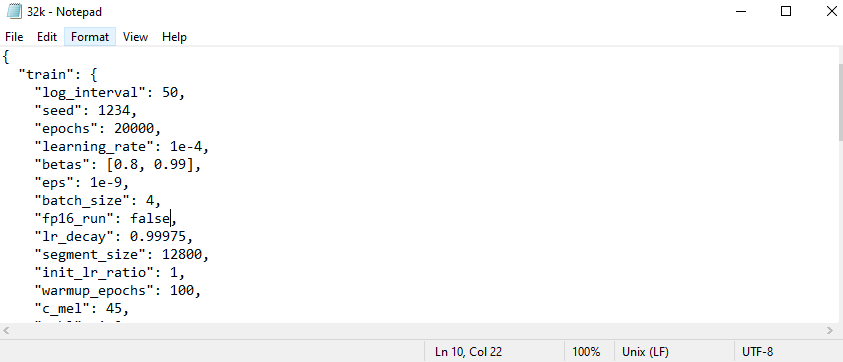
Now close the Imjoy and RVC GUI and reopen for it to load the fp32 precision training. For extra measure, you can stop the final cell from running and re-run the cell to fetch the ngrok links again before reopening the the imjoy GUI