Local Video Generation With WAN
BagelMonster Now updated for DaSiWa's 8.8 Workflow and SnatchKiss!
If you're just here for the guide, skip to the Table of Contents.
All of my future works will be posted to BeFeral instead of e6ai. I will still use e6ai for the DM functionality, but that's it. If you're wondering where you can find other work of mine, BeFeral is the place. Note that my posts on there are generally not suitable for e6ai due to realistic-looking content and may contain non-Pokemon ferals. If that type of thing doesn't interest you, most of my posts there won't be to your liking.
BeFeral is the only place I post, I do not post on Twitter/Telegram/Discord/4chan/any other social media service. Anyone on those services claiming to be me is not me, and I do not charge money for requests (I usually just ask you to help review/critique a future work in progress and tell me which generation was your favorite if you're OK with having it posted publicly). If you've paid money to an impersonator, sorry to say you've been scammed.
If a post of mine does not have the original images with metadata or prompts linked already and you want them, DM me on e6ai or post a comment and I'll be happy to provide them!
Shoutouts to /sdg/, /spt/, and /ff/ on /trash/!
Thanks to gridanon for reviewing this and providing suggestions!
- Changes With The New Workflows
- Models Needed
- Generate Base Images
- Generate Video Segments
- Improving Your Videos
- I Want To Make Longer Videos!
- My Extended Videos Stutter on Transition!
- I Get Degradation For Each Extension!
- I Want To Create A Perfect Loop!
- I Want To Add Transformation/Something Complicated To My Video!
- I Want Complicated Movement In My Video!
- I'm Not Getting Enough Movement In My Video!
- I Want A Character To Stop Moving In My Video!
- The Model Keeps Confusing Which Character Is Which!
- I Want To Make a 3D Stereogram!
- I Have Multiple GPUs and Want To Speed Things Up!
- I Want To Automate Video Generation!
- After Generating Videos, My Browser Is Slow/A1111 Is Laggy!
- I'm Generating On a Phone/Using Grok or SORA or Another Service To Generate and Can't Run ffmpeg!
- I'm Generating using WAN 2.7 And Don't Want The Audio!
- Give Me a Convenience Script To Trim and Combine My Segments!
- I Want To Add An X-Ray/Impregnation/Other Picture-in-Picture View!
- Everything's Broken/My Videos Are 4x The Intended Length!
- Other People Report Trouble Viewing My Videos!
Changes With The New Workflows
Tl;dr on changes from the 8.3 to 8.8 workflow:
- Extract last frame has been moved to video options.
- Encoding options can now be changed, recommend changing from Auto/Auto to WEBM/VP9 specifically.
- Resolution now defaults to 720p.
Tl;dr on changes from the 8.1 to 8.3 workflow:
- If you've updated your ComfyUI nodes, you now need to use the 8.3 workflow or higher.
- 8.3 will warn you about a missing input. If you don't enable the MiniMeme option, you can just ignore it.
Tl;dr on changes from 7.8 to the 8.1 workflow:
- You now need to download rife_v4.26.safetensors and supply it for interpolation
- More custom nodes will need to be downloaded (ComfyUI-LTXVideo)
- Even in I2V mode, a Last Image will need to be provided (this is likely a bug)
- ComfyUI will need to be v22.3 or higher.
Tl;dr on changes from 7.2 to the 7.8 workflow:
- Pretty much all of the configuration settings are now in a single column.
- Everything in this guide still applies as far as what each setting does.
- I don't want to update the screenshots and layout for 7.8 quite yet since it's such a large change and it may not stay this way, sorry!
Tl;dr on changes from 7.0 to the 7.2 workflow:
- Default video length now changed back to 5 seconds.
- Resolution options have been changed and moved
- Output format is now h265 .mp4 by default. This can be changed under the Video Output configuration.
- Be warned that h265 encoding does not play well with trimming and concatenation.
- A bug has been fixed with regards to scaling. Tl;dr do not use 7.0 unless you intend to only make 1 video segment.
Tl;dr on changes from 6.6 to the 7.0 workflow:
- DO NOT use 7.0 if you intend to make videos longer than 1 segment. The builtin scaling has a bug.
- Default video length is now 6 seconds.
- SAGE Attention support is automatically enabled. I'm unsure if there's some backend detection here to determine if it's actually supported, or if it's just turned on by default.
- Available resolution options have all changed. Notably, the old SD Speed option has been eliminated, with the closest option being the new default "Standard" resolution of 0.52 MP. The author's note about Resolution options has not been changed to reflect this.
Tl;dr on changes from 3.x to the 6.6 workflow:
- An option for upscaling using RTX Super Resolution was added. It's only supported on Windows 10/11 for NVIDIA Ampere or higher GPUs, no Linux support.
- Models now go under
unet, notcheckpoints. FLF2Vis now a distinct mode instead of just a toggle. It still works the same way as before.- Names on some settings have been changed, and they've been moved around.
- SD (576p) is now the default resolution, not SD Speed (480p). I recommend changing to SD Speed for testing generations.
- A mode was added to allow combining 2 videos directly in ComfyUI (it will not trim frames though, so you may want to do all of it manually still)
- You can add premade audio or generate it via a local model, if desired. This guide does not cover
S2Vor audio generation at all.
Models Needed
Software
A1111-Reforge - For image generation
ComfyUI - For video generation
ComfyUI Manager - For easier setup of ComfyUI.
FFMPEG - For frame extraction, video generation, video concatenation, video trimming, etc. If you're on Linux this is probably already installed for you, if you are on Windows you will need to download a prebuilt version, then add it to your PATH environment variable.
Image Models
You will be using a combination of 3WolfMond and Kodak-K9 to generate images.
Video Models and Dependencies
DaSiWa's WAN 2.2 Lightning
For these lightning video models, there are several variants to choose from. For whichever one you choose, you will need to download both a High and Low model. Place the video models in ComfyUI/models/unet. A short comparison:
TastySin (v8):
- This one is the one I recommend for beginners or if you just want to perform some quick motion tests on a base image. A very good video model and can generate decent videos even if your prompts aren't quite as detailed as they should be.
- Decent prompt adherence, can miss small details in the prompt but will get the larger ones right.
- Good movement usually, sometimes needs some extra details in the prompt to produce enough movement.
- Can still sometimes produce better results than
BoundBite, don't be quick to delete this model if you've downloaded it!
SyntheticSeduction (v9):
- I do not recommend this model for most uses.
- A large step backwards from
TastySinin my opinion. - Worse prompt adherence of these three, gives excessive camera movement even when prompted to not move the camera.
- Does generate a lot of character motion, if that specifically is what you're after.
BoundBite (v10):
- I recommend this model overall. An extremely good model with fantastic prompt adherence, but you will have to be very detailed in your prompts.
- A large improvement over
SyntheticSeduction, feels like what that model was meant to be. - Better prompt adherence than
TastySinwith regards to small details. - Generates less movement by default, though with the correct prompting it can usually generate just as much as or more than
TastySin.- Your prompts will need to be more detailed than with
TastySin. - Prompts will need to mention repetition of movement if that is desired, otherwise expect one of each action in the prompt.
- For example, if you want a character to be panting throughout an entire video, you will want to prompt
The character pants throughout the entire videoas opposed toThe character is panting. - Sometimes, it will still not produce enough movement to get the results you want. In this case try
TastySin.
- Your prompts will need to be more detailed than with
- Does not have the excessive camera movement of
SyntheticSeduction.
SnatchKiss (v11):
- I recommend this model overall. An extremely good model with fantastic prompt adherence, but you will have to be very detailed in your prompts.
- If you already have
BoundBitedownloaded, it's probably not worth upgrading to this unless you can spare the bandwidth. - This model is a minor improvement over
BoundBitefrom my experience. The other observations fromBoundBiteapply to this one.
You Can Mix and Match
You can mix and match between High and Low models, for example running SnatchKiss High and TastySin Low. Results may vary, but if you want somewhat of a mix between the models this is an option.
Text Encoder
Place this in ComfyUI/models/text_encoders.
WAN 2.1 VAE
Place this in ComfyUI/models/vae/WAN. Note that on Linux, the WAN directory name is case-sensitive and the workflow defaults to WAN being in all-caps here for pre-8.0 workflows, for 8.0 and up it's now Wan.
CLIP Vision
Place this in ComfyUI/models/clip_vision.
RIFE-VFI
Place this in ComfyUI/models/frame_interpolation.
DaSiWa's ComfyUI Workflow
Grab the FastFidelity AIO one, at the time of writing this guide the version was 7.8. This workflow is meant to be used with his lightning models. This workflow may change and update in the future, but the major sections and fields this guide references should remain the same.
If you would prefer to use an earlier version of the workflow, or download updates to it without logging into CivitAI, the workflows are mirrored to GitHub.
You Don't Need To Use The Latest And Greatest
You can use older versions of the workflow if that makes you more comfortable. ComfyUI may eventually break the older workflows on an update, but until then you can just use the older ones (and never update if you don't feel like doing so).
Do Not Use The 7.0 Workflow
Do not use the 7.0 workflow. The scaling has a bug, your resolution will end up changing between each video segment. 7.2 appears to have fixed this bug, but also introduced other UI changes.
Follow the instructions on the ComfyUI Manager Github page for installation. Once installed, it's time to set up ComfyUI!
ComfyUI Setup
Start ComfyUI.
Navigate to its web interface (by default, http://127.0.0.1:8188).
Open the ComfyUI workflow (File > Open > Find the workflow .json).

When you first open the workflow, you will get a notification about missing custom nodes. Luckily, ComfyUI Manager will help you install them. Near the top of your screen, you will see a new toolbar.

Click the big ComfyUI Manager button, you will get an overview screen.
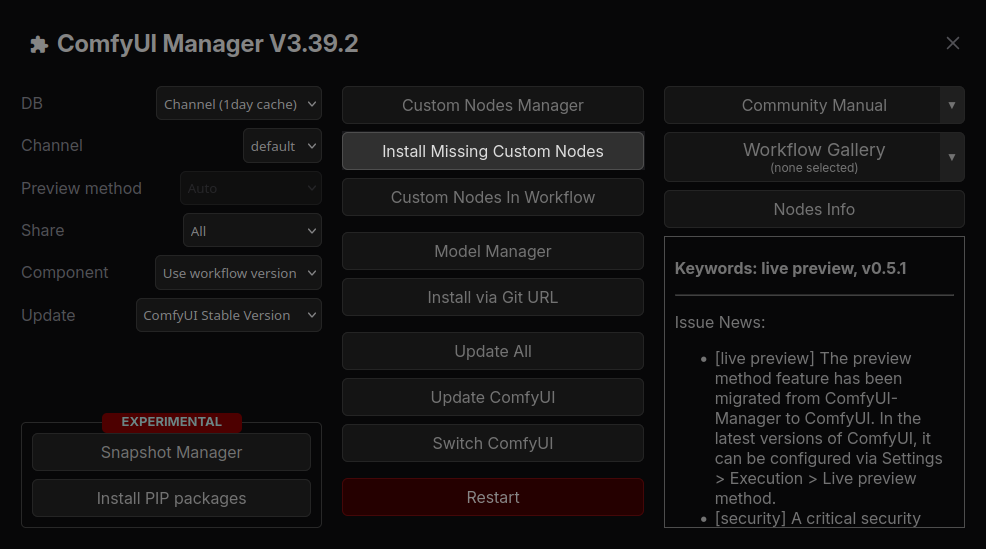
Click the button saying Install Missing Custom Nodes. A window will open with a list of the missing custom nodes for the workflow. Check all of them, and click the Install button. ComfyUI Manager will install all of the missing nodes (note that this may take several minutes). Once it's done, you'll get a popup prompting you to restart ComfyUI. Go ahead and restart it. Once it fully restarts, you'll probably get a second prompt asking to refresh your browser tab. Go ahead and refresh.
Conflicting Extensions
You may get a notification about a conflict between 2 GGUF extensions. Since we're using SafeTensors instead of GGUF, you can just ignore that warning.
Missing Models
You may get a notification about missing models. If you've downloaded all the models above and placed them, you can ignore this. It's warning about the GGUF and S2V models not existing, but since they're not used in the setup this guide covers, it doesn't matter.
Once none of the custom nodes are highlighted red, you can continue on.
Generate Base Images
In order to generate a video, you will need a high-quality base image. Use dimensions of 888 x 1152 (Width x Height). Older WAN workflows only supported generation on portrait-layout videos, if you used a landscape format image on them it was forcibly cropped down to a portrait layout. This guide will focus on portrait-layout generation, but the same principles can be applied for other layouts.
If you're going for a realistic look, I suggest using 3WolfMond-LastSDG to start and enabling Refiner to switch to Kodak-K9 at 80% (0.8). This can sometimes give better results anatomically.
If you're going for a maximum photorealistic look, just use Kodak-K9 for the entire generation.
Things To Look For
In general, try to keep parts you care about from being too close to the edges. Even if you tell the video model not to move the camera, it still will have some small movements. If things go off-screen, the model will have to make something up when it comes back onscreen.
Expect some degradation over time with features in the image that may clip or otherwise interact with other features in the base image. This is ESPECIALLY true for longer videos with multiple segments, as features tend to go off screen and you get parts of them in last frame outputs, causing further degradation on future runs. See the section below on longer video degradation for some ways to deal with this, though if a segment ends with an important part offscreen you may want to keep generating until you get a good result with that part staying onscreen.
Things to REALLY Look For
You will want to inpaint out any glaring artifacts. In particular, Kodak tends to mess up the eyes and will frequently leave little blocks of color or distortions in the image. You will want these gone, otherwise they will persist into the video. When inpainting, try both Kodak and 3WolfMond and see which gives you the better results.
Additionally, you may want to try and ensure important features have significant color differences to other features next to them. Otherwise, the video model may merge them into one and have them both move instead of keeping them separate. An example of this would be a shadow merging with black fur on a foot, causing the shadow to be "stuck" to the foot. This doesn't happen all the time, just something to be aware of.
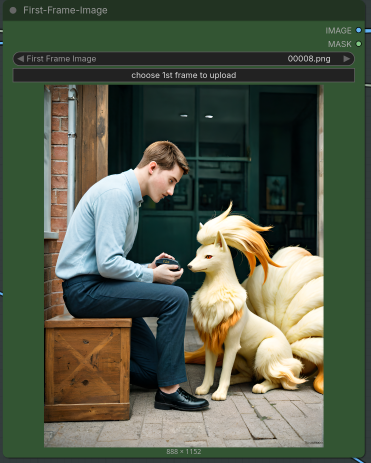
The following is an example image generated using Kodak-K9, after inpainting:
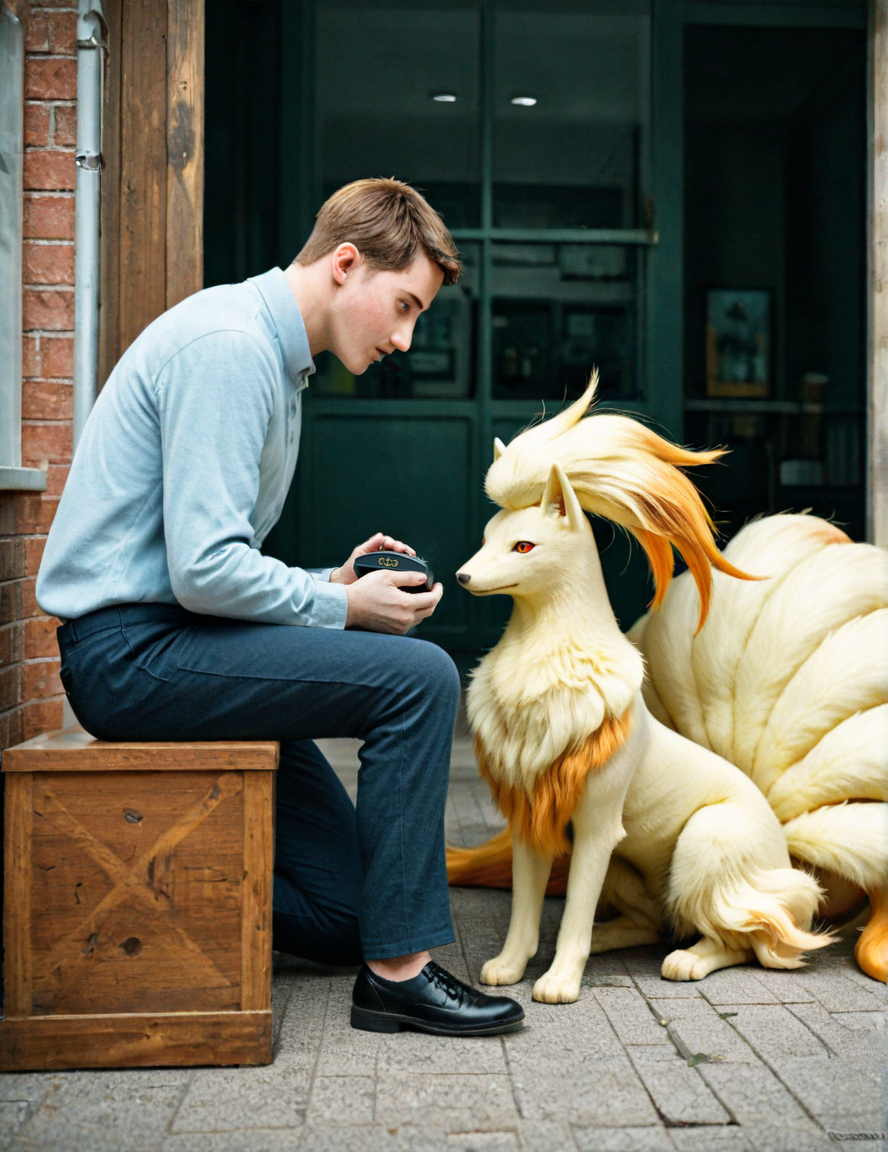
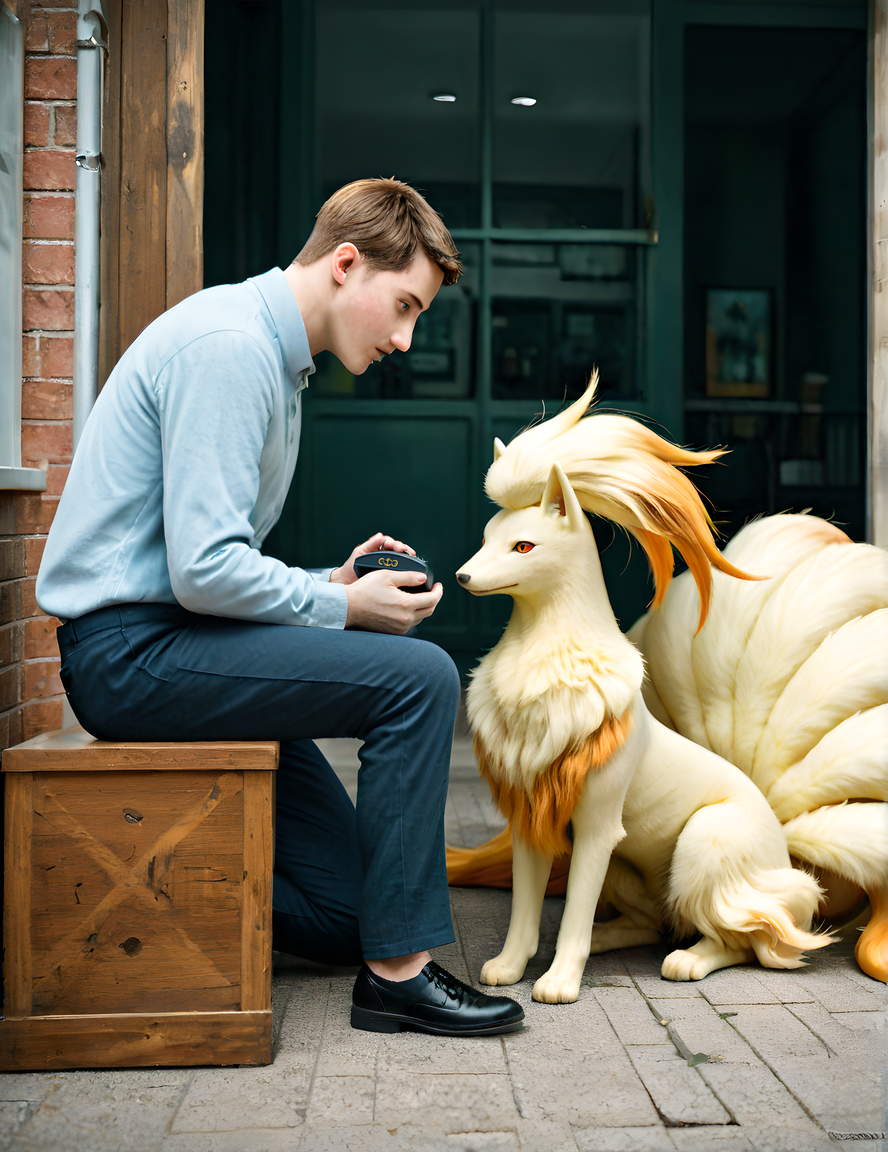
Once you have an image inpainted, you may notice there's a kind of grainy filter over it. This is a result of Kodak-K9's look and feel, trying to replicate photos. To get rid of the grainy filter, click the Extras tab. Go to Upscaler, drag in your image, select R-ESRGAN 4x+ for the upscaler, click Scale To, and input the same dimensions as the image you generated (888 x 1152). "Upscale" it and the grainy filter will be gone.
The following is that above image with the grainy filter removed:
Generate Video Segments
Once you have a finalized base image, it's time to generate a video with it!
Start ComfyUI.
Navigate to its web interface (by default, http://127.0.0.1:8188).
Open the ComfyUI workflow (File > Open > Find the workflow .json).
In the new workflow tab, you will be able to select your generation settings.
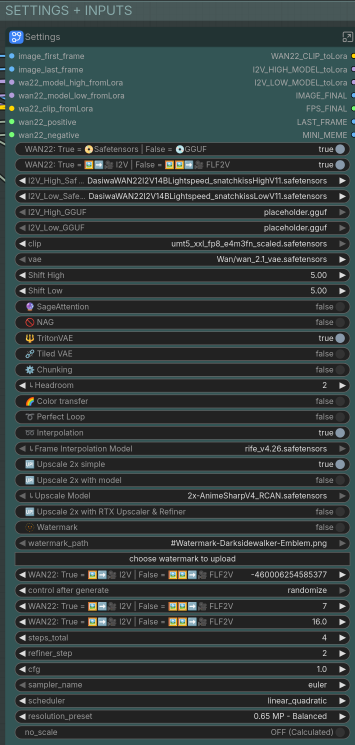
This is a big set of options, let's break it down from top to bottom (roughly):
Engine Switch
Leave this on True. The models I linked are Safetensors. If you have GGUF models, switch this to False.
Type Switch
Leave this on True (I2V Mode). FLF2V will be covered later in this guide, for loops and longer videos.
Models
This area is where you select which models to use. Click the model name text in I2V_High_Safetensors and select the High model you downloaded, then click the model name text in I2V_Low_Safetensors and select the Low model you downloaded. If you click and nothing happens, make sure you placed the models in the right ComfyUI/models/unet directory.
If you're using GGUF models, set them in the I2V_High_GGUF and I2V_Low_GGUF areas accordingly.
Rendering Features
NAG allows for you to use a negative prompt in your generation when using the 4-step WAN lightning models (you downloaded one of these already). You can enable NAG if you have a lot of VRAM, I have had very mixed results with it actually working.
If your PyTorch install and GPU combination supports SageAttention, feel free to turn it on for the performance gains. If you're not sure, just leave it turned off. You can also pass the --use-sage-attention flag to ComfyUI when running it to automatically use SageAttention.
Post-Processing Features
Enable Interpolation and Upscale 2x (fast, low VRAM), they don't take very long and will give you smoother motion and a better video resolution.
If you're on Windows and have a recent NVIDIA GPU (30xx or higher), feel free to try the Upscale 2x with RTX Upscaler and Refiner upscaling instead. Note that this option isn't supported on Linux.
If you'd like to have a watermark embedded over the video, enable the option and upload it. You can also add a watermark afterwards with ffmpeg if desired.
Generation Options
Seed: If you want a fixed seed, change the control_after_generate setting to fixed. Otherwise, I recommend leaving it on randomize for a random seed each time. On 8.8 for me the label text here is bad, it's the option above control_after_generate.
The remaining options up to Seconds should be left alone unless you know what you're doing with them.
For these lightning models, you must leave CFG at 1.0.
Seconds: You can change your video length, any amount from 2-7 seconds will work. I don't recommend going below 2 seconds or above 7, you will get weird results. On 8.8 for me the label text here is bad, it's the option under control_after_generate.
Resolution Options
There are 2 main ways of setting the resolution via the resolution_preset field:
Precision Presets:
- These have a MP prefix.
- Easy scaling, works exactly like the scaling methods in previous workflows.
- Scales your input images up or down by a fixed amount, maintaining any original aspect ratio.
- I recommend using this method and selecting
0.65 MP - Balancedwhile you get used to generation. - On a 3090, setting this higher than HD+ causes OOM for me.
Resolution Presets:
- Scales all of your input images to an exact preset resolution, such as 1080p.
- This may cause unwanted stretching and scaling of elements in the image if you're not already at a standard resolution.
- I cannot vouch for the quality of the scaling.
Alternatively, you can set the no_scale field to True, in which case no scaling will be performed on your input.
Prompts
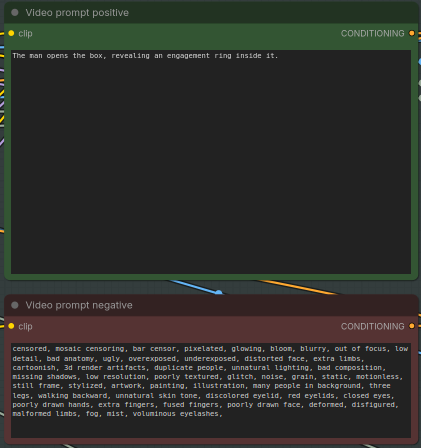
Next to the settings is where your positive prompt will go.
For your positive prompt, it's really up to you how detailed you want to go. For the purposes of this first example, we're using a very simple positive prompt: The man opens the box, revealing an engagement ring inside it.
Conversely, the second segment of the video (see the section below on making longer videos) has a fairly detailed prompt:
The Ninetales barks excitedly, then jumps up onto the man with all 9 of her tails wagging excitedly. She pushes her head under his chin and presses up as close to his body as possible, cuddling him. The man embraces her and pulls her close. The Ninetales does not climb back down or fall off of the man. Her many tails do not drag her back down. She remains pressed up close to him at the end of the video.

The camera does not move.
Note that if you are using the BoundBite model, it will follow your prompting very strictly. You will want to be extremely detailed in your prompts. The above examples' detail will work fine with it, but don't expect any deviation from what is described. For example, with TastySin, the Ninetales would look at the box when the man opens it, whereas with BoundBite she will remain completely still because she's not mentioned in the prompt.
Negative Prompt
Please note that the negative prompt will have no effect unless you enable NAG under Rendering Features I2V. Doing so will consume a LOT more VRAM. Note that with NAG enabled you may end up actually getting MORE of the behavior you're trying to avoid.
First-Frame-Image
Drag your base image here, it should then appear in the UI.
Video Settings
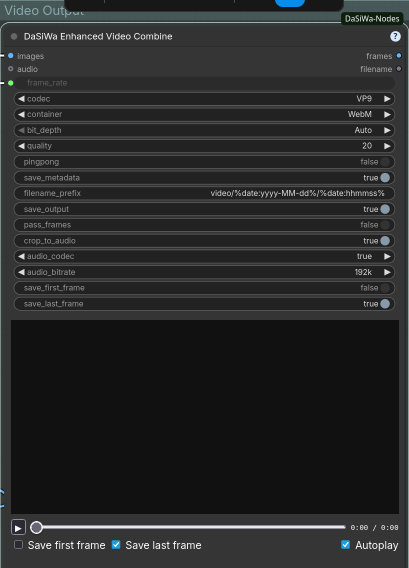
I personally explicitly set codec to VP9 and container to WebM. If you don't set these, you will get AV1 WebM by default.
Enable save_last_frame. This will output the last video frame to the same directory as the videos, which will allow you to chain that into another video generation (covered later in this guide).
Generate!
Click the Run button in the upper left. After a few minutes, you should have a video under ComfyUI/output/video/<current date>.
Congratulations! Watch the generated video and make adjustments as desired.
Example video using the above generation settings
How Long Does This Thing Take?
On a single 3090, it takes around 5-6 minutes to generate the first 7 second video. Once the models are cached, this shortens to around 2.5 minutes.
On a single A4500, it takes roughly 6 minutes, then 3 minutes for subsequent generations.
In both cases, the models were being read off a NAS hard drive. Storing them on an SSD will probably improve things.
Improving Your Videos
I Want To Make Longer Videos!
Do Not Use The 7.0 Workflow If Doing This
Do not use the 7.0 workflow to make segments if you intend to concatenate them. The scaling has a bug, your resolution will end up changing between each video segment. 7.2 appears to have fixed this bug.
Remember that Extract Last Frame option that we enabled above? In your video output folder, you will also have an image file which is the last frame of video.
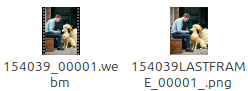
Take that image, drag it into ComfyUI, and generate another video (feel free to change up your prompt, LORAs, etc for the new video!). The new video will start from that last frame.
An example generation:
Positive prompt:
Part 2 Video, Continuing From Part 1 Above
As you can see in this Part 2, the attempts to keep the Ninetales in the video from jumping back down were only partly successful.
Once you have multiple video files, it's time to concatenate them:
Linux (ffmpeg_concat.sh):
Windows (ffmpeg_concat.bat):
My Extended Videos Stutter on Transition!
This is because the last frame of the previous video is repeated as the first frame of the next video, and motion will only start again after replaying that first frame. Trimming the first 2 frames (1 frame if you didn't enable Interpolation above) will make things smoother. Using ffmpeg:
Linux (ffmpeg_trim.sh):
Windows (ffmpeg_trim.bat):
Change the start_frame=2 to start_frame=1 if Interpolation wasn't enabled above.
If your video is encoded with h265 (the default for 7.x workflows), you will need to be careful in your video trimming. h265 requires the video to start on a keyframe, and depending on how you trim it you may violate this. Some video players will handle it OK, but most will not. You have a few choices on how to deal with this:
- Convert to VP9 .webm before trimming:
ffmpeg -i input.mp4 -c:v libvpx-vp9 output.webm - Reencode as you trim:
ffmpeg -i input.mp4 -vf "trim=start_frame=2,setpts=PTS-STARTPTS" -c:v libx265 -preset fast -crf 23 -movflags +faststart trimmed.mp4
Either way, you will be reencoding, but if you plan on reencoding to VP9 anyways you may as well do it now.
I Get Degradation For Each Extension!
Unfortunately this is a simple reality of the video generation process. If things go off-screen or end up not being visible in the last frame, WAN has to create something new. Over time in a video this can compound, especially if last frame images include features being obscured or off-screen.
There are a couple ways to deal with this, depending on how complicated your video is:
You can just brute force things until you get a result you're happy with, if this is an acceptable approach to you.
If your video has a fixed camera, you can use FLF2V to "restore" quality back to the original state every now and then (I do it every 14 seconds of video). Under Type Switch, change to FLF2V. Drag your original starting image into the Last-Frame-Image section, then generate. Once you have things back to starting quality, you can disable FLF2V for another segment or 2.
Alternatively if your video is more complex, you can try the following: generate a segment and extract the last frame. Take that frame, and inpaint it until it's the quality you want. Then under Type Switch, change to FLF2V. Drag the inpainted frame into the Last-Frame-Image section, then generate. From there, you can disable FLF2V for another segment or 2.
If using the FLF2V approaches above, your video will likely "flash" a frame right before the transition because your original image will be higher quality than the video frames being generated. You can just trim this frame out (see the section on making loops below for the commands to do this). Note that it's the end frame of the video that did FLF2V, not the starting frame of that next segment. Don't trim the start of your next segment to keep everything smooth and consistent.
I Want To Create A Perfect Loop!
Under Type Switch, change to FLF2V. Under Post-Processing Features, enable Perfect Loop. Drag your first frame to the Last-Frame-Image section and generate! Note that this works for longer videos as well, just make your last segment end with the initial frame of the first segment. You may want to trim the last frame off the end video to make things smoother:
ffprobe -count_frames -show_entries stream=nb_read_frames -of csv=p=0 input_video.webm
This will give you the number of frames. You will need to subtract 2 (end_frame trimming doesn't take negative numbers) for the command below (1 if not using interpolation).
ffmpeg -i input_video.webm -vf "trim=end_frame=<frame count - 2>,setpts=PTS-STARTPTS" output_video.webm
Note than WAN naturally attempts to loop back to the start at 5 seconds, so keeping your segments as 5 second intervals may help with this.
I Want To Add Transformation/Something Complicated To My Video!
Remember that you can take your last video frame, inpaint it to look like what you want in the end, and then have WAN try to reach that end state.
Under Type Switch, change to FLF2V. Drag your desired end frame into the Last-Frame-Image section, then generate. WAN will attempt to reach that frame in the generation time allotted, you will want to play around with various durations until you get a result you like.
If you want a longer sequence, you can successively inpaint midpoint frames and generate many short segments using each frame as the last frame.
I Want Complicated Movement In My Video!
Depending on your desired movement, you may find it easier to generate many short segments and then concatenate them. For small movements a video length of 1 second will be OK.
Be very descriptive and keep trying until you get the movement you want for each segment.
For speed, switch Resolution to Preview (or otherwise the smallest available resolution for your workflow) and change control_after_generate to fixed.
Manually increment the seed per generation until you get the result you want, then restore the Resolution setting and generate.
I'm Not Getting Enough Movement In My Video!
I've found that being very explicit in what you want to see is the best way to get larger amounts of movement. Consider the following parts of a prompt:
The man is thrusting in and out of the female quickly.
vs
The man is thrusting in and out of the female quickly with long, deep strokes. For each thrust, he ends up as deep as possible inside the female before withdrawing to the maximum extent possible without losing penetration.
The second prompt results in significantly more movement.
Note that if you're using BoundBite you will need significantly more detail in your prompt than in previous models to get a good amount of motion. If it's still not generating enough for your liking, try generating your segment using TastySin.
I Want A Character To Stop Moving In My Video!
I have finally had some success with this using the BoundBite model. Just mention each character and what they're doing and the model should adhere to your prompt. You will probably want some type of minimal motion in the prompt just so the model has something to do, for example that a character is taking deep breaths through their nose but otherwise not moving.
The Model Keeps Confusing Which Character Is Which!
I've found that using very generic, but differing, nouns for each character helps with this. For example, refer to a male character as the man and the female character as the female for a video that's M/F. Alternatively for that same scenario, the male paired with the woman would work.
I Want To Make a 3D Stereogram!
- Clone
https://github.com/VisionDepth/VisionDepth3D(you do not need to download their installers or anything, though you can if you want. They're Windows only.)- You do not actually need conda to use this.
- Download required weights: See
https://github.com/VisionDepth/VisionDepth3D/blob/Main-Stable/weights/WEIGHTS_README_PLACEHOLDER.md - Place weights in
VisionDepth3D/weightswith the directory structure defined in that README file - Open a terminal under the VisionDepth3D directory
python3 -m venv venvsource venv/bin/activatepip install -r requirements.txtpip install torchvisionpython3 VisionDepth3D.py
In the UI:
- Use
Depth Estimationto process the video- Select a model from the dropdown
- Local model detection is finnicky - it will auto-download one for you if needed
- Output to the
VisionDepth3Ddirectory - This should take only a couple minutes at the most.
- Use
3D Video Generatorto generate the videoInput Videois the original videoDepth Mapis the video created in theDepth EstimationstepOutput Videois your desired output path- Open
Encoder Settingsand selectVerticalaspect ratio (9:16), check the box to useffmpeg, select an NVENC codec (I used H264 for maximum compatibility) - Open
Processing Options, check the box forPreserve Original Aspect Ratio, UNCHECK the box forFloating Dynamic Window - Click the
Generate 3Dbutton to generate the video. This should also take only a couple minutes at the most.
If you get intruding black bars on your generated video, disable Floating Dynamic Window as noted above.
Generated videos with this program will have some anomalies on the left side of the right stereogram image due to the stereogram process. They may not be suitable for posting to e6ai, as I have had posts rejected for these anomalies.
I Have Multiple GPUs and Want To Speed Things Up!
There exist ComfyUI extensions such as ComfyUI-MultiGPU V2. These add custom nodes that allow you to select a particular CUDA device. Once installed, I recommend manually editing a copy of the workflow JSON to use these custom nodes instead of the default loader ones.
Unfortunately, I have not had success with these extensions. I tried a setup with 3x A4500, with the High model on one, Low model on another, and the third GPU using the text encoder/VAE/others. While the preview image looked promising, the actual video contents were just a black screen. I was able to confirm via GPU utilization that the models were being allocated on the appropriate device, so I don't know what happened. The 2 A4500s with the High and Low model were joined by NVLink, so I don't know if that affects things.
If you find a working setup for this please message me on e6ai.
I Want To Automate Video Generation!
ComfyUI has a pretty robust API you can use to drive everything. Set up the workflow how you would like to use it for generation, then click File > Export (API). You will get a minimal JSON file containing only the nodes in use and their settings as they were when you exported.
You can then programmatically alter the JSON fields as desired before submitting them to the web interface. Generate a Client ID (just a UUID) and connect via websocket to determine when a submitted job is completed.
I've noticed ComfyUI tends to leak memory when driven this way, as opposed to when driven via the web interface. It's possible I'm missing some necessary cleanup steps.
If using the 6.1 workflow or newer, generate your own random number and replace the seed. Otherwise, whatever number was generated at the time of your workflow API export will be used as the seed for all generations, as the randomize/increment/etc features of the workflow modify the seed after its use (for the next generation) and don't affect the current generation.
Useful REST endpoints (see the ComfyUI docs for actual documentation on these):
/upload/image - Upload an image for use in a job.
/prompt - Queue a job, takes serialized API JSON and a client ID.
/history/<prompt id> - Get output for a completed job.
/api/manager/reboot - Reboot ComfyUI's server. Note that while this will release RAM, it will not release VRAM. Additionally, you will get no response so if your HTTP library expects one, you need to handle the resulting exception appropriately.
There's plenty of example code out there for driving these endpoints.
After Generating Videos, My Browser Is Slow/A1111 Is Laggy!
If you terminate the ComfyUI server but keep the browser tab open, it will constantly be trying to reconnect to ComfyUI. This can cause other tabs to lag significantly, this can be particularly noticeable with A1111. Close the ComfyUI tab and you'll see things go back to normal.
I'm Generating On a Phone/Using Grok or SORA or Another Service To Generate and Can't Run ffmpeg!
You can use an online ffmpeg service, right in your browser! https://ffmpeg-online.vercel.app/ provides an in-browser implementation of ffmpeg. There are also other services that do the same thing online. They may cause some decent battery drain and heat generation, so make sure you're not on low power and can set down your phone for a few minutes if needed.
To replicate the Extract Last Frame functionality in ComfyUI, construct the following input for these services:
ffmpeg -sseof -3 -i input_video.webm -vsync 0 -q:v 31 -update true last_frame.jpg
It'll extract every frame from the last 3 seconds of the video, overwriting last_frame.jpg every time so it's left with the last frame when it finishes running. You may be able to get away with seeking to the last second only (-sseof -1), but online sources I found indicated the last 3 seconds was most stable for general use.
Once you have that last frame, feed it into the next generation. If using a service that provides audio to your videos, I recommend stripping that audio:
ffmpeg -i input_video.webm -an -c:v copy output_video.webm
and then overlaying new audio of your choice on top (if desired) to the completed video:
ffmpeg -i input_video.webm -i input_audio.mp3 -c:v copy -map 0:v -map 1:a output_video_with_audio.webm
Otherwise, you'll get audio sync issues.
I'm Generating using WAN 2.7 And Don't Want The Audio!
Some online video generators automatically make audio, and sometimes that audio just doesn't fit with your video. Use ffmpeg to strip the audio:
ffmpeg -i input_video.webm -an -c:v copy output_video.webm
Give Me a Convenience Script To Trim and Combine My Segments!
These scripts will trim 2 frames from all but the first video, then concatenate all the segments together as well as convert to VP9 .webm in a single pass (less temporary files than the scripts that were there before):
Linux (ffmpeg_trim_concat_segs.sh):
Windows (ffmpeg_trim_concat_segs.bat, converted using ChatGPT, untested, please contact me if this has issues):
I Want To Add An X-Ray/Impregnation/Other Picture-in-Picture View!
Generate a separate video file for the particular picture-in-picture view you want. For example, you can first generate a 1024x1024 image of an ovum surrounded by sperm:

Then generate a 5-second video with the prompt: The sperm penetrates the ovum. The penetrating sperm burrows into the ovum and the ovum begins to glow. The camera does not move.
Example video from the above prompt
Now, you can add that video as a picture-in-picture element to your video segment:
ffmpeg -i last_segment.webm -i pip.webm -filter_complex "[1:v]scale=iw*0.25:-1,format=yuva420p,fade=t=out:st=4:d=1:alpha=1[p];[0:v][p]overlay=W-w-10:H-h-10:eof_action=pass[v]" -map "[v]" -c:v libvpx-vp9 last_segment_pip.webm
Breaking this down:
last_segment.webm is the main video file/first input video.
pip.webm is the picture-in-picture video file/second input video.
[1:v]scale=iw*0.25:-1 will scale the second input video (pip.webm) by 0.25, so 1/4 the original size.
format=yuva420p will convert the second input video to yuva420p format, basically just adding an alpha channel to it.
fade=t=out:st=4:d=1:alpha=1[p] will cause the second input video to fade out starting at 4 seconds, lasting for 1 second (completely faded out at 5 seconds, the length of the video). The result of this entire first filter is assigned to the variable p for the next part.
[0:v][p]overlay=W-w-10:H-h-10 will overlay the output of the above filter onto the first input video (last_segment.webm) at the lower right corner - 10 pixels in width and in height (positioning the top-left corner of pip.webm at coordinates (first width - second width - 10, first height - second height - 10)).
eof_action=pass[v] will cause the first video to continue playing after the second video ends (otherwise it will just stop there).
-map "[v]" -c:v libvpx-vp9 will convert the output video from all of the above back to libvpx-vp9.
last_segment_pip.webm is the output video file.
Everything's Broken/My Videos Are 4x The Intended Length!
It seems a recent update to ComfyUI has (once again) broken previously working workflows, and has broken the interpolation node. Update again, and unfortunately you'll have to update the DaSiWa workflow used as well.
Other People Report Trouble Viewing My Videos!
With the 7.0 workflow and above, the default encoding for videos is now h265 .mp4. This unfortunately is not supported by default on many machines, including mobile devices.
I recommend reencoding as VP9 .webm, which is compatible with pretty much every device and can be viewed in modern browsers without downloading additional codecs.
ffmpeg -i input.mp4 -c:v libvpx-vp9 output.webm
The single-pass trim and concatenate scripts above will also perform this step for you.