✨ NVIDIA NIM API Guide for JanitorAI ✨
Using Render as a Free Proxy Converter
📋 Overview
This guide will walk you through setting up NVIDIA NIM API with JanitorAI using Render as a free proxy converter. Follow each step carefully!
| What You'll Need |
|---|
| GitHub Account |
| NVIDIA NIM Account |
| Render Account |
About Render Free Tier
Free Render instances automatically shut down after 15 minutes of inactivity. Don't worry — they will automatically restart when you send a message! The first message after inactivity may take ~30 seconds to respond.
📦 Part 0: Download the Proxy Files
Step 0.1 — Download the Archive
First, download the proxy files archive:
Download nim-proxy.zip
Step 0.2 — Extract the Files
Extract the ZIP file to get the folder containing the 3 required files:
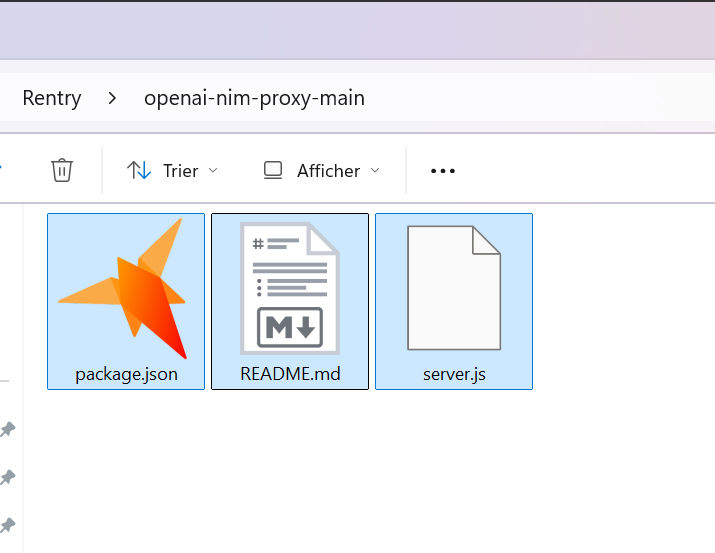
Your folder should contain these 3 files:
server.jspackage.jsonreadme.md
📝 Part 1: GitHub Setup
Step 1.1 — Create a GitHub Account
Skip to Step 1.2 if you already have a GitHub account.
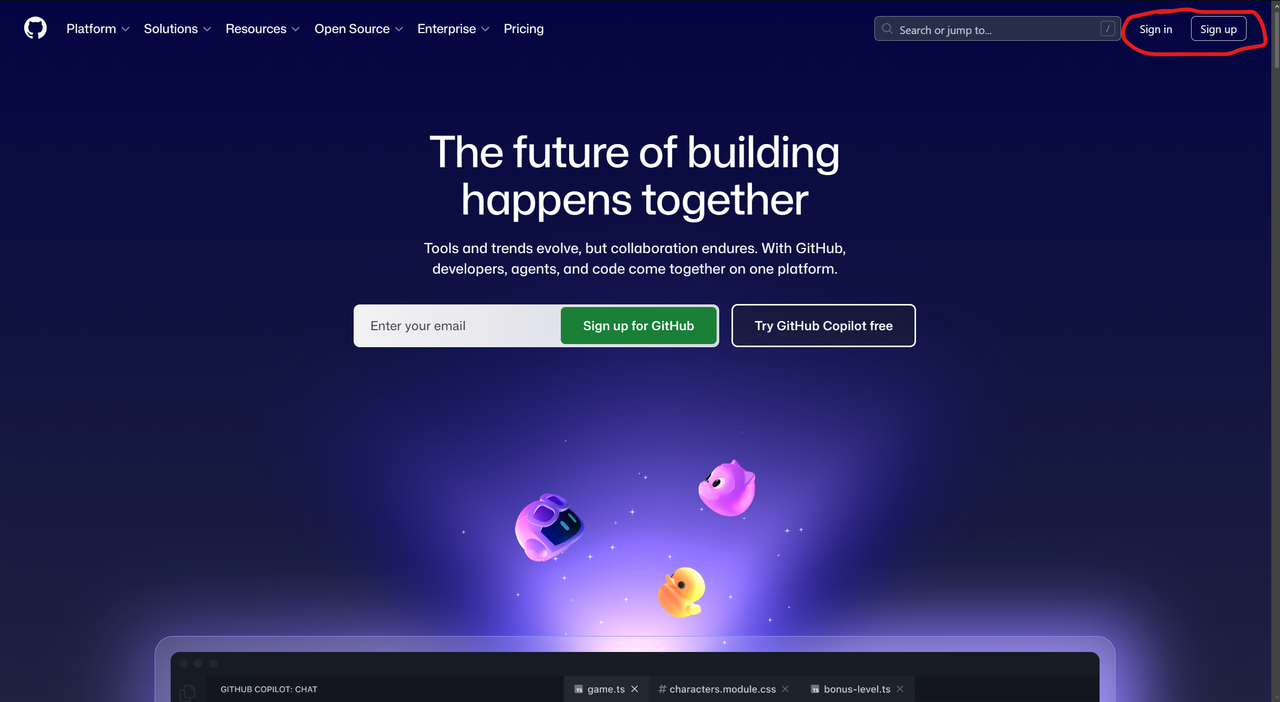
Go to github.com and click Sign Up
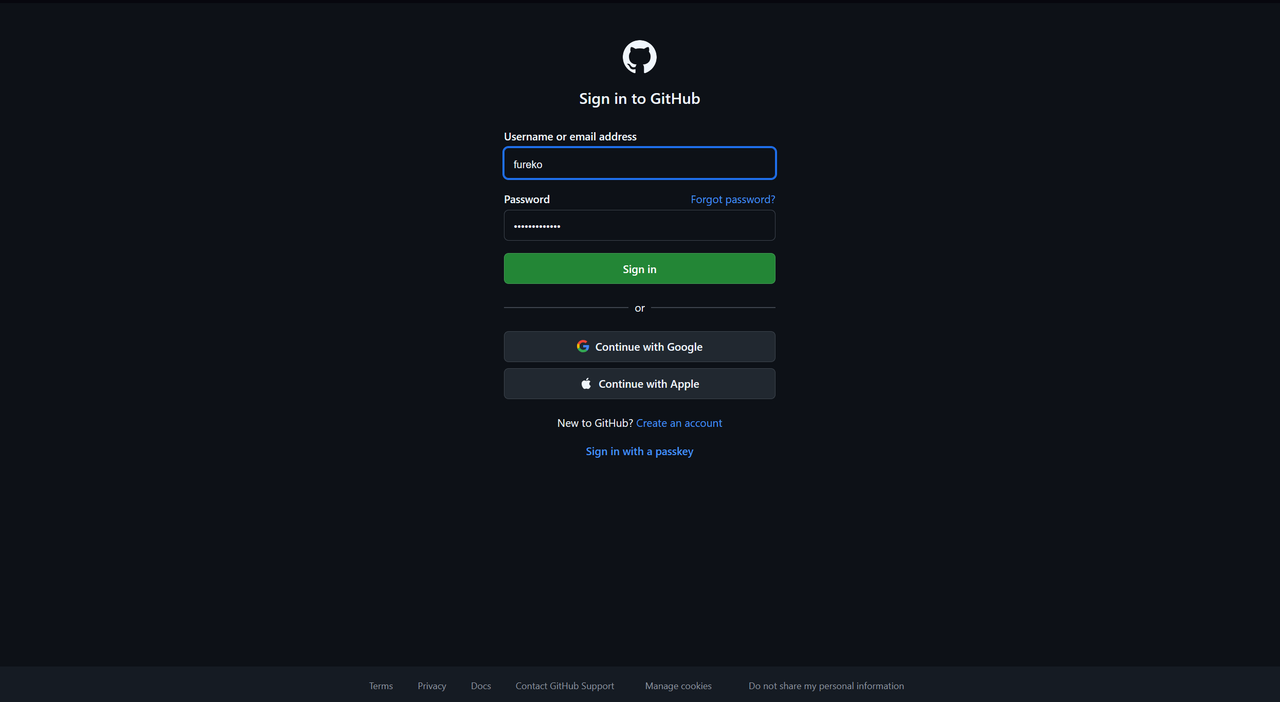
Create your account by filling in your details
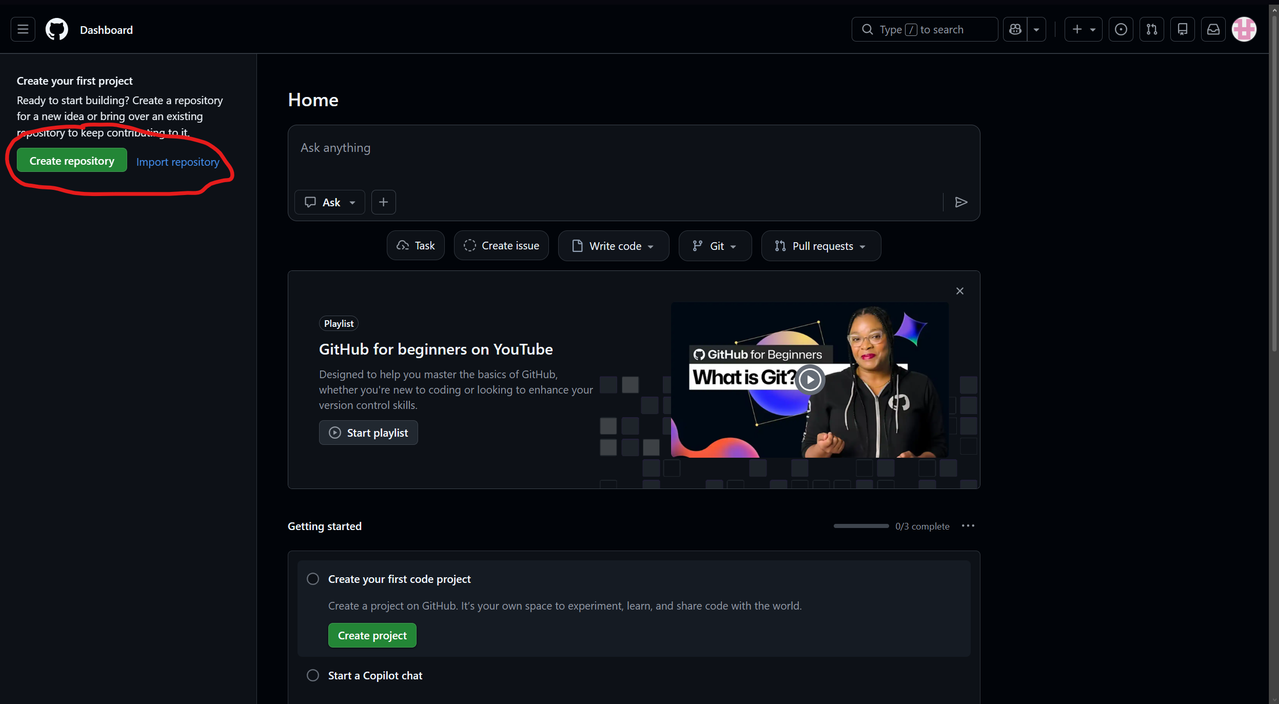
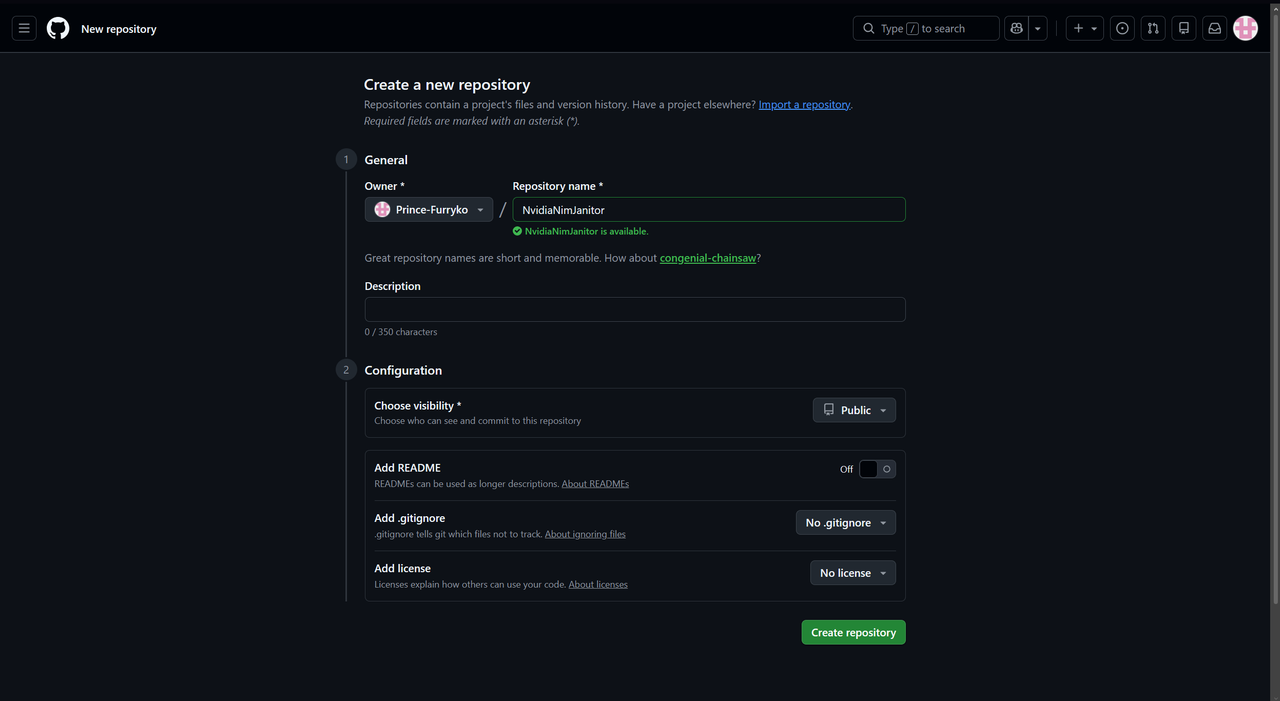
Step 1.2 — Create a New Repository
Once logged in, click the "New" button or "+" icon to create a repository
Fill in your repository details:
- Name:
nim-proxy(or any name) - Visibility: Public ✅
- Click Create repository
Step 1.3 — Upload the Proxy Files
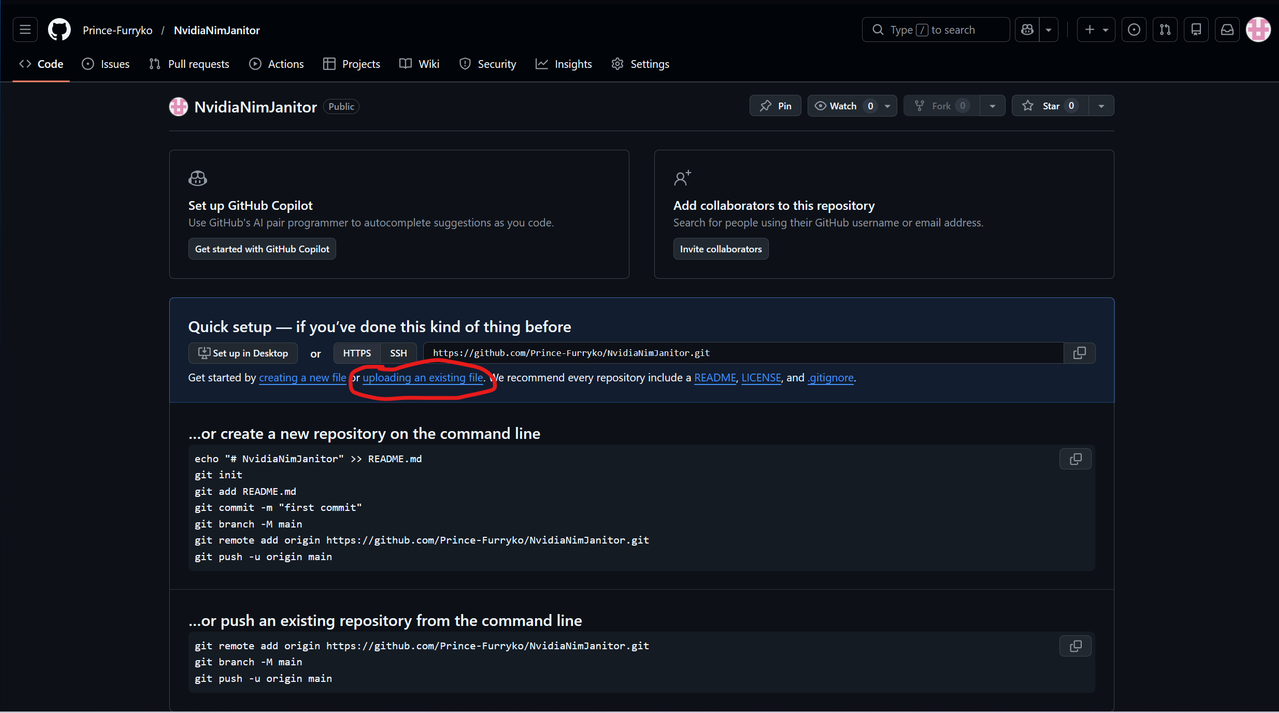
In your new empty repository, click "uploading an existing file"
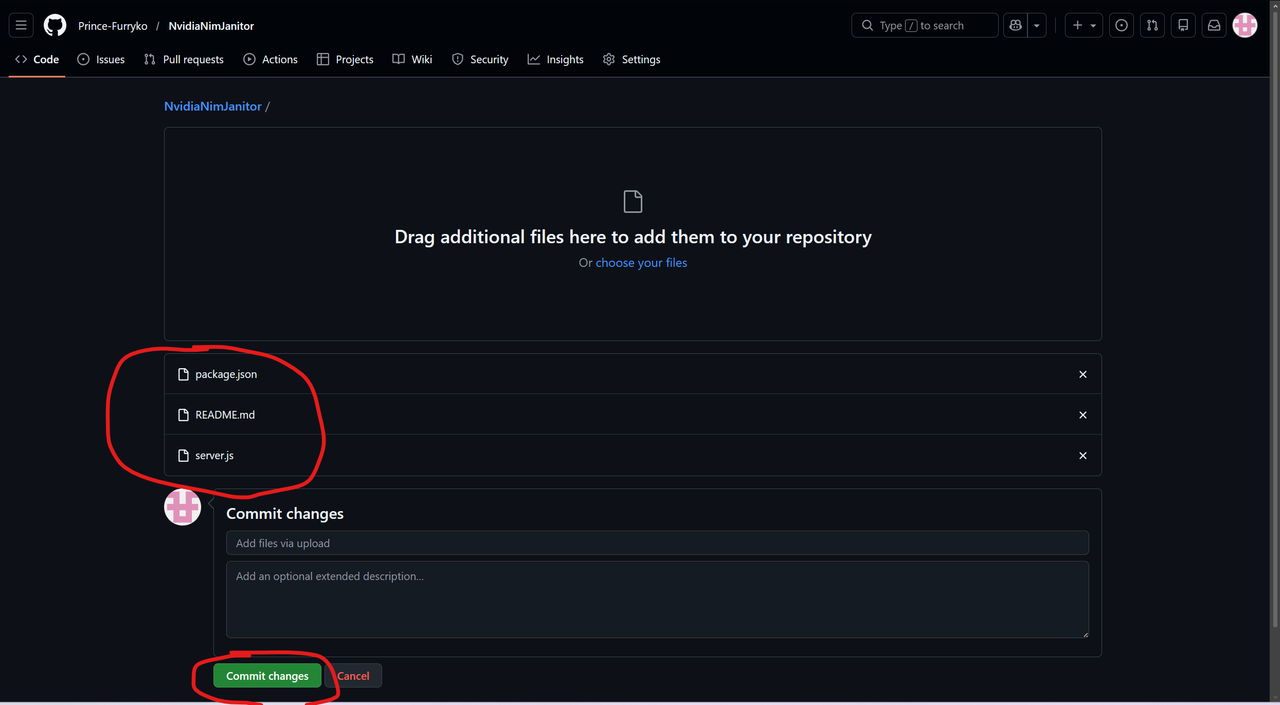
Drag all 3 files from the extracted folder into GitHub, then click Commit changes
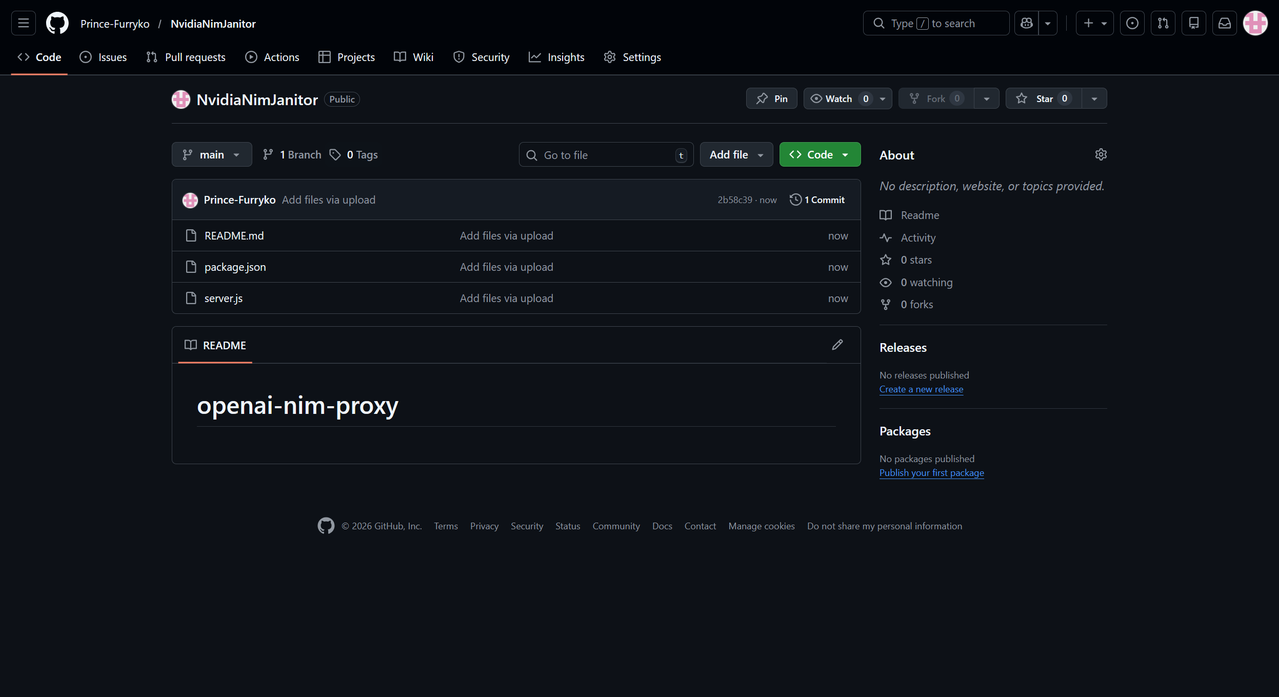
success Your repository should now look like this with all 3 files:
🔑 Part 2: NVIDIA NIM API Key
Step 2.1 — Access NVIDIA NIM
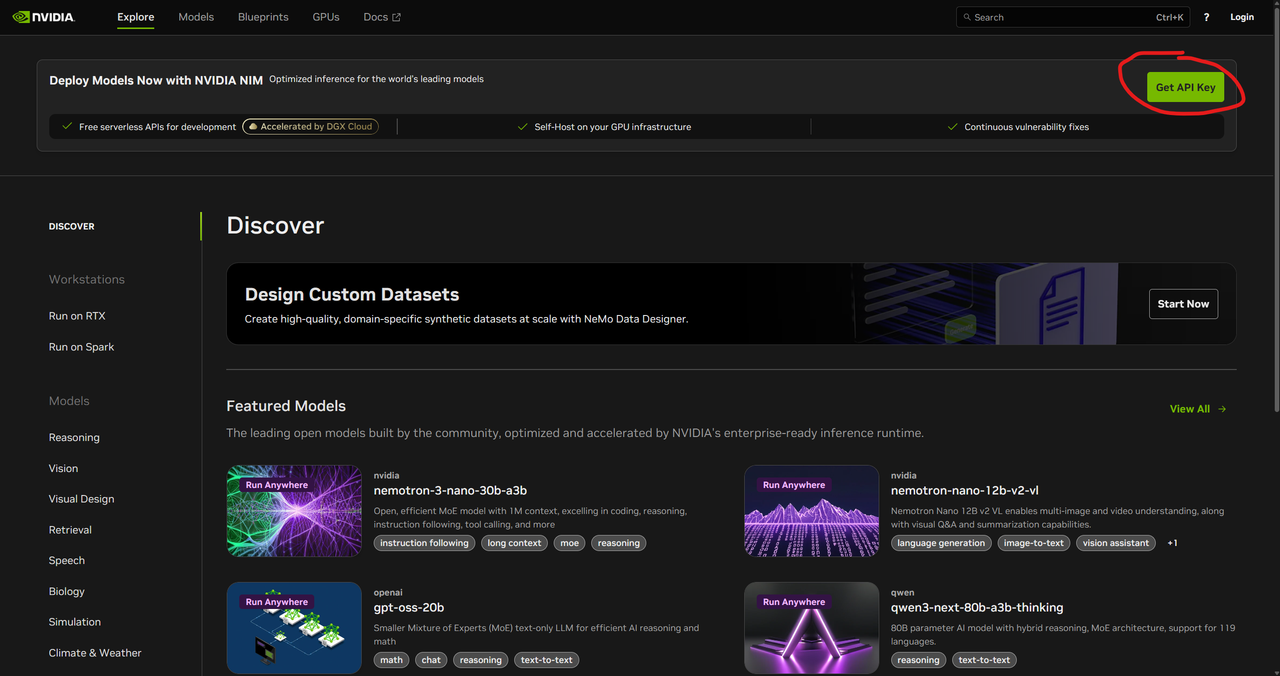
Go to build.nvidia.com and click "Get API Key"
Step 2.2 — Create Your Account
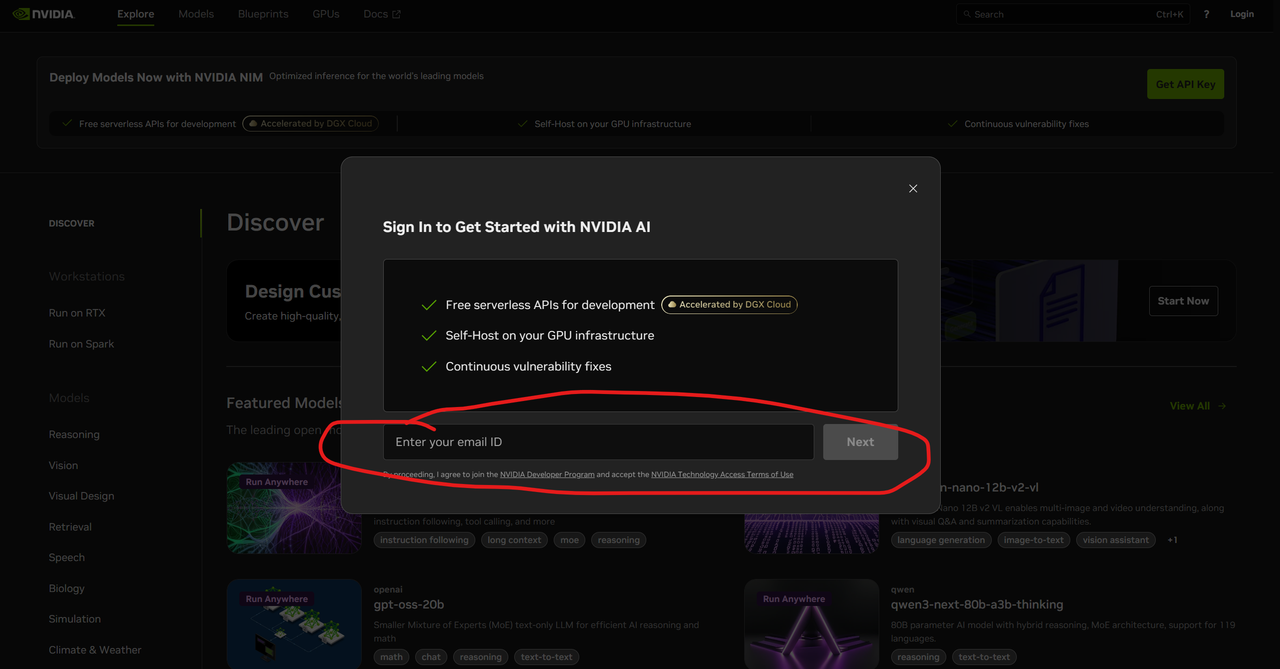
Enter your email address in the popup
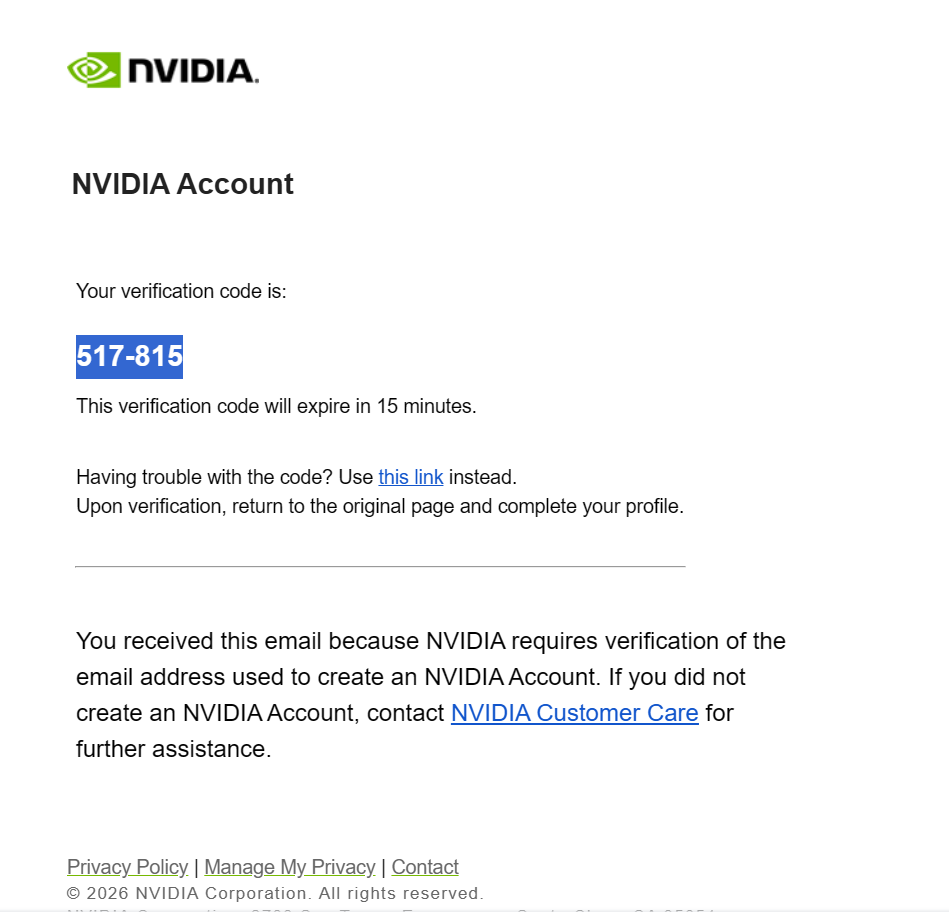
Check your email for the verification code
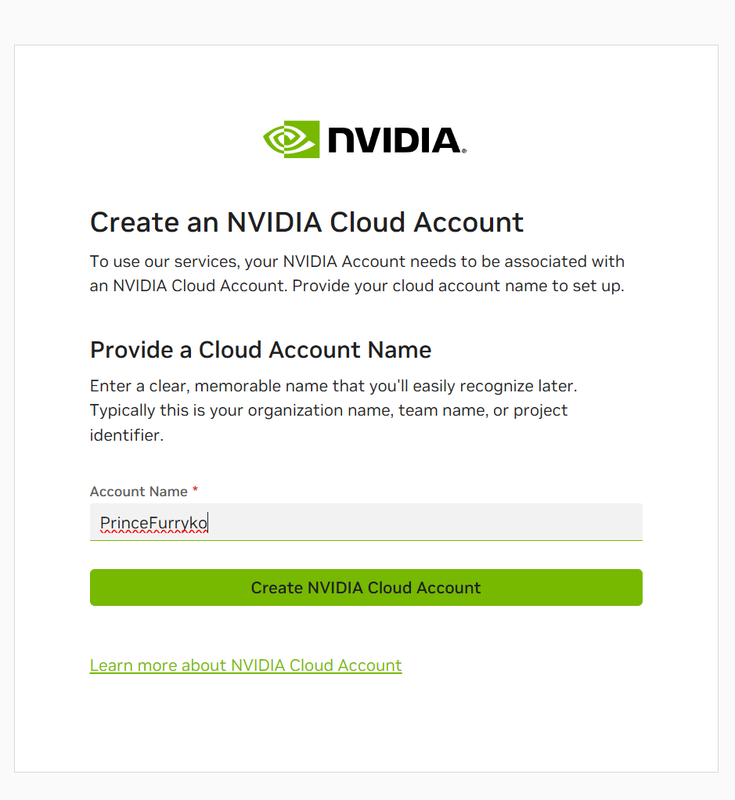
Complete the account creation form
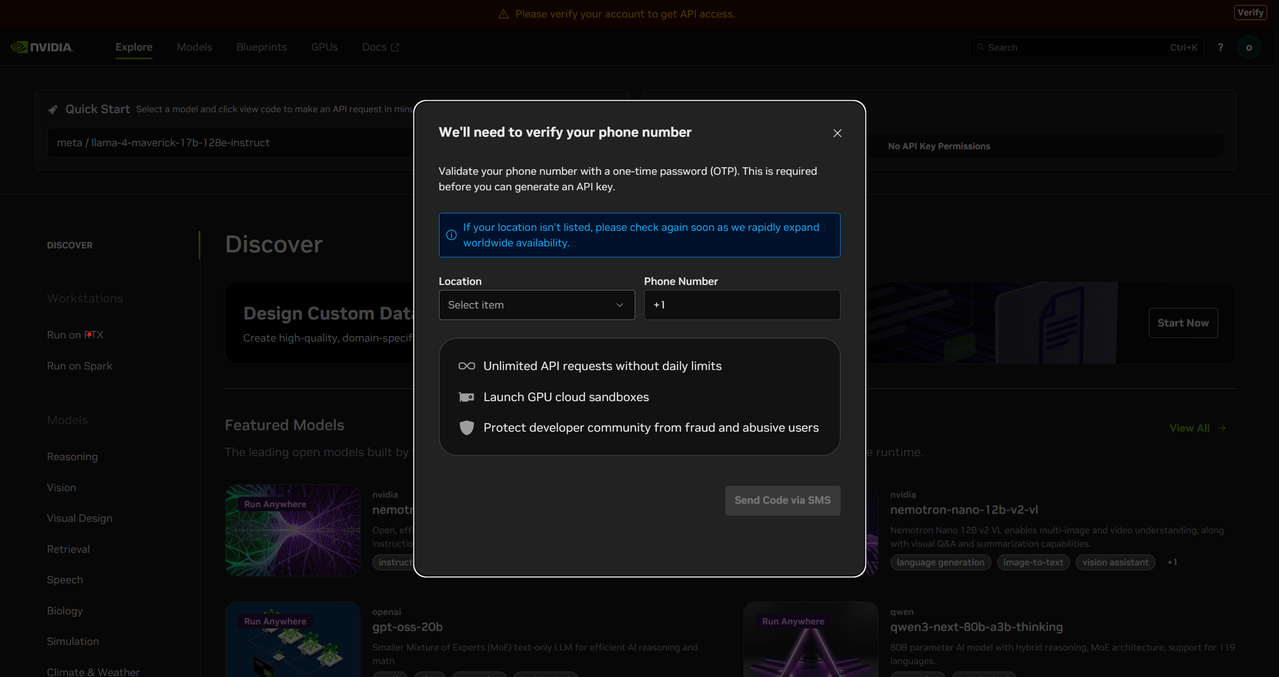
Verify your account with your phone number code
Step 2.3 — Generate Your API Key
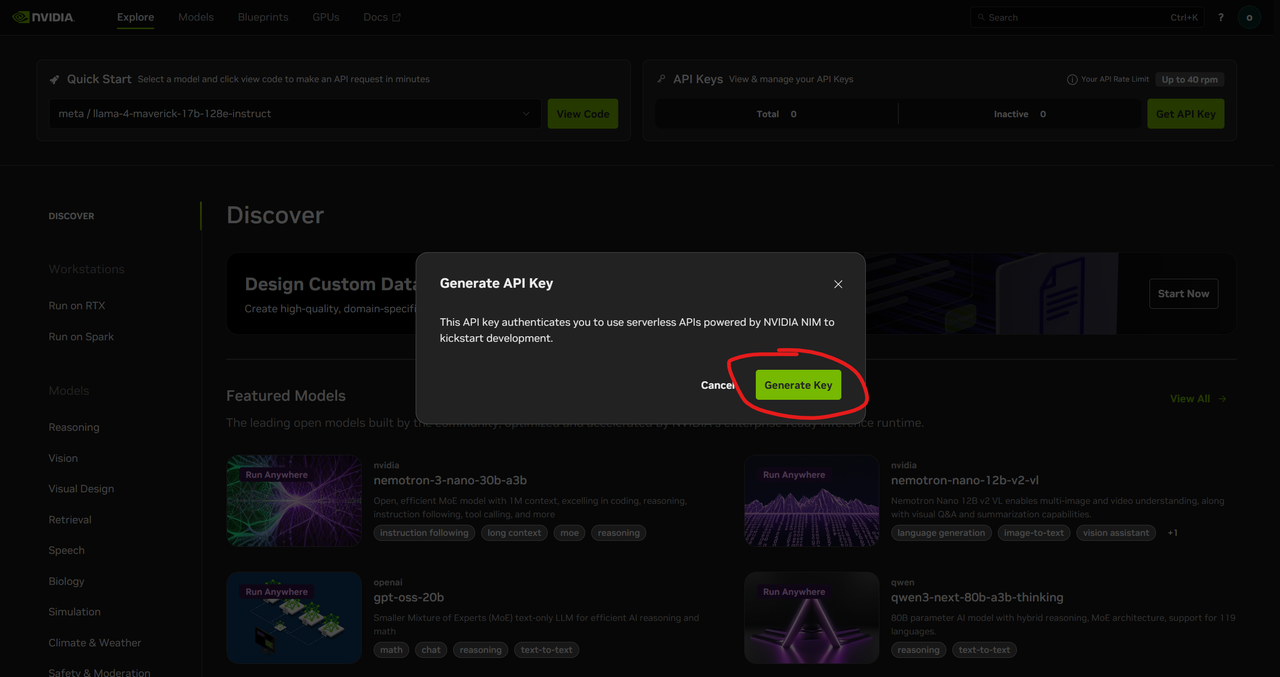
Once verified, click "Generate API Key" in the popup
Important
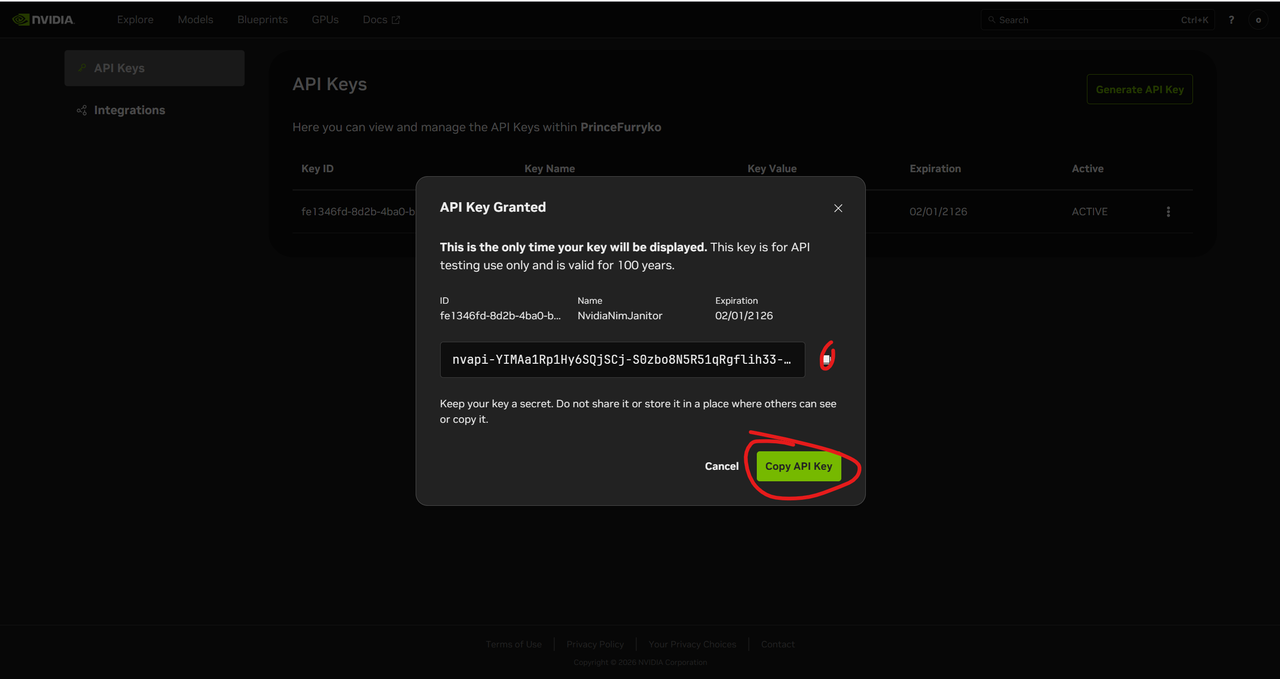
Copy and save your API key immediately! You'll need it for Render.
Your key looks like: nvapi-xxxxxxxxxxxxxxxxxxxxxxxxxxxx
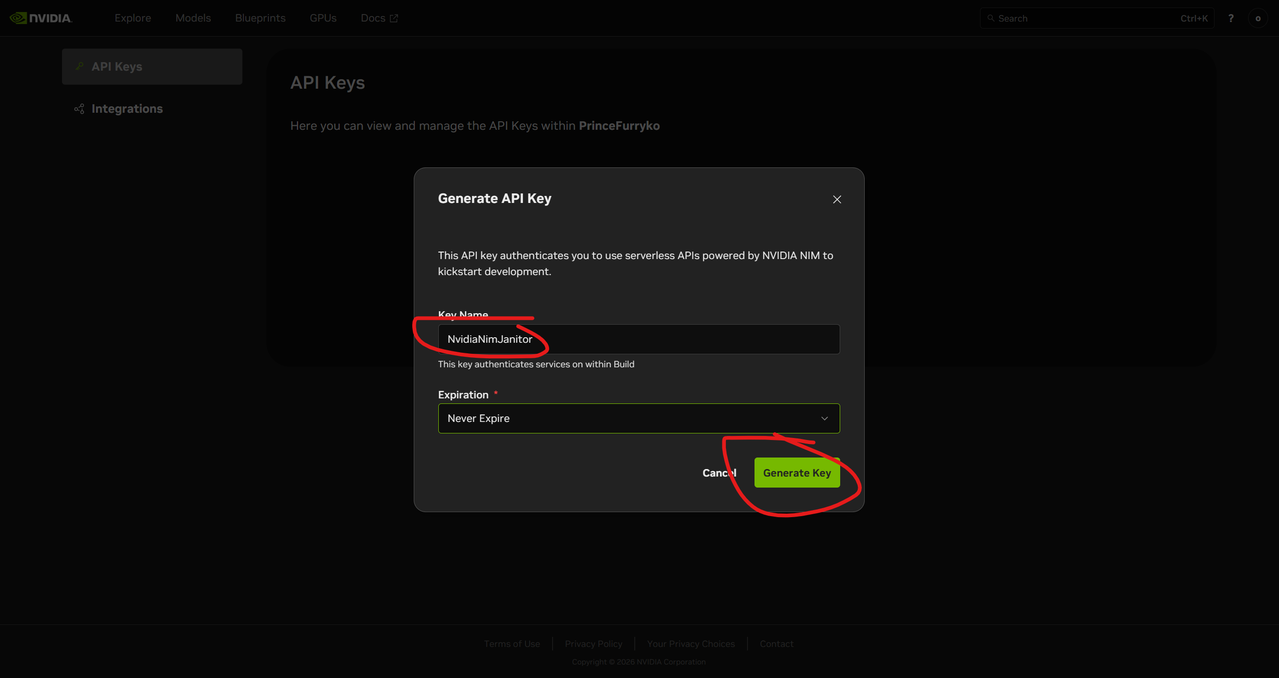
Or go to your profile to generate an API KEY with no expiration limit
Then you should have your API KEY:
🚀 Part 3: Render Deployment
Step 3.1 — Create a Render Account
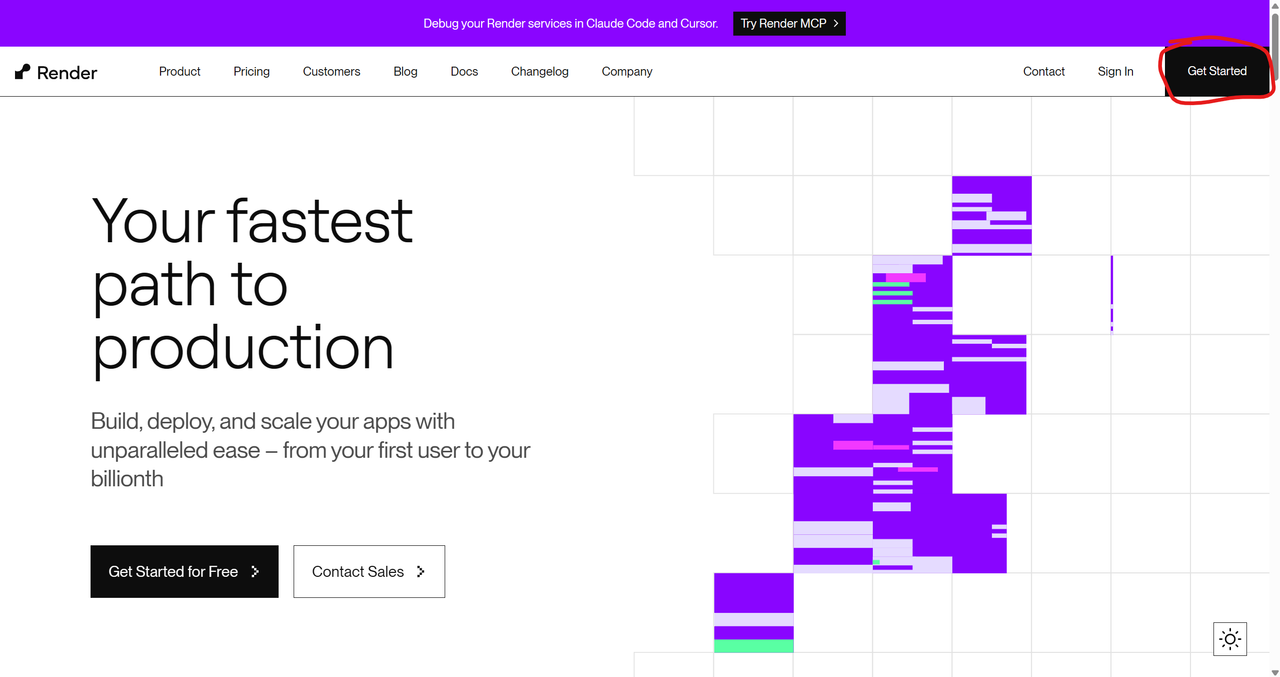
Go to render.com and click "Get Started"
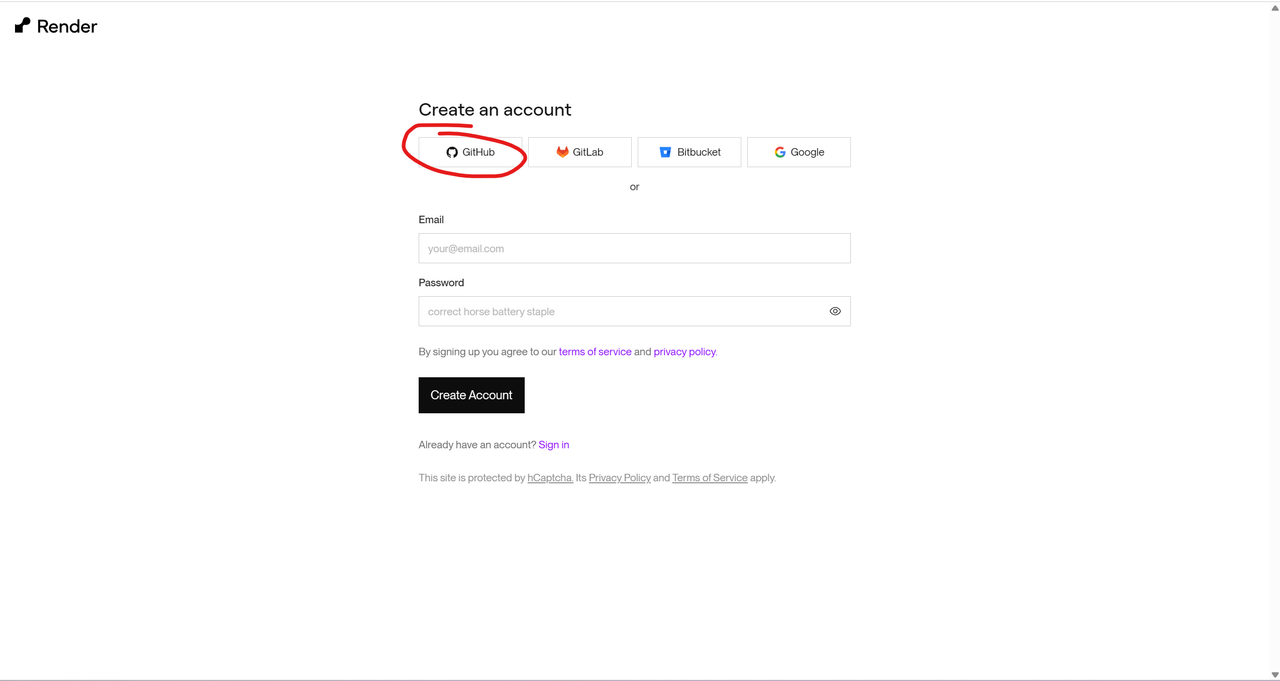
Sign up using your GitHub account (recommended)
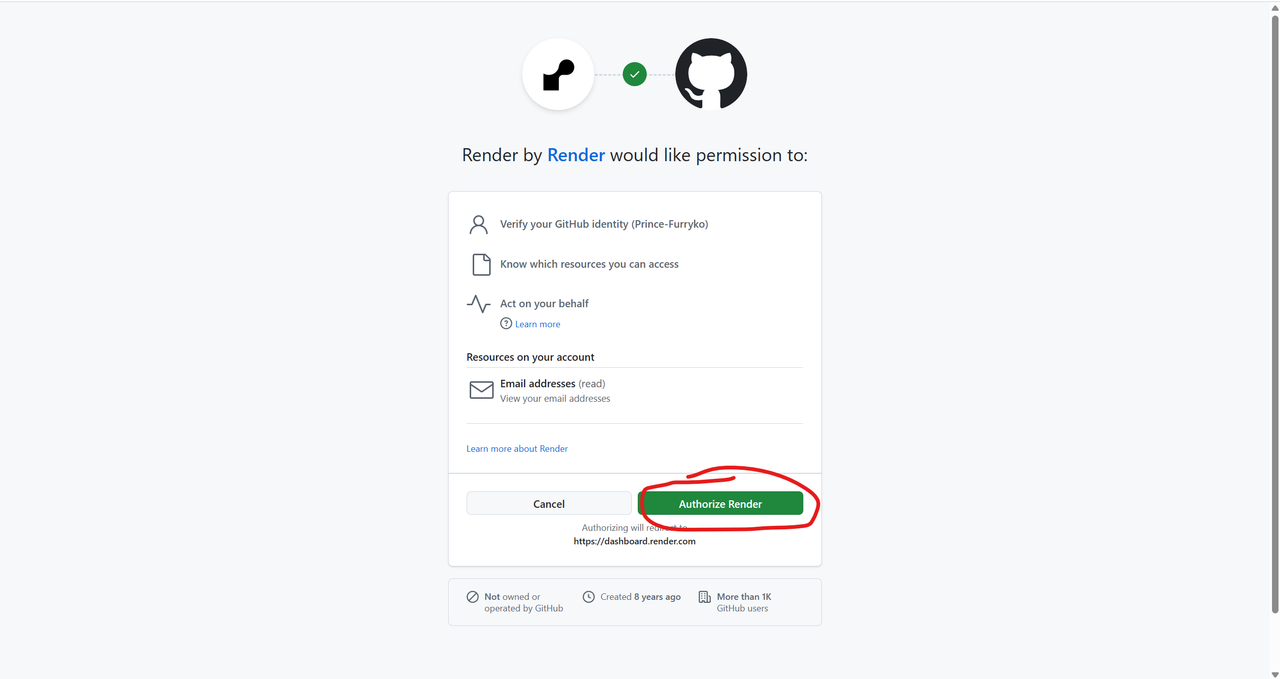
Authorize Render to connect with your GitHub
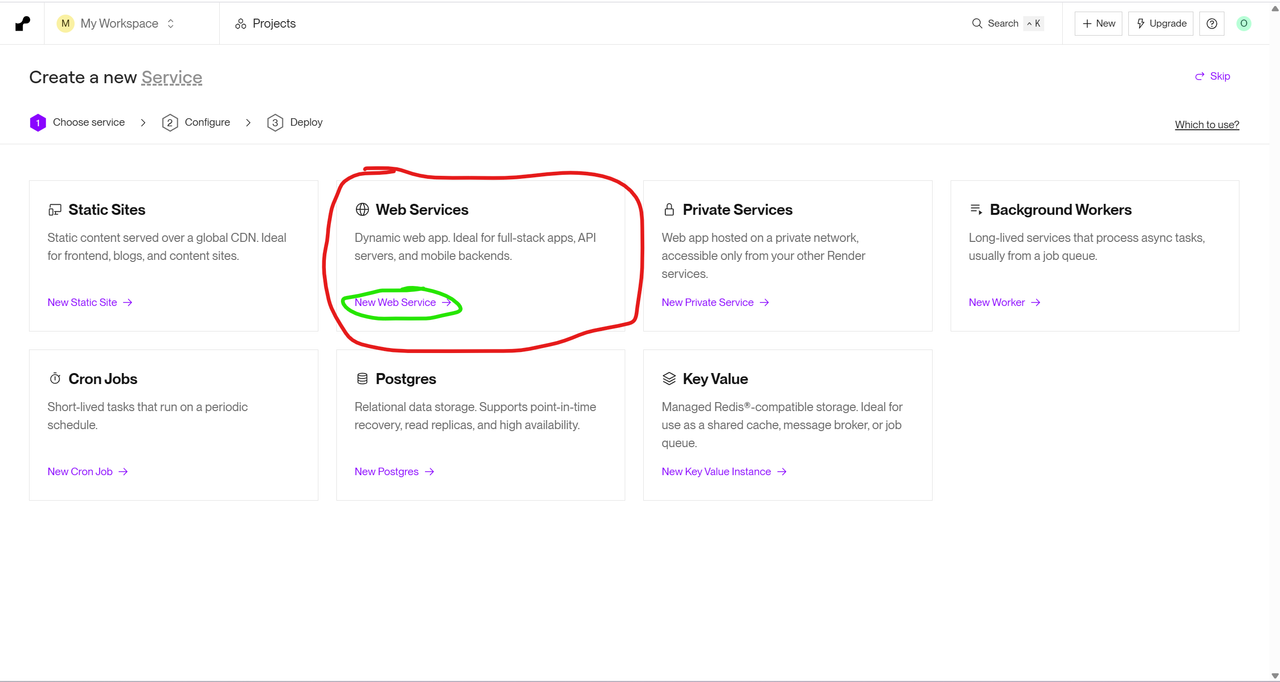
Step 3.2 — Create a Web Service
From your Render Dashboard, click "Web Service"
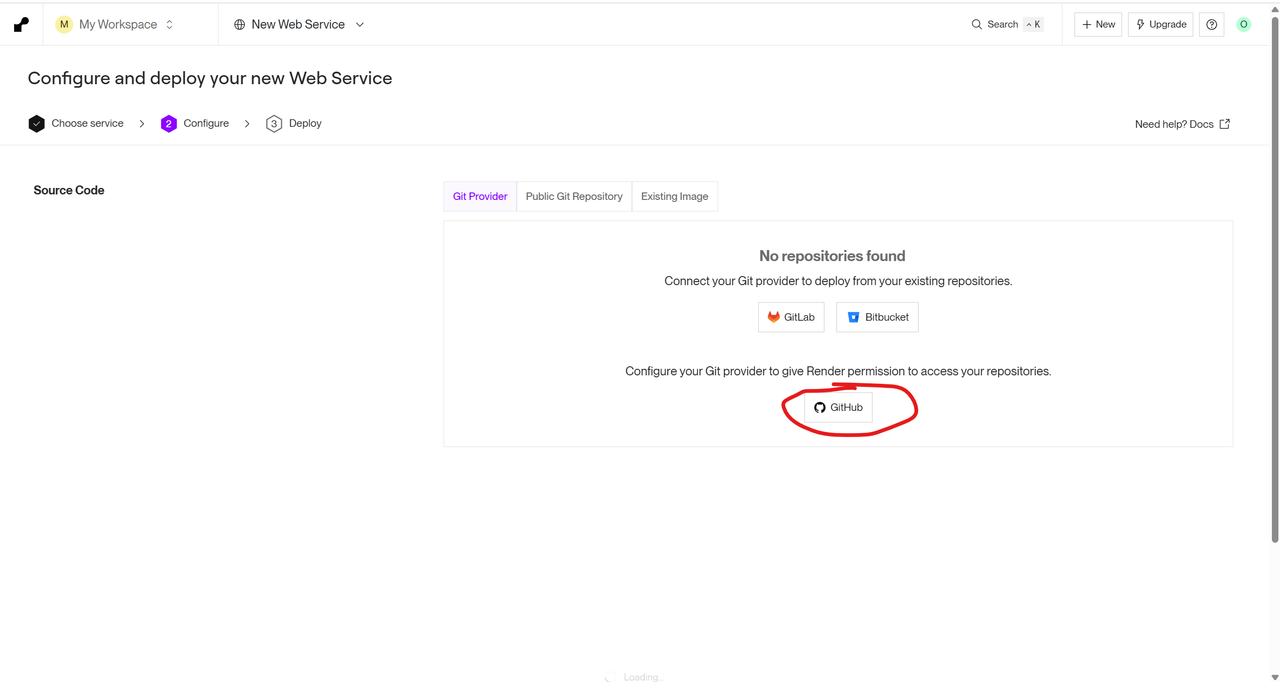
Select GitHub as your Git provider
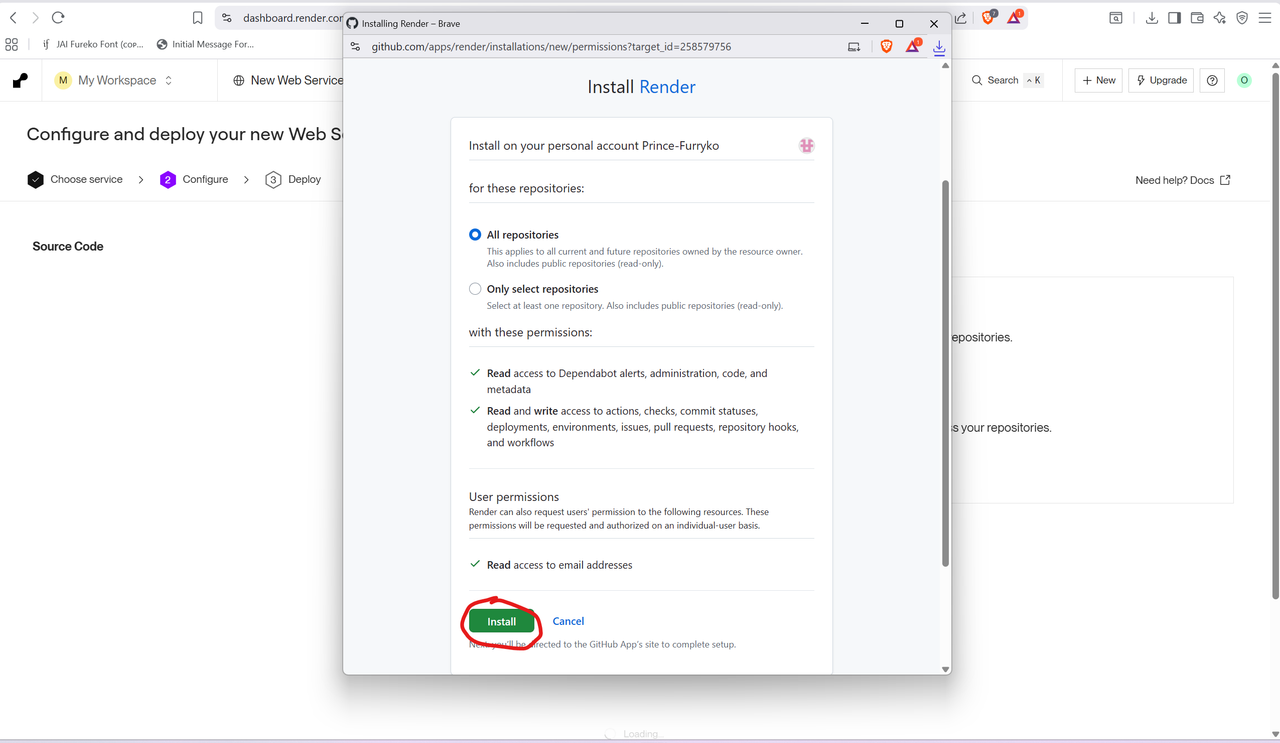
A GitHub popup will appear — click Install to give Render access to your repositories
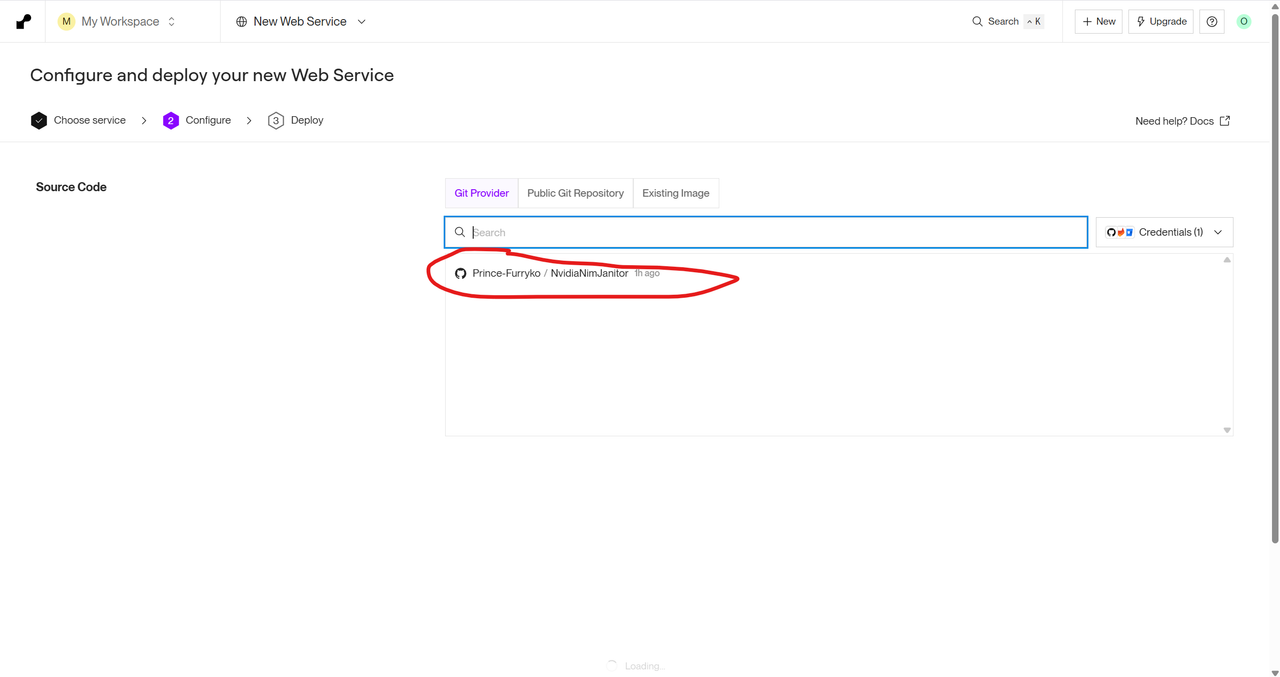
Select your nim-proxy repository
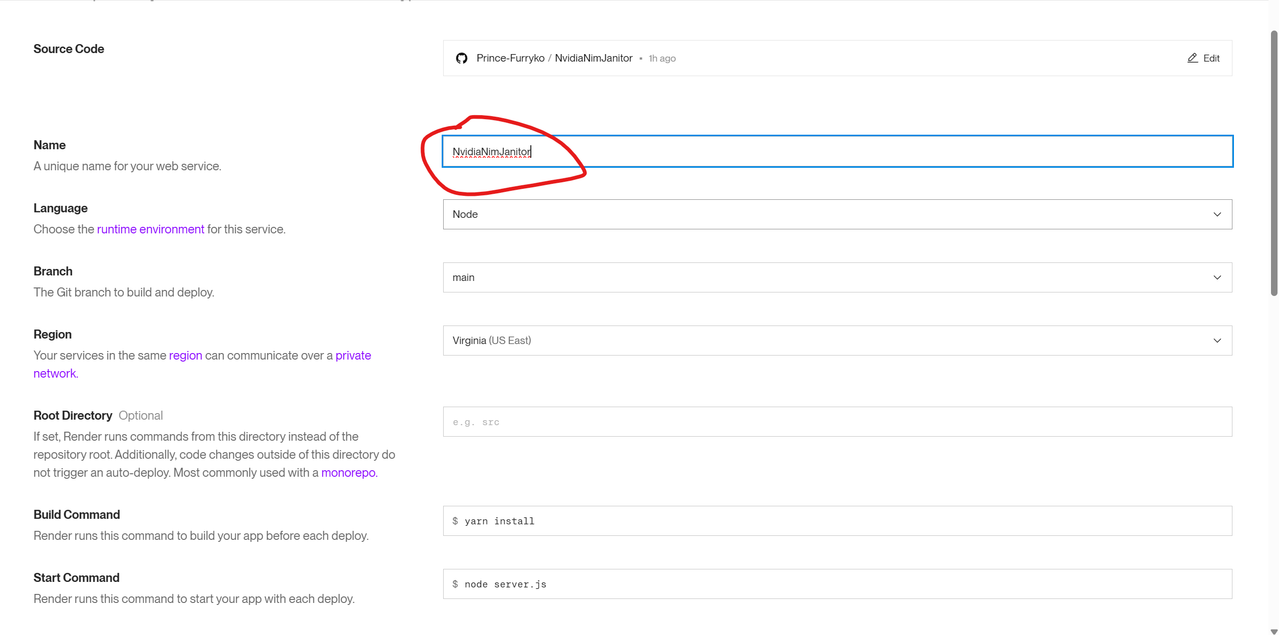
Step 3.3 — Configure the Service
Give your service a name (e.g., nim-proxy)
Scroll down and select the Free instance type
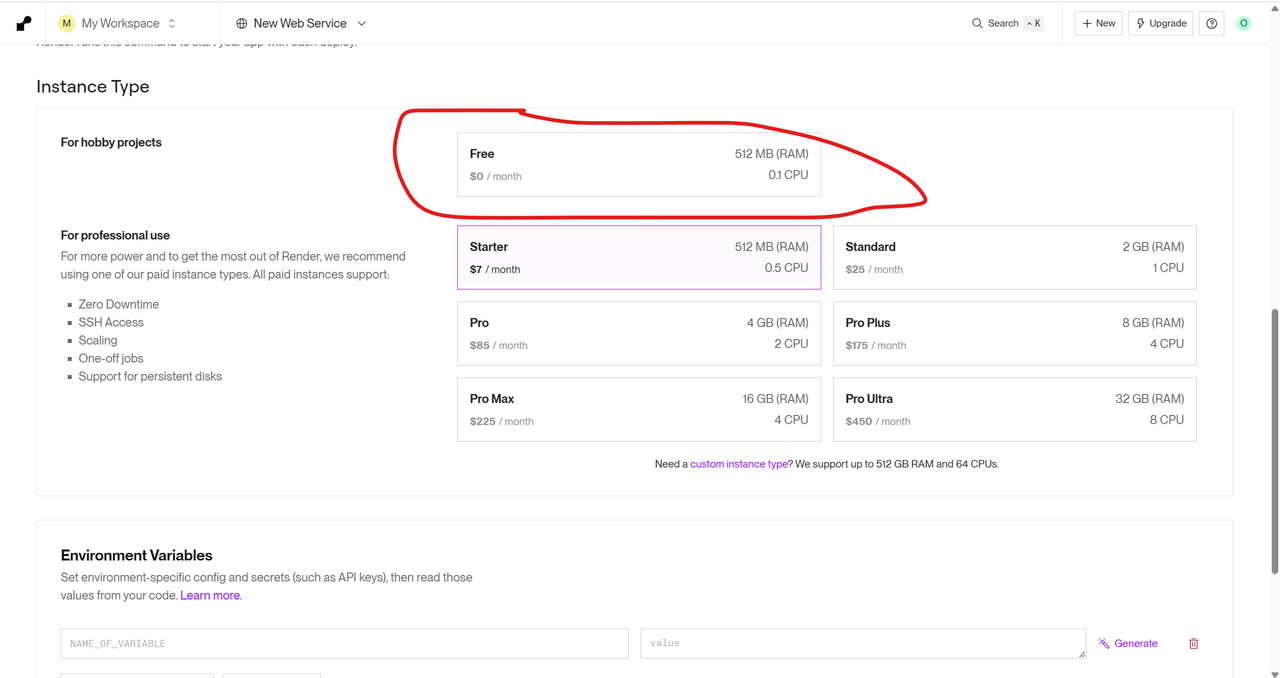
Reminder
Free instances shut down after 15 minutes of inactivity but restart automatically when you send a message!
Step 3.4 — Add Environment Variable
Critical Step
This is where you add your NVIDIA API key!
Add an environment variable:
| Key | Value |
|---|---|
NIM_API_KEY |
your-nvidia-api-key-here |
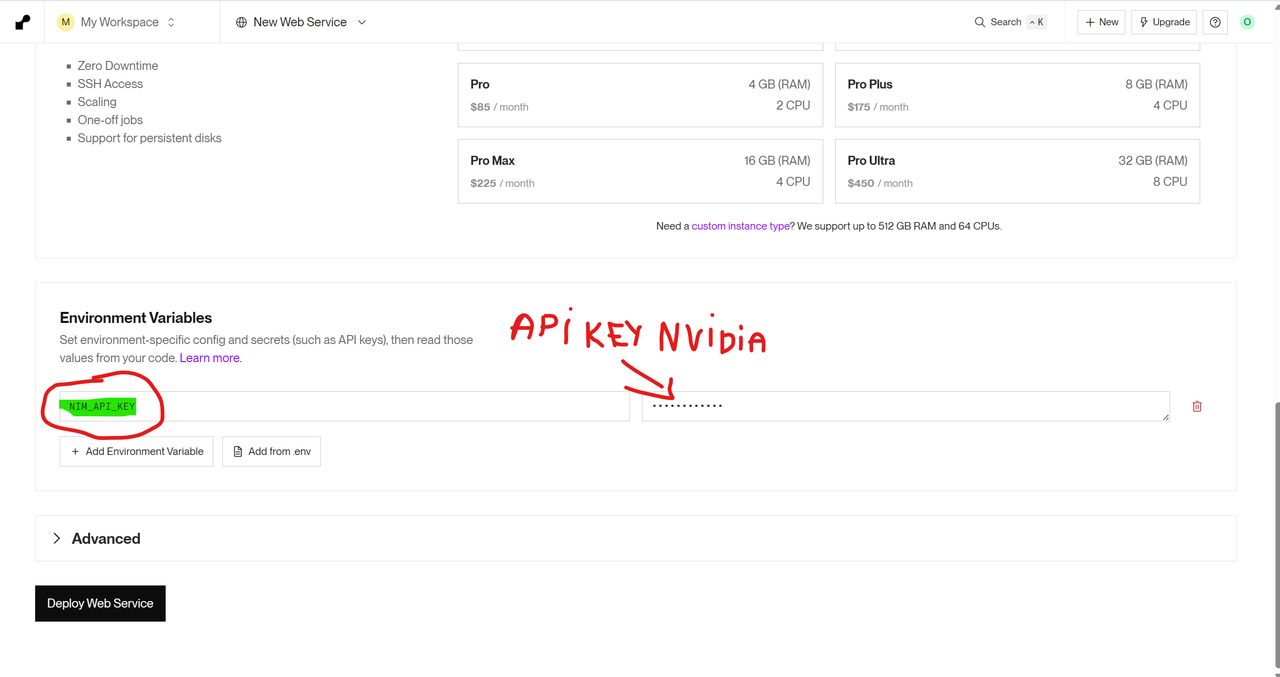
Click Create Web Service to deploy!
Step 3.5 — Wait for Deployment
Your service will start building — wait for it to complete
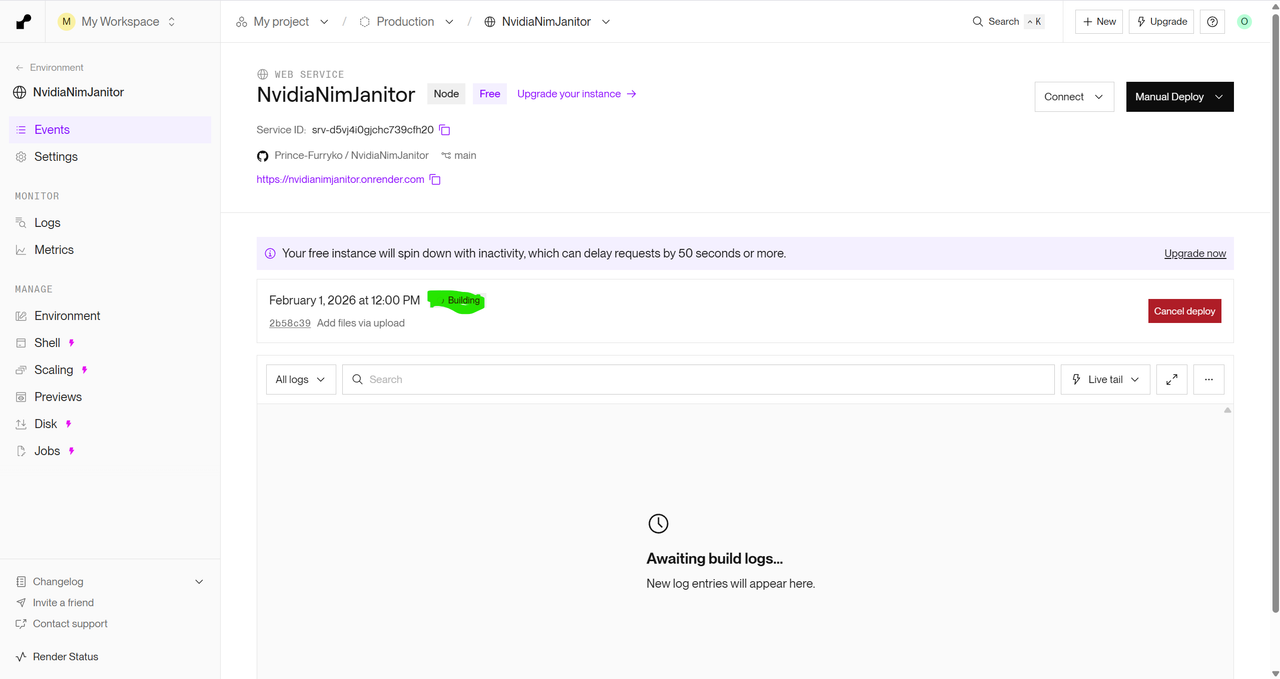
Once deployed, you'll see a green "Live" status and your service URL
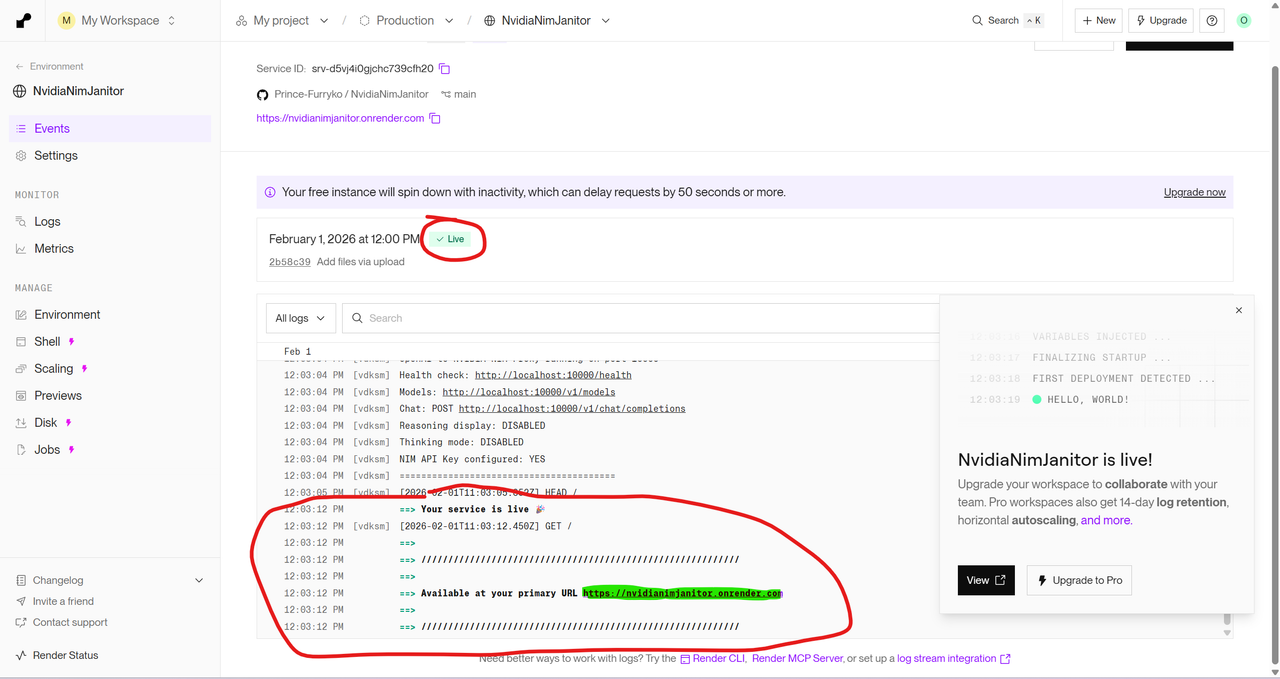
Step 3.6 — Verify Your Service
Click on your service URL to test it
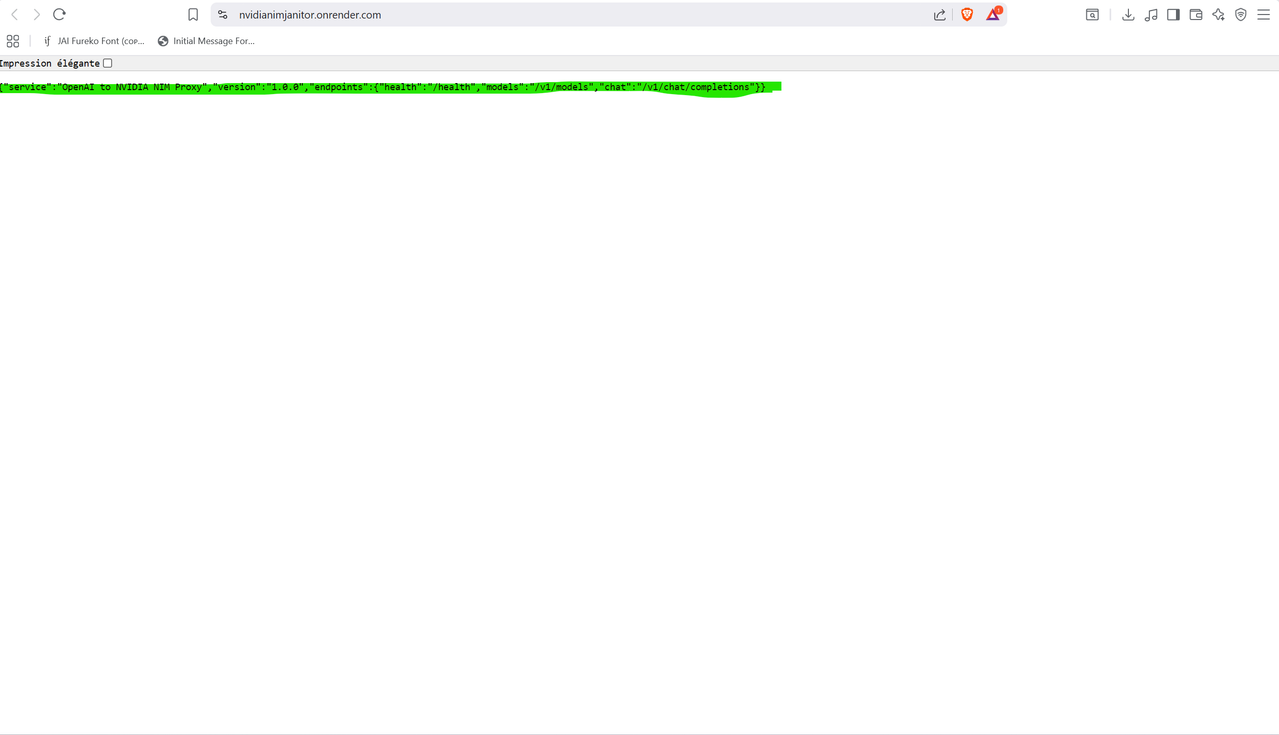
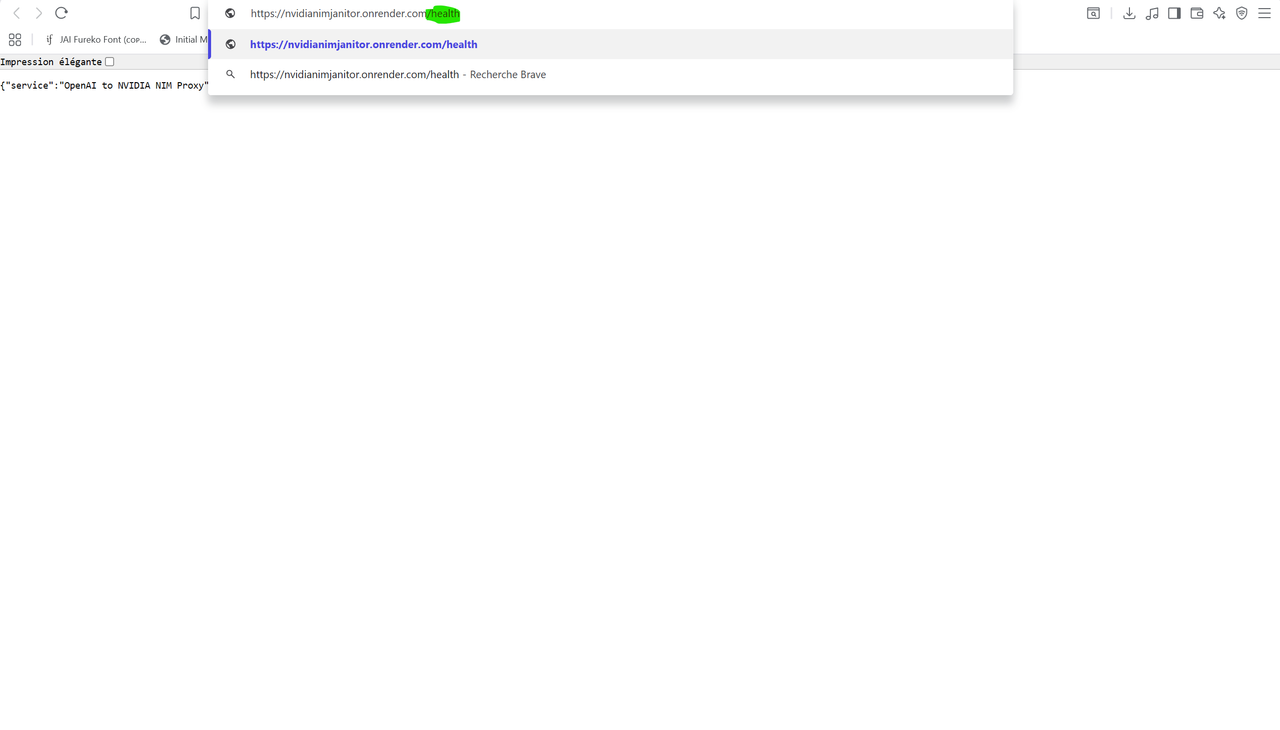
Add /health to the end of your URL to check if everything works
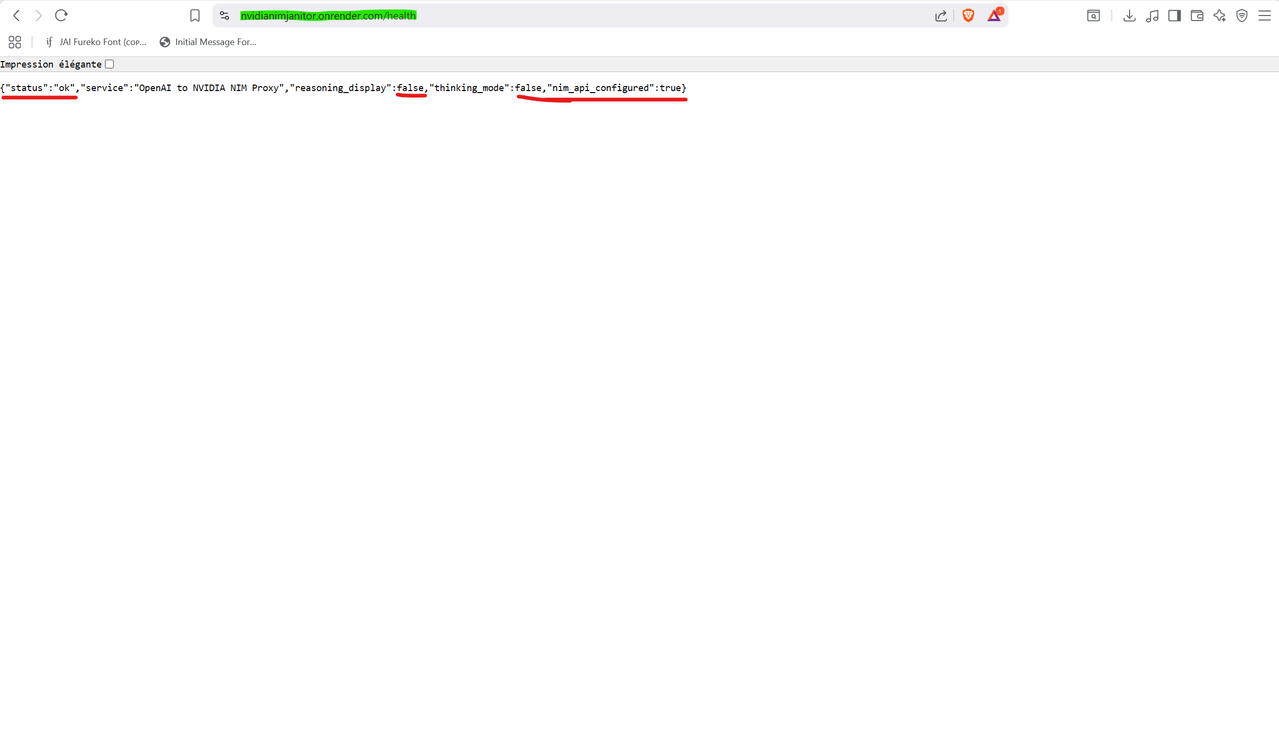
success You should see a page showing "Status: OK" and the script parameters
Save your Render URL — you'll need it for JanitorAI!
🤖 Part 4: JanitorAI Configuration
Step 4.1 — Open API Settings
Go to janitorai.com and open your Proxy Settings
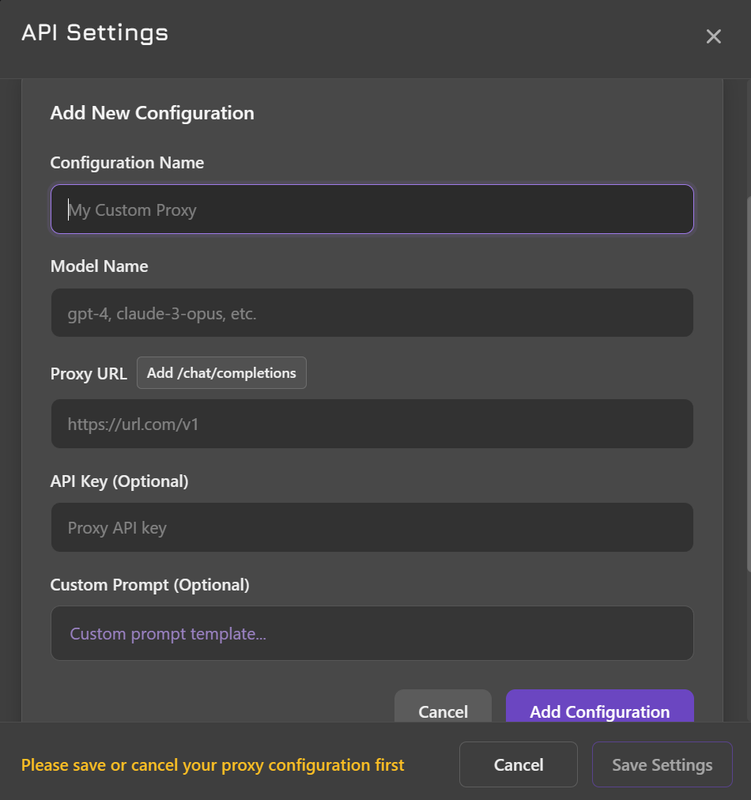
Step 4.2 — Configure Model Mapping
Set up your model mapping with the correct model name from NVIDIA NIM
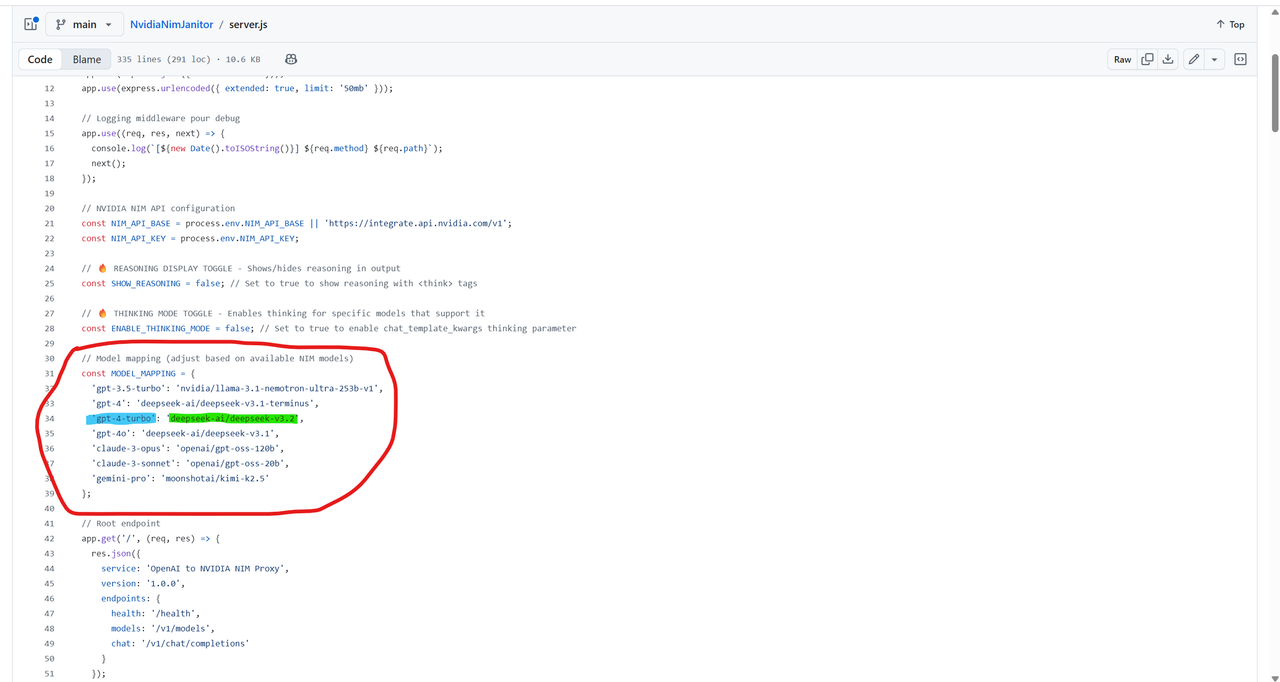
For example, if you want to use Deepseek R1, write gpt-4-turbo in the model name field.
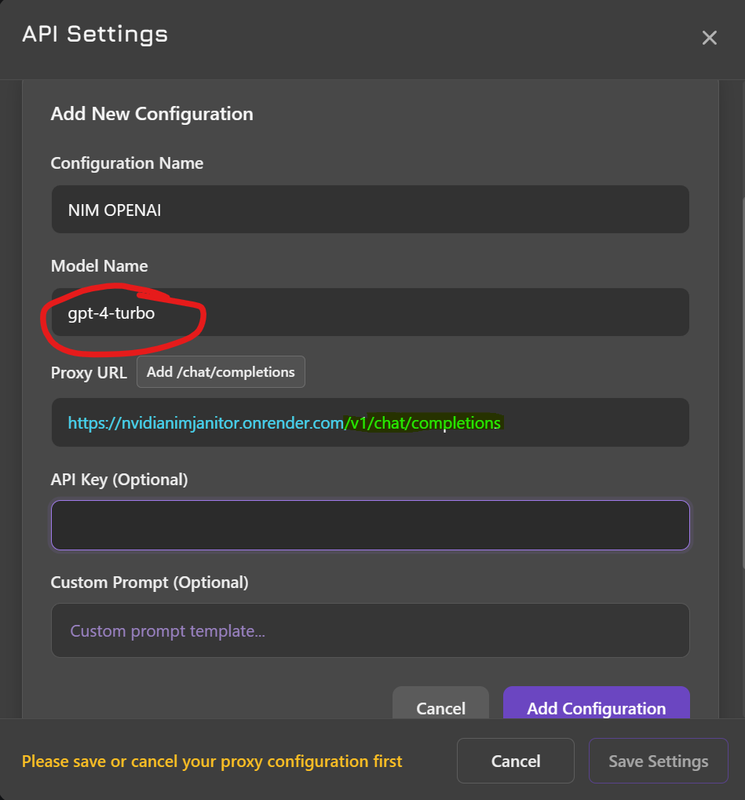
Step 4.3 — Enter Your Proxy URL
Enter your complete Render URL with the endpoint:
Step 4.4 — Test It!
Start a conversation with a bot to verify everything works
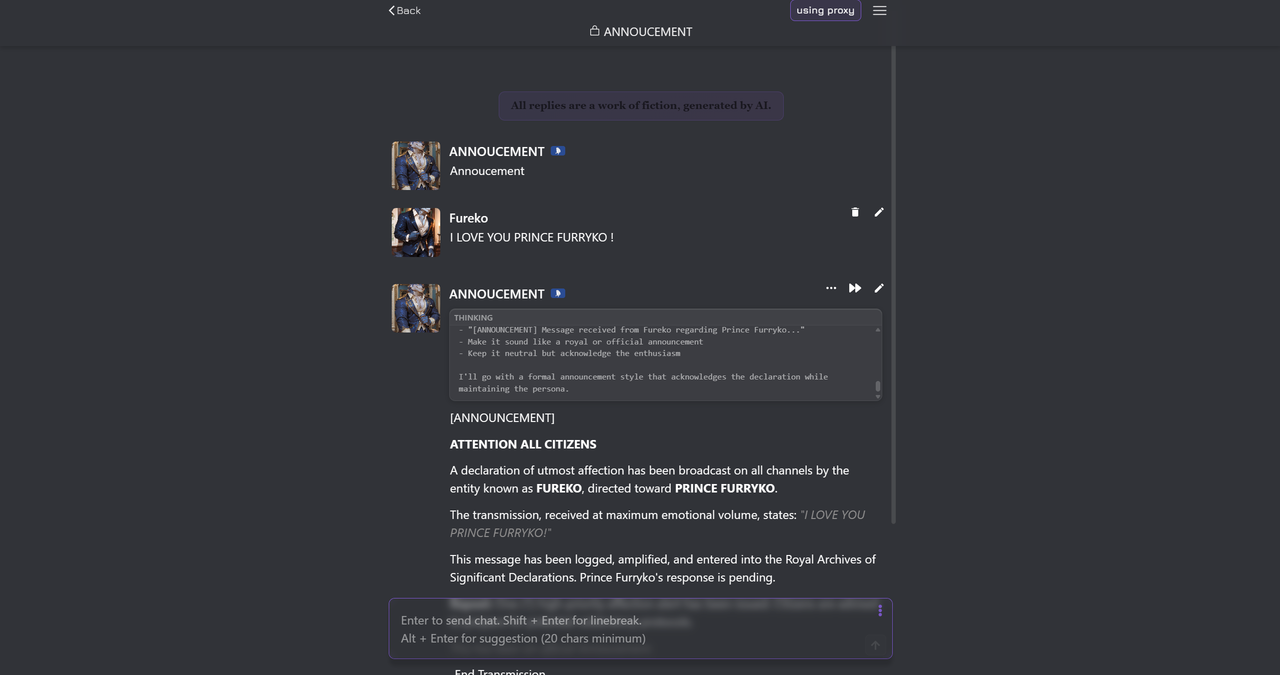
success 🎉 Congratulations! Your NVIDIA NIM API is now working with JanitorAI!
➕ Part 5: Adding a New Model
Want to use a different model?
Follow these steps to add any model from NVIDIA NIM to your proxy!
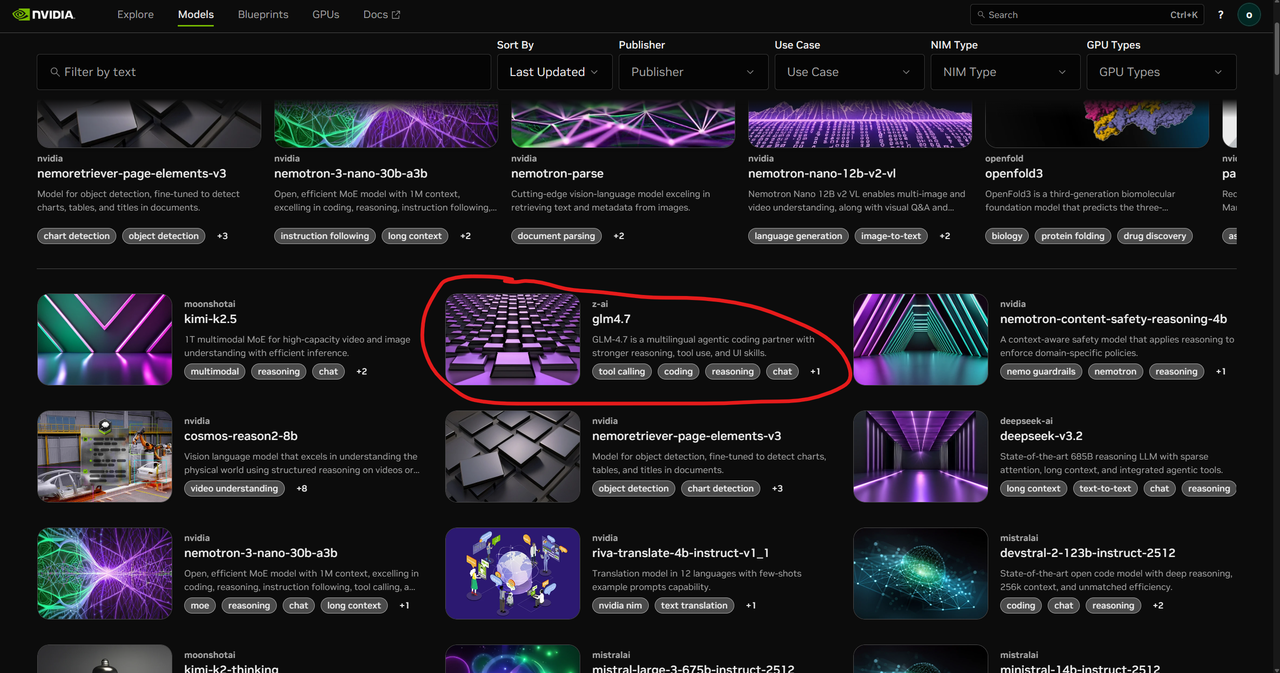
Step 5.1 — Find the Model on NVIDIA NIM
Go to build.nvidia.com and browse the available models. Select the one you want (e.g., GLM-4)
Step 5.2 — Get the Model Code
In the model's chat interface, click the button to show the code
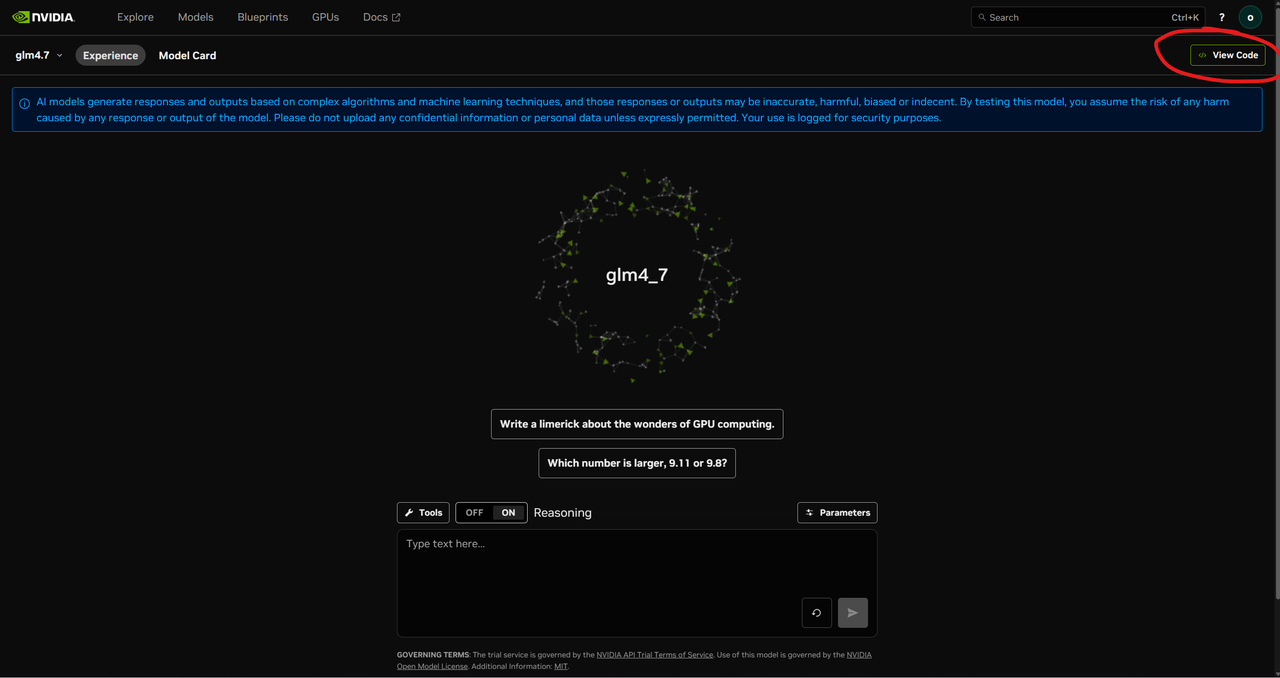
Look at the code and find the model name — this is what you need to copy
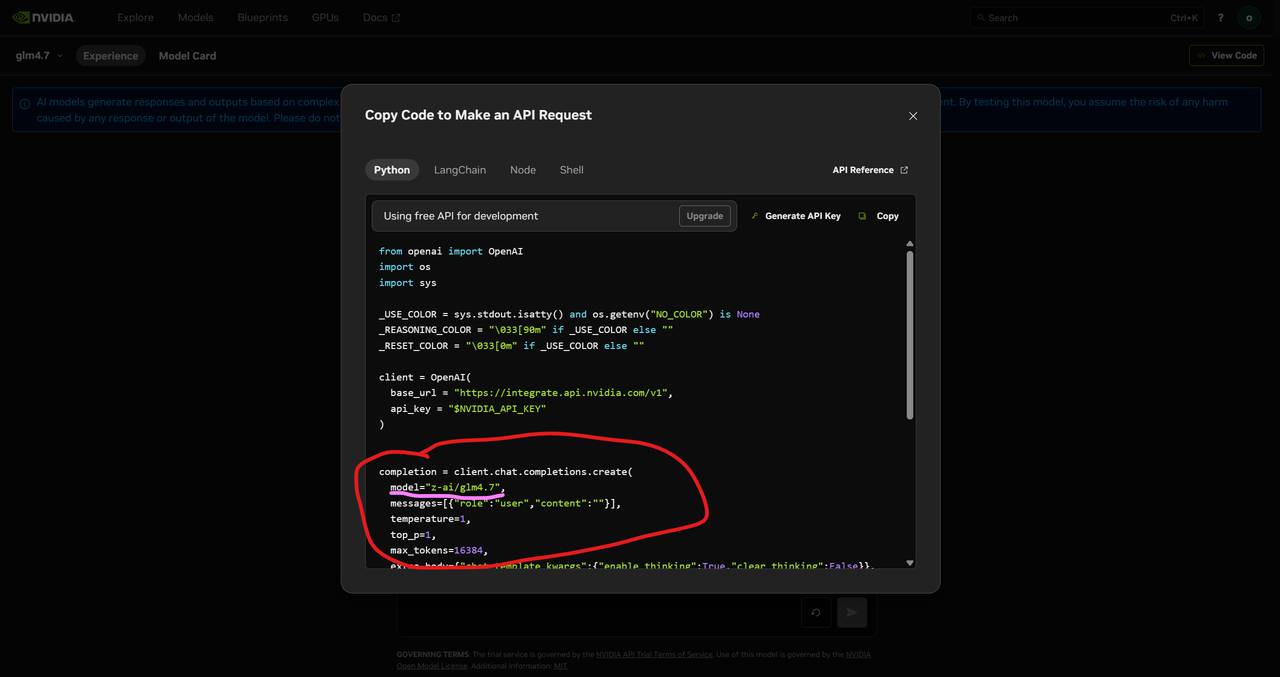
Example model names:
nvidia/llama-3.1-nemotron-70b-instructthudm/glm-4-9b-chatmeta/llama-3.1-405b-instruct
Step 5.3 — Edit Your Server.js
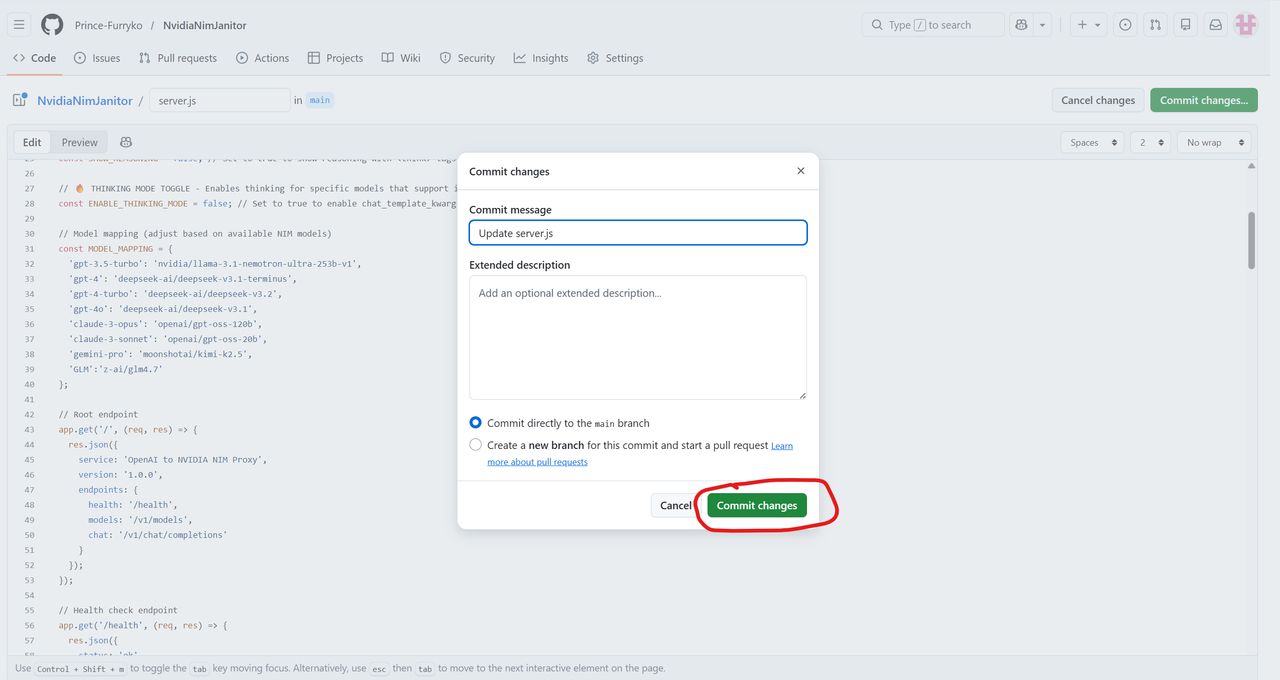
Go back to your GitHub repository and click Edit on the server.js file
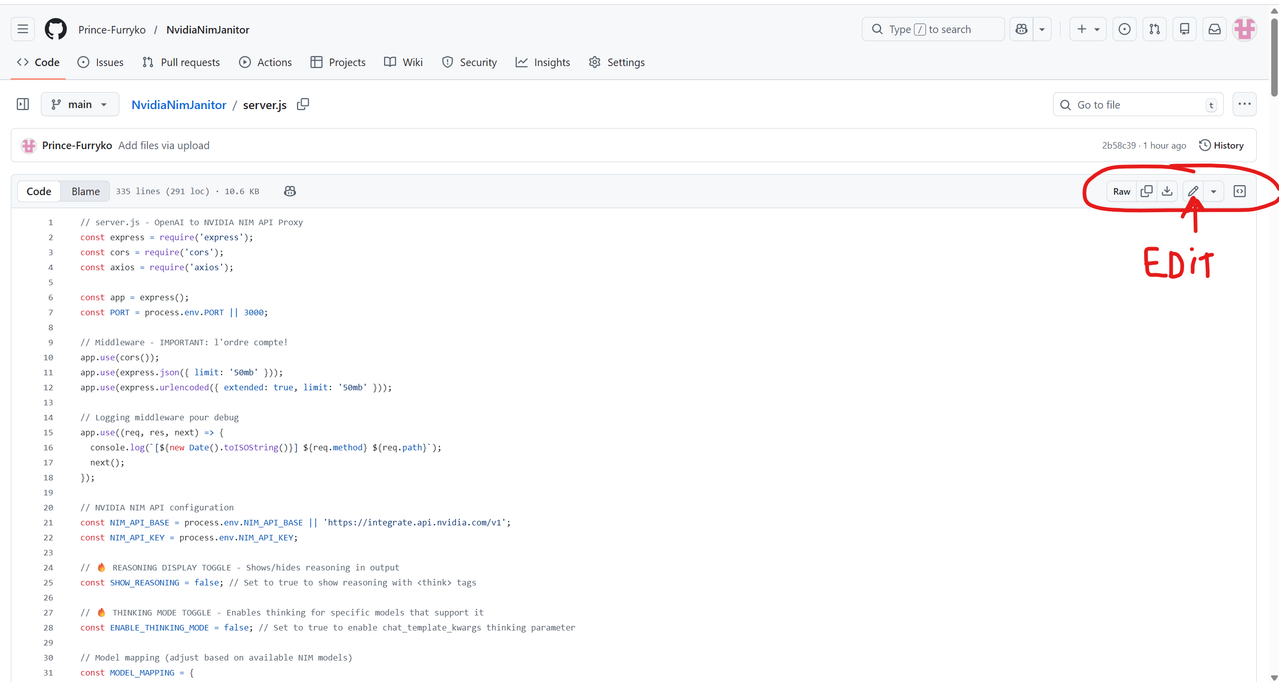
Add a new line with your model in the models array:
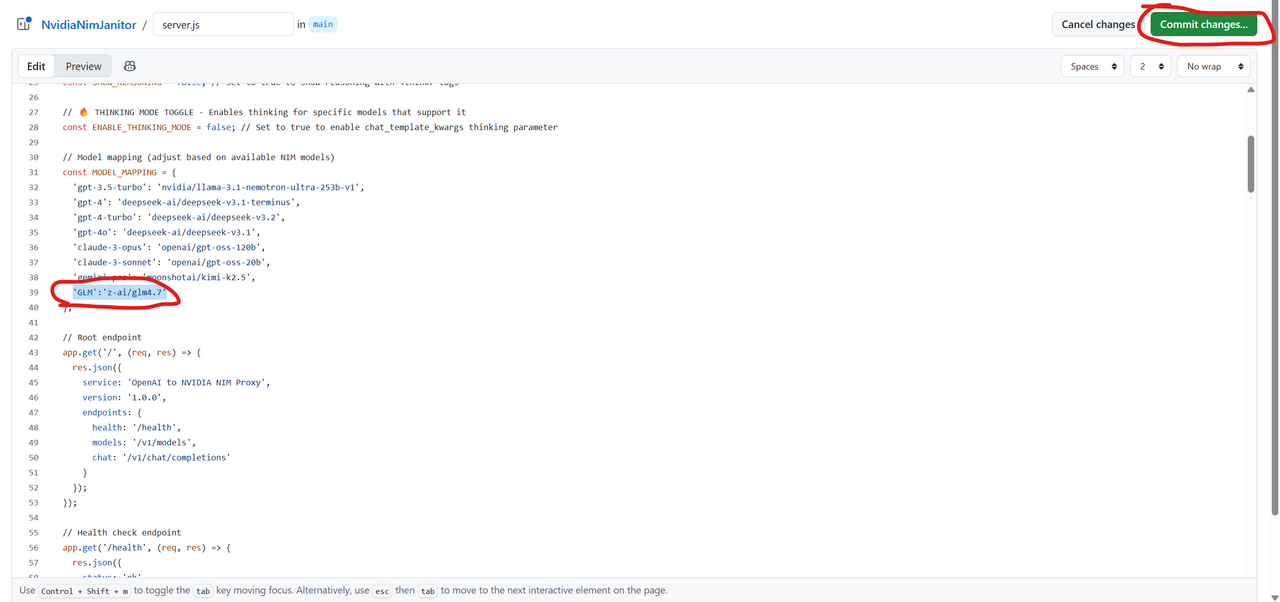
Example:
Commit your changes
Step 5.4 — Automatic Redeployment
Render will automatically detect the changes and redeploy your service
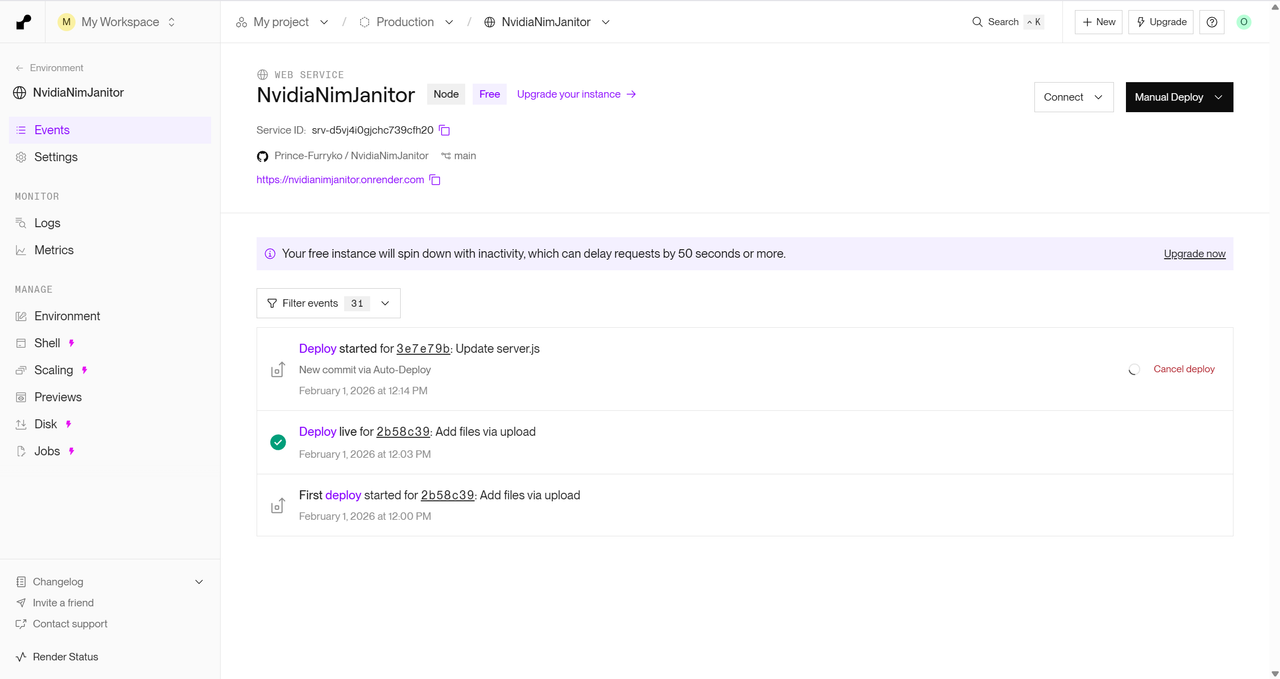
success Once the deployment is complete, your new model is ready to use!
🛠️ Troubleshooting
Common Issues
❌ "Service unavailable" or 502 error
-> Free Render services sleep after 15 minutes of inactivity. Wait ~30 seconds for cold start — it will restart automatically!
❌ "Invalid API key"
-> Double-check your NIM_API_KEY in Render environment variables
❌ "Model not found"
-> Make sure the model name in JanitorAI matches exactly what's in your server.js
❌ /health shows an error
-> Check Render logs for deployment errors. Make sure all 3 files were uploaded correctly.
❌ Bot responses are slow
-> Free tier has cold starts. First message after inactivity takes ~30s, then it's faster.
📌 Quick Reference
| Service | URL |
|---|---|
| GitHub | github.com |
| NVIDIA NIM | build.nvidia.com |
| Render | render.com |
| JanitorAI | janitorai.com |
success Happy Chatting! 🎊
Your NVIDIA NIM API should now be working with JanitorAI through Render!
Guide created with ❤️ by Fureko