
Ilaria Upscaler 💖
Ilaria Upscaler is an AI image upscaling tool created by Ilaria

Using artificial intelligence and employing deep learning, it enhances image resolution and quality
Users can upload images, adjust parameters, and receive upscaled versions up to 4x or more, with improved visual details, thanks to advanced neural networks.
 How to Use
this is extremely simple to do
- Go to the Ilaria Upscaler page
- Select the Upscaling Options to your liking
optional - Choose an upscaler template
optional- It can be any, but it’s recommended to stay with the default one since Ilaria already picked the best one for you
- Choose the denoise strength
optional- It’s recommended to keep it as is
- Choose the upscale resolution
optional- Choose a high enough number depending on the image
- Upload an image and wait for the process to complete
- Press the upscale button and wait for the process to complete
- Download the upscaled image by clicking the down arrow button at the top right of the image
Upscaling Options
what do all these different options mean? what do they do?

This can affect how well the Upscaler works on different Images. By picking a model and adjusting settings like noise reduction and resolution, you can get the best result for your picture.
- Upscaler model:
- Ilaria lets you choose from different Upscaling models, each with its own way of working and data it was trained on
- Upscaling models improve the quality of low-resolution images, making them clearer and sharper
- Denoise Strength:
- An option for adjusting the denoise strength to enhance the quality of the upscaled images
- Resolution upscale:
- Users can upscale the resolution of images, up to a factor of 4x
- Face Enhancement (GFPGAN):
- This feature give the user the option to enable a face enhancement algorithm using GFPGAN (Generative Face Performance GAN)
- Output file extension: *this feature is currently broken
- This feature allows users to specify the file extension
How to Use + Images
if you didn't get it the first time.. you will now
- Go to the Ilaria Upscaler page
- Select the Upscaling Options to your liking
optional
- Choose an upscaler template
optional- It can be any, but it’s recommended to stay with the default one since Ilaria already picked the best one for you
- Choose the denoise strength
optional- It’s recommended to keep it as is
- Choose the upscale resolution
optional- Choose a high enough number depending on the image
- Upload an image and wait for the process to complete
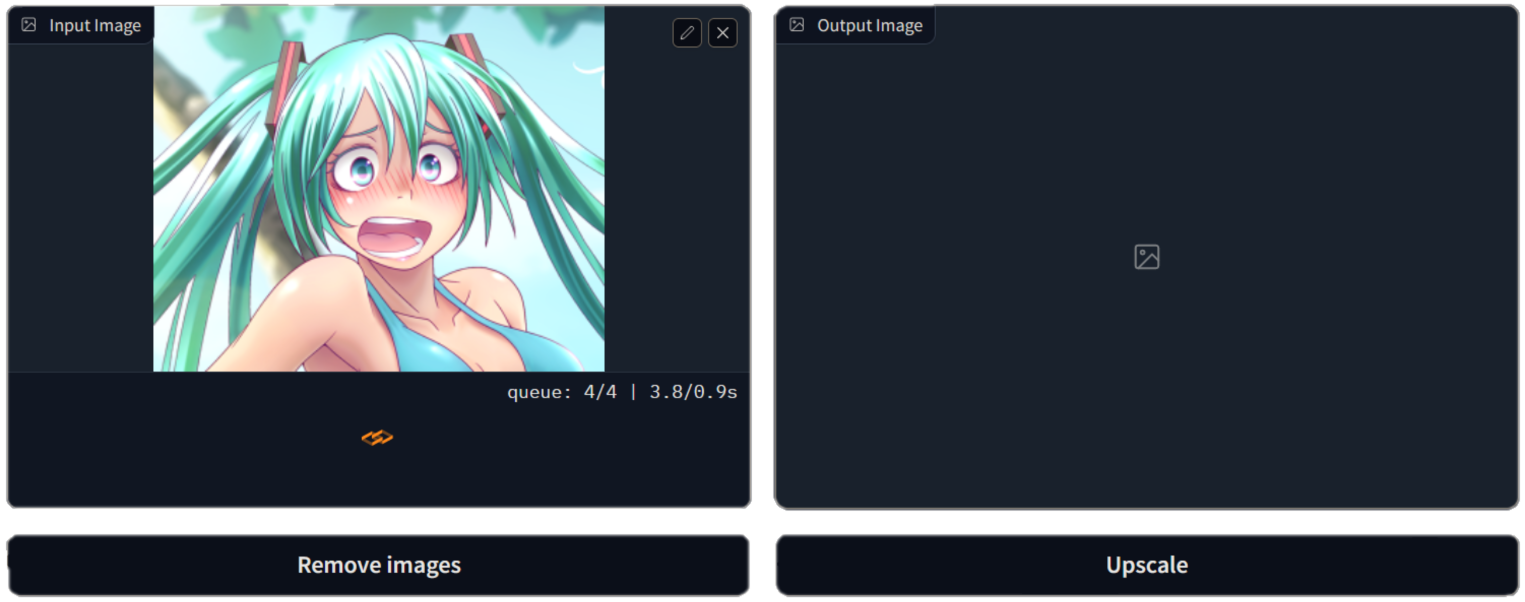
- Press the upscale button and wait for the process to complete

- Download the upscaled image by clicking the down arrow button at the top right of the image
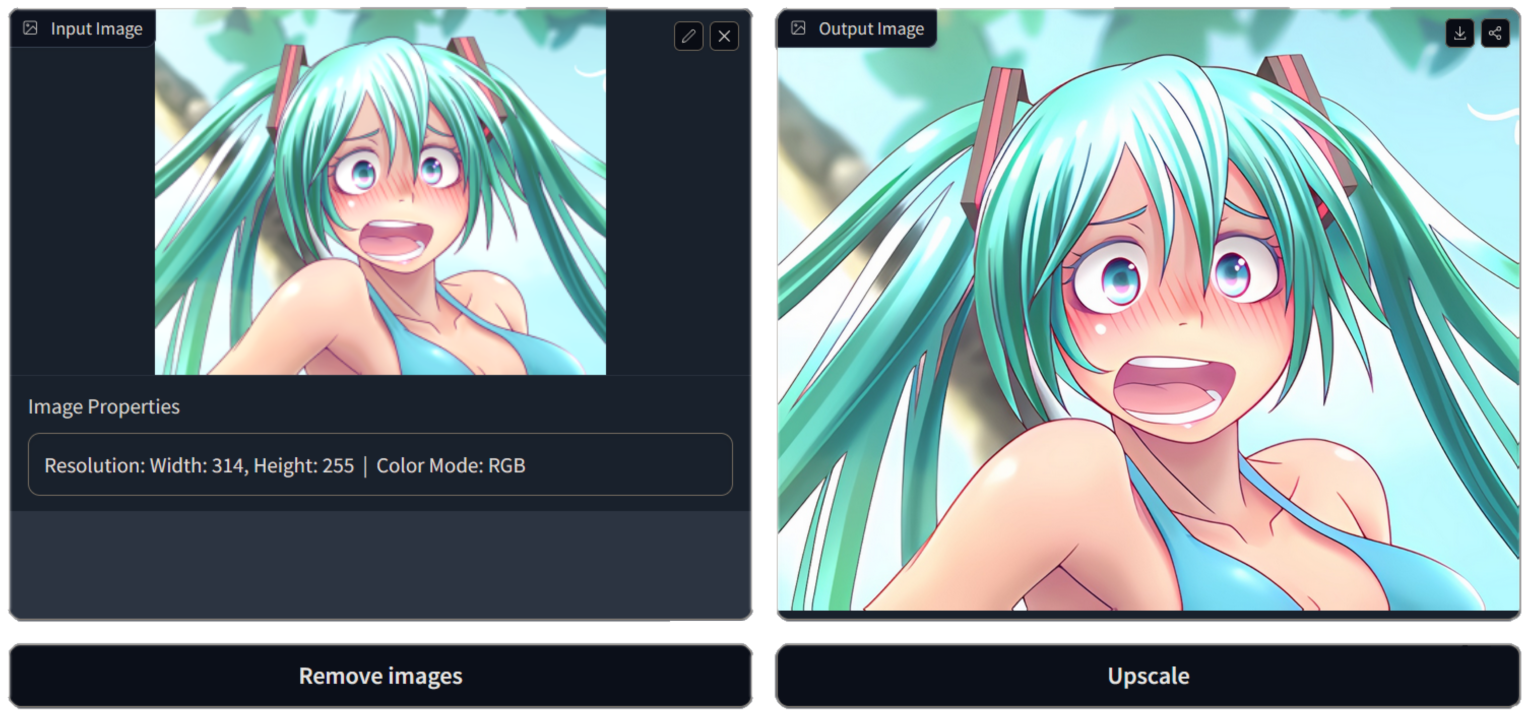
Ilaria Upscaler is designed with .jpeg .png & .webp files in mind
Tool by Ilaria 💖 | Support her on Ko-Fi | Join AI Hub |
Guide by Squishy 🍑 |
|---|---|