Why Is Keeping Extra Copies of Work Documents on My Phone a Problem?
Saving a work document to your phone can feel like a sensible shortcut. You may want to read a rota on the train, check a policy between appointments, or keep a file available when Wi-Fi is unreliable. But an extra copy creates another place where the document can be exposed, changed, or left behind.
That matters even when the file seems routine. A screenshot of a clinic list, a downloaded spreadsheet, or a document attachment can contain personal information, confidential operational details, or information that should only be available through an approved work system. If the file includes patient data, the consequences can be especially serious.

The issue is not simply whether your phone is “secure.” It is whether the copy is necessary, permitted, protected, up to date, and removable when it is no longer needed. For health care teams, those questions are part of data governance, not just personal device housekeeping.
Start with Your Employer’s BYOD and Device Policy
Before downloading or copying any work document, check your employer’s policy for personal devices. BYOD means “bring your own device,” and organizations may allow some work access on personal phones while prohibiting other uses. The rules can vary by employer, role, device, and type of information.
Do not assume that being able to open a file means you are authorized to store it. A work app may let you view a document without allowing you to save it locally. A share menu may offer options that your organization does not permit. The policy, not the phone’s available buttons, determines what is acceptable.
Check the policy or ask your IT, information governance, or data protection team if you are unsure about:
Whether personal phones may access work email, files, or clinical systems. Which apps and cloud services are approved for work information. Whether downloads, screenshots, printing, or offline access are allowed. What security controls are required, such as a passcode, encryption, or device management software. What to do if a phone is lost, shared, repaired, or replaced. How work data is removed when access ends or the device is no longer used for work.
If a document needs to be available for a task, use the approved route described by your employer. If the approved route is unclear, ask for guidance rather than using a personal storage account or sending the document to a personal email address. That may create an additional, unmanaged copy rather than solve the problem.
Use Approved Systems for Patient and Organizational Data
The Information Commissioner’s Office (ICO) provides guidance on protecting personal information, including advice on working securely and working from home securely. Its guidance emphasizes practical safeguards such as limiting access, protecting devices, and taking care when handling information outside the workplace. Apply your organization’s policies alongside the ICO’s guidance; local requirements may be more specific to your role and systems.
For patient and organizational data, use systems your employer has approved for that purpose. These might include a managed clinical record, secure document platform, or work email service. Approved systems are selected and configured to support access controls, monitoring, retention, backups, and other governance requirements. A personal notes app, consumer cloud drive, or phone gallery may not offer the same oversight.
“It is only on my phone” is not a data governance plan. A document saved to a personal device can be exposed through backups, device sharing, app permissions, or syncing to an account that the employer does not control. It may also be difficult for the organization to identify where copies exist or remove them if circumstances change.
Why extra copies create version control issues
Every saved copy can become a separate version. A rota, contact list, protocol, or service instruction may be updated in the approved system while the copy on your phone remains unchanged. You could then act on superseded information or share an outdated version with a colleague.. Exactly.
This is one of the most practical risks of local storage: the copy may look familiar and authoritative even after it is no longer current. In clinical work, an old contact number or process can waste time; outdated instructions may create more serious problems. When possible, access the current document from its approved source instead of storing a duplicate.
If offline access is genuinely needed and permitted, establish how the file will be refreshed, how long it can remain on the device, and how it will be removed afterward. Follow your employer’s process rather than relying on memory.
Separate Entertainment from Clinical Work on the Device
Phones are designed to move information quickly between apps. That convenience can blur the boundary between work and personal use. A work attachment may be offered to a personal messaging app. A screenshot may land beside personal photos. A document may be included in a consumer backup or indexed by a search feature.
Keep work within approved apps and accounts. Do not copy patient or organizational information into personal messages, personal email, social media, an unapproved translator, or a personal note-taking app. Do not use a personal account as a workaround when a work service is slow or unavailable.
Separating work from entertainment also reduces accidental exposure. For example, a phone used for music, games, or family photos may be passed to another person, connected to a shared screen, or shown while notifications are visible. These everyday situations can expose information without anyone intending to misuse it.
Make the safer choice in the share menu
A common easy mistake is tapping the first share option that appears. Before sending, uploading, or opening a work file elsewhere, pause and check the destination. Confirm that it is an approved work app and the intended recipient. If the app or destination is not clearly approved, cancel and ask your organization what to use.
Do not assume that moving a document into a folder makes it secure. Folders can help with organization, but they do not by themselves control access, prevent syncing, or ensure that a copy can be removed. Security depends on the system, settings, and organizational controls around the file.
Lock Screen Previews and Notification Privacy
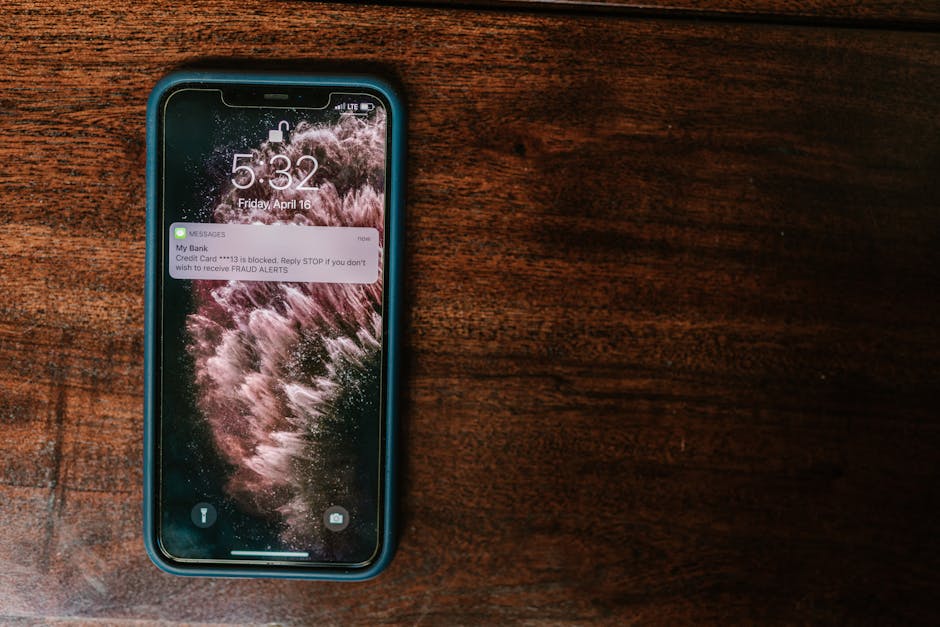
A phone can be locked and still reveal information. Message previews, email subject lines, calendar alerts, and app notifications may appear on the lock screen. Someone nearby could see a patient name, appointment detail, staff issue, or confidential subject line without unlocking the device.
Review notification settings for work apps, especially on a personal phone. Depending on your device and employer’s policy, you may be able to hide previews, show notifications only after unlocking, or turn off lock-screen notifications for particular apps. Make these changes in the phone’s settings and in the app’s settings if needed.
Test the result on the actual lock screen before relying on it. Send a test message or notification from an approved account, lock the phone, and check what is visible. A setting that appears correct in a menu may still display details in a banner or notification center. Also check how notifications behave when the phone is connected to a car display, watch, or other linked device, if those are in use.
Removal Difficulty: The Copy May Be Harder to Delete Than to Save
Removing a file from one visible folder may not remove every copy. It may also exist in a downloads folder, an email attachment cache, a recently deleted area, an app’s offline storage, a device backup, or a synced account. Screenshots and photos can have their own backup settings. The exact behavior depends on the device and apps.
This creates removal difficulty. If a phone is lost, replaced, shared, or no longer approved for work, you may not know every location where information was stored. Your employer may also have limited ability to remotely remove data from a personal device unless the device or work container is managed through an approved service.
That is why it is better to avoid creating unnecessary copies in the first place. If a permitted work file must be downloaded, follow your organization’s retention and deletion instructions. Do not improvise by deleting items in a way that could remove records your employer is required to keep. Ask the appropriate team when you are unsure what must be retained or how to remove a local copy safely.
A Practical Check Before Saving a Work Document
Use this short check before putting a work document on your phone:
Check the policy. Confirm that personal-device access and local storage are allowed for this information. Check the purpose. Is an offline copy genuinely needed, or can you access the current file through an approved system? Check the destination. Save only to an employer-approved app or managed work area—not a personal account or general-purpose app. Check the protection. Follow required device controls, and review lock-screen previews and notifications. Check the lifecycle. Know when the copy becomes outdated, how it will be refreshed, and how it must be removed. Check who to contact. If any answer is unclear, ask your manager, IT team, or information governance contact before copying the file.
Quick Comparison: Approved Access vs. Unmanaged Copies
Approach Potential concern Safer next step Opening a document in an approved work system Access may still need to follow local policy and device requirements. Use the system as intended and keep the app and device controls up to date. Downloading a file to the phone The copy may be outdated, backed up, or difficult to remove. Download only if permitted and necessary; follow rules for refresh and deletion. Sending a file to a personal email or cloud account Creates a copy outside the organization’s approved controls. Do not use this as a workaround. Ask for an approved access method. Keeping work notifications visible on the lock screen Names or message details may be visible to people nearby. Hide previews or adjust notifications, then test on the locked device.
What to Do If You Already Have Extra Copies
If you discover work documents stored in an unapproved location, do not forward them, make more copies, or assume that deleting one visible file resolves the issue. Follow your employer’s incident and information-handling procedures. Contact your manager or information governance team for instructions, especially if the material contains patient information or may have been viewed by someone else.
Report a lost phone, suspected disclosure, or mistaken share promptly through the organization’s required route. Fast reporting gives the right team a chance to assess the risk and take appropriate action. Do not delay because you are unsure whether the event “counts.” Describe what happened, what information may be involved, work profile on android and which apps or accounts were used.
Keep the Convenience, Lose the Uncontrolled Copy
I'll be honest with you: keeping extra work documents on a phone can create version control issues, make removal difficult, and weaken data governance. The risks are not limited to theft or hacking. They include ordinary situations: an outdated file, a preview on a lock screen, a quick tap into the wrong app, or a document retained in a backup you did not know about.
Start with your employer’s BYOD and device policy. Use approved systems for patient and organizational data. Keep clinical work separate from entertainment and personal accounts. Review notification privacy, and test the https://bizzmarkblog.com/how-do-i-handle-urgent-messages-outside-the-workplace-without-breaking-policy/ settings on the actual lock screen. When you need offline access, get clear instructions on how to protect, update, and remove the copy.
For further information, consult the Information Commissioner’s Office guidance on working securely and working from home securely, along with your employer’s local policies. The practical rule is simple: if you cannot confirm that a copy is approved, necessary, and manageable, do not create it until you have checked.