💡 Guide: Replacing textures in Wild Life
For demonstration we will edit the skin texture of Alissa.
👉 This guide has been tested on the following build: 2023.10.20_Shipping_Full_Build_1
👉 This guide has been mirrored here in case the images don't load anymore.
Software prerequisites
You will need the following tools:
- A photo editor, e.g. GIMP, Krita or Photoshop.
- FModel (v4.4.3.3 or later): Follow the installation instructions here.
- UE4-DDS-Tools (v0.5.4 or later): Download the GUI version here and unzip it anywhere you like.
- repak (v0.1.8 or later): Download
repak-v0.1.8-x86_64-pc-windows-msvc.zipfrom here. Instructions on how to use it are given in Step 4 below.
Step 0: Set up FModel
We will use FModel to inspect the game files and extract textures.
Start FModel. You will be greeted with a prompt like this:
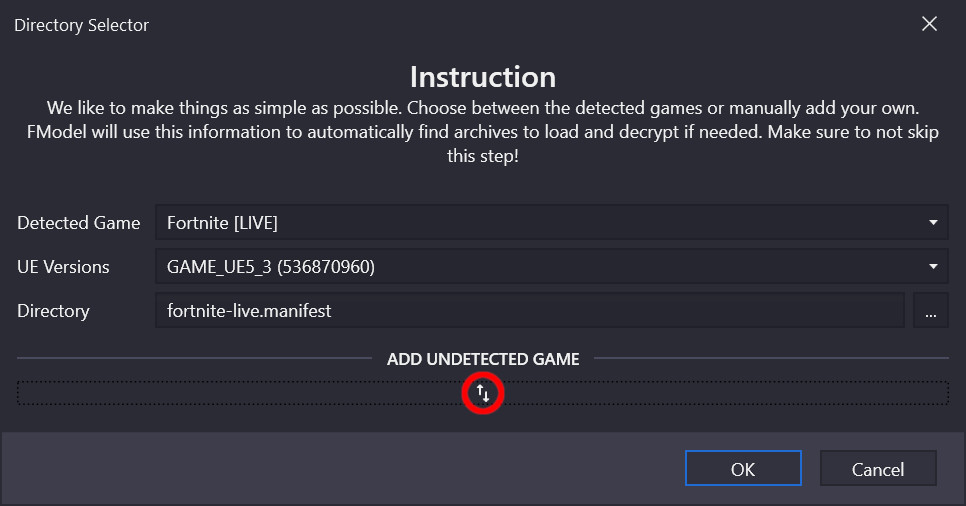
Click on the up/down arrow icons under "add undetected game", fill in the details for your WL install as shown below, and then click on the "+" icon:
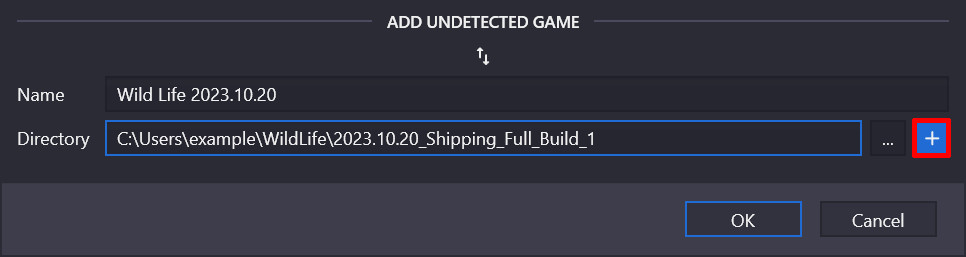
After you've clicked on "+", choose the right UE version and then click OK:
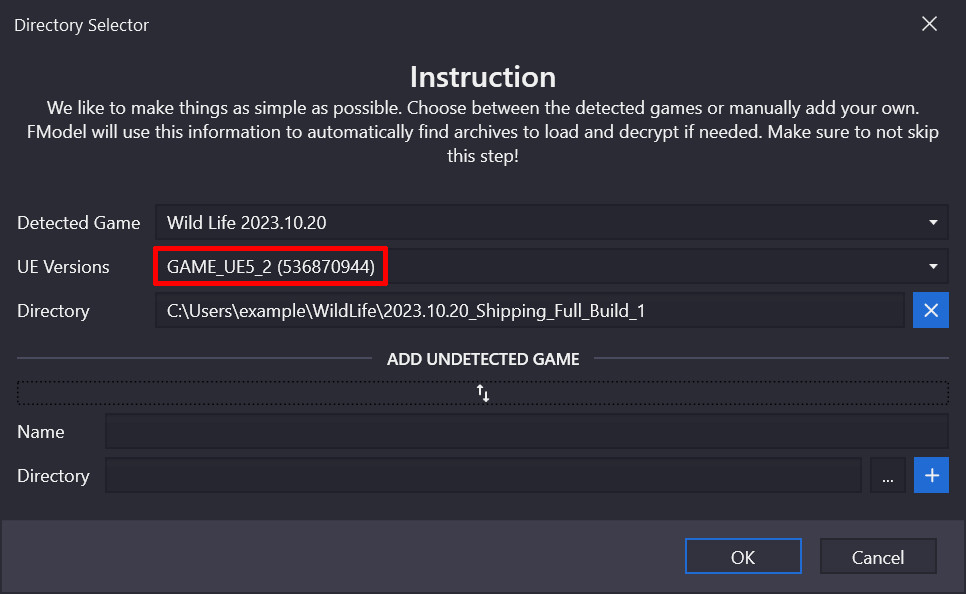
You should then see something like this:
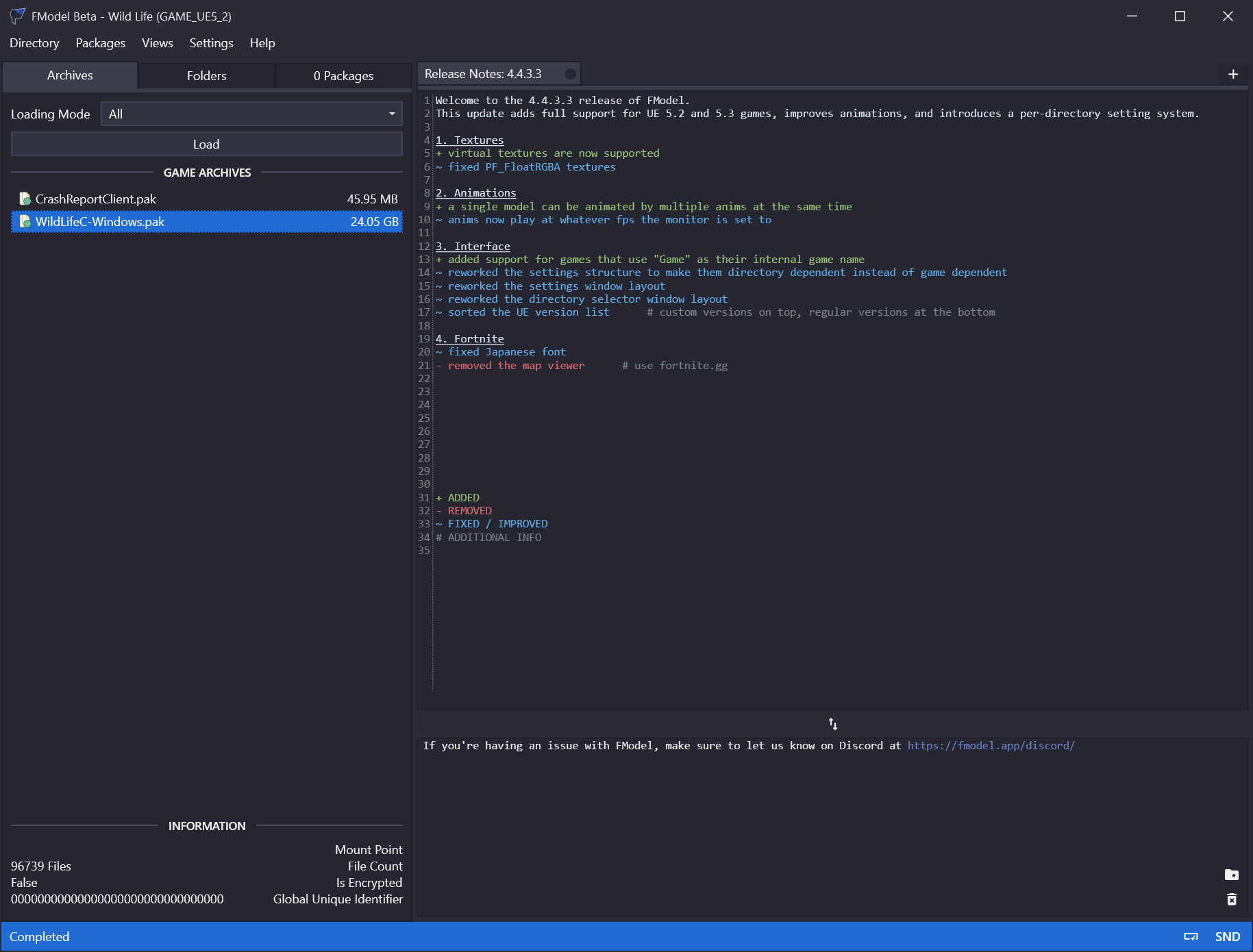
Step 1: Extract texture
In FModel: Double-click on WildLifeC-Windows.pak. This will cause a kind of directory explorer to appear. Expand the WildLifeC directory; then navigate to Content → Textures → Characters and double-click on the Female directory within (see left image below).
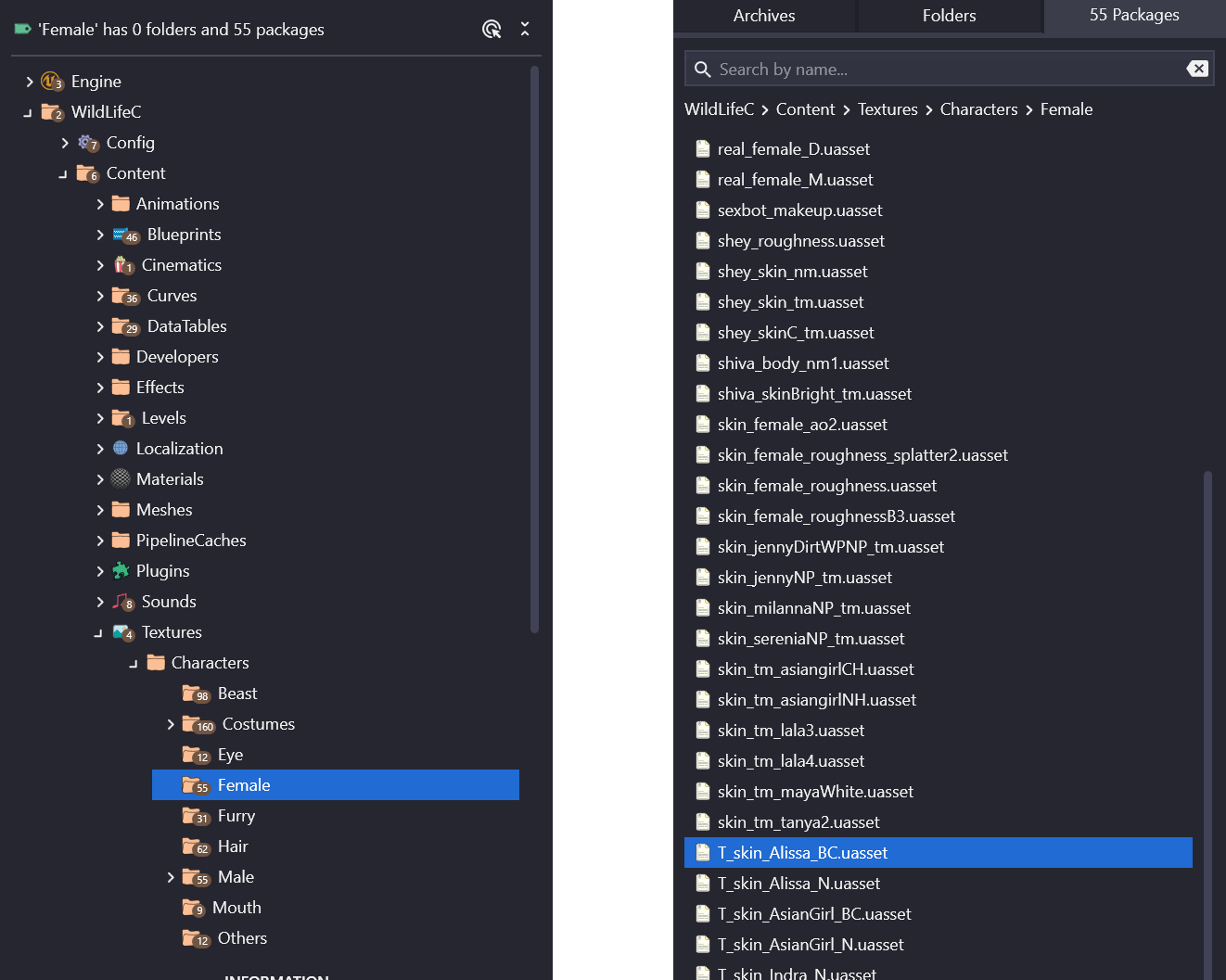
A list of .uasset files will appear (see right image above). Find the file T_skin_Alissa_BC.uasset, right-click on it and select "Export raw data (.uasset)".
🚧 Note: Unfortunately FModel can't currently preview the files due to this issue: https://github.com/4sval/FModel/discussions/418 - it would be very helpful if someone could generate a mapping file; I haven't been able to figure that part out yet.
You should see the message "Successfully exported T_skin_Alissa_BC.uasset" in the bottom-right panel:
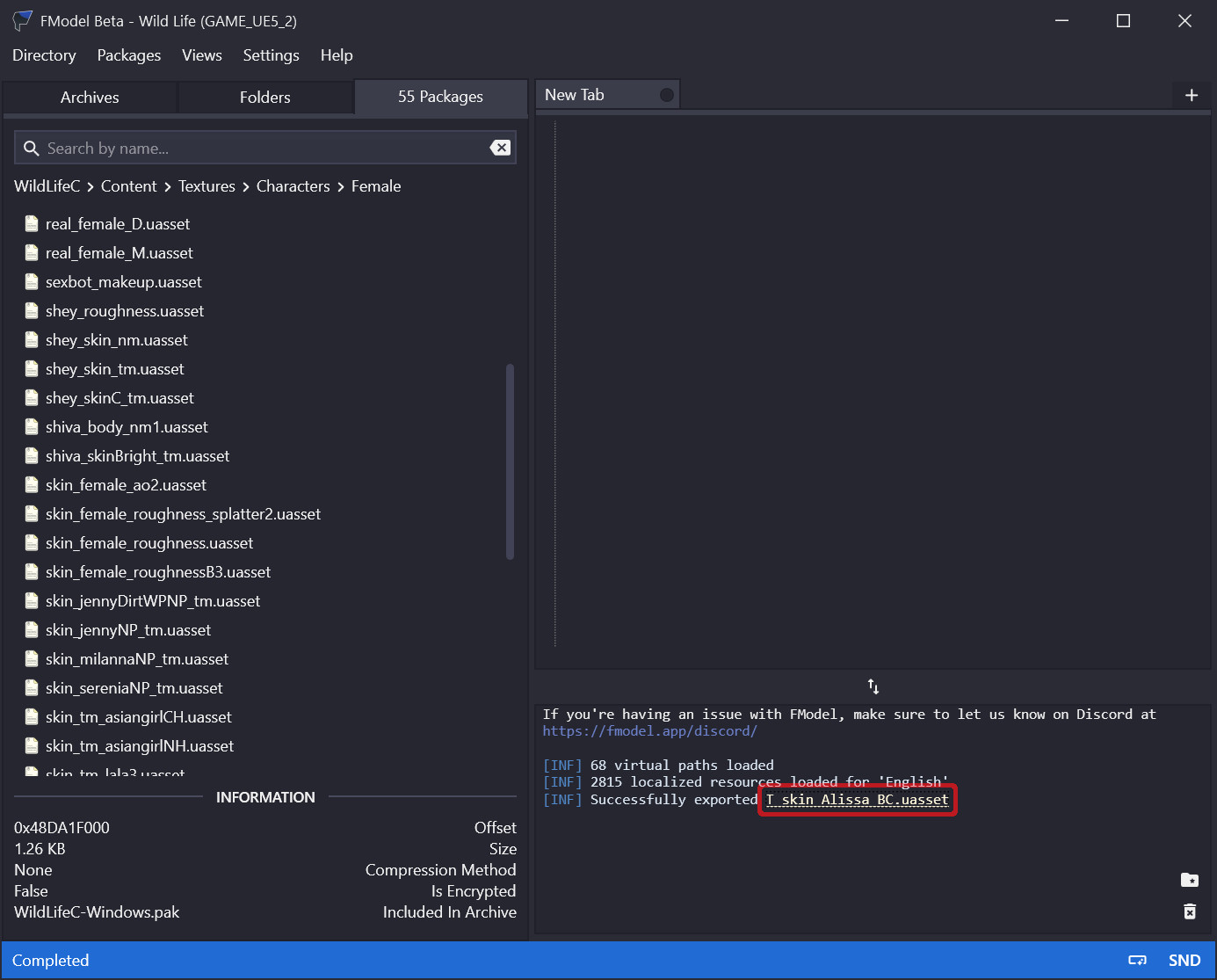
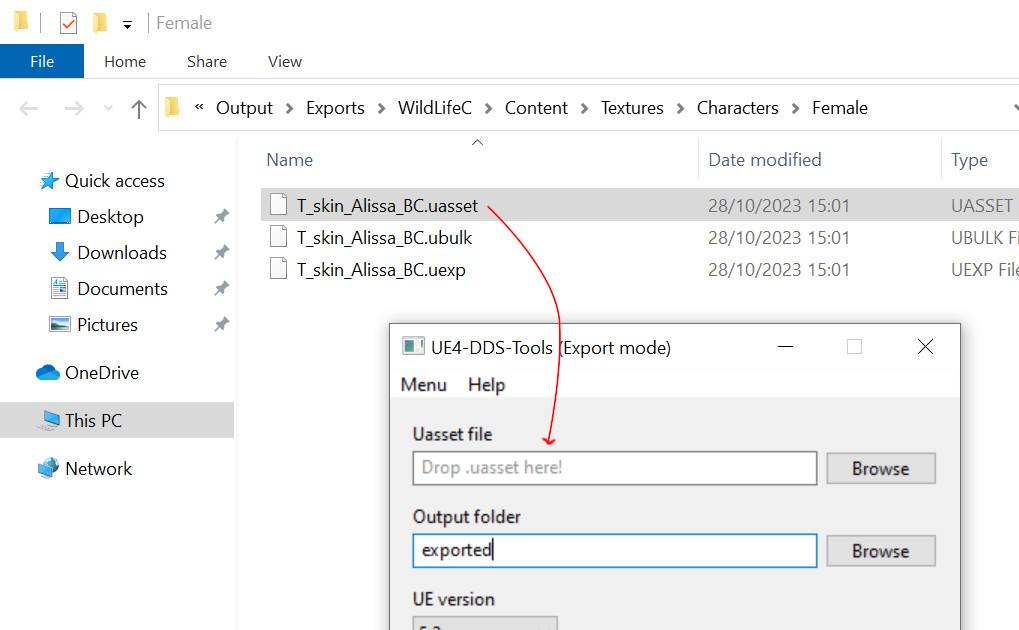
Click on the underlined filename in the message; that will bring you to the place where the .uasset file has been extracted (together with a .ubulk and a .uexp file).
Step 2: Edit texture
Now start the UE4-DDS-Tools-v0.5.4-GUI tool. Switch it to "export mode" by going to Menu → Export. Then drag and drop the .uasset file into the "uasset file" input:
Then choose any output folder you like, adjust the settings as shown in the image, and then click Export:
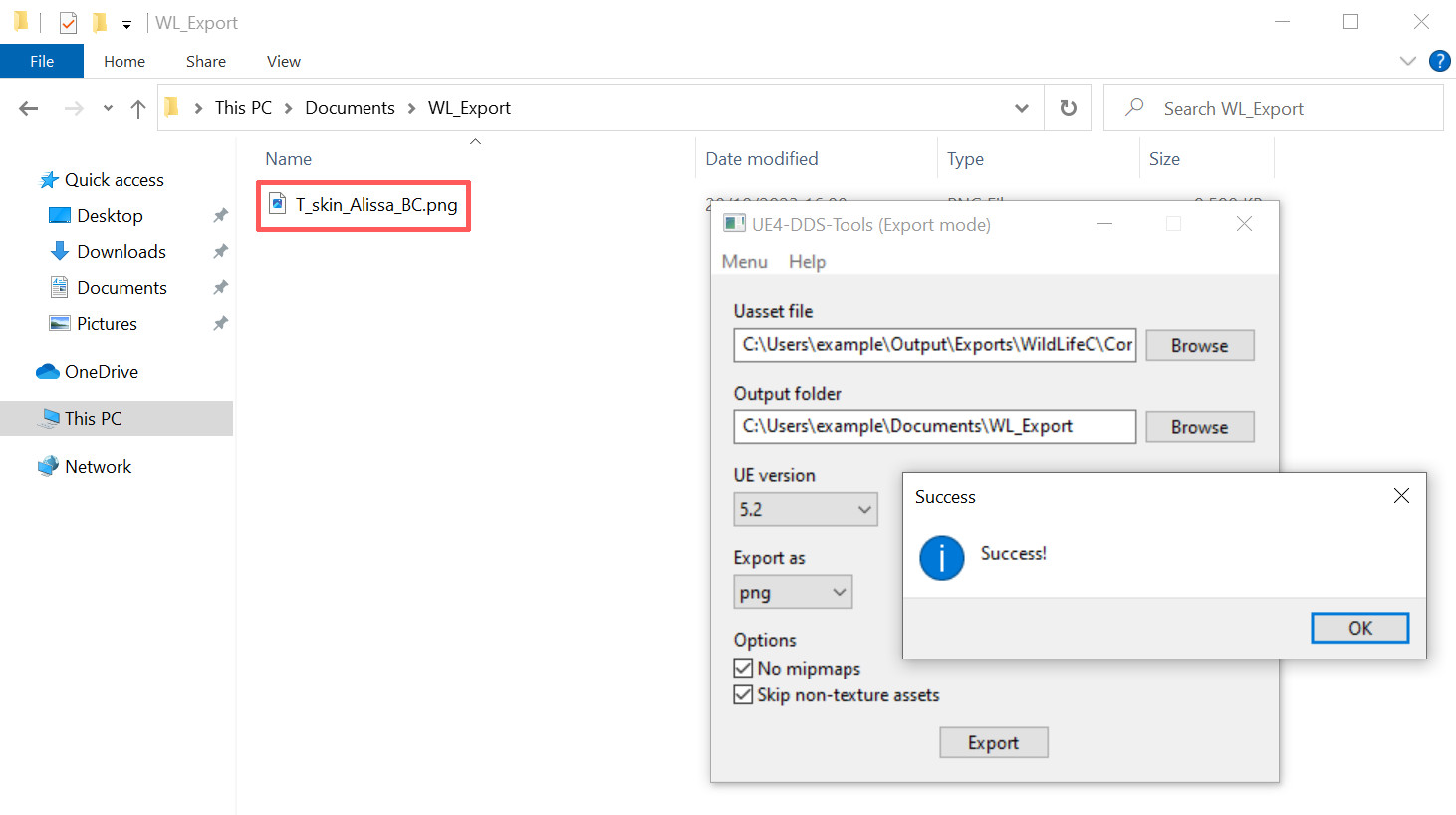
You should then see a message saying "success", and the program should have produced a file called T_skin_Alissa_BC.png in the export directory you specified.
Now open T_skin_Alissa_BC.png in your photo editor, make the changes you would like, and then save the file.
👉 Note: The texture may look strange to you, but it actually follows the usual UV unwrap scheme for 3D models (see e.g. this resource if you're curious about the details).
Step 3: Create new .uasset
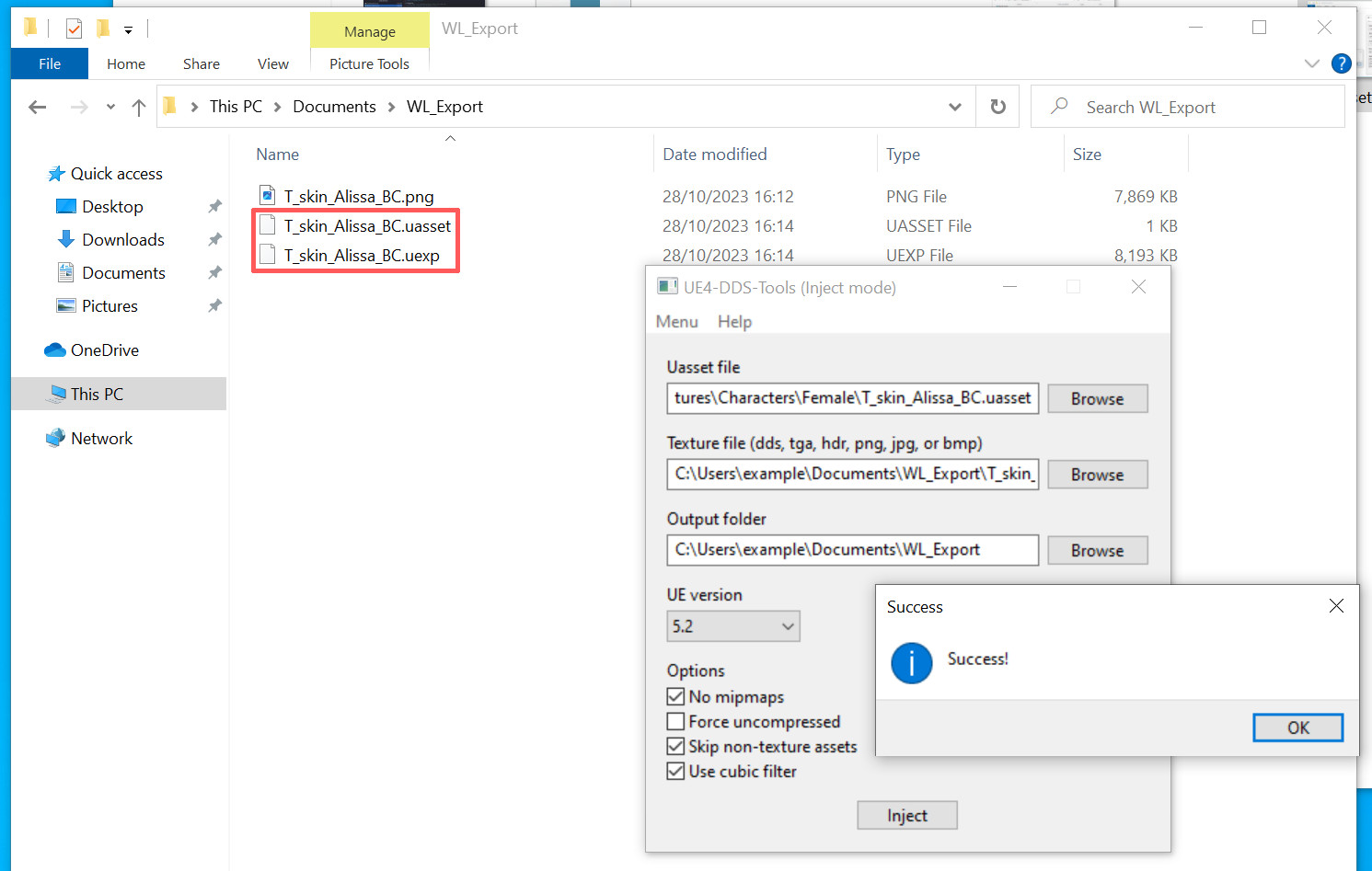
Using UE4-DDS-Tools-v0.5.4-GUI again: Switch it to "inject" mode by going to Menu → Inject. Then fill out the details and click Inject:
- Uasset file: the file from Step 1.
- Texture file: the file you've just edited.
- Output folder: Choose any folder you like (I'll use the folder containing the .png).
You should see a success message, and the tool will have created a .uasset and a .uexp file in your output folder:
Step 4: Create .pak
Now all that remains is to create a .pak file that we can put into the WildLifeC Paks subdirectory. For this we will need to create a special directory structure and then use the repak tool. Follow these steps:
- Create a new directory anywhere you like, I'll call mine
AlissaTextureMod. - Go to the directory from Step 1 (the one containing the original .uasset, .ubulk and .uexp files). Then navigate up until you hit the
Exportsdirectory. Copy theWildLifeCdirectory withinExportstoAlissaTextureMod:
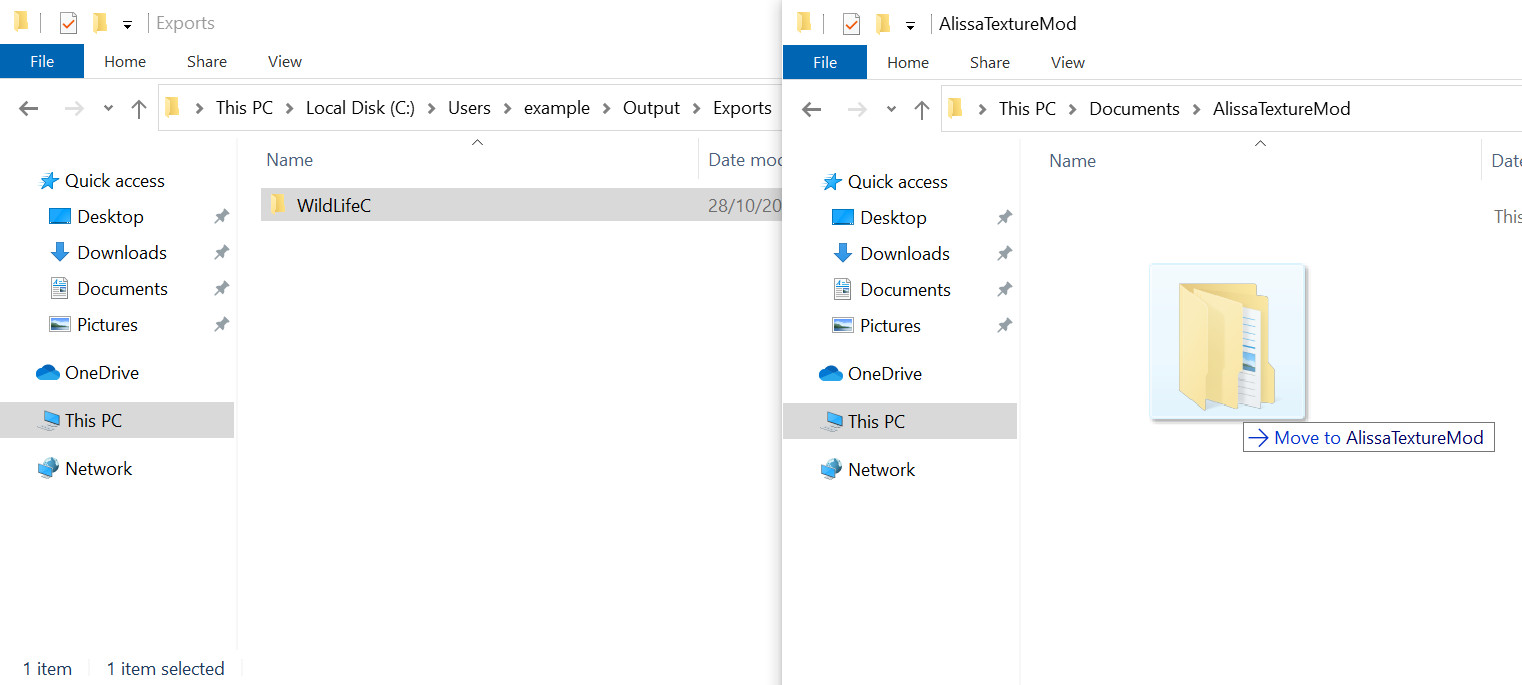
(This is just to make sure that we have the right directory structure.)
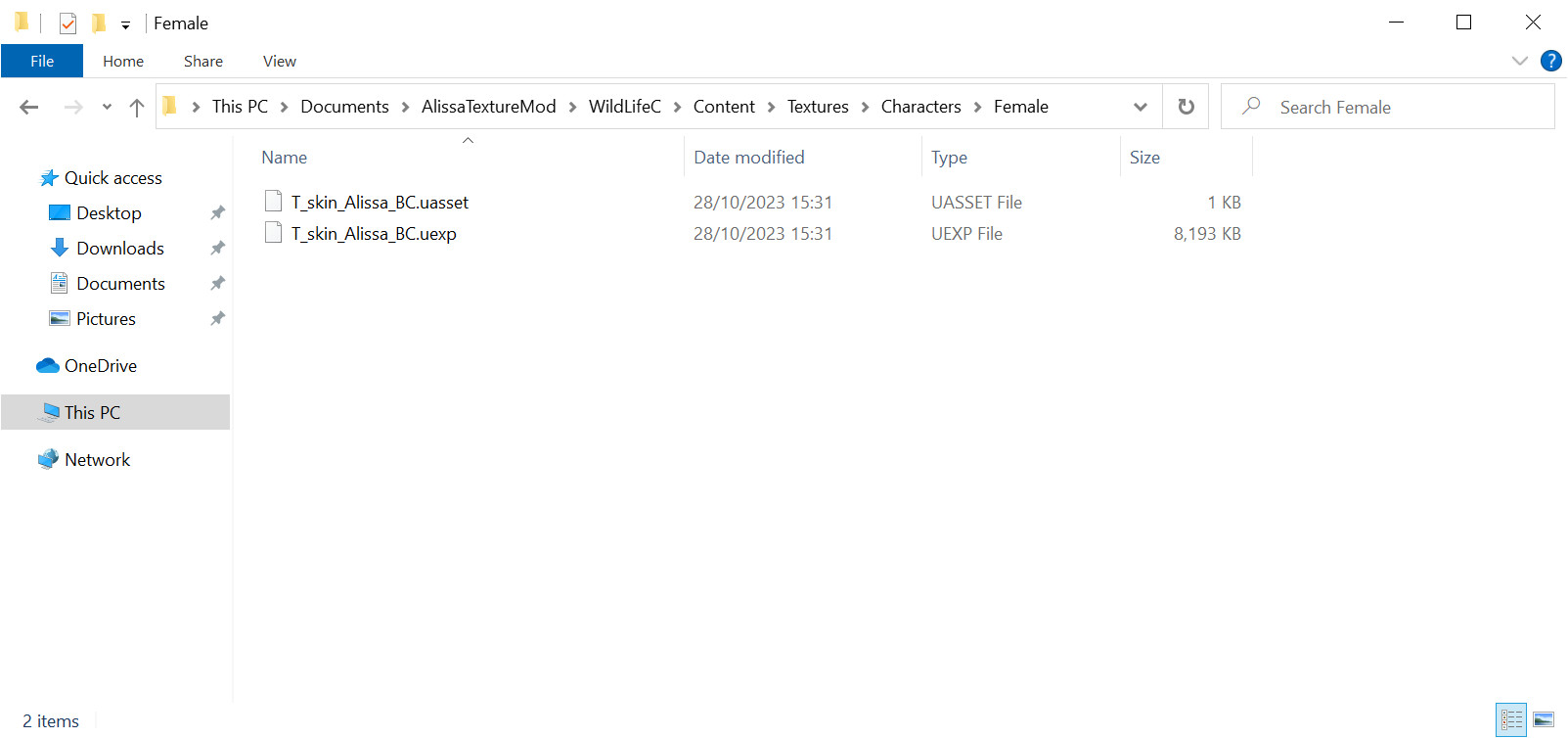
Then navigate down into AlissaTextureMod\WildLifeC\Content\Textures\Characters\Female and delete the files there (these are the original .uasset, .ubulk and .uexp file). Now copy your files from Step 3 into the directory (the .uasset and .uexp that you got from using UE4-DDS-Tools-v0.5.4-GUI in inject mode):
Now unpack the repak-v0.1.8-x86_64-pc-windows-msvc.zip that you downloaded in the prerequisites step and copy the repak.exe file to the folder containing AlissaTextureMod:
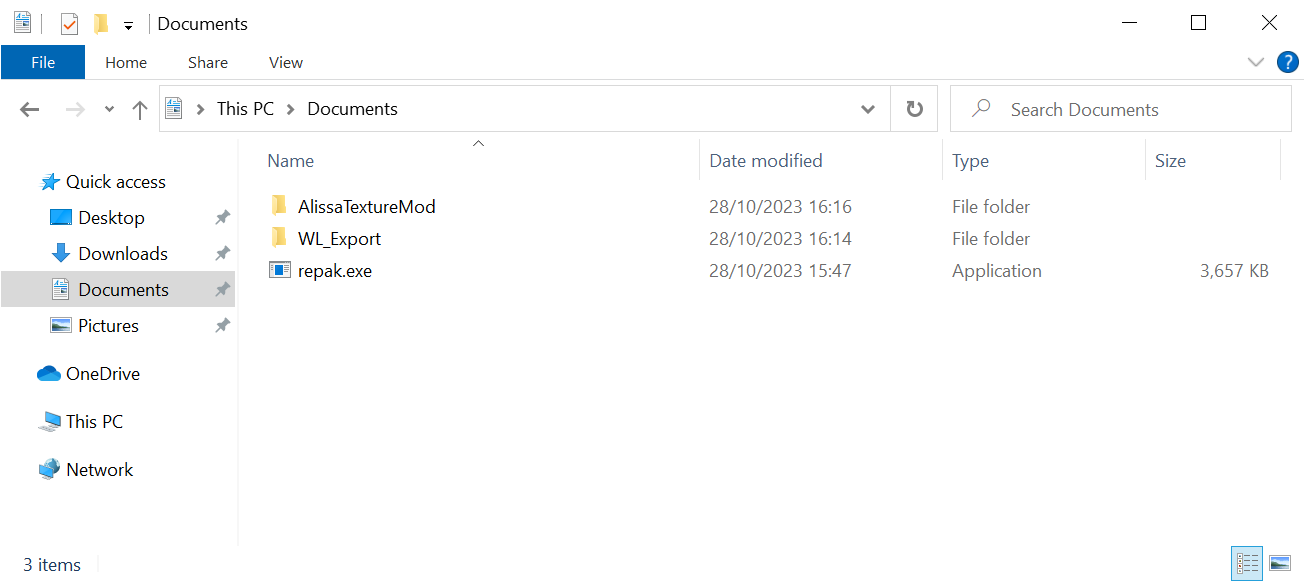
In the Windows Explorer: Go to the folder containing AlissaTextureMod and choose File → Open Windows PowerShell:
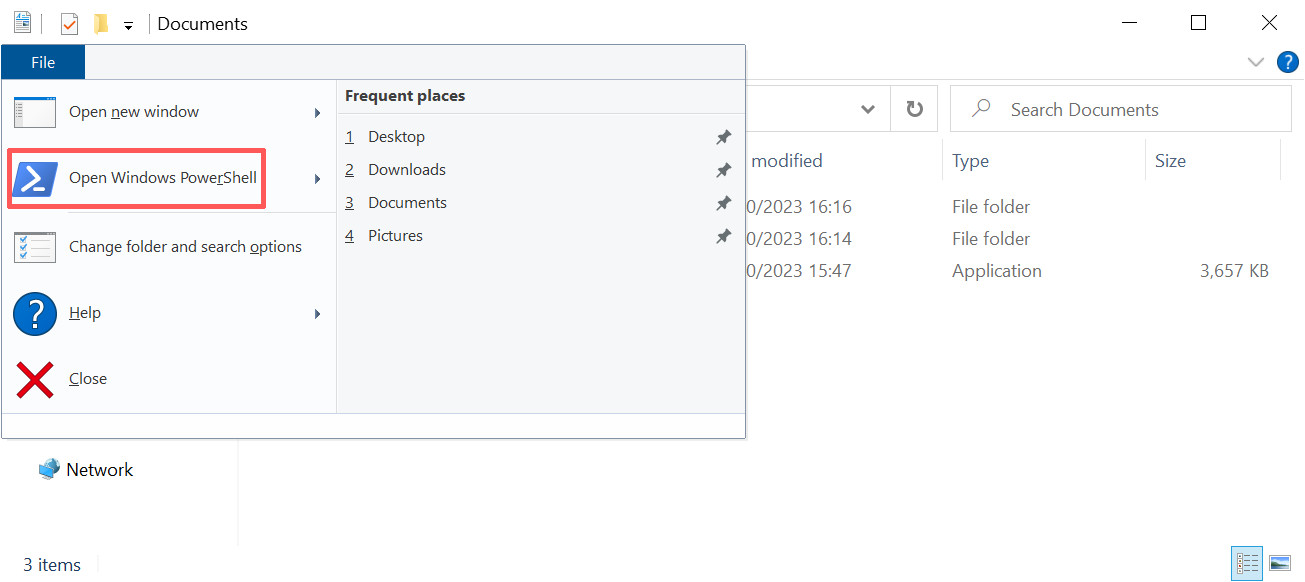
Type the following in the PowerShell window and hit enter:
You should see the following message:
(repak is telling us that it has packed the .uasset and .uexp that we got from using DDS-Tools.)
Step 5: Install .pak
Finally, rename the AlissaTextureMod.pak to AlissaTextureMod_P.pak and then copy it into your WildLifeC Paks subdirectory, e.g. mine is located at:
Step 6: Try it out
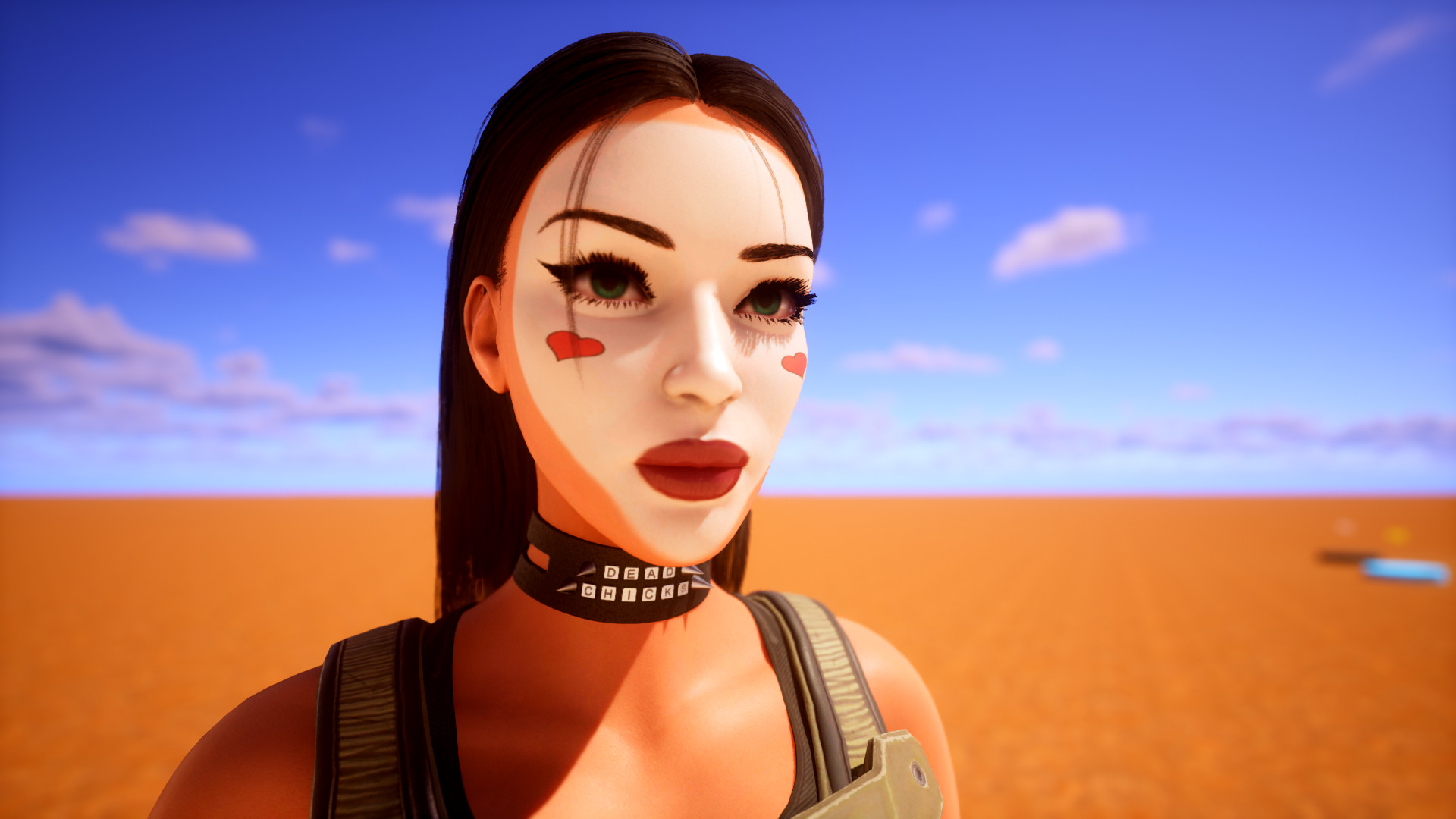
Start the game and spawn Alissa. You should see your texture appearing:
Credits
This guide is adapted from the following very helpful guide, but any mistakes are my own:
https://github.com/MoolahModding/site/blob/main/docs/modding-basics/texture-replacement/index.md