/tfdg/ Clip Guide: No Audio - WebM/MP4 (~4 MB)

Simple guide to turn your The First Descendant gameplay into silent WebM/MP4 under 4 MB for posting in
/vg/ - /tfdg/in 30 - 60fps!
All commands are one-shot:
You set the start time and duration in the same command, and it outputs a clip ready to upload.
- ⌬ Programs or GUI tools for Windowns/Linux/MacOS (no terminal)
- ⌬ Quick start for Terminal use (for lazy anons)
- ⌬ How to read these commands (placeholders)
- ⌬ Less 4 MB limit – what matters
- ⌬ WebM (VP9) presets – silent and recommended
- ⌬ MP4 (H.264) presets – alternative
- ⌬ AV1 Presets (smaller files, heavier CPU)
- ⌬ Hardware Acceleration (fast MP4 encode — modern GPU/CPU)
- ▣ NVIDIA (NVENC) — H.264 MP4 (fast + simple)
- ▣ Intel Quick Sync (QSV) — H.264 MP4 (fast)
- ▣ AMD AMF (Windows; Linux only if h264_amf exists) — H.264 MP4 (fast)
- ▣ VAAPI (Linux) — H.264 MP4 (fast)
- ⌬ Getting your source video (PC & consoles)
- ⌬ Installing FFmpeg & running commands
- ⌬ Common problems & fixes
- ⌬ Screenshots / static images (JPG/PNG under the size limit)
- ⌬ FAQ (short)
- ⌬ Related /tfdg/ pages
⌬ Programs or GUI tools for Windowns/Linux/MacOS (no terminal)
If you don’t want to touch a terminal, you can use these sofware or GUI apps instead, much easier and quick for this (~4MB).
Pick any tool that works on your OS, but always:
- Trim your clip to 10–30 s
- Set 480p / 720p / 1080p
- Use 30 fps (unless you really need 60)
- Mute audio
- Export and make sure the file is ≤ 4 MB
▹ Windows – GUI options
You can use any of these:
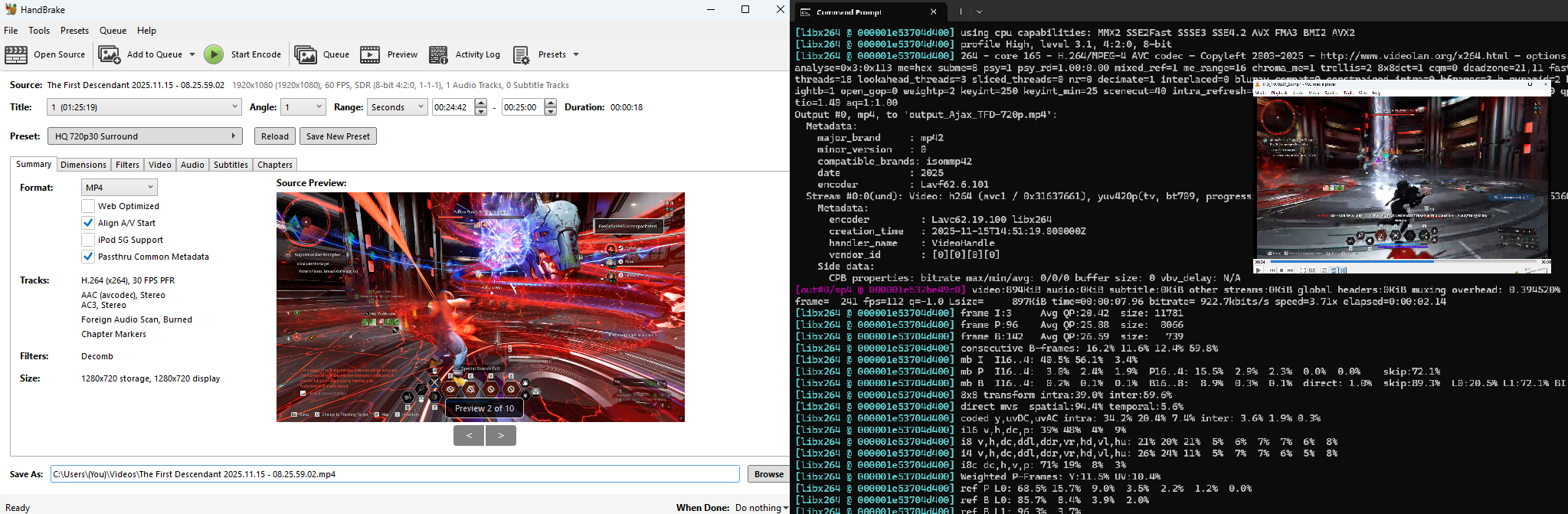
- HandBrake – simple transcoder, good for MP4/MKV/WebM.
- Shotcut – full video editor, use the Export panel.
- Avidemux – simple cut + re-encode tool.
- Shutter Encoder – powerful converter, good WebM/VP9 support.
Basic workflow (applies to all):
- Import your clip or VOD segment.
- Trim your scene:
- Normal gameplay: 10–20 s
- Heavy effects/explosions: 8–12 s
- Set Resolution:
- 480p, 720p, or 1080p (for short clips).
- Set Frame rate:
- 30 fps (Constant). Use 60 fps only for very short clips.
- Mute audio (disable/remove the audio track).
- Set quality:
- If the app lets you set bitrate, use the rule from the table above.
- If it uses CRF/quality slider, start in the middle and test.
- Export the file, then check its size:
- If file > 4 MB → shorten the clip, lower bitrate/quality, or drop resolution.
▹ Linux – GUI options
On Linux you can also avoid the terminal:
- HandBrake – transcoder (Flatpak, DEB, etc.).
- Shotcut – full editor, cross-platform.
- Avidemux – simple editor/encoder.
Basic workflow (same idea as Windows):
- Import your source clip.
- Trim to 10–30 s.
- Set 480p / 720p / 1080p, 30 fps.
- Mute audio.
- Adjust bitrate/quality so the output is under 4 MB.
- Export, check size; if it’s too big, shorten or lower quality.
You can export as MP4 (H.264) or WebM (VP9) depending on what the program supports. Both work on 4chan as long as they’re ≤ 4 MB and muted.
▹ macOS – GUI options
For Mac users:
- HandBrake – transcoder for MP4/MKV/WebM.
- Shotcut – full video editor for macOS.
- Shutter Encoder – very good for WebM/VP9.
Basic workflow:
- Import your clip into one of these programs.
- Trim to 10–20 s (or shorter if 1080p or 60 fps).
- Set:
- 480p / 720p / 1080p
- 30 fps (or 60 fps only for very short clips)
- Mute audio.
- Use bitrate/quality controls to aim for ≤ 4 MB:
- More seconds → lower bitrate or lower resolution.
- Export and confirm the final file is under 4 MB.
▹ Console (PS / Xbox) → PC GUI
- Capture your clip on PS5/PS4 or Xbox as usual.
- Send the clip to your PC (USB, app, cloud, etc.).
- If the clip is recorded at 60 fps:
- Keep it ≤ 8–10 s, or
- Convert it to 30 fps in HandBrake/Shotcut/Avidemux/Shutter Encoder.
- Then follow the Windows / Linux / macOS GUI steps above:
- Trim 10–20 s,
- Choose 480p/720p/1080p,
- Mute audio,
- Adjust quality/bitrate until the final file is ≤ 4 MB.

Video Encoder by Terminal (PC/Linux/MacOS)
⌬ Quick start for Terminal use (for lazy anons)
"TL;DR – 720p WebM in one command"
- Put your long video (stream, VOD, etc.) in a simple folder, e.g.
C:\clips\source.mp4or~/clips/source.mp4. - Decide:
START_TIME= when the scene starts (HH:MM:SS)DURATION= how many seconds you want (for example13,20,30)
- Run this single-line command in cmd, PowerShell, or a terminal:
- Change
START_TIME,DURATION, input, and output names. - Upload
output-720p.webmto /vg/. - If file > 4 MB → shorten
DURATIONor lower bitrate (for example800Kinstead of900K).
⌬ How to read these commands (placeholders)
In all commands below, you only need to edit these parts:
START_TIME→ when your scene starts in the source video.- Format:
HH:MM:SS - Example:
00:03:15,01:23:45
- Format:
DURATION→ length of the clip in seconds.- Example:
13,20,30
- Example:
source.mp4→ your long video (VOD, stream, etc.).- It can be
.mp4,.mkv, and so on.
- It can be
output-xxx.ext→ the final file name (WebM or MP4).TARGET_K→ target video bitrate, for example900Kor1600KBUF_K→ rate-control buffer size, usually about 2×TARGET_K, for example1800Kor3200K
Example:
- Starts at 01:23:45 of
my_stream.mp4 - Takes 20 seconds
- Re-encodes to 720p 30fps, WebM VP9, silent
- Outputs
tfdg-clip-720p.webm
Keep the quotes around file names.

⌬ Less 4 MB limit – what matters
4chan’s limit is 4 MB per file.
Only two things really control your size:
- Clip duration →
DURATION - Video bitrate / quality →
-b:v(or-crfin MP4 / AV1 CRF mode)
The total length of the original source (30 min, 2 h, 5 h) does not matter as long as you set -t DURATION. FFmpeg will only encode that slice.
"Rule of thumb for bitrates"
Rough maximum bitrate that still fits under ~4 MB is:
max_kbps ≈ 32000 / seconds
| Resolution | Recommended bitrate at 30 fps | Safe max duration | Notes |
|---|---|---|---|
| 480p | 500K–700K | 40s+ | Low motion safe |
| 720p | 800K–1100K | 25–35s | TFD standard |
| 720p60 | 1100K–1500K | 12–20s | Short smooth clips |
| 1080p | 1200K–1800K | 15–20s | High detail bosses |
| 1080p60 | 1600K–2200K | 8–15s | Very short, heavy motion |
The presets below use conservative values tuned for typical gameplay.
If your file is still > 4 MB, shorten DURATION, lower bitrate, or raise CRF.
⌬ WebM (VP9) presets – silent and recommended
These presets use VP9 and are recommended for /vg/.
All are silent (-an) and single-command.
Works the same on Windows, Linux, and macOS.
▹ WebM – keep original resolution (any res)
Use this if you want to keep the source resolution (whatever it is).
- Keeps the original resolution.
- Uses constant quality (
-b:v 0 -crf 32). - If file > 4 MB:
- raise
-crf(34,36, ...) - or reduce
DURATION
- raise
▹ WebM 480p (longer clips, smaller size)
Good for longer clips (about 30–45 seconds) with smaller size.
- Try
DURATION≤ 40–45 s with600K. - If file > 4 MB → lower
-b:vto500Kor shortenDURATION.
▹ WebM 720p (balanced – typical use)
Default recommendation for most /tfdg/ clips.
- For 20–35 s clips,
900Kis usually safe. - If your clip is longer, try
800Kor use 480p instead.
To keep 60 fps (heavier):
- 60 fps looks smoother but grows quickly in size. Keep those clips short.
▹ WebM 1080p (short, high quality)
For short highlights only (roughly 10–25 s).
- Use
DURATION≤ 25 s for1200K. - If file > 4 MB:
- lower
-b:vto1000K - shorten
DURATION - or drop to 720p
- lower
Optional 60 fps:
⌬ MP4 (H.264) presets – alternative
If WebM gives you problems, you can use MP4 (H.264) instead.
These presets are also silent and single-command.
They use CRF (constant quality):
- Lower
-crf→ better quality, bigger file - Higher
-crf→ worse quality, smaller file
▹ MP4 – keep original resolution
- If file > 4 MB:
- raise
-crfto28,30 - or shorten
DURATION
- raise
▹ MP4 480p
- Good for longer clips with smaller size.
- If too blocky → lower
-crfto26(but keep the clip short).
▹ MP4 720p
- Good default for most clips.
- If file > 4 MB → raise
-crfto28or shortenDURATION.
▹ MP4 1080p
- Use for short clips only (about 15–20 s).
- If the file is too big → raise
-crfto26or move down to 720p.

⌬ AV1 Presets (smaller files, heavier CPU)
AV1 usually compresses better than VP9, but it is more CPU-expensive to encode.
WebM can carry AV1, but do not claim 4chan supports it unless you personally confirmed uploads work.
If AV1 upload fails, use the VP9 WebM section.
▹ Check you have SVT-AV1
- Windows:
ffmpeg -hide_banner -encoders | findstr /i "libsvtav1 libaom-av1"
- Linux / macOS:
ffmpeg -hide_banner -encoders | grep -E "libsvtav1|libaom-av1"
▹ Mode A — CRF (best quality-per-byte, size not guaranteed)
Use this when you want the smallest file for a given visual quality.
If it exceeds 4 MB, increase CRF (+2) or shorten duration.
720p 30fps (start here):
1080p 30fps:
1080p 60fps (short clips only):
- Lower CRF = better quality, bigger file.
- For chaotic motion / explosions, expect bigger files at the same CRF.
▹ Mode B — Size-lock Bitrate (best for the strict 4 MB limit)
This is the most reliable way to aim for the cap.
Rule of thumb:
TARGET_K ≈ 32000 / seconds
720p 30fps (size-locked):
1080p 30fps (size-locked):
- If it still barely exceeds 4 MB:
- reduce
DURATIONa bit - or reduce
TARGET_Kby 50–100K - or drop resolution / fps
- reduce
▹ Ultra-slow fallback (highest compression, very slow)
Replace libsvtav1 with libaom-av1 if you want maximum compression efficiency, but expect much slower encodes.

⌬ Hardware Acceleration (fast MP4 encode — modern GPU/CPU)
Software VP9/AV1 can be slow. Hardware H.264 is usually much faster.
Output here is MP4 (H.264). Keep NO AUDIO for /vg/: always use-an.
This section is mainly for Windows/Linux.
▹ Step 1: Pick your bitrate (size-lock)
TARGET_K ≈ 32000 / seconds(4 MB = 4096 KB)BUF_K = about 2 × TARGET_K
Examples:
- 20 s →
TARGET_K=1600K,BUF_K=3200K - 30 s →
TARGET_K=1060K,BUF_K=2120K
▹ Step 2: Verify your encoder exists
- Windows:
ffmpeg -hide_banner -encoders | findstr /i "h264_nvenc h264_qsv h264_amf"
- Linux:
ffmpeg -hide_banner -encoders | grep -E "h264_nvenc|h264_qsv|h264_vaapi|h264_amf"
▣ NVIDIA (NVENC) — H.264 MP4 (fast + simple)
- Change
720to480or1080as needed. - If size is still > 4 MB: shorten
DURATIONor reduceTARGET_K.
▣ Intel Quick Sync (QSV) — H.264 MP4 (fast)
▣ AMD AMF (Windows; Linux only if h264_amf exists) — H.264 MP4 (fast)
▣ VAAPI (Linux) — H.264 MP4 (fast)
- VAAPI needs
format=nv12,hwuploadin the filter chain.
- If your VAAPI device differs:
- check:
ls -l /dev/dri/
- check:
▪ Why MP4 (H.264) for hardware?
- NVENC / AMF commonly accelerate H.264, HEVC, and AV1, but not a universal “drop-in VP9 WebM” path.
- H.264 is broadly compatible in browsers and devices.

⌬ Getting your source video (PC & consoles)
▹ PC (Windows / Linux / macOS)
Recommended:
OBS Studio (Windows / Linux / macOS)
- Windows:
- OBS, NVIDIA ShadowPlay, AMD ReLive, Xbox Game Bar…
- Linux:
- OBS, SimpleScreenRecorder…
- macOS:
- OBS, QuickTime screen recording.
Tips:
- Record at a stable resolution (1080p or 1440p is ok).
- Save as MP4 or MKV.
- For this guide, we call it
source.mp4(rename if needed).
▹ PS5 / Xbox → PC
PS5
- Capture your gameplay (Create/Share button → Save Recent Gameplay, etc.).
- Export your clip to USB or via the official app.
- On PC, you should have a video file (usually MP4). Rename it to
source.mp4if you want.
Xbox Series X|S
- Use the Xbox capture function.
- Transfer the file via the Xbox app or USB.
- Again, you should end with an MP4 on your PC.
Once you have
source.mp4, the commands above work exactly the same.
⌬ Installing FFmpeg & running commands
▹ Install FFmpeg
Windows
- Download a static build from the official FFmpeg site (or a trusted build).
- Extract to e.g. C:\ffmpeg.
- Add C:\ffmpeg\bin to your PATH so ffmpeg works in any cmd/PowerShell.
Linux
macOS
- Install Homebrew (if you don’t have it).
- Then:
▹ Where to run the commands
- Put your
source.mp4in a simple folder (no weird paths). - Open:
- Windows: cmd or PowerShell in that folder.
- Linux/macOS: terminal,
cdinto that folder.
- Paste one of the commands from sections 3 or 4:
- Replace
START_TIMEDURATION,source.mp4,output-xxx.
- Replace
- Press Enter and wait. The output file will appear in the same folder.

⌬ Common problems & fixes
▹ File is bigger than 4 MB :c
- Shorten
DURATION(fewer seconds). - Lower
-b:v(WebM / bitrate-locked AV1 / hardware MP4), or raise-crf(MP4 / AV1 CRF mode). - Drop resolution:
- 1080p → 720p → 480p
- For very high motion scenes:
- use shorter clips or 480p
▹ 4chan rejects the file :o!
- Make sure the extension is
.webmor.mp4. - Do not just rename
.mp4or.mkvto.webm— re-encode with ffmpeg. - Confirm size is ≤ 4 MB.
- Avoid changing codecs / flags if you do not know what they do.
▹ Video looks blurry/blocky :/
- Your bitrate / quality is too low for:
- that resolution
- that duration
- that much motion
- Fix:
- WebM / bitrate-locked AV1 / hardware MP4 → raise
-b:v, shortenDURATION, or lower resolution - MP4 / AV1 CRF mode → lower
-crf(for example28 → 26 → 24)
- WebM / bitrate-locked AV1 / hardware MP4 → raise
- Shorten clips for heavy effects or boss fights.
▹ There is audio! :'(
- You forgot
-an. - Check that your command includes
-an. - Re-run the command.
- If using a GUI, mute or disable the audio track.
▹ Width not divisible by 2 / weird scale errors
- Use
scale=-2:HEIGHT, notscale=-1:HEIGHT. - The replacement commands above already use
-2.
▹ “Unknown encoder” / hardware encoder not found
- Your FFmpeg build does not include that encoder, or the required driver / runtime is missing.
- Check with:
- If hardware encode is unavailable, use the VP9 or MP4 software sections.
▹ VAAPI device / upload errors (Linux)
- Make sure
/dev/dri/renderD128exists. - Keep
format=nv12,hwuploadin the VAAPI command. - If VAAPI still fails, use the software VP9 / MP4 sections.
⌬ Screenshots / static images (JPG/PNG under the size limit)
Use JPG for:
- gameplay screenshots
- character / skin shots
- scenery / action shots
Use PNG for:
- UI
- inventories
- builds / stats
- text-heavy screenshots
If PNG is too large, resize first or switch to JPG for regular gameplay screenshots.
▹ JPG (best for normal game screenshots)
▹ Optional resize first
▹ PNG (best for UI / text)
⌬ FAQ (short)
- 1080p? Works for short clips. At 30 fps: calm up to ~10–15 s; heavy action ~6–9 s. At 60 fps, keep it even shorter.
- 60 fps? You’ll hit 4 MB fast. Prefer 30 fps or keep it ≤ 8–10 s.
- Best format? MP4 (H.264) encodes fast; WebM (VP9) compresses a bit better.
- Why mute? Saves bits... and rules from 4chan. Don't ask me why.
- Do I need bitrate math? Nope. Use the presets table above, but if you want...do it.
⌬ Related /tfdg/ pages
/tfdg/Builds & Guides for New / Returning / Active players: https://rentry.co/tfdg-builders/tfdg/Clip Guide (~4 MB, gameplay) (this page): https://rentry.co/tfdg-clip-guide/tfdg/Friendlist Directory : https://rentry.co/tfdg-play/tfdg/OP template (for new/tfdg/threads): https://rentry.co/tfdg-op