
UTDR SoupGen
An insanely customizable, flexible, and soupy OFFLINE Undertale & Deltarune dialogue textbox generator! Made in GameMaker and powered by Scribble. Latest releases here!
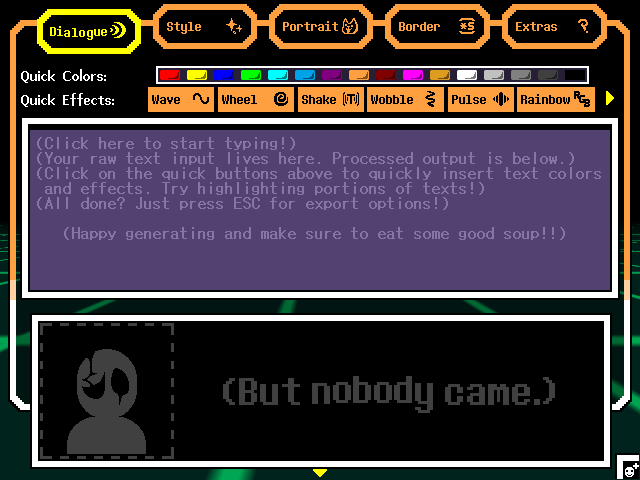
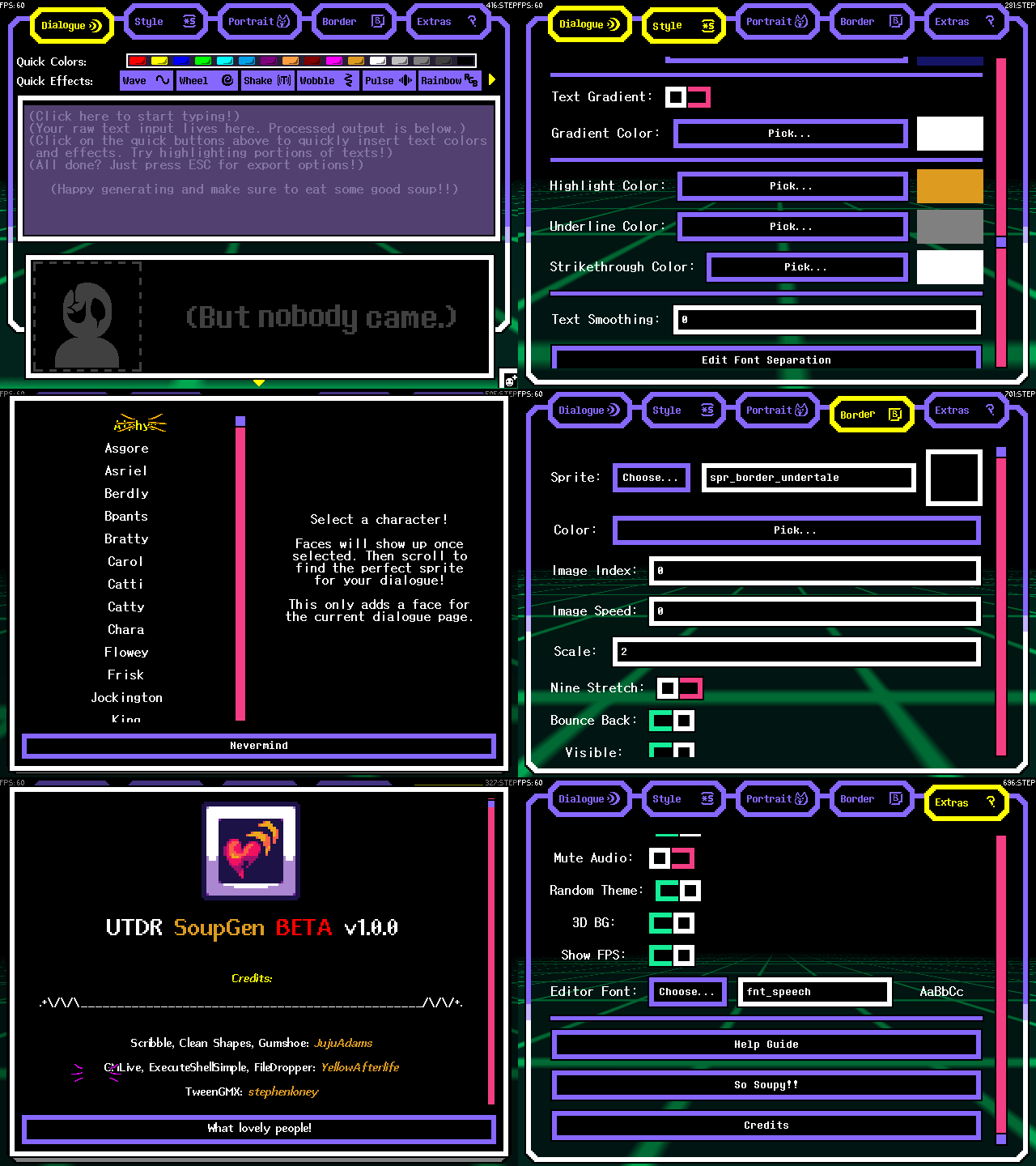 Once you've had your fun, typing out your dialogue and such, just press ESCAPE and select from a variety of export options!
A big tool like this needs an even bigger guide, and you'll want to read all of this if you truly want to get great usage outta SoupGen! It's one of those easy to learn, hard to master type things.
- UTDR SoupGen
- Available commands to use
- Inserting Sprites and Changing Font
- Making Dialogue Cutscenes(Multiple Dialogues)
- Typewriter Mode
- Adding Your Own Custom Sprites
- Text Macros
- Requesting Custom Sprites be Officially Added
- FAQ
- Some sprite and text shrink, get distorted, get cut off, etc. when moving it around. Any fix for that?
- My custom sprites aren't showing up! My animated sprites are appearing weird.
- I don't see an option to record videos or add voice blips. Why not?
- How come memory usage is so high?
- Was Generative AI used in any part of this?
- Using the GIF exports causes the tool to lag.
- Can GIF exports have a transparent background instead of lime green?
- The colors keep flickering when exporting to a GIF!
- The tool suddenly crashed! My power went out! Etc. Will I be able to recover my progress?
- Wasn't there gonna be an online version? What happened to that?
- Some characters in my spritefont aren't appearing.
- The font I imported looks thicker than it should be.
- Some of these fonts aren't multilingual. What Gives? Could I add my own multilingual fonts?
- How do I change the shadow offset?
- Could I add my own unique and stylized border? Borders that aren't perfectly square?
- Can only some portions of text have a gradient instead of all of the text?
- How do I add mini-speeches? Y'know, the tiny dialogue in the right corner?
- How to preview typewriter text?
- My keyboard acts weird with the editor. I use a non-English keyboard(has ATL+GR).
- Is there a limit on the amount of dialogue I can GIF record?
- Is there a limit on the amount of dialogue pages I can stack?
- How do I change the size of mini speeches? My text is getting a bit too long.
- Tips
- Alternatives to Consider
Available commands to use
Note
To insert "[" into your text without executing a command, just put "[[". Only one bracket will render. You can just put a "]" without doubling it. (ex: "Press [[SPACE] to continue." )
[/] - Reset everything to default.
[/c] - Reset colors to default.
[/effects] - Disables the current effect.
Effects
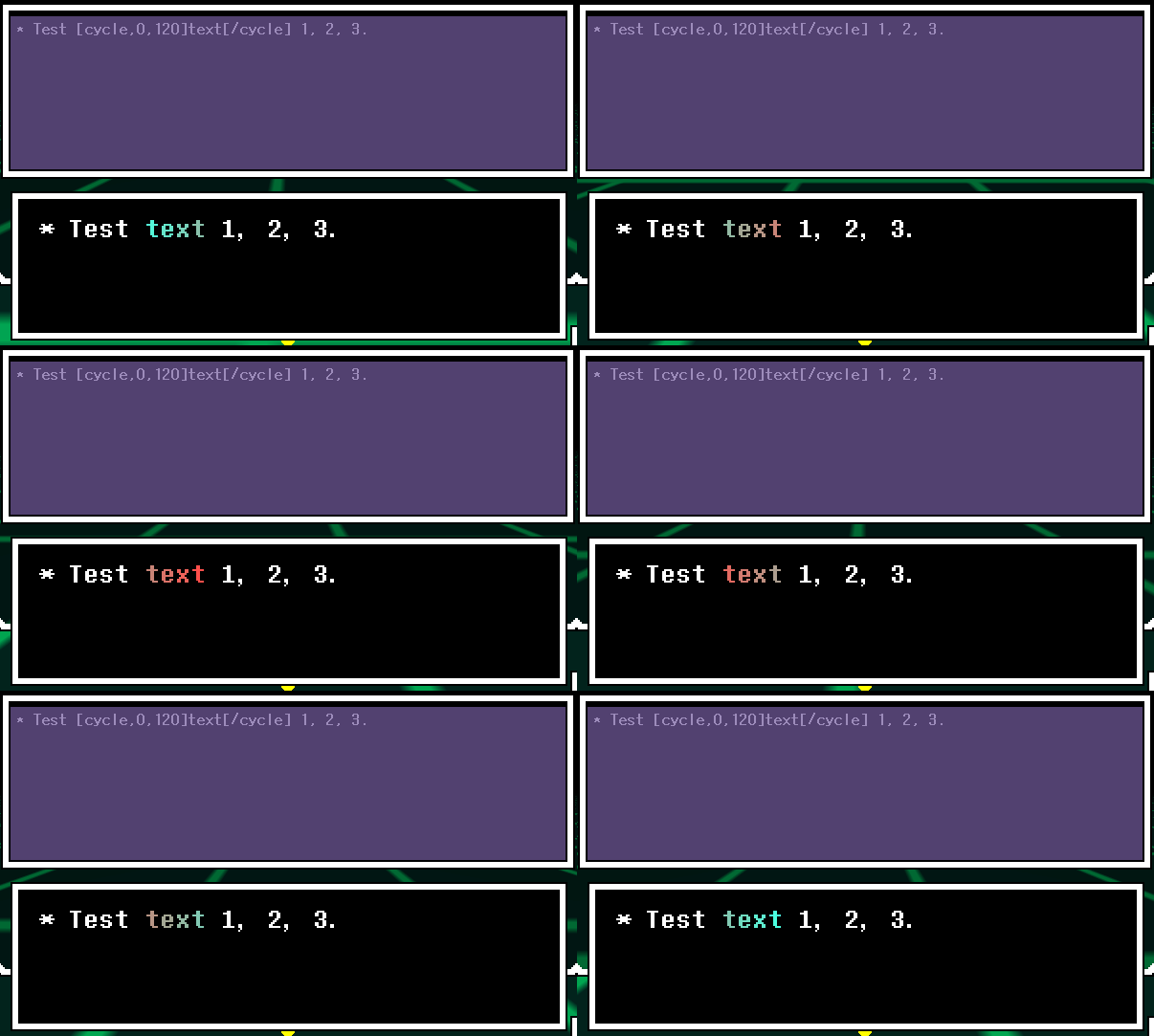
[cycle,0 - 255,0 - 255,0 - 255(optional),0 - 255(optional)] - Cycle between up to four different color hues. This is not RGBA, but rather the H in HSV(Hue Saturation Value)
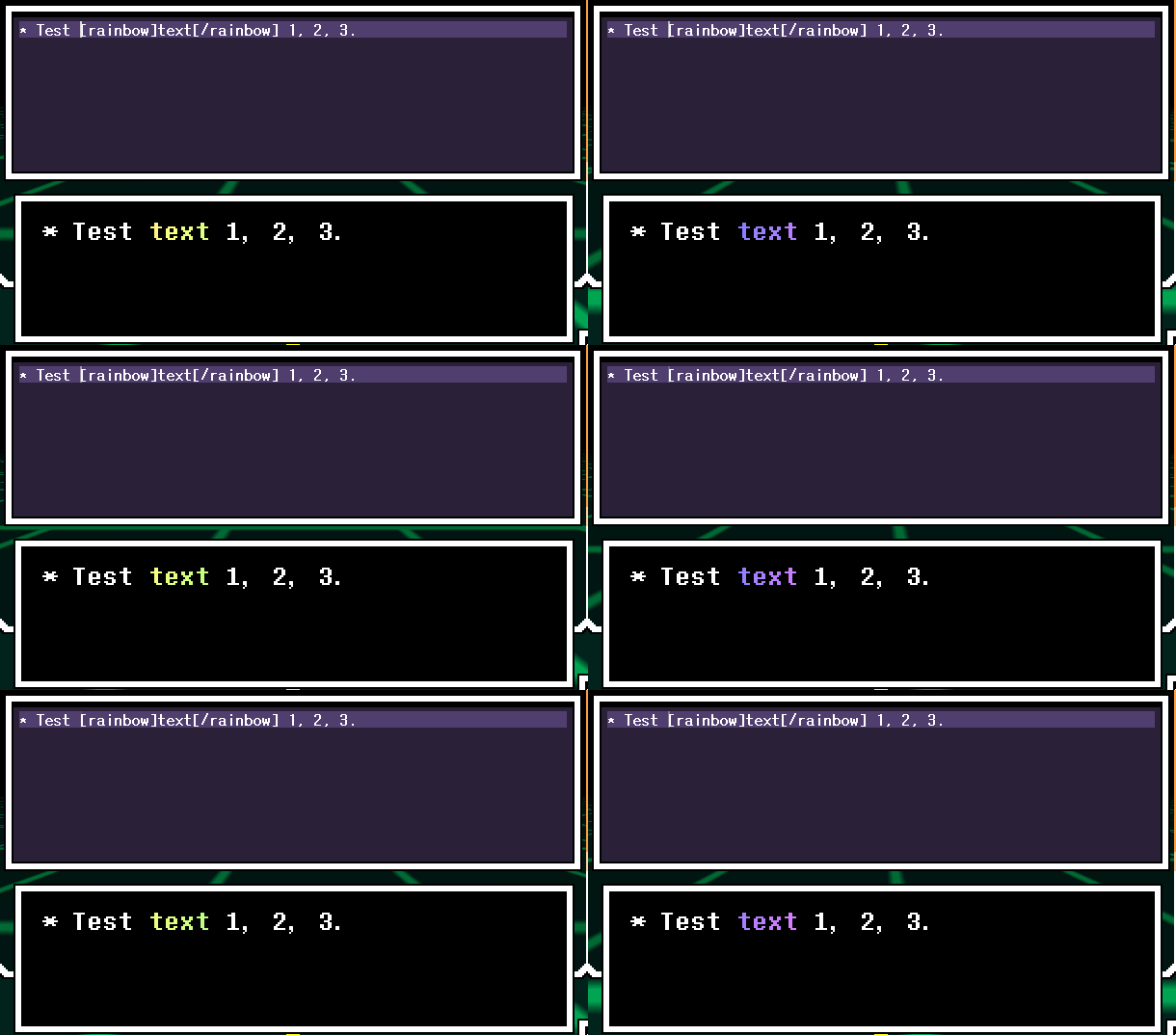
[rainbow] - Cycle text color through the rainbow!
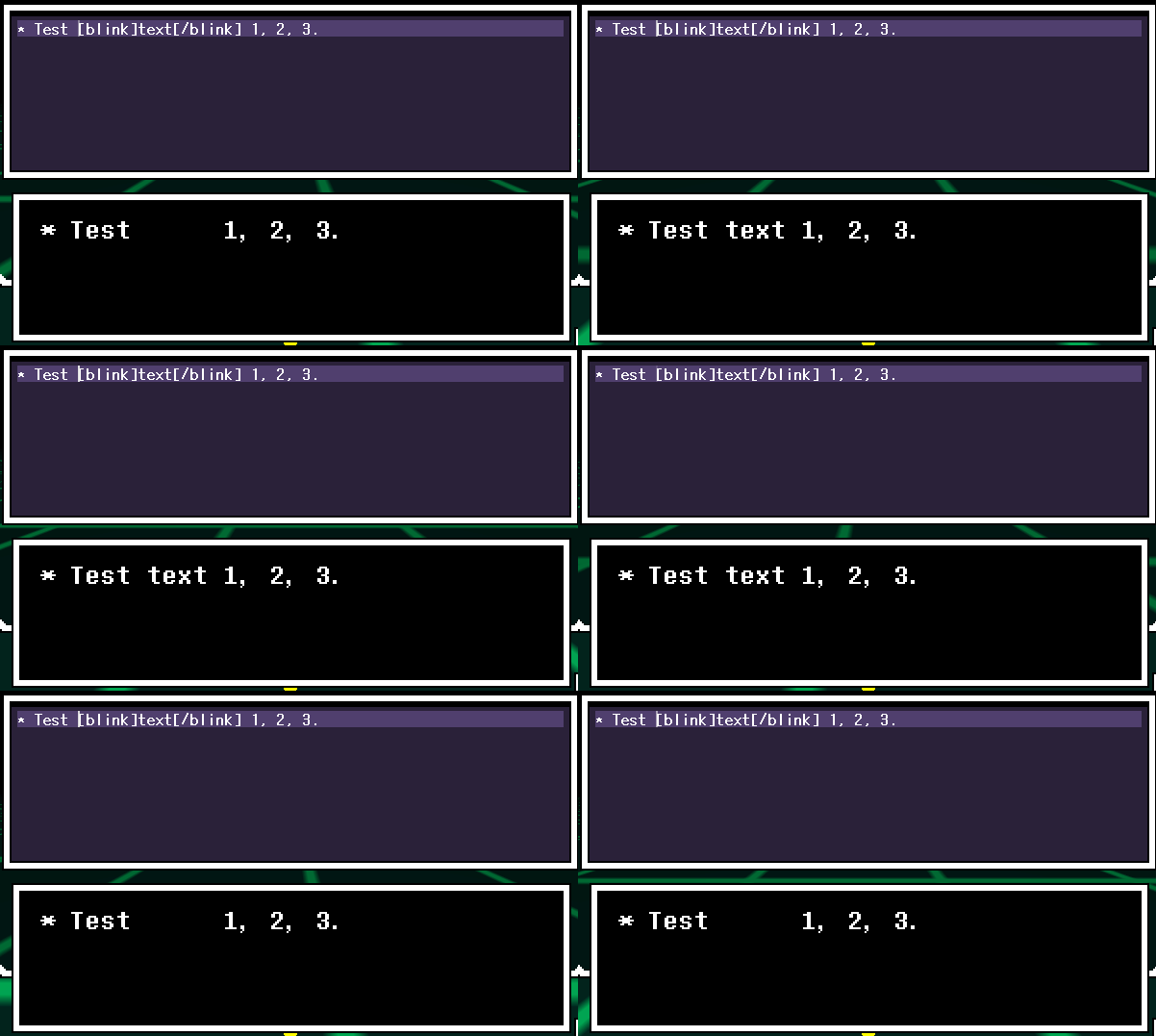
[blink] - Set text to blink visibility.
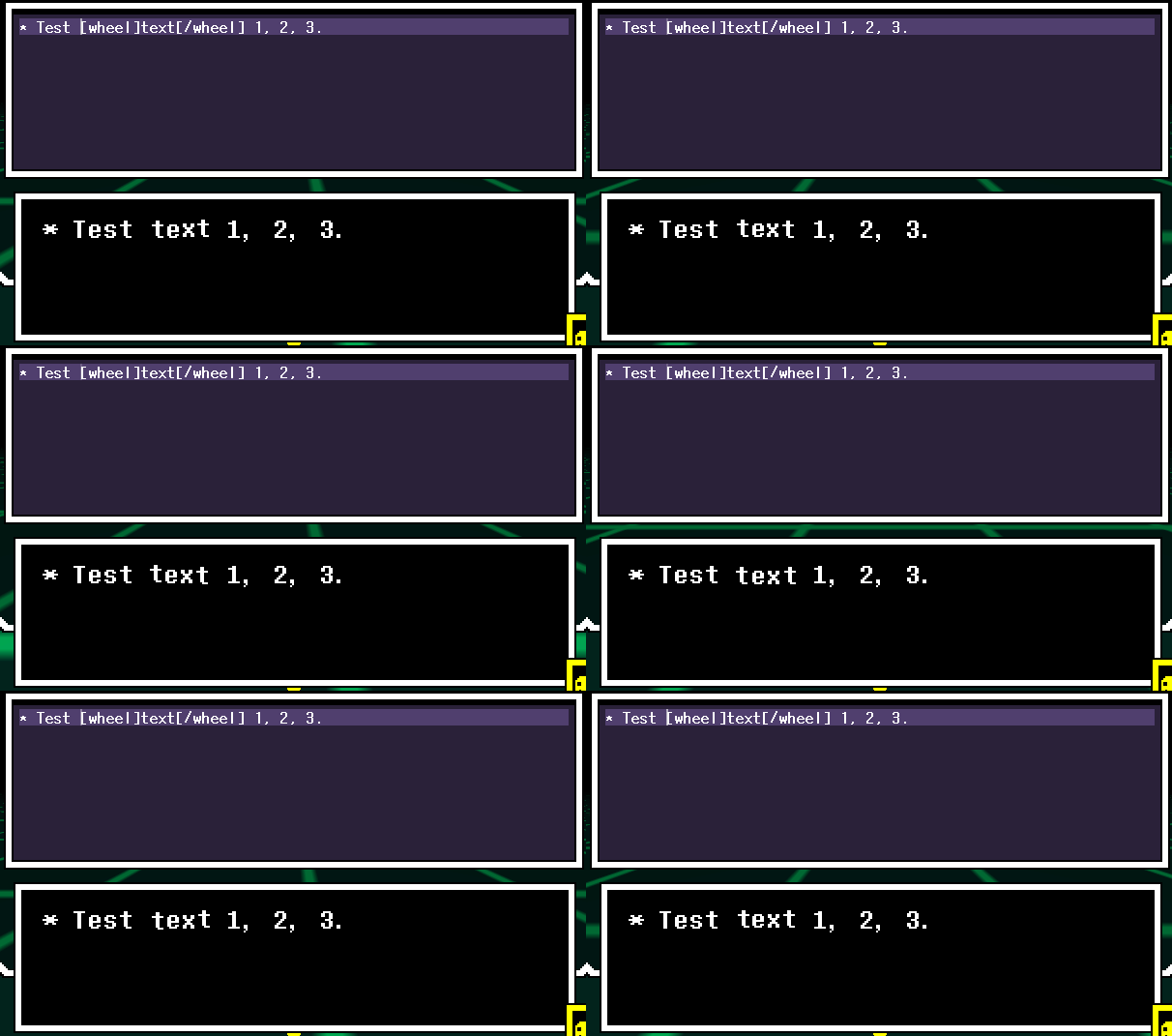
[wheel] - Set text to circulate around their origin. This mimmicks UTDR's wavy text.
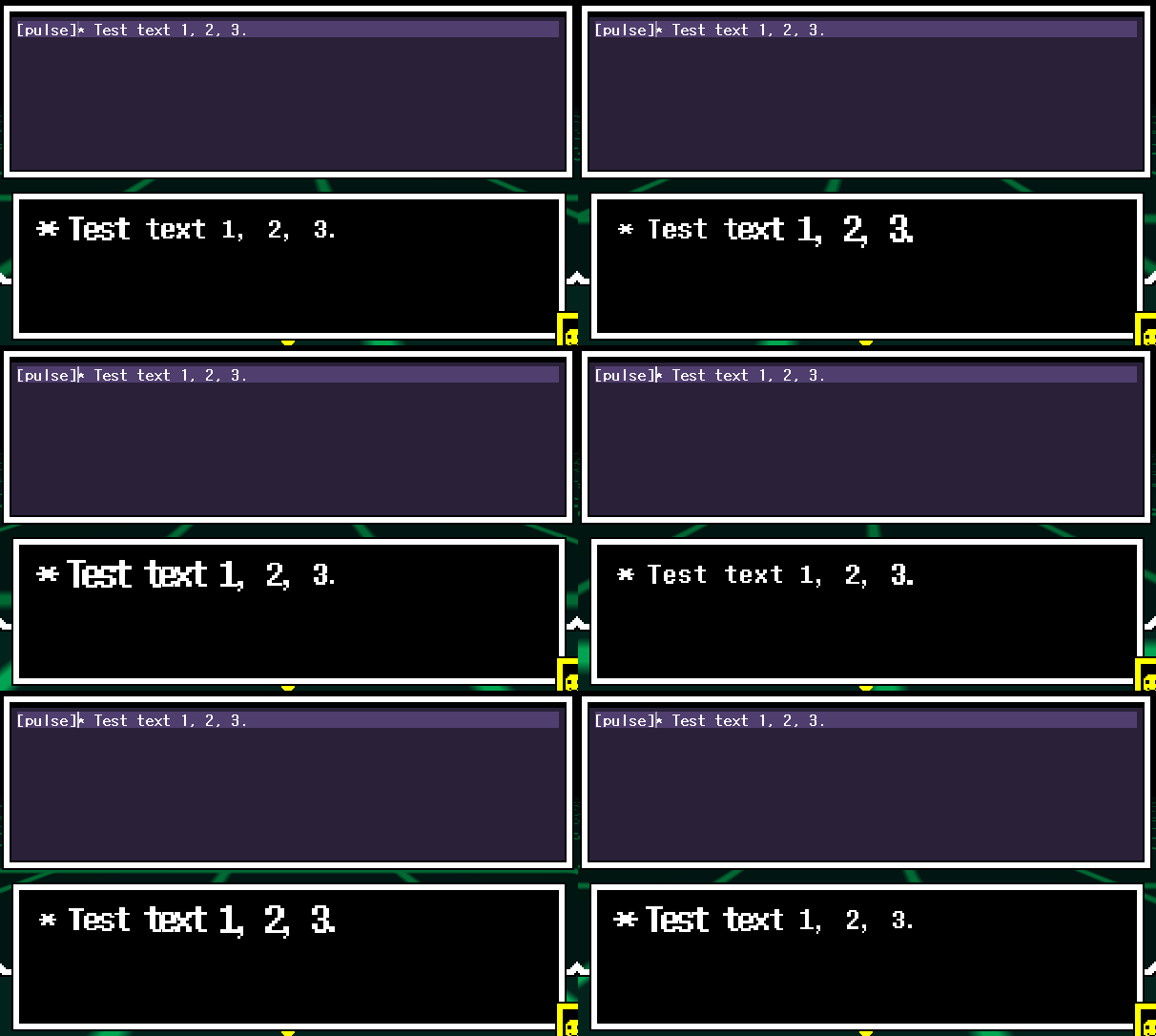
[pulse] - Set text to scale rhythmically.
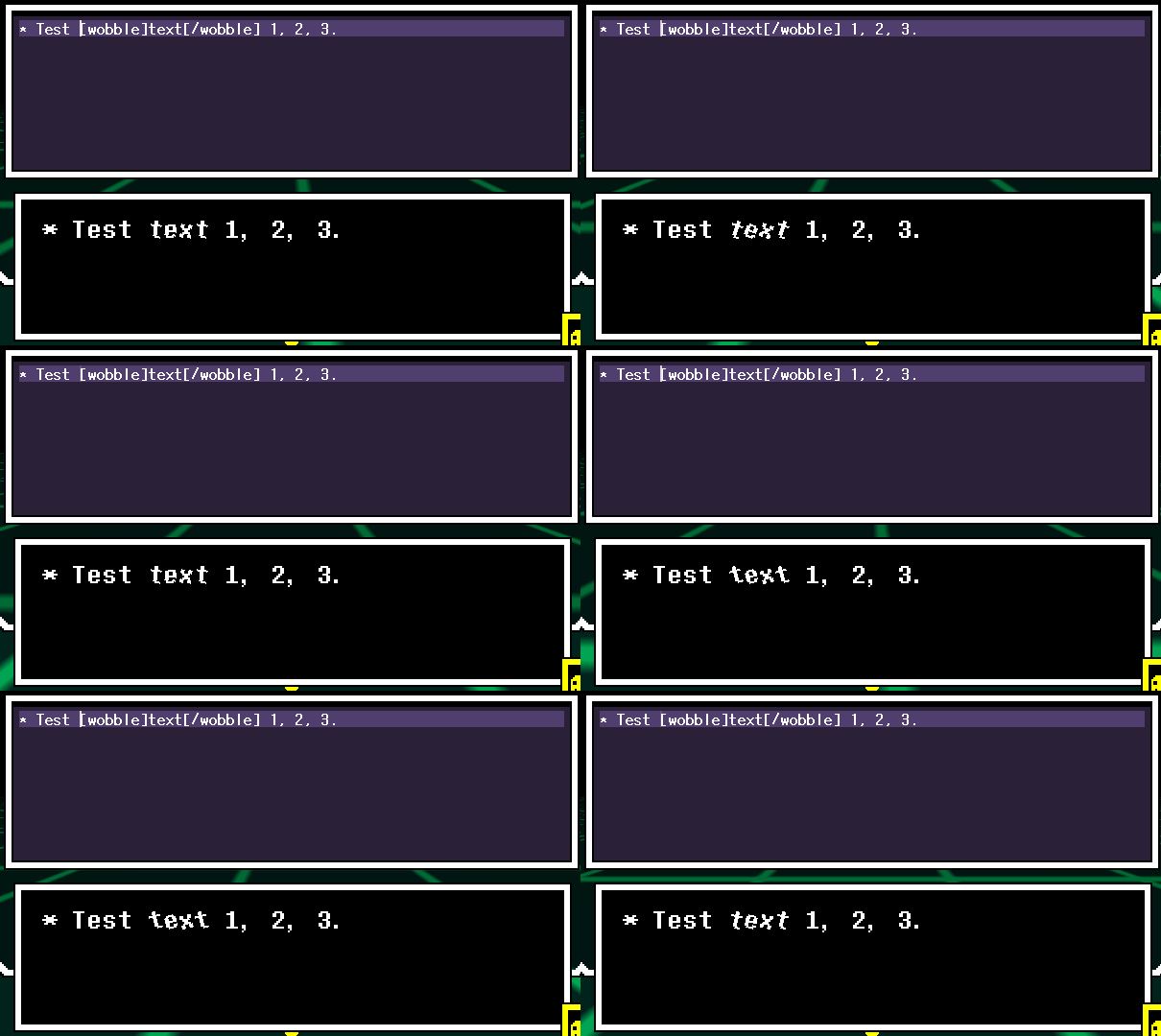
[wobble] - Set text to rotate back and forth.
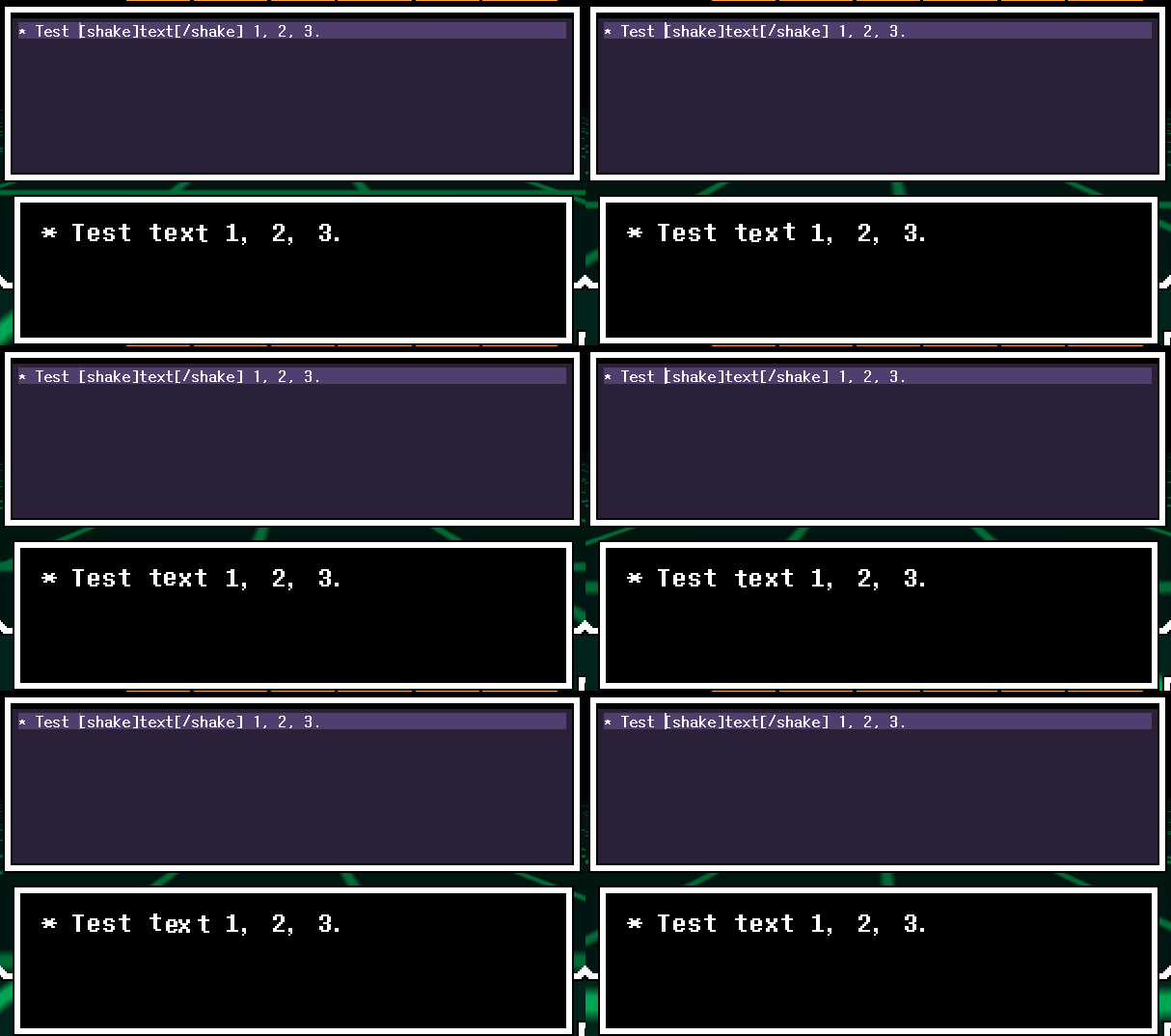
[shake] - Set text to shake randomly. This mimmicks UTDR's shaky text.
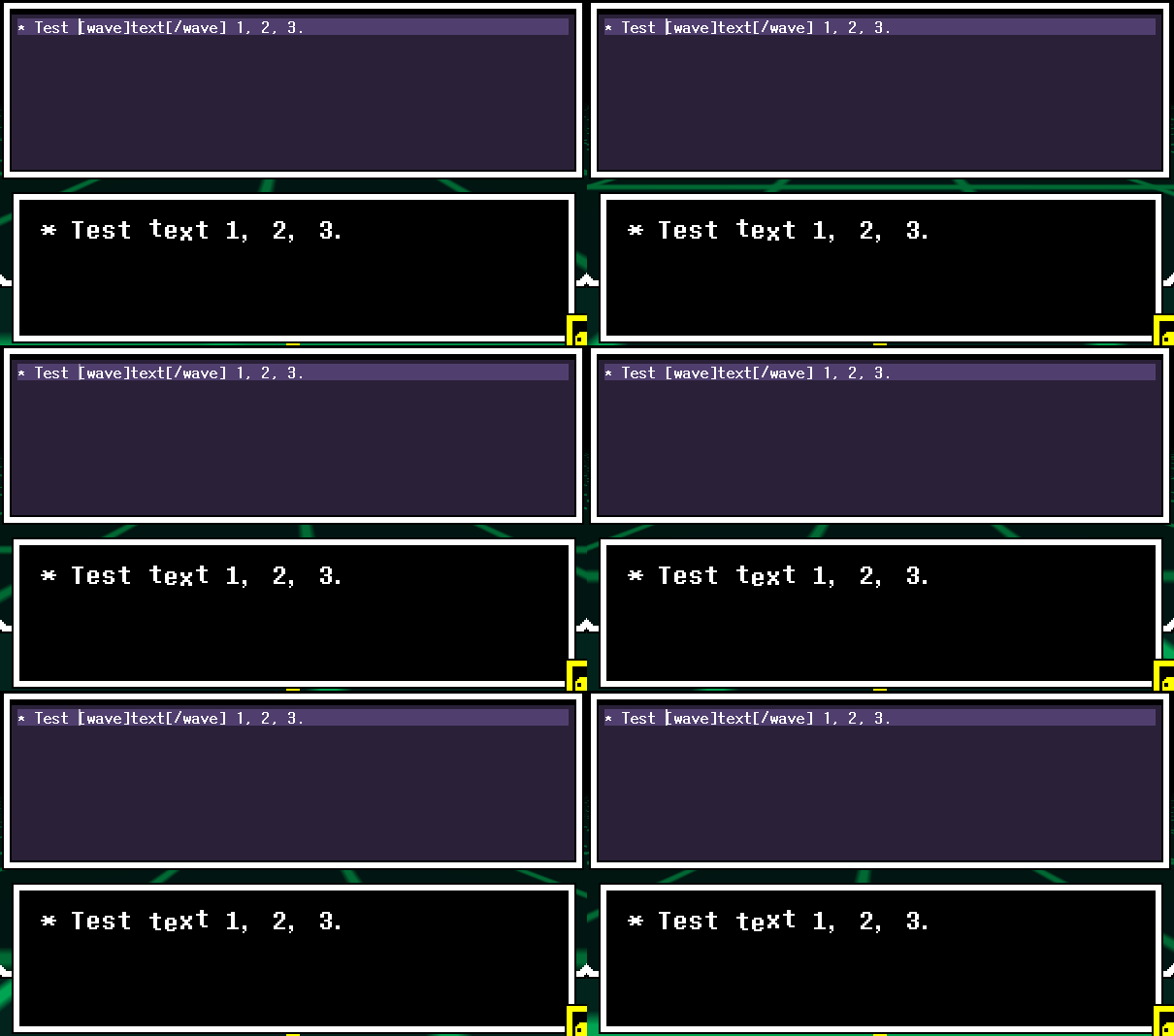
[wave] - Set text to move up and down.
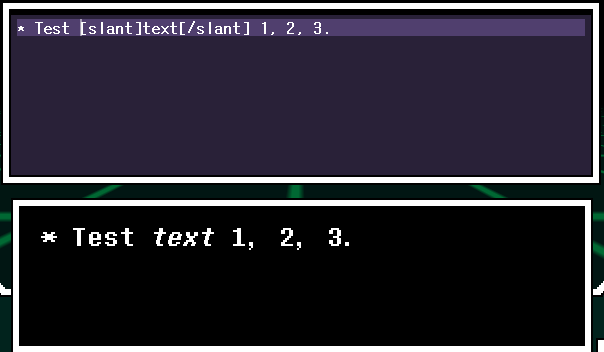
[slant] - Set text to be slanted, emulating italics.
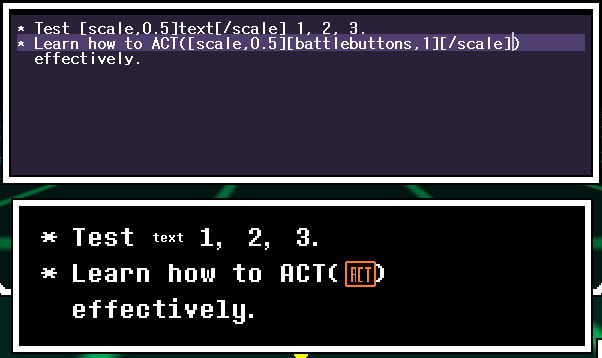
[scale,#(default:1)] - Set text (and in-line sprite) scale.
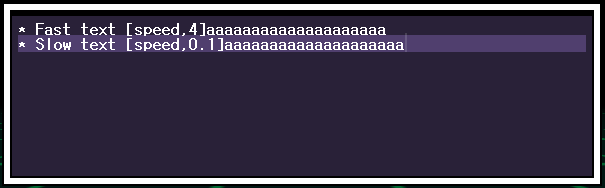
[speed,#] - Set the typewriter speed.

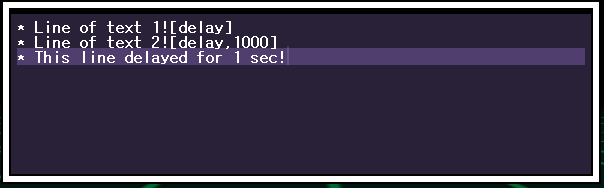
[delay,milliseconds(default:300)] - Delay the typewriter by the given number of milliseconds.
( Alternatively, you can use [wait,seconds(default:1)] if you don't want to use milliseconds. )

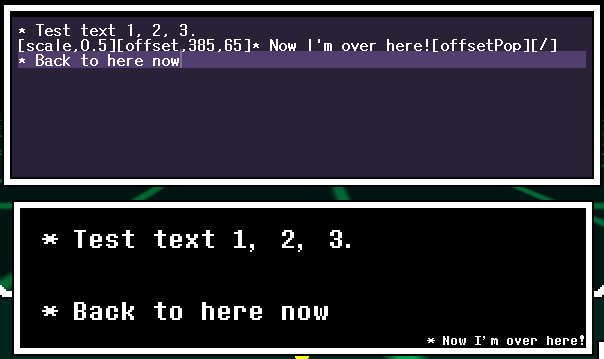
[offset,x(default:0),y(default:0)] - Pushes an offset to the stack. Offset units are in pixels. This is useful to nudge sprites into the perfect position in your text. Generally you should call [offsetPop] once for every [offset].
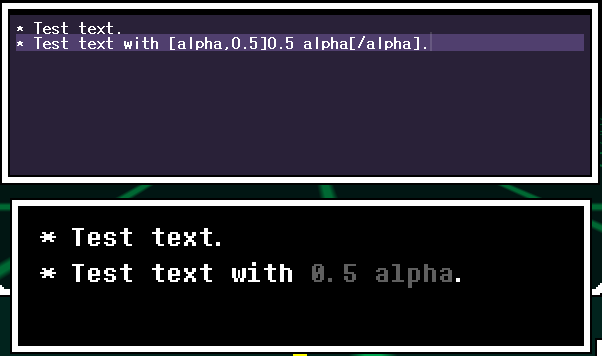
[alpha,0-1(default:1)] - Changes the transparency of text and images.
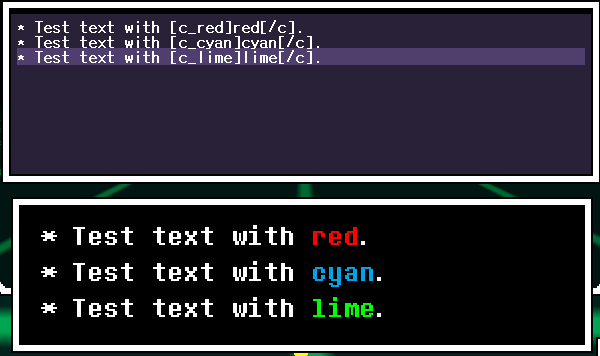
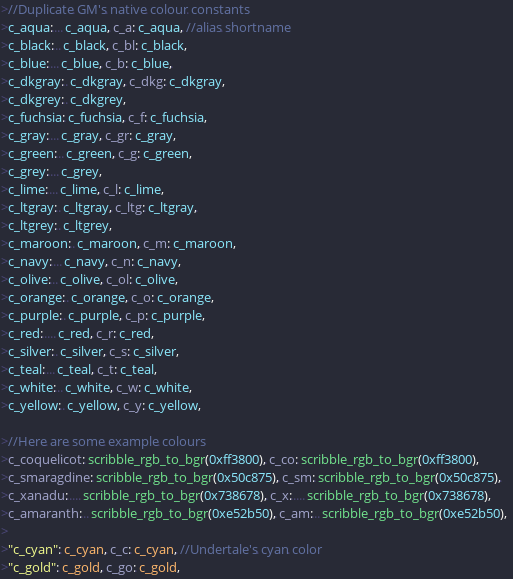
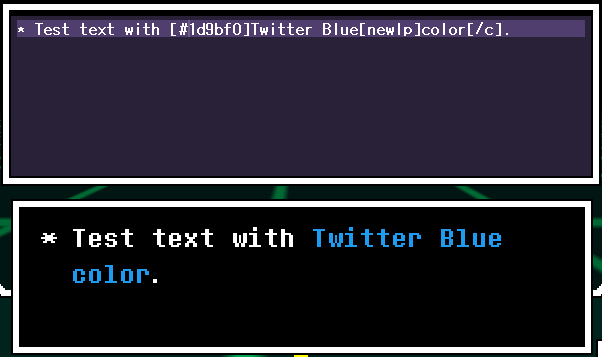
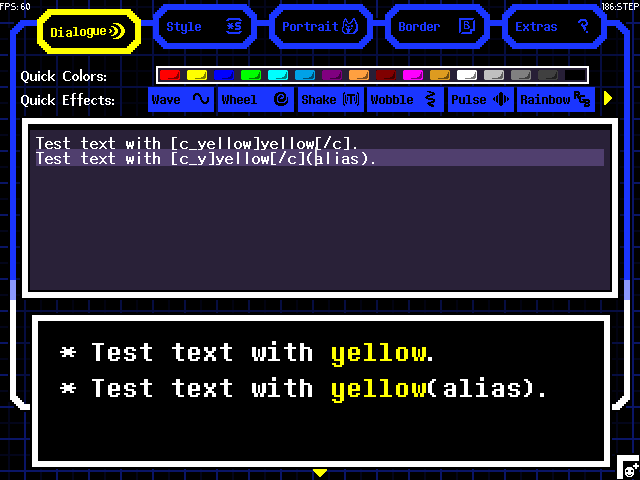
[color name or color name alias] - Changes text color. You can choose from an array of predefined colors or custom colors if you know the hex color code!
[nbsp] - Inserts a non-breaking space.
With: 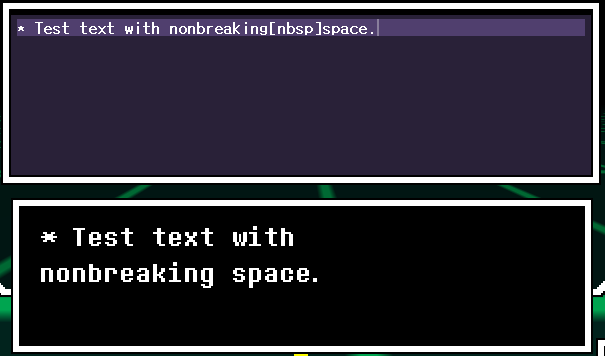
Without: 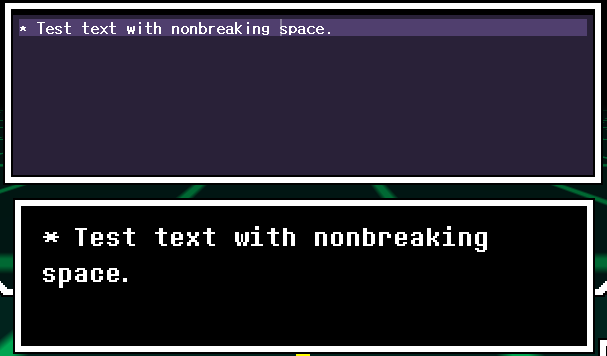
[repeat,phrase(default:""),count(default:1),startwith(default:""),endwith(default:"")] - Repeats a string for the specified count. You can optionally start and end the repeat with other strings.
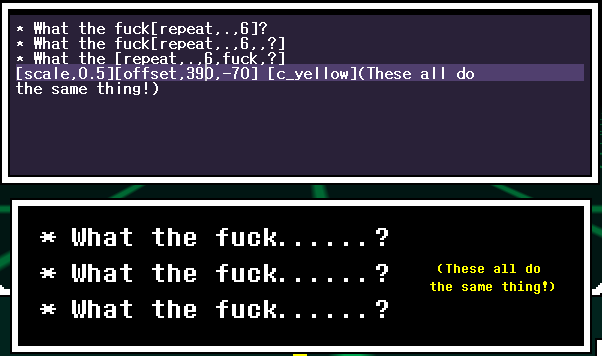
Newline variants
[newl] - Will just insert a newline literal.
[newla] - Will insert a newline literal as well as starting off with an asterisk and a space.*
[newlp] - Will insert a newline literal as well as pad out the line with spaces.*
*This should only be used if you don't plan on using auto-asterisk.
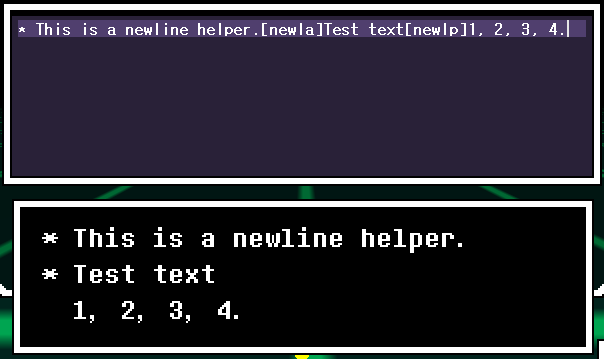
In-line Text Alignments
You can change the text alignment(the position of text and how it'll be formatted) with the following commands:
Horizontal
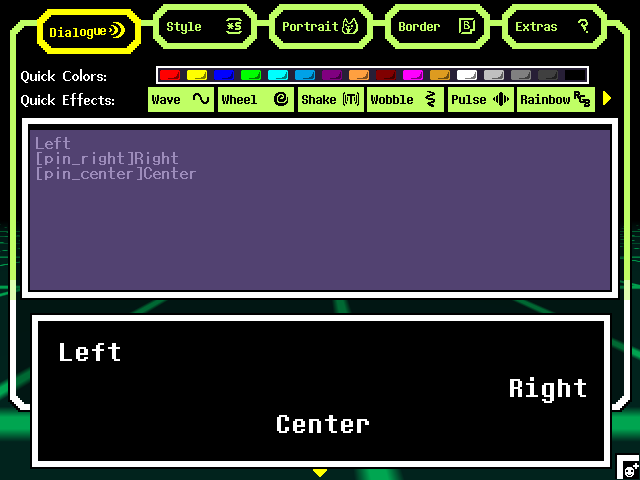
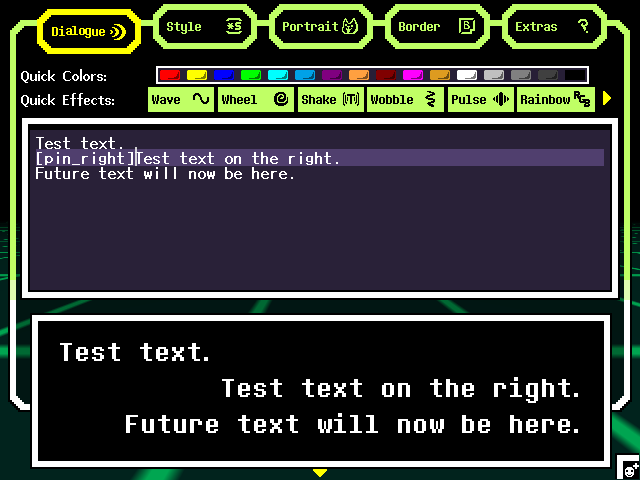
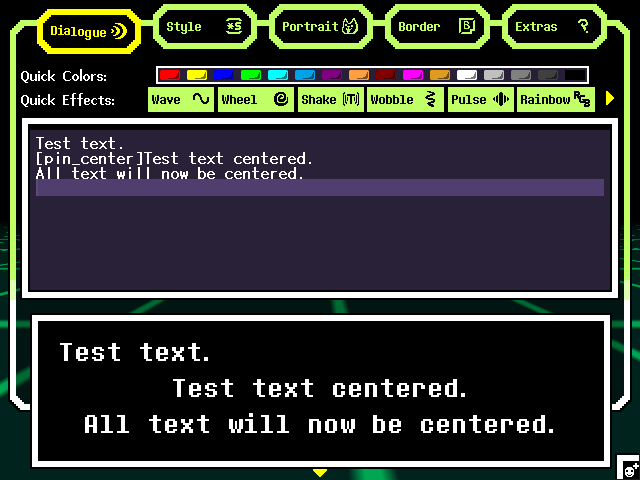
[pin_left] - Pin and format the text to be on the left side of the textbox. This is the default formatting.
[pin_right] - Pin and format the text to be on the right side of the textbox.
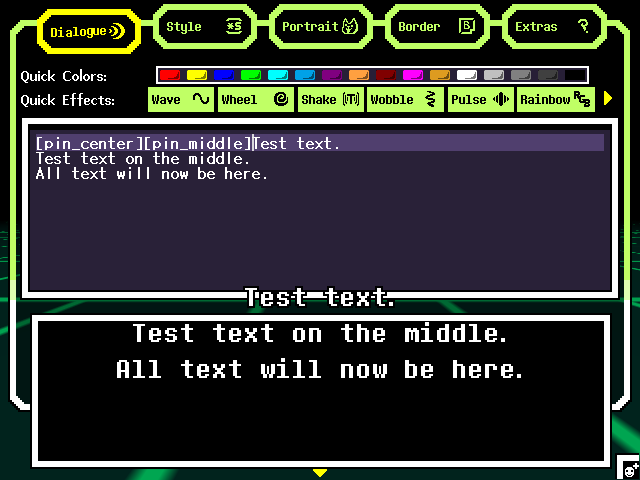
[pin_center] - Pin and format the text to be in the center of the textbox.
Vertical
In-line Vertical Alignment Changes
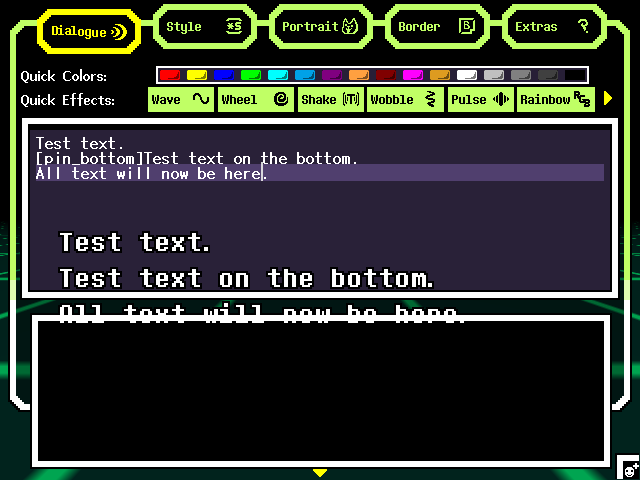
You can't have more than one vertical alignment change. Otherwise, you'll get an error.
[pin_top] - Pin and format the text to be on the top side of the textbox. This is the default formatting.
[pin_bottom] - Pin and format the text to be on the bottom side of the textbox.
[pin_middle] - Pin and format the text to be in the middle of the textbox.
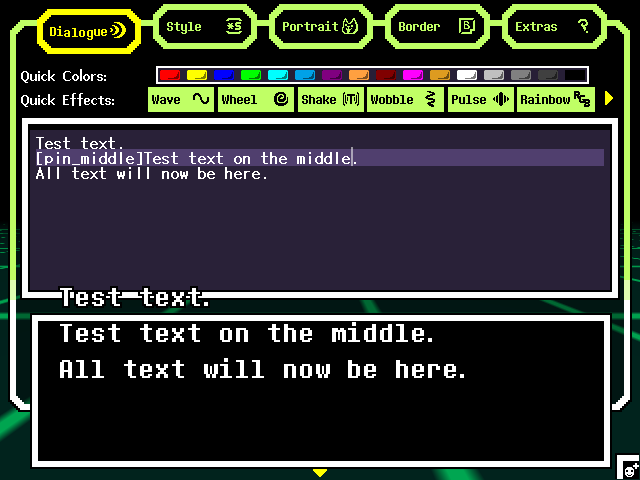
These can be combined!
Format to point
You can change the text alignment to make it format to its spawn point, rather than the textbox. These commands should be useful if you're offsetting the text with the [offset,x,y] command: Just replace pin_ with fa_(ex: [pin_center] becomes [fa_center])
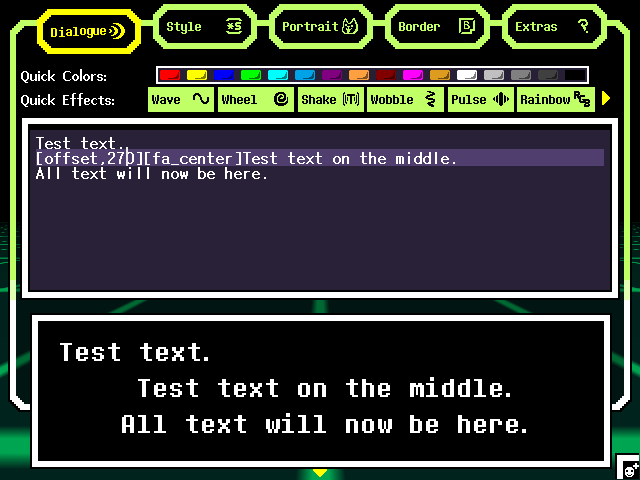 Same result as [pin_center], but with more manual work since we changed the spawn point's coordinates. If we didn't use [offset,x,y], then the text would've been offscreen.
You can also change text alignment in the Style tab. This only changes pin alignments.

Inserting Sprites and Changing Font
SoupGen supports inserting inline sprites and font changes! If you know the sprite's filename, then you just insert its sprite like so:
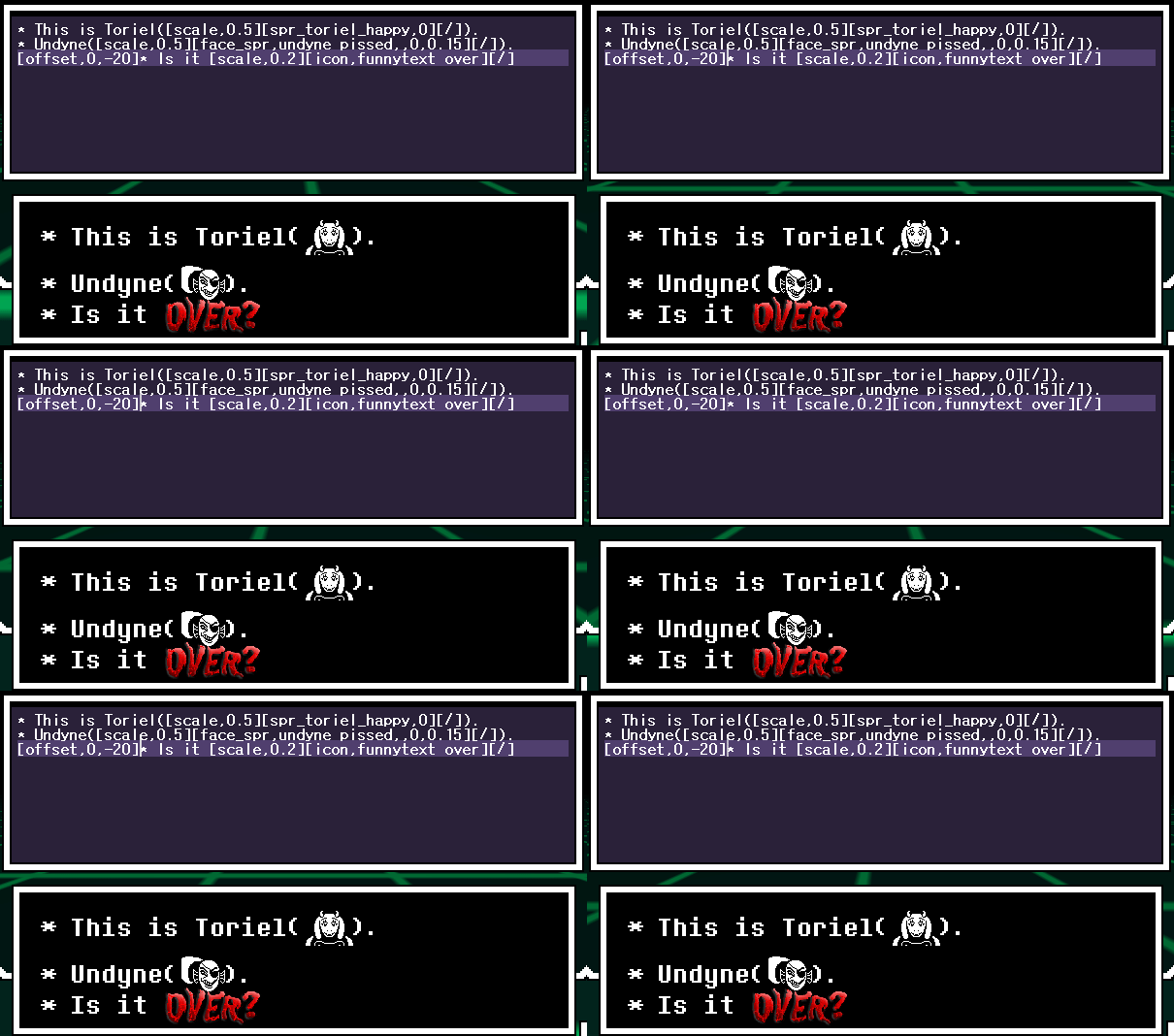
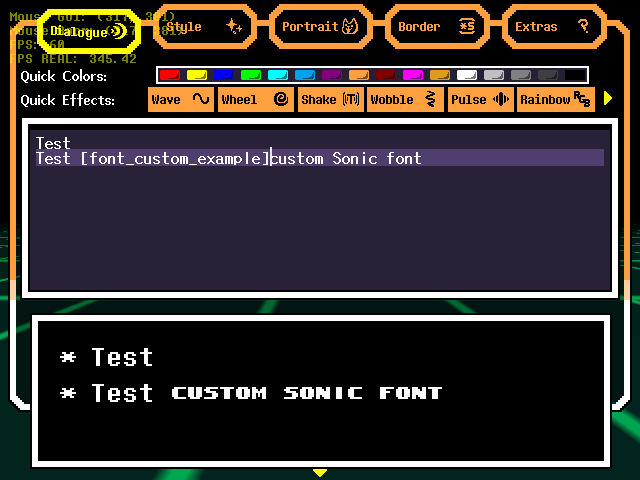 To edit the image index and speed, format your command like so: [sprite name,image index,speed](ex: [spr_undyne_pissed,0,0.15]). Face sprites and icons specifically have two helper commands, [face_spr,character name or sprite name,expression(or leave blank if you're providing a sprite name),index(default:0),speed(default:1)] and [icon,sprite name,index(default:0),speed(default:1)] that'll allow you to be more loose with getting sprites, meaning those two functions will allow you to get sprites without having to include underscores or "spr_" in the name.
Making Dialogue Cutscenes(Multiple Dialogues)
SoupGen supports being able to make a sequence of dialogue scenes using pages! To insert a page, use either [/page] or pg]
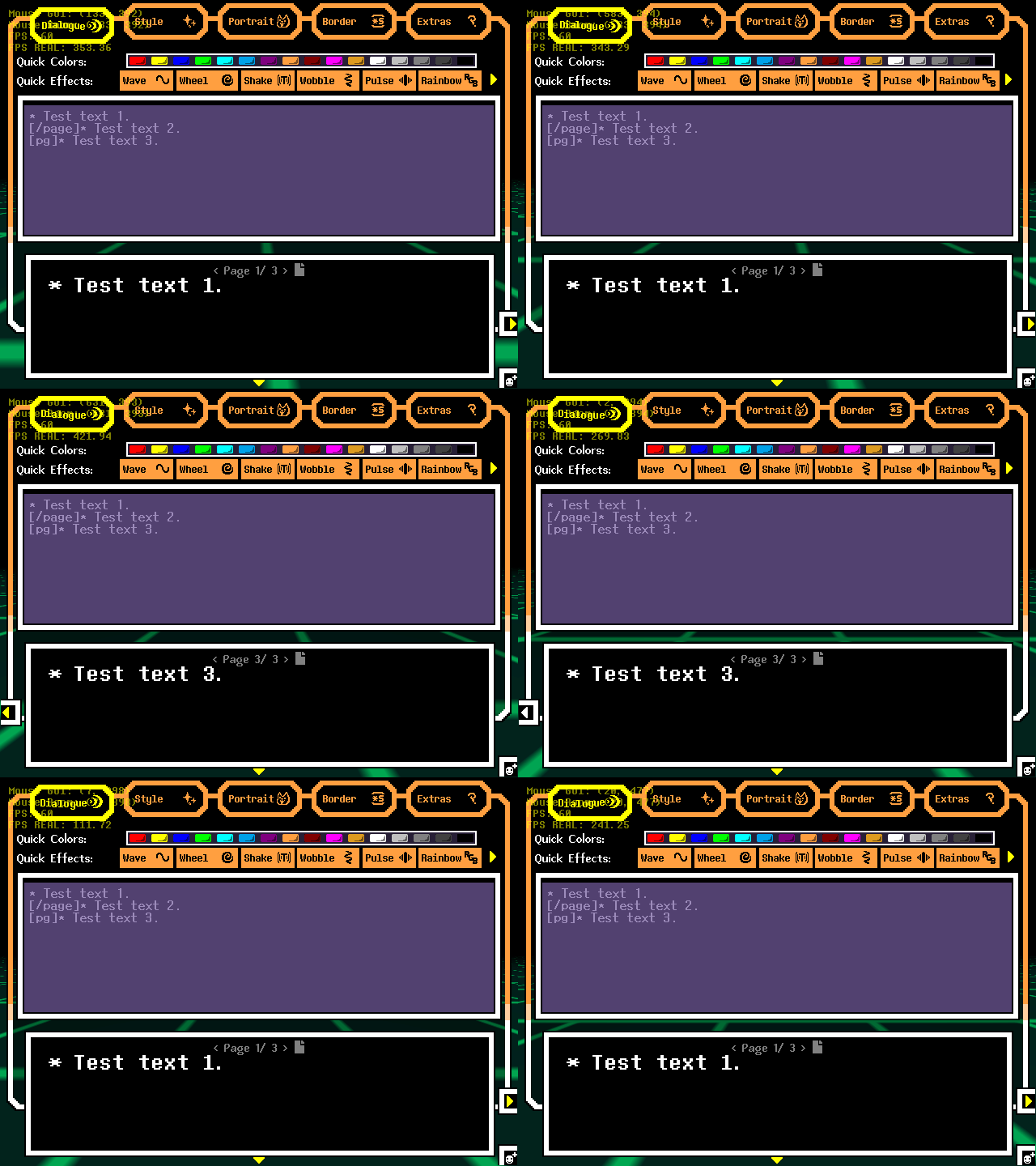 And now that you have pages, you can use exporting options like dialogue stacking to show all your pages in a vertical stack, or typewriter mode to show your dialogue one after the other! To bring up the exporting menu, just press ESCAPE.

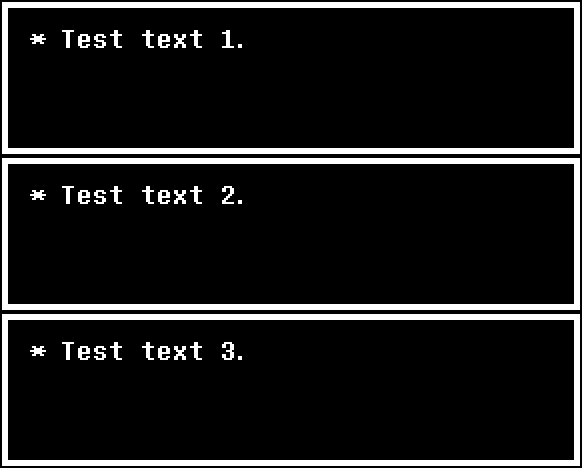 You should start pages out with
 [/page](your text here) and not [/page](enter)(your text here) as starting out a page with a newline literal will, well, start the page out with a newline literal, aka, your text will be offset to the next line. Unless you want that, I suppose.
Typewriter Mode
SoupGen allows you to export your dialogue as a typewriter GIF! This also allows you to use typewriter exclusive commands. Using these commands normally won't do anything.
[finish] - Instantly types out the current page of dialogue.
With: 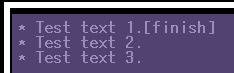

Without: 
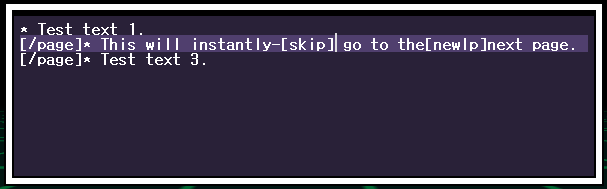
[skip] - Instantly finishes the current page of dialogue regardless if there's more text.

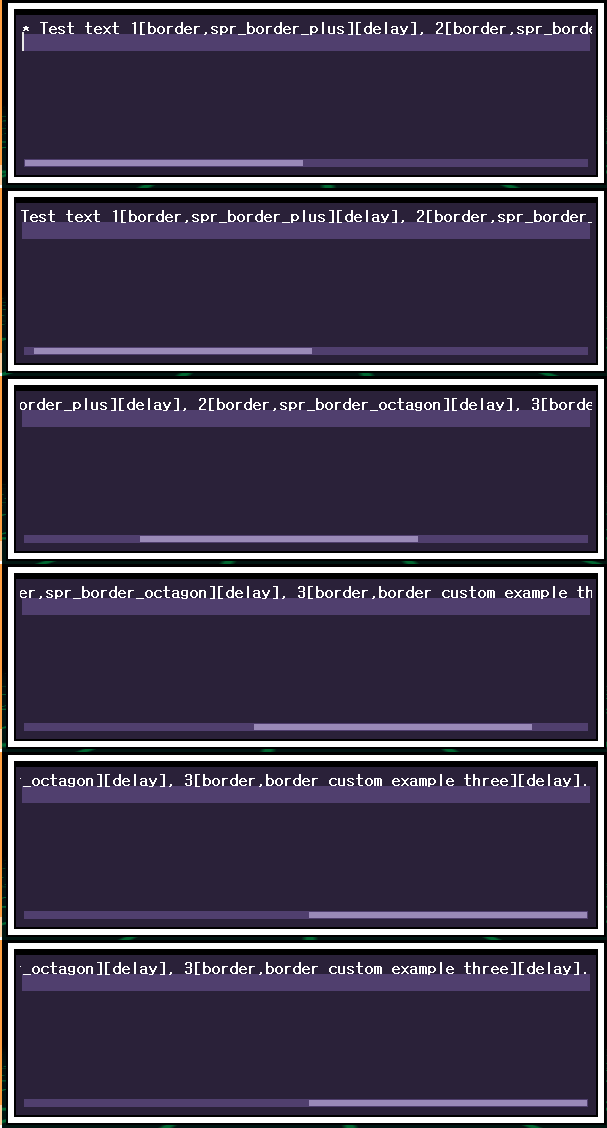
[border,sprite name] - Switches out the dialogue border mid-text. It's recommended that you start off with the Deltarune dialogue box first as GIFs cannot be resized dynamically.

[border_speed or border_spd,#] - Changes the border's animation speed.

[indicator,filename,image index(default:0), image speed(default:0),bounce(default:0)] - Changes the dialogue indicator.


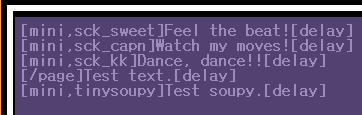
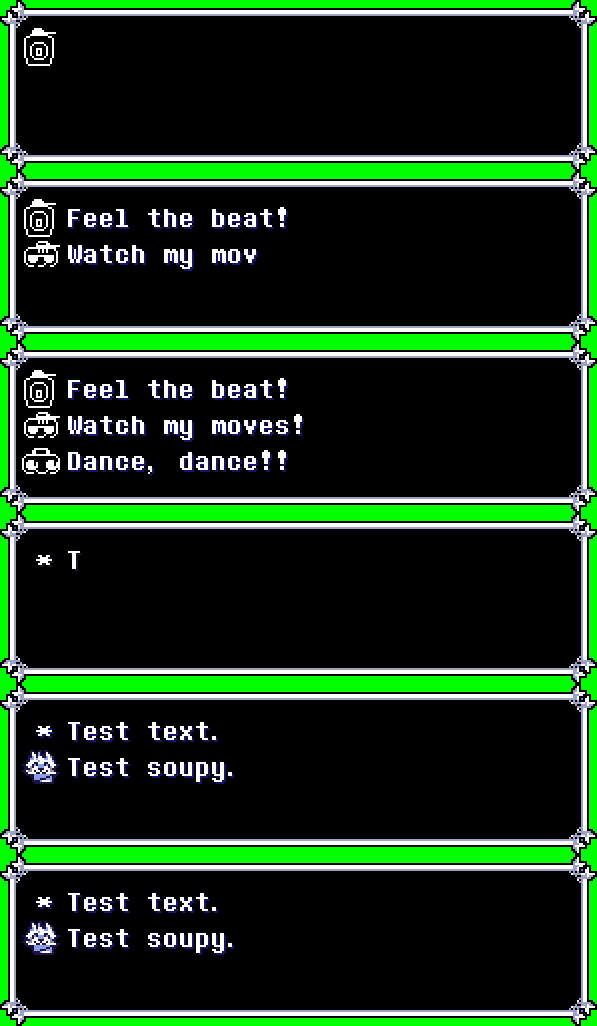
[mini,face sprite or icon] - Dedicate the current line to a mini portrait if Auto-Asterisk is on. Place the command at the start of a line.
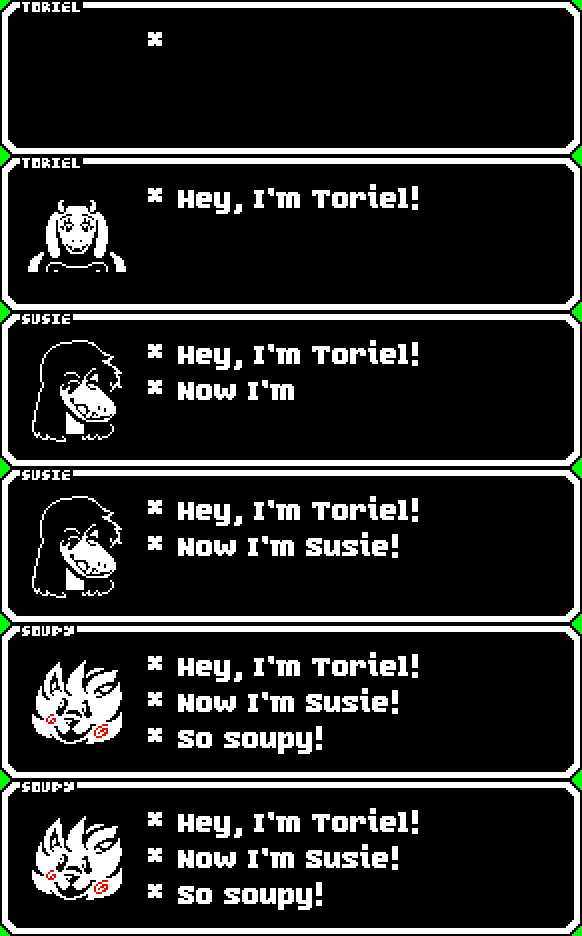
[nametag,string] - Edits the name tag. Leave blank([nametag]) for no nametag.

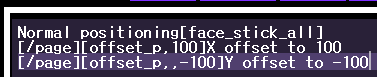
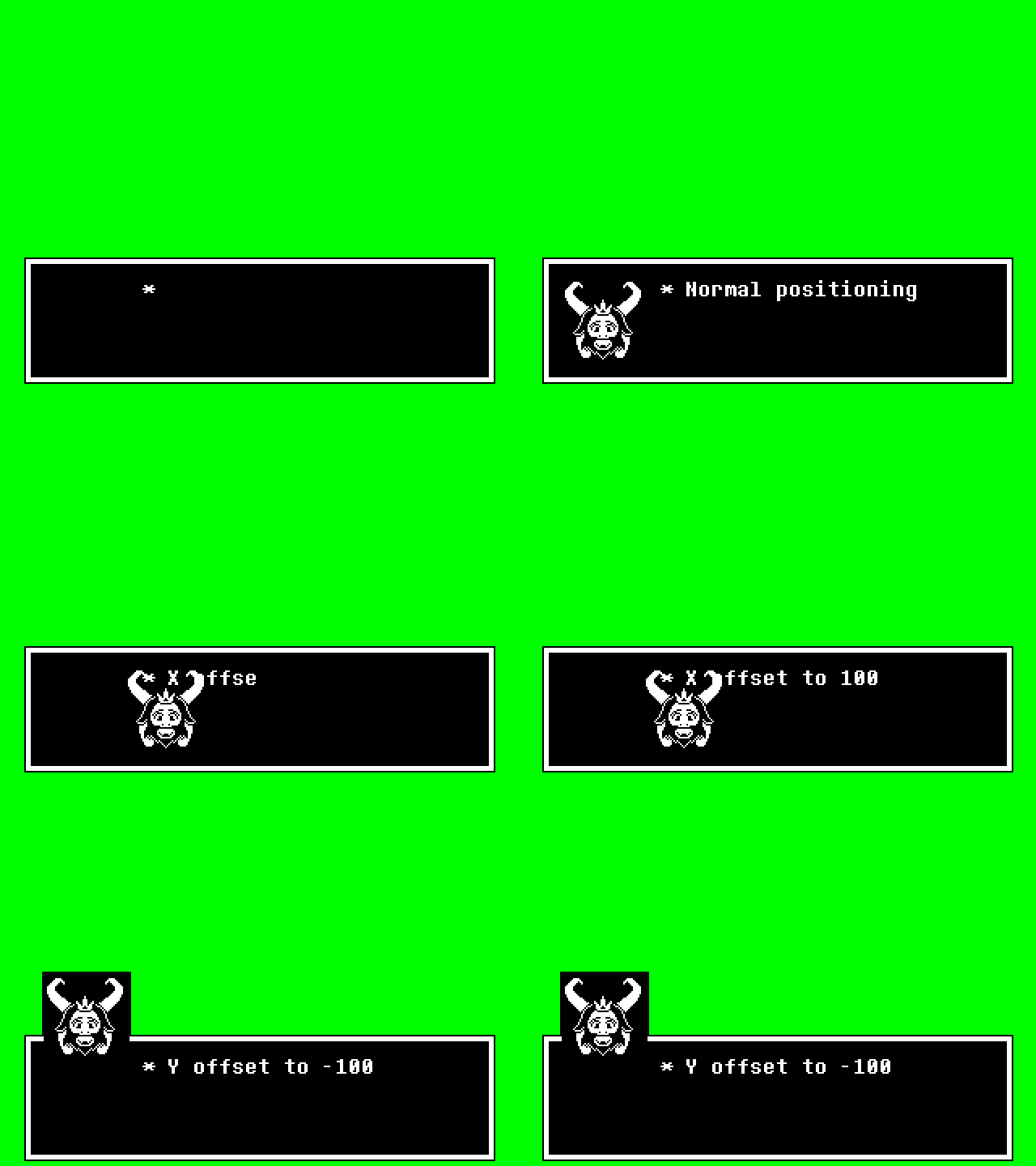
[offset_portrait or offset_p or offset_face,x(default:0),y(default:0)] - Changes the dialogue portrait's x and y offset.
[speed_pop] - Changes the typewriter speed back to the tool's default.
Dialogue Portrait Switching
Face commands allow you to switch dialogue portraits mid-text!
[face,character name or sprite name,expression(or leave blank if you're providing a sprite name),image index(default:0),get image number(default:0)] - Switches out the current dialogue portrait for the specified face sprite. If the face sprite is invalid or the argument is left out, then -1 is returned, meaning no dialogue portrait. You can also have it switch to a different image index if Sync with dialogue is off. if the image index argument is left out and you want the command to return the total image number to use as the image index argument instead, then provide the get image number argument to 1.
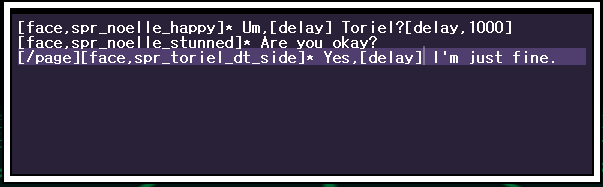

[face_auto,true or false] - Whether to enable the portrait to animate with the dialogue.
[face_prev] - Switches back to the previous dialogue portrait sprite.
[face_anim,#] - Changes how often the face should animate for every letter revealed(if Sync with dialogue is on).
[face_index,#] - Changes the index of the face(if Sync with dialogue is off), for face sprites with more sprites and expressions.
[face_speed,#] - Changes the animation speed of the face(if Sync with dialogue is off), for face sprites with more sprites and expressions.
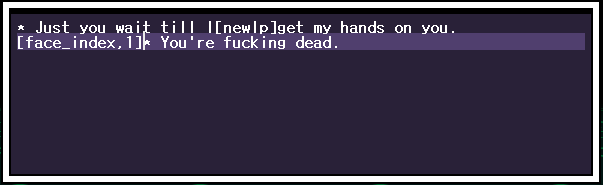

The following commands are helpful if Keep previous face is off.
[face_orig,character name or sprite name,expression(or leave blank if you're providing a sprite name),image index(default:0),get image number(default:0)] - Changes the original portrait sprite with a new sprite. You can also have it switch to a different image index if Sync with dialogue is off. if the image index argument is left out and you want the command to return the total image number to use as the image index argument instead, then provide the get image number argument to 1.
[face_stick,character name or sprite name,expression(or leave blank if you're providing a sprite name)] - Makes the previous dialogue face stick.
[face_stick_all,character name or sprite name,expression(or leave blank if you're providing a sprite name)] - Makes the previous dialogue face stick for all future dialogue pages.
Dialogue Portrait Effects
Wanna add a little extra sauce to your dialogue? Portraits have their own variety of effects built-in! Just use the command [effect or fx,fxtype,params]. Each effect got their own parameters to tweak! Some arguments will have defaults, meaning you don't have to specify that argument and can leave it blank. The tool runs at 60fps, so when you see arguments asking for frames, remember that 60 frames = 1 second, 120 frames = 2 seconds, 30 frames = 0.5 seconds, etc. etc.

[fx,squish or squash] - Tweens the portrait's xscale and yscale to squash & stretch horizontally.
[fx,squeeze or stretch] - Tweens the portrait's xscale and yscale to squash & stretch vertically.


[fx,flash,r(default:255),g(default:255),b(default:255),frames(default:15)] - Makes the portrait flash a solid color over the specified amount of time.


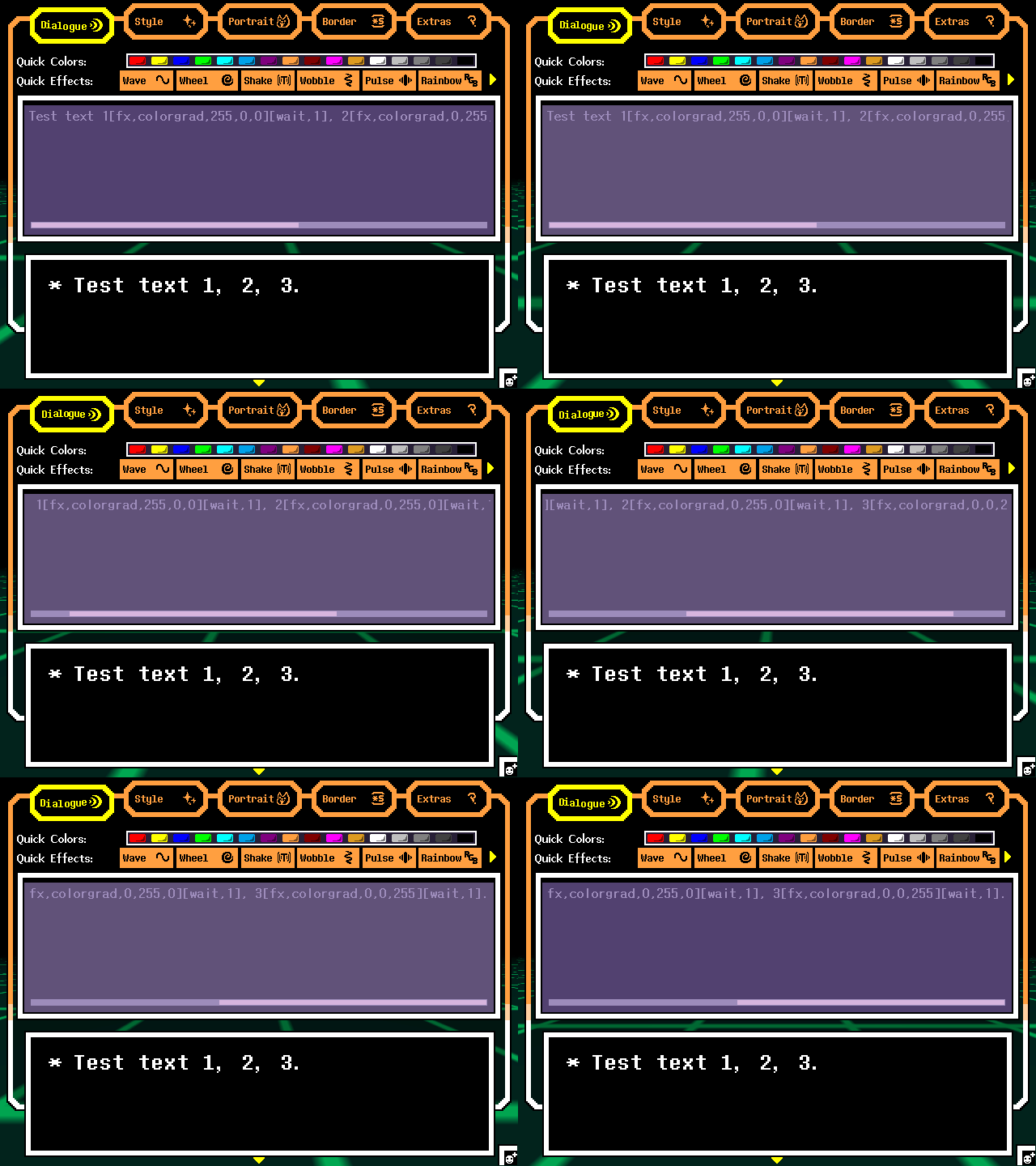
[fx,color or blend,r(default:255),g(default:255),b(default:255),frames(default:15)] - Makes the portrait blend to a different color over the specified amount of time. There's a variant of this, colorborder or blendborder, which functions the same, but colors the border instead, colorasterisk or blendasterisk to color the asterisk, colorhigh for highlight, colorunder for underline, colorstrike for strikethrough, and colorgradient or blendgradient that enables and colors text with a gradient.

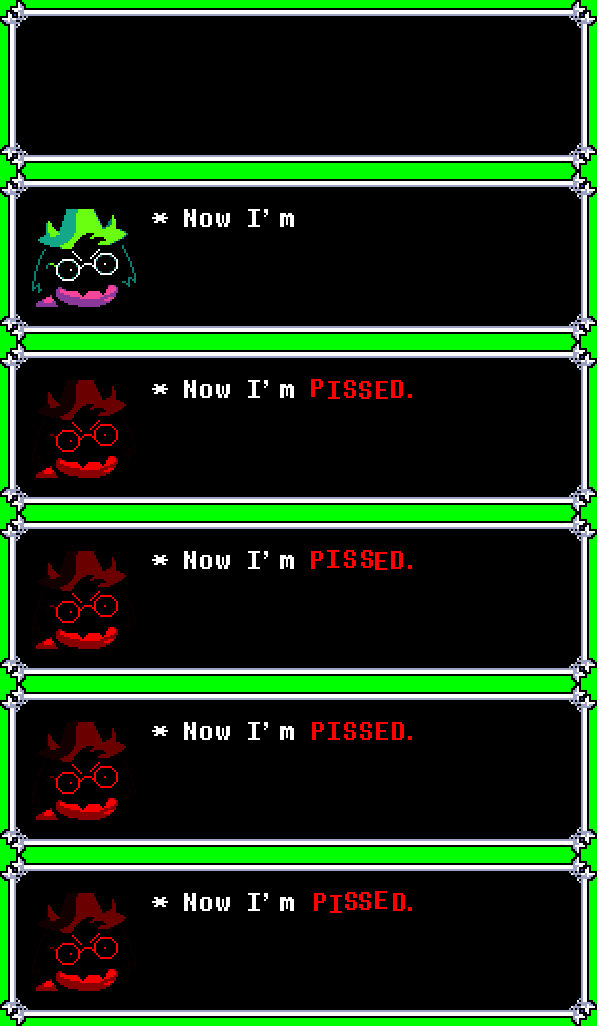





You can add a highlight, underline, and/ or strikethrough using [region,highlight or hl], [region,underline or ul], [region,strike or stk], and ending it with [/region]. (Note: It only affects the current line of text. It will not wrap to other lines.)


[fx,fade or ghost or opacity,#(0 - 1, (default:0)),frames(default:30)] - Makes the portrait fade out over time.

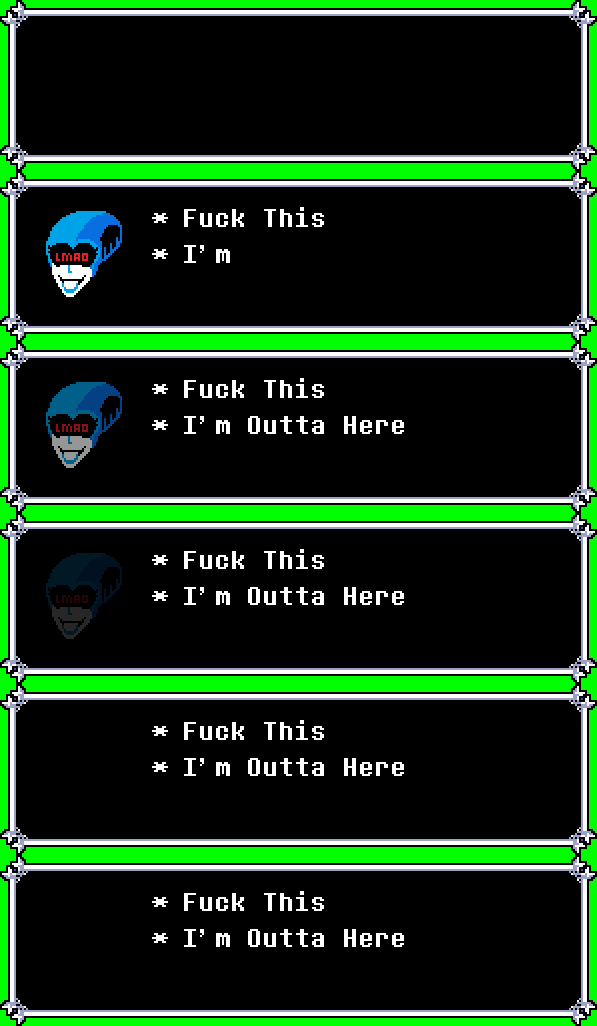
[fx,rotate or rot or angle,#(0 - 359, (default:359)),frames(default:30),issmooth(0 or 1, (default:0))] - Makes the portrait rotate over time. Optionally, the rotation can be smooth.

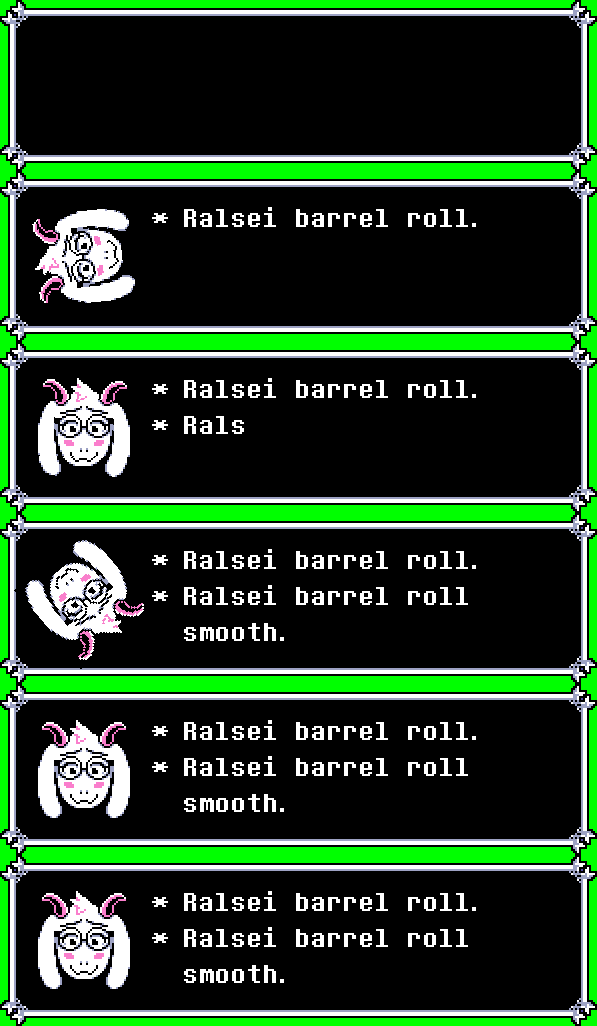
[fx,scale or size,xscale(default:0),yscale(default:0),frames(default:30),issmooth(0 or 1, (default:0))] - Changes a portrait's image scale over time.

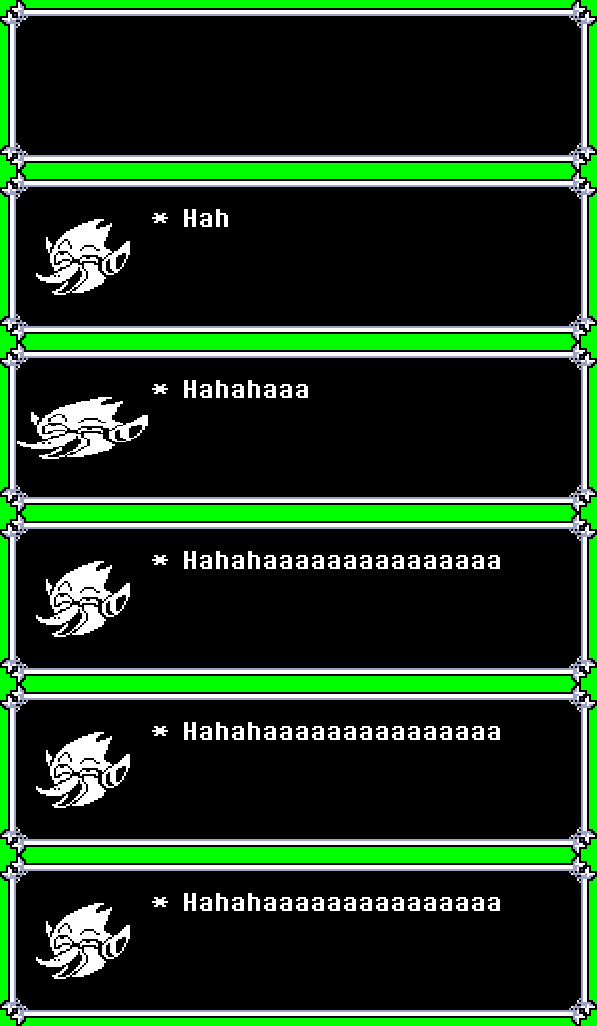
[fx,slide or move or xy,x(default:0),y(default:0),frames(default:30),issmooth(0 or 1, (default:0))] - Makes the portrait slide to a new position over time.

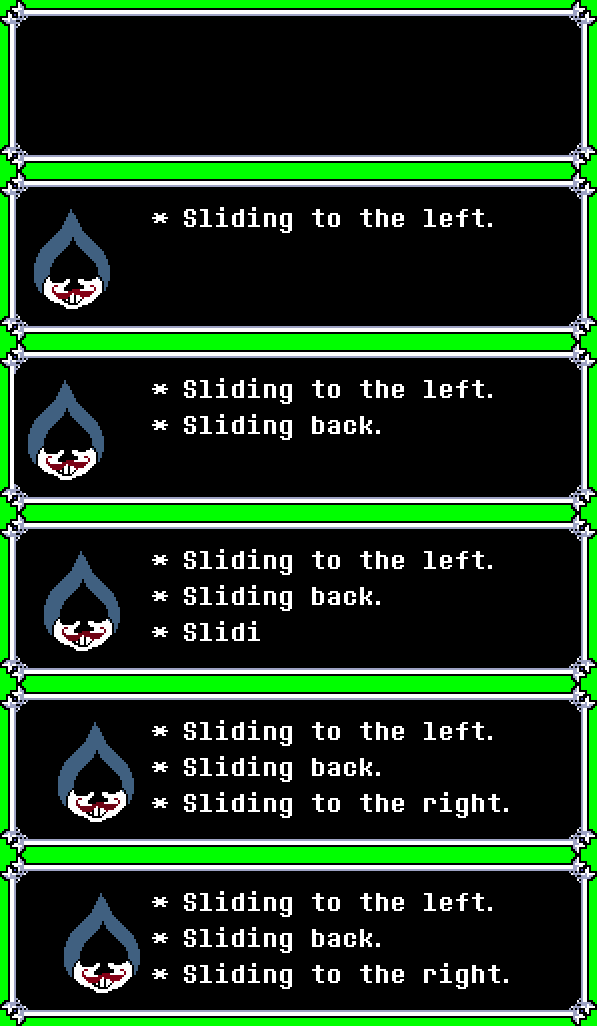
[fx,shake or rumble,shakex(0 or 1, (default:0)),shakey(0 or 1, (default:0)),frames(default:5),intensity(default:2)] - Makes the portrait shake for the specified amount of time. Optional parameter for the intensity of shaking.

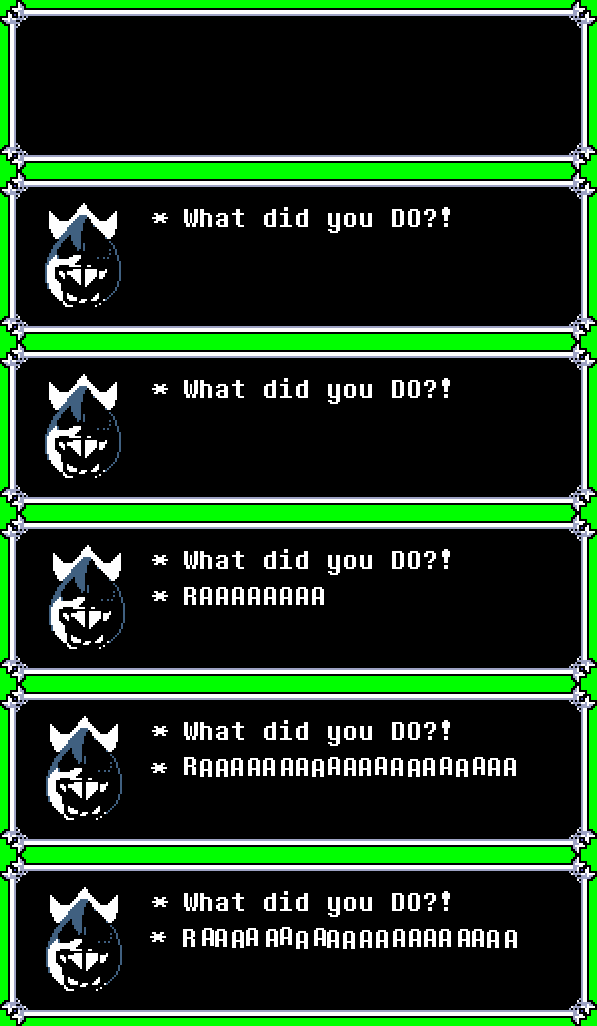
[fx,index or frame or img,index #(default:sprite's total image number),frames(default:30)] - Makes the portrait animate to a different image index over time. You'll want Sync with dialogue off for this, otherwise the typewriter will take over the portrait's image index. There's a variant of this, indexbord or framebord or imgbord that affects the border instead.
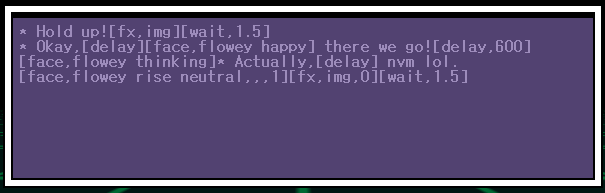



Combine effects and see what you can come up with! Customize the textbox enough and you could turn your dialogue box into something completely original!
Typing Effects
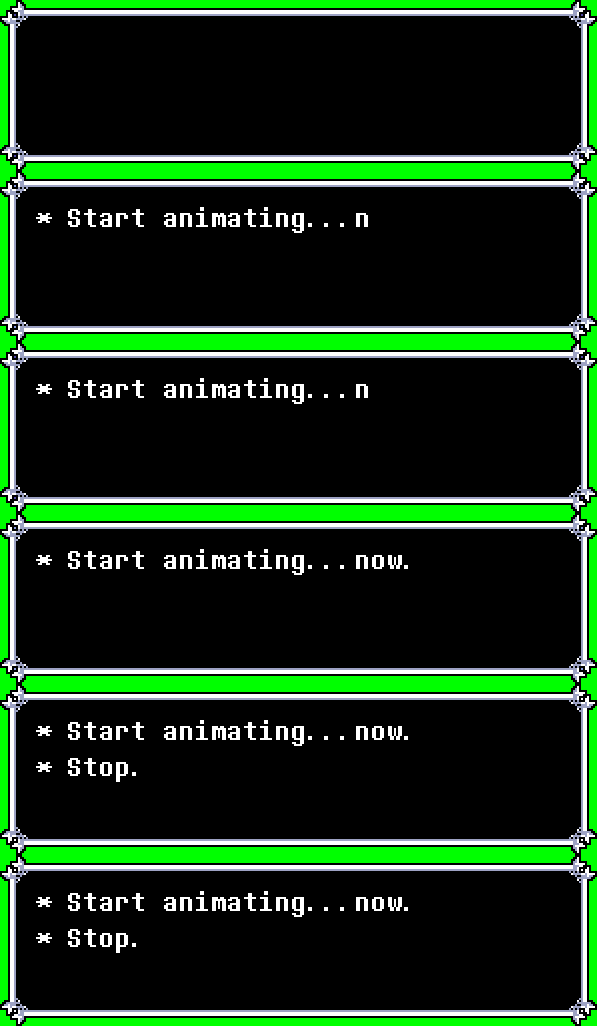
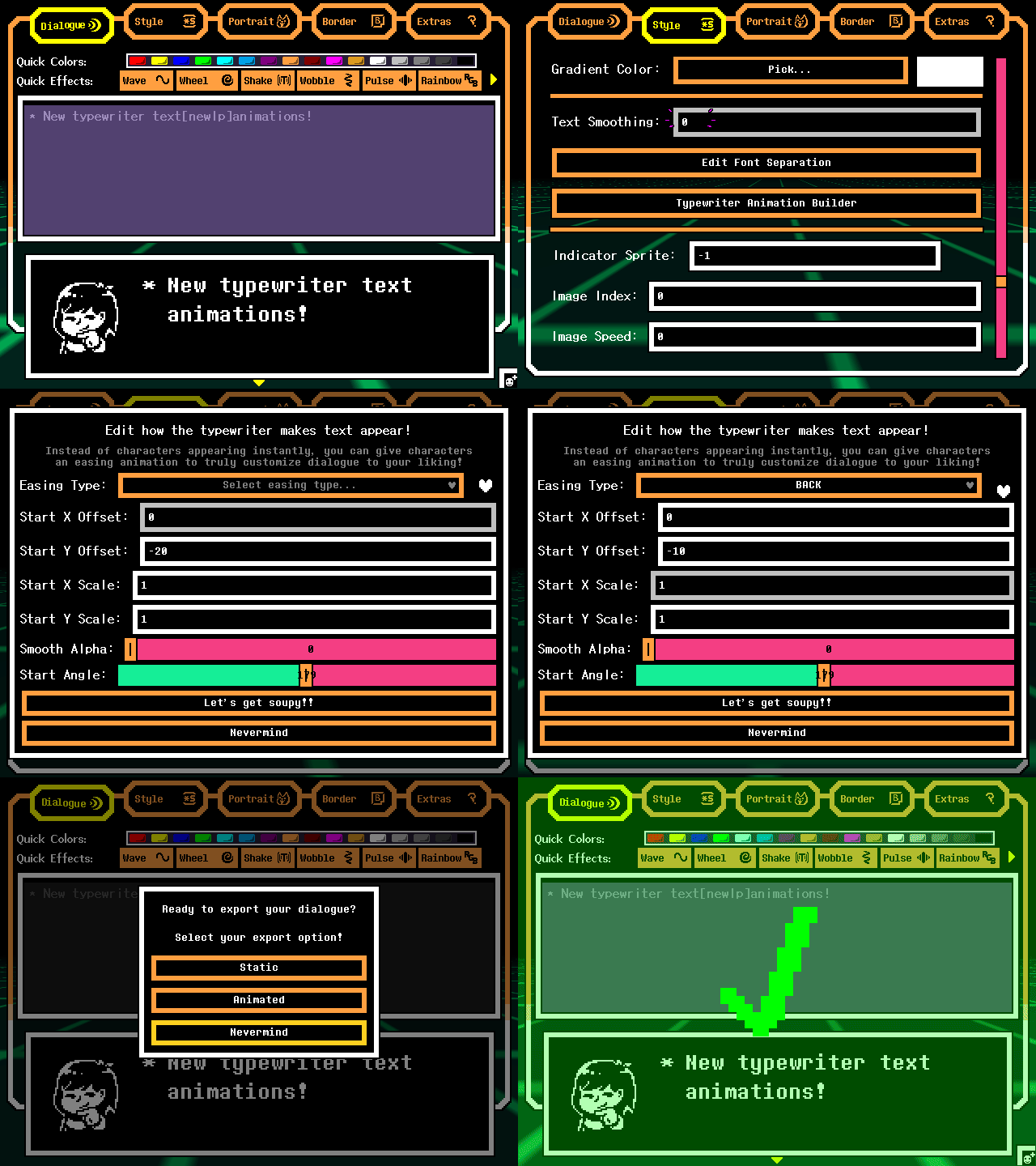
Not happy with the plain ol' instant text pop in typewriter text? Why not customize it? You can do that here with the power of easing algorithms! See the GIF below:


Dialogue Choicer
Also exclusive to the typewriter is being able to render out dialogue choices! They're purely visual, but they emulate interaction! You must dedicate an empty page for this, otherwise things will get cluttered very quickly. See the GIF belows.
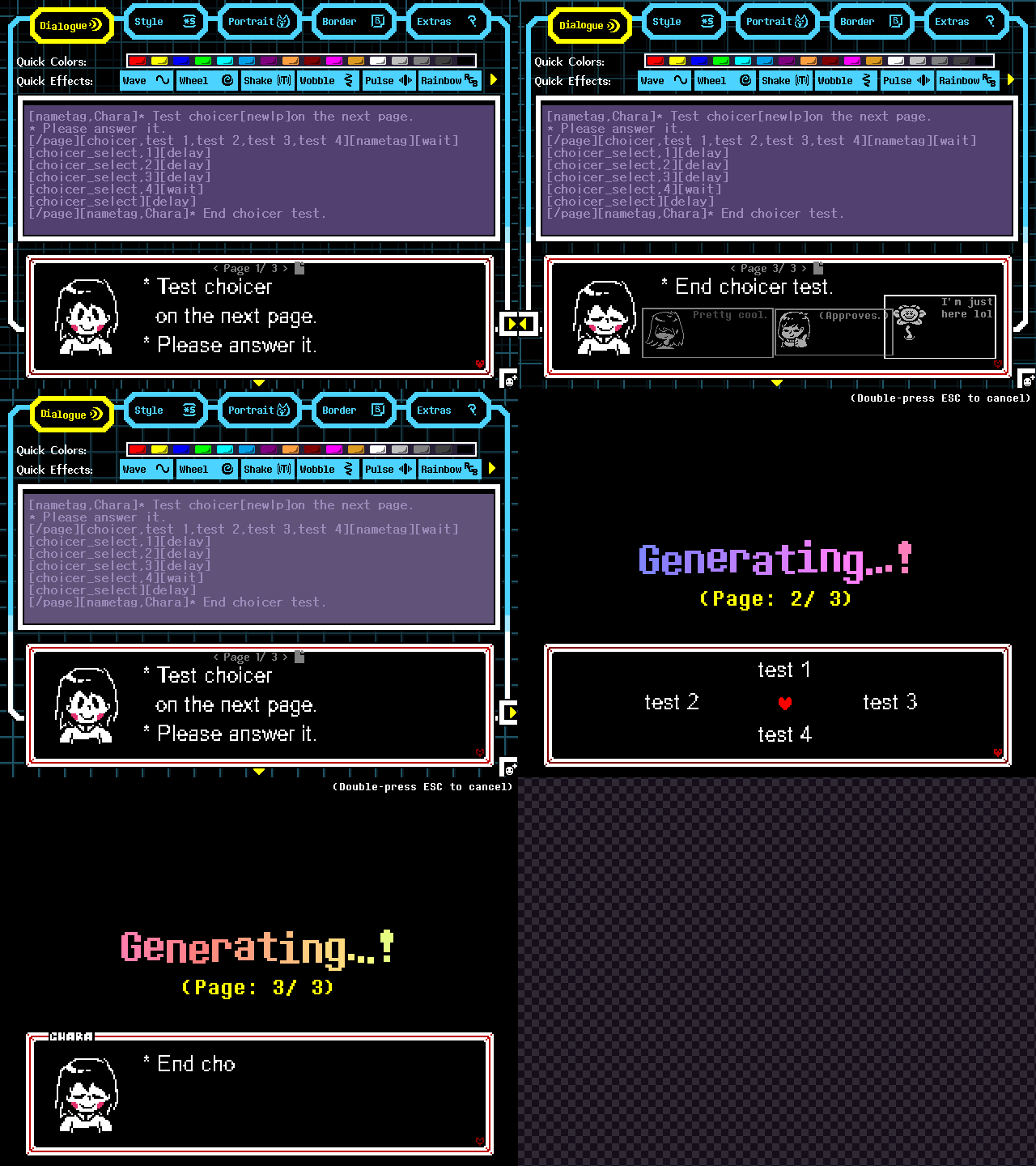
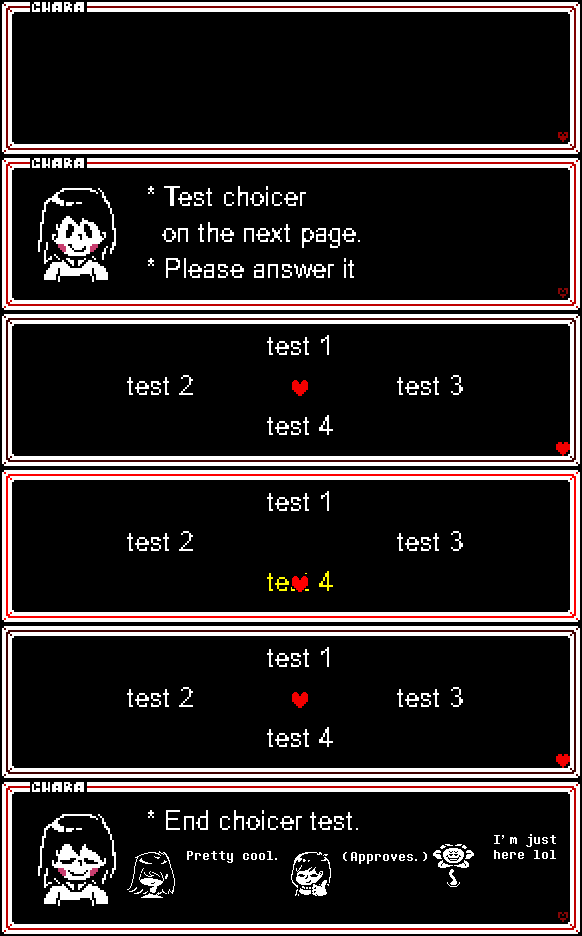
You don't have to put in all 4 options either. Here's an example with 2!
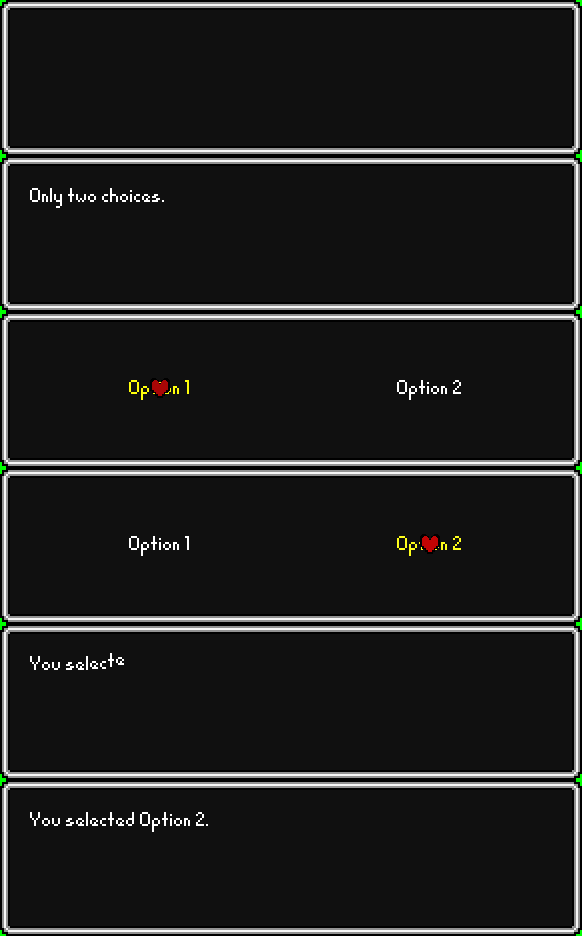
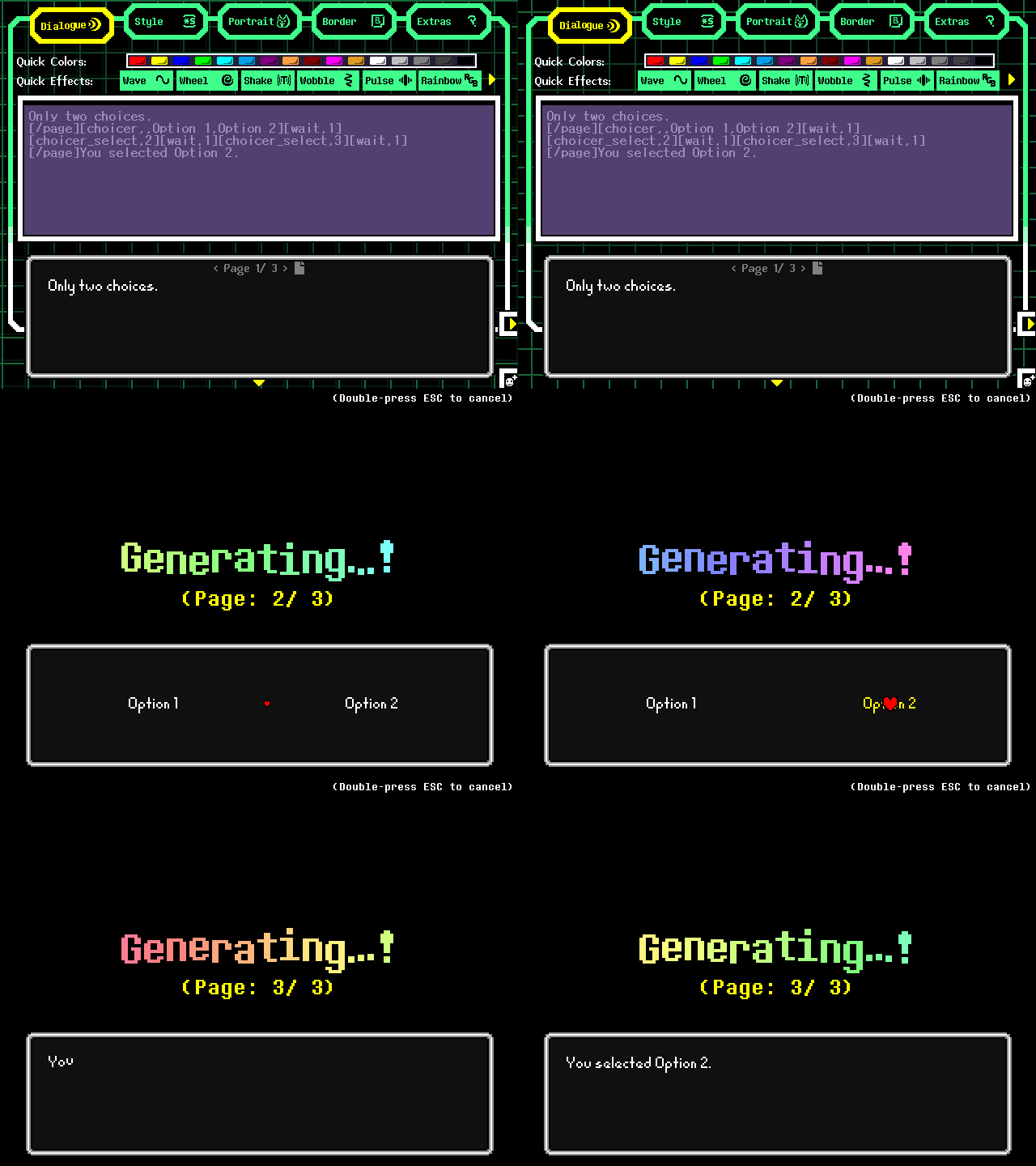
[choicer,option 1(default:""),option 2(default:""),option 3(default:""),option 4(default:""),start at option(default:0),icon(default:spr_soul),icon frame(default:0),icon scale(default:1),icon angle(default:0),r(default:255),g(default:0),b(default:0)] - Dedicate an empty page to a choicer.
[choicer_select or choicer_option or choicer_on,#(default:0)] - Highlight a menu option. Leave blank or put 0 to select no option.
Adding Your Own Custom Sprites
If you're not happy with the default sprites to choose from, you may add your own sprites! SoupGen supports custom face sprites, icons, borders, reference image(background) and even fonts! There's a bit of a process for each import type, so we'll go over them one-by-one.
Firstly, Making the Tool Recognize Custom Sprites
There are some restrictions in place to keep in mind. Firstly, your sprites and folders must be uniquely named. There cannot be two sprites named something like "spr_toriel_happy" and stuff like that. Your filename also can't have numbers in it besides the strip number. This tool does some string processing that requires numbers to not be included in the filename besides strip number. This is it for single images, but what about strip images, and what are they?
GameMaker's File Strip Format
File strips are essentially horizontal sprite sheets. It's a format GameMaker uses to cut up several sprites into different frames so your sprites can show up as animated. To make using this tool(and my life) as simple as possible, we'll be leveraging file strips. Firstly, and probably the most time consuming step, you must arrange your sprites in a horizontal sprite sheet. If you use GameMaker already, then this is actually easy as it already does this for you when exporting sprites with multiple frames. If not, then you'll have to go through the steps to make sure every frame of a sprite is perfectly sized, sprite offsets are correct, etc.. But, once all that hard work is done, you have a file strip!

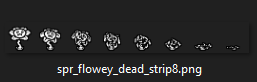
 Now that you have your sprite sheet, you must include a "_stripN.png" at the end of the filename. N here represents the total number of frames your sprite will be cut up to. Count your frames and put it in the filename. This is the only number you should have in your filename. Miscounting the frames will result in your sprites looking like garbage data. The Flowey example here has 8 frames, so we'll put that. Should look like this:
 Simple? Now you can import that into the tool and see your sprite animating! Now let's go over the specific requirements for each import type.
Importing Face Sprites
This only applies if you're wanting the tool to auto-load sprites for you when the tool boots up. Otherwise, you can skip this step. For those that want auto-loading, here's goes! Firstly, to auto-load any sort of sprite, just import them into their designated folders here:
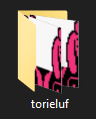
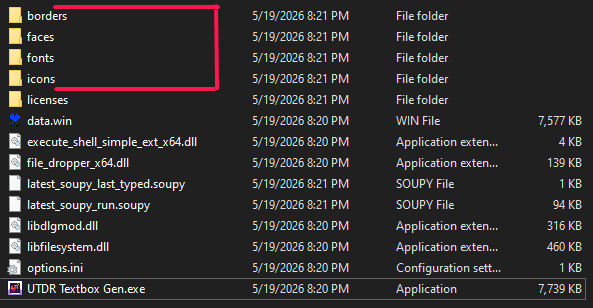 Opening up the faces folder, you'll notice there's a lot of characters, each with their own sets of sprites. Create a new folder and name it something unique. For instance, if you want two Toriels, but one is from Underfell, then name that folder something like "torieluf". Keep the folder name in mind.
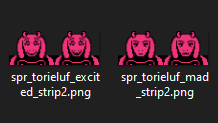
 Add your sprites, but they must be a specific naming convention: "spr_(folder name)_(expression).png" or "spr_(folder name)_(expression)_stripN.png" if you plan on having talking sprites or other various animated sprites.
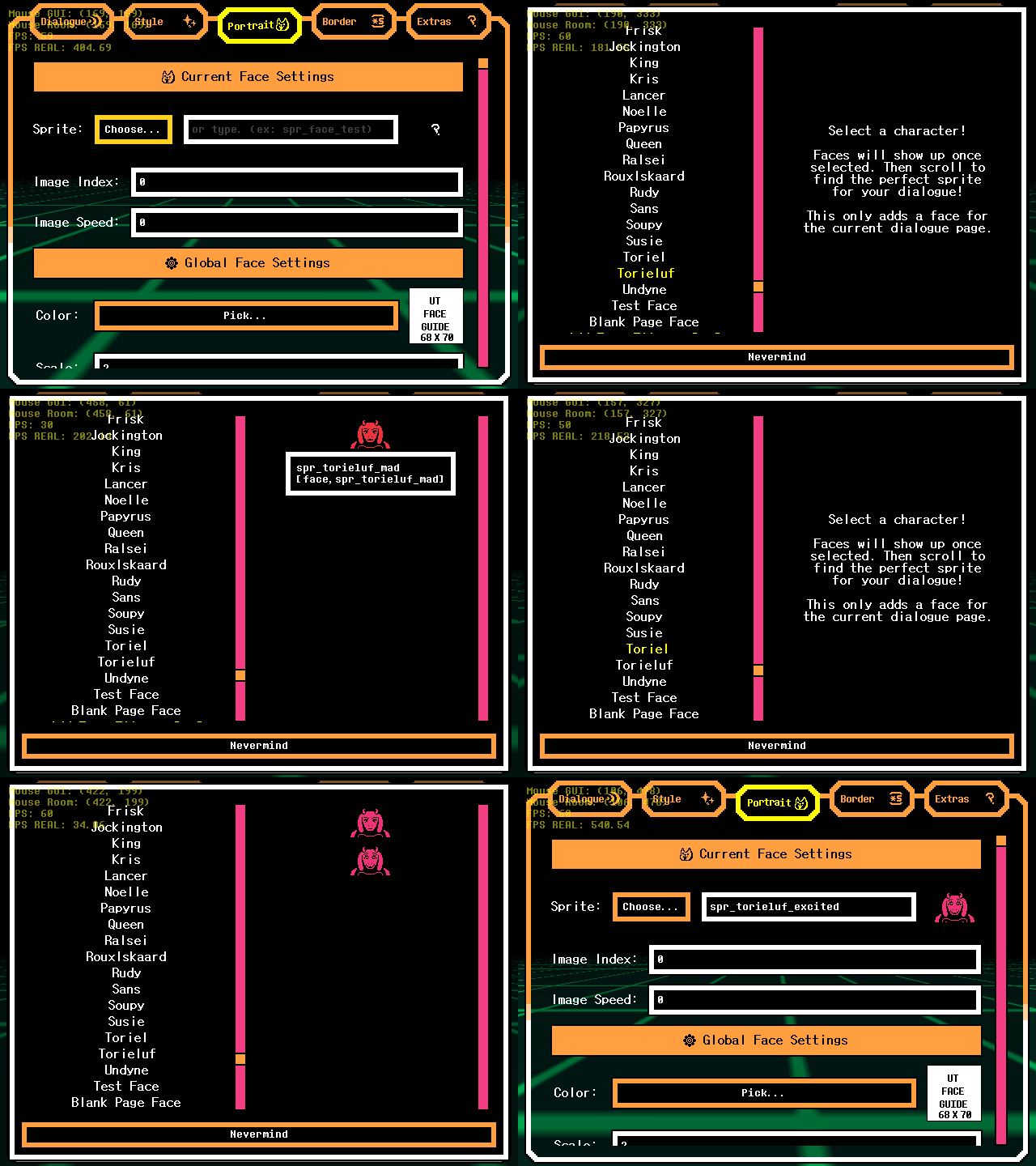
 Now load up the game, go to the portrait tab, choose, and you should see your folder filled with all the sprite you've added! Every other import type won't have this requirement and they'll import just fine. You also won't have to do this if you're adding sprites directly into the game either via
 drag and drop or add from file options.
Importing Icon Sprites
Icons actually have no special requirements other than making sure the names are unique.
Importing Border Sprites
If you want to use custom dialogue borders and make sure they're imported correctly, then you'll need to format the sprite into a nineslice. A nineslice is simply 9 equally-sized pieces of a sprite combined to be a perfect square. You must make sure your pieces are divisible by 3, meaning when you divide the piece size by 3, there should be no remainders, no fractions.
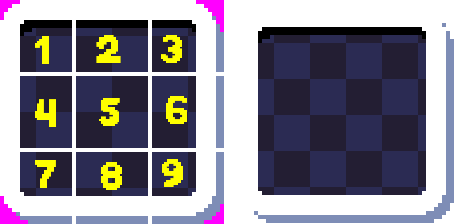 For this example, the tile sizes are 18x18 each, making up a total of a resolution of 54x54. 18/ 3 is 6, 54/ 3 is 18, yay! This will import correctly! Drag the sprite onto the tool, or import it, and see how it looks.
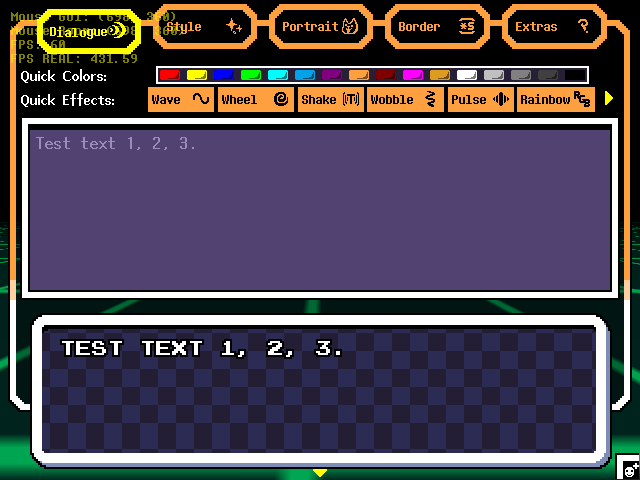
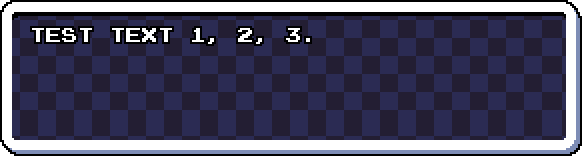 Looking amazing!! Ignore the warping at the bottom there. That's only cause I didn't properly loop the checkerboard pattern.
Now if you don't want to do all that, see this.
Looking amazing!! Ignore the warping at the bottom there. That's only cause I didn't properly loop the checkerboard pattern.
Now if you don't want to do all that, see this.
Importing Fonts
Fonts with Extra Colors
Make sure your font doesn't have any other colors but white. No outline either. Otherwise, the text renderer will turn those extra colors white, leading to unexpected changes in the sprite.
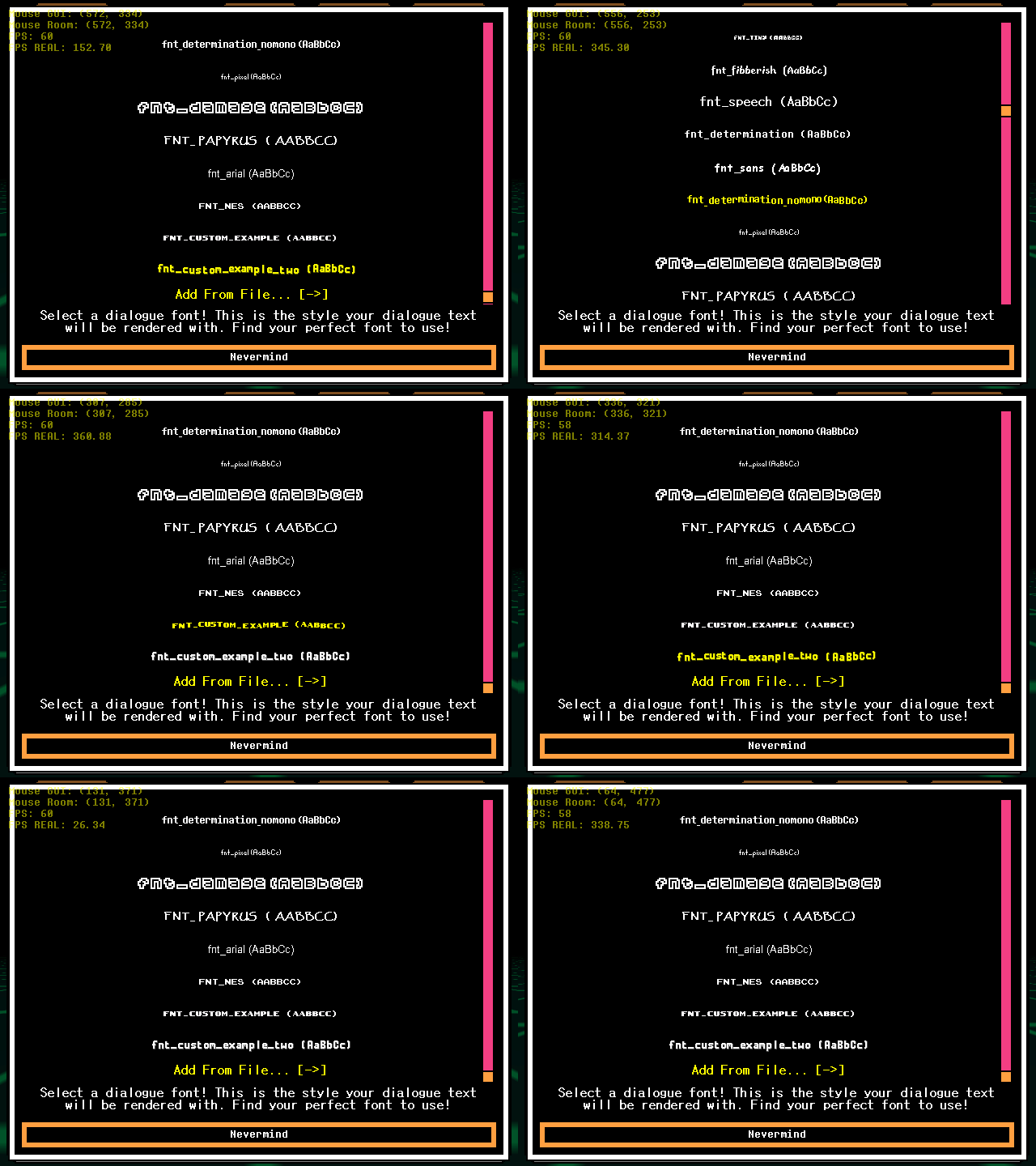
This tool, sadly, doesn't support common font files like .ttf, .otf, etc. This tool makes heavy use of Scribble, which doesn't support font_add. See more here. Scribble is the only job fit for a tool like this, so I won't be considering any alternatives. It'd be too late, anyway. Thankfully spritefonts are supported! They're just really long strip files. If arranging face sprites into sprite sheets wasn't tedious enough, this surely will be, and you have to do it in a specific order too. I'll let you deal with all that.
 Here's a template you can use for which characters you'll need to make and how they should be arranged. To ensure maximum compatibility and enough characters to use for typical dialogue usage, you need to follow this format. This has 90 characters, so you put that in the "_stripN" part. Once you're done with that, import it into the game or auto-load it and you'll see your new custom font!
Importing a Reference Image
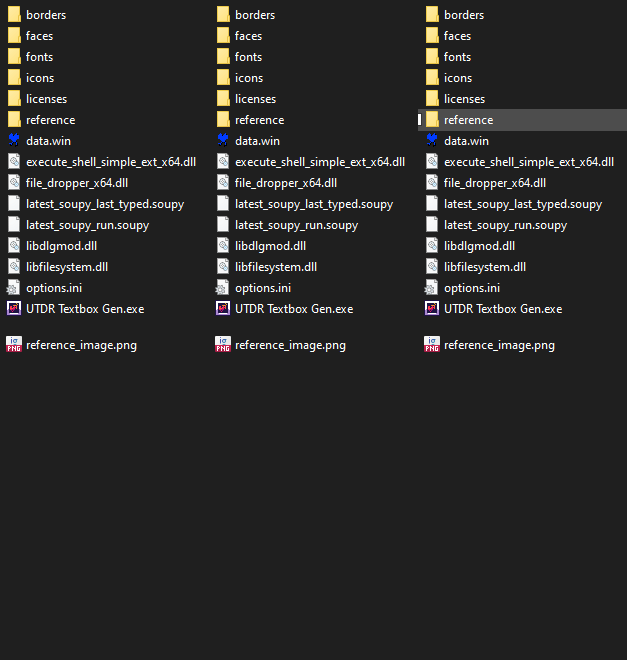
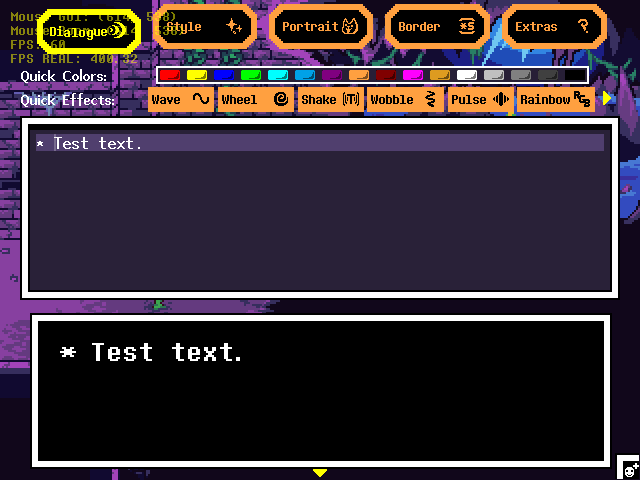
Importing a reference image will replace the really cool 3D-like background with an image..! Anyways, just create a folder in the main directory called "reference" and add an image called "reference_image". Ideally, your image should be 640x480. No other requirements. Simple! The result:
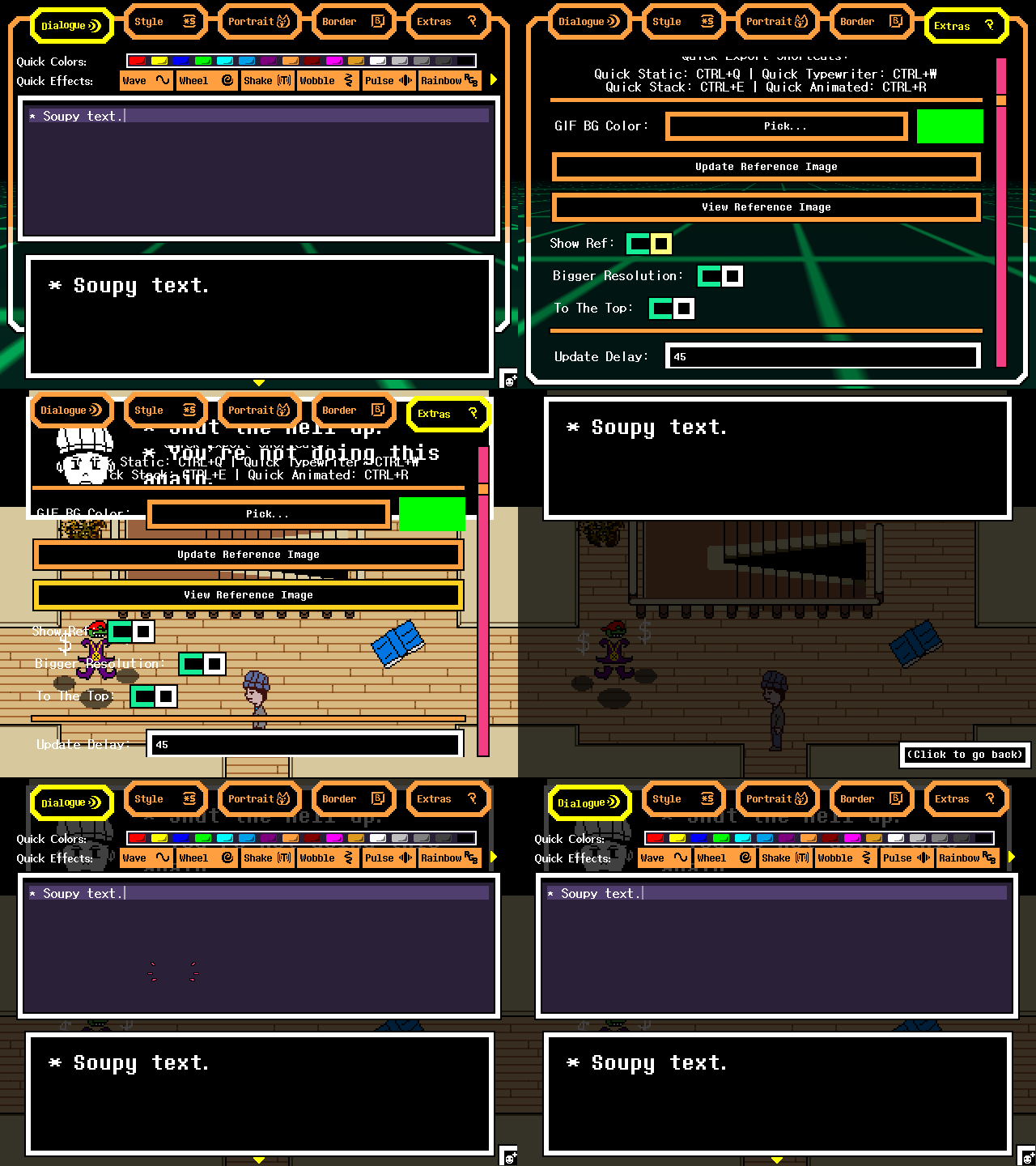
You can then view your reference image and how it'll look when rendered if Show Ref is enabled. You can also update the reference image sprite in the tool if you updated it in the folder.
Reference Image on Export
Reference image won't show for the dialogue stack export option. It also won't show if Bigger Resolution is disabled.
Text Macros
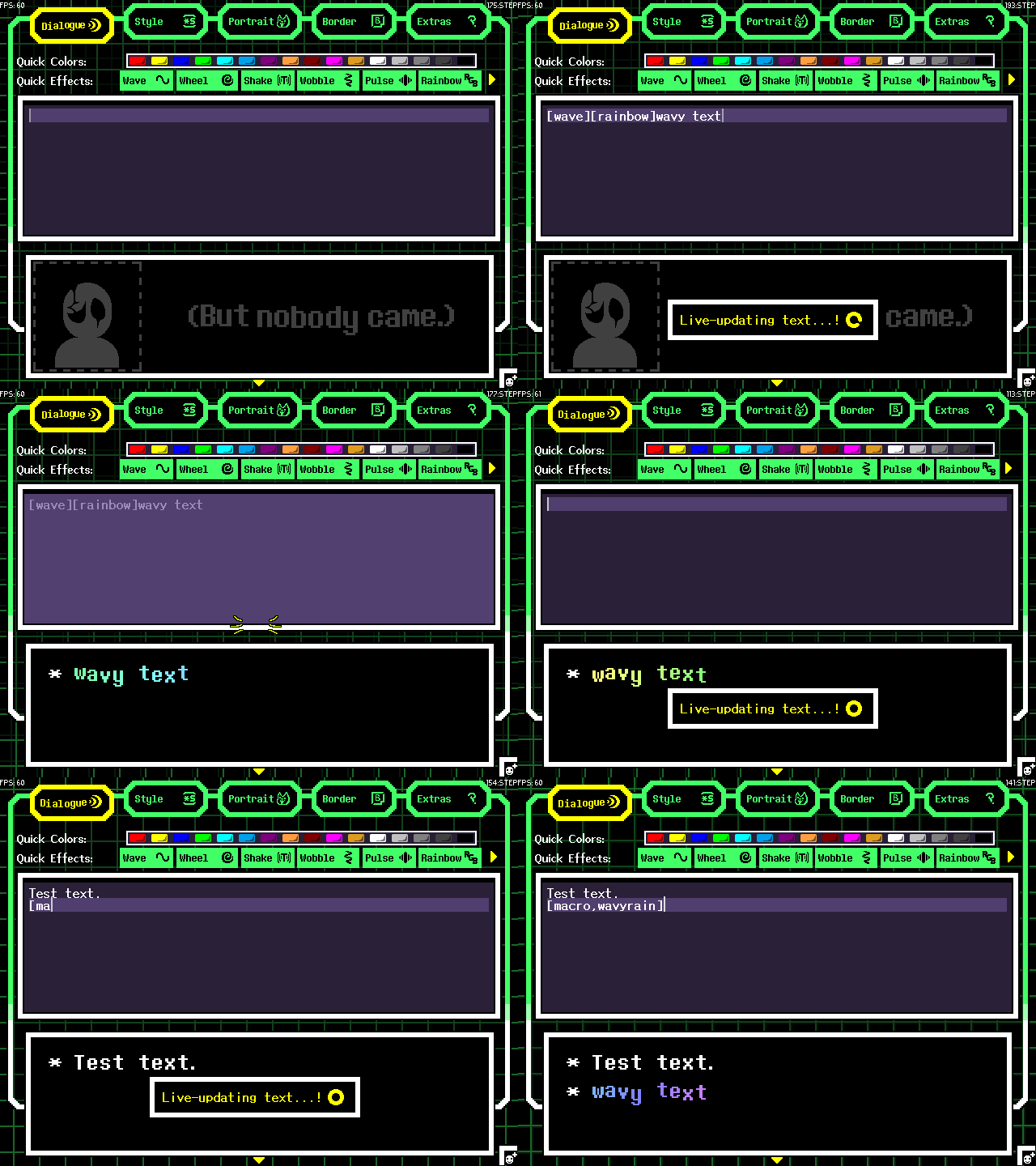
SoupGen supports adding your own commands in the form of Macros! Macros are reusable text components that comprises of other text and commands. To add your own macro, add some text to your textbox, right-click or double-tap to bring up the textbox's context menu, then Add As Macro. You can then use it like any other command using [macro or mac or mc,(label)]! If you have a bunch of text and commands that you want to condense down into one super command, this is how you do it.
Requesting Custom Sprites be Officially Added
This will be updated later and there will be more information on this whenever I feel ready opening up submissions.
FAQ
Some sprite and text shrink, get distorted, get cut off, etc. when moving it around. Any fix for that?
I'm aware of this and I currently don't know a fix for it. You'll just have to live with it for now.
My custom sprites aren't showing up! My animated sprites are appearing weird.
Make sure you're actually naming your sprites correctly, you set up your file strip correctly, and you counted right.
I don't see an option to record videos or add voice blips. Why not?
GameMaker doesn't provide a native way to record videos, only GIFs. It's technically possible with audio buffers and bundling ffmpeg, but I haven't figured it out myself.
How come memory usage is so high?
That's just the nature of external sprites and how GameMaker handles loading them. GM decided every sprite you add must have its own texture page and is immediately loaded into GPU memory. There's probably ways to mitigate this, but I haven't figured it out yet.
Was Generative AI used in any part of this?
No cause I actually know what I'm doing(most of the time, anyway). Support your fellow human artists!
Using the GIF exports causes the tool to lag.
Recording videos and GIFs in general take a lot of processing power. I've already optimized the tool plenty, so there's nothing I can do on my end. You can tweak the color quantization option, but that's really it. Perhaps you just don't have the hardware needed to record things. Sorry!
Can GIF exports have a transparent background instead of lime green?
GameMaker doesn't support recording transparent GIFs(or at least when I tried adding the background color to the gif_open function, it didn't work). Instead, you'll have to use other background remover tools like this one(untick clean up edges) or whatever video editing software you have.
The colors keep flickering when exporting to a GIF!
Tweak the color quantization setting. 2 or 3 should be good.
The tool suddenly crashed! My power went out! Etc. Will I be able to recover my progress?
Yes! SoupGen automatically saves the progress of what you last typed once you let it generate. The only thing that isn't saved is whatever starting portrait you used outside of the [face] command, starting font, and any mini speeches you had. You will notice a latest_soupy_last_typed.soupy in your program directory. I may open up more things to be saved, but text is it for now.
Wasn't there gonna be an online version? What happened to that?
Well... That's a long story. Everything was functional, except I needed a way to export the result(which is, like, the main appeal of generators). GameMaker's WASM(Opera GX web) nor the (significantly worse) HTML5 export support file open/ save dialogs, for some reason. There IS an library specifically for HTML5 that would allow me to open file dialogs. Great! So just use that then! Problem: I can't. Scribble, along with JujuAdam's other libraries I use, doesn't support HTML5, and I don't know Javascript and how it interops with GameMaker enough to make a library to support file dialogs for WASM myself, so ultimately, I'm fucked offline wise. Offline wise? What about online wise? Well, I COULD upload your result to a server! I have you upload your custom sprites to something like Imgur, and then for export I'll just generate your stuff and then upload that to a temporary file hosting site like Litterbox! Clunky, but it would work. And I was experimenting with that. I was so close!...until I hit another roadblock. Cross-site origins. If you're a web dev, then you'd know how annoying this block is. Basically, I can't just let my tool upload/ receive your data across any website recklessly. That's dangerous. That's why this protection is in place. Me not having any web dev experience, I didn't know how to get around this. So in the end, I was left with no other option but to just not do an online version. If I really wanted to support the web, I'd have to learn how to actually make a website, learn Javascript, HTML, and CSS, or learn another game engine like Godot, and then make a completely different tool and sink many more months into that. I don't have interest in doing all that, so I'm not going to. If only GameMaker was more capable, but it's still far behind its competition. Who would've known that using a game engine to make a general purpose tool would be so difficult? (me lol)
All that to say: I would need someone's help that knows both GameMaker and Javascript to create a WASM extension that would allow the user to open a file dialog and save contents. That is literally the only roadblock for an online version. Until that happens, Windows only. :(
Some characters in my spritefont aren't appearing.
Either you didn't add those characters in the file strip(maybe you left them blank), you didn't add all 90 characters, or you're using characters outside of the 90 characters you're allowed to use.
The font I imported looks thicker than it should be.
Remove any extra colors in your spritefont that isn't white.
Some of these fonts aren't multilingual. What Gives? Could I add my own multilingual fonts?
Some of the fonts I chose just didn't have multilingual versions, sorry! If your custom spritefont can mimic the English alphabet and has exactly 90 characters, then sure! If you'd like to contribute multilingual versions of the tool fonts, please do!
How do I change the shadow offset?
The way shadows are set up currently is very clunky, but that's due to how Scribble, SoupGen's text renderer, handles outlines and shadows. Scribble handles outlines and shadows by baking a new font with those properties added on top, meaning if you're wanting to make changes to it, you'd have to bake a new font. Again, very clunky, but it's for performance reasons(I assume), so it is what it is. I didn't want to leave the option out completely, so if you really want to change the shadow's offset, then open the soupy_preferences.soupy file and edit shadowoff to your liking, then reboot the tool.
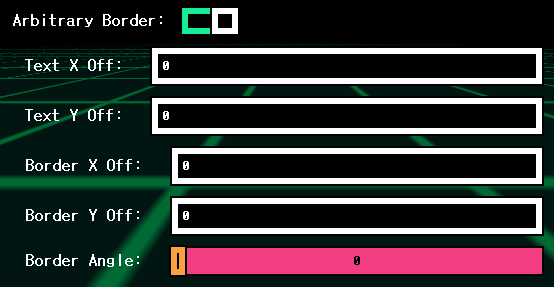
Could I add my own unique and stylized border? Borders that aren't perfectly square?
Yes you can! Let's take this image for example:
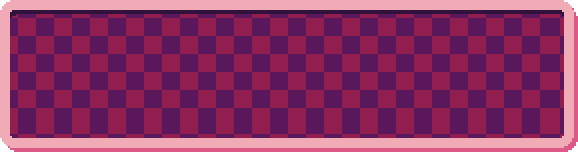 It's not a nineslice sprite, just a full-width sprite. You can add this as a border! Just make sure to toggle
 Arbitrary Border on and keep Bigger Resolution on.
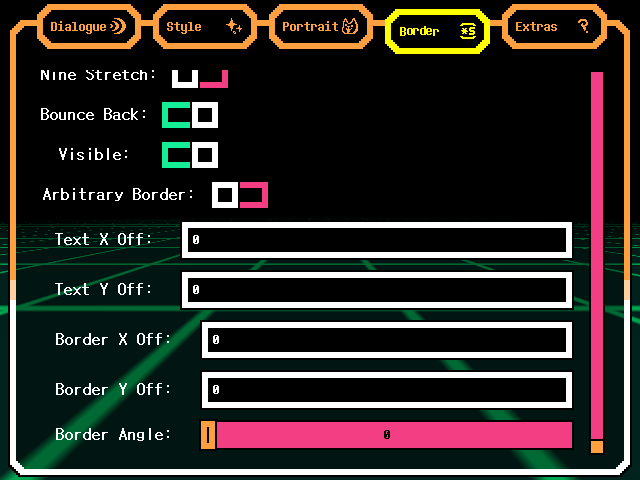
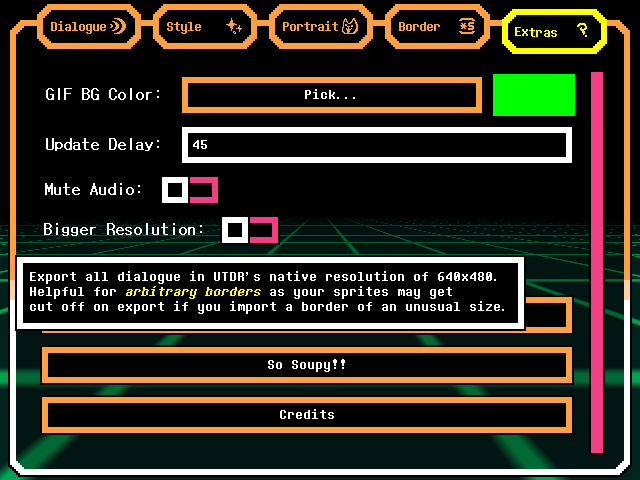
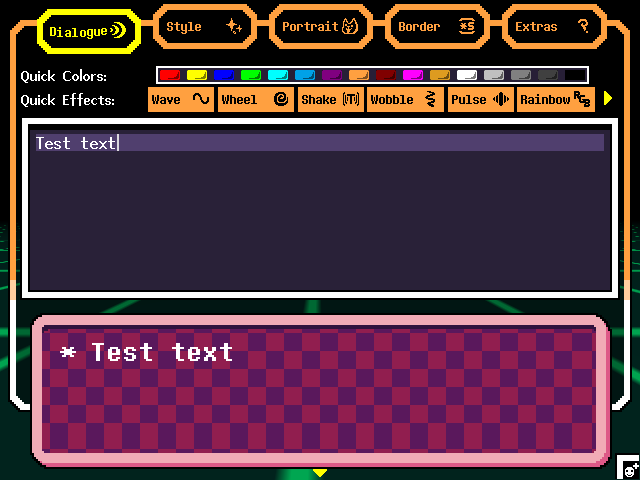 Looks great! Now that you aren't letting the tool adjust borders for you, you are fully on your own now. With this, several convenience settings are here for you to tweak. I can't help you if you're doing unusual things with arbitrary borders tho, unfortunately.
Can only some portions of text have a gradient instead of all of the text?
Nope. Scribble, as of Scribble Deluxe v9.7, doesn't support partial gradients, sadly.
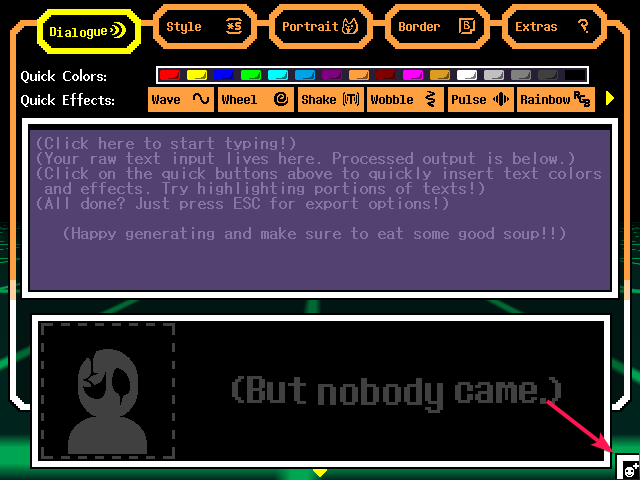
How do I add mini-speeches? Y'know, the tiny dialogue in the right corner?
How to preview typewriter text?
Make sure to toggle Confirm Export on. Now whenever you generate text, it only generates once, then you get to preview it!
My keyboard acts weird with the editor. I use a non-English keyboard(has ATL+GR).
Not something I can debug or fix, as far as I know. You will just have to use a better supported keyboard. SoupGen is best used with an English keyboard.
Is there a limit on the amount of dialogue I can GIF record?
The only limit is your computer's RAM and your patience. Considering most computers nowadays have memory that are in the gigabytes, I highly doubt anyone will even reach that limit unless they're actively trying to break SoupGen.
Is there a limit on the amount of dialogue pages I can stack?
On default settings, it's somewhere around 50 pages. This is due to GameMaker not being able to handle surfaces greater than 16,000x16,000. You shouldn't be making 50 pages worth of dialogue anyway. Why would you have so much dialogue...? Anyways, if you ARE gonna have more than 50 pages, either split your exports into chunks or just generate a big typewriter GIF(and hope you have enough RAM for the workload).
How do I change the size of mini speeches? My text is getting a bit too long.
Insert newline literals("\n") where necessary.

Tips
Right Click Actions
Right clicking scrollbars will switch between scrolling to the top or bottom depending on where the scrollbar is at. Use this to quickly get to the top/ bottom of lists!
Right clicking the quick colors will add a colored outline to your text.
Hold right click near the portrait to quickly clear it. This also works on mini speeches!
Right clicking on the preview images for portrait, border, and font will reset that setting to its default.
Right clicking the left/ right arrows of the page switcher and quick effect switcher will bring you to the start/end of that list.
General Tips
Left clicking on the "Live-updating text...!" box will make the generator instantly update!
I would recommend turning off auto-asterisk as it more often gets in the way more than it helps. It's only really there for people that aren't manipulating text like crazy. You'll especially want it off if you plan on switching fonts and colors mid-text.
Remember that when you start a new page, you're starting from scratch! Any effects you used before won't apply onto the next page. If you used a [face] command on the previous page, use it again on the next page or else your next page won't have a portrait.
You're given a lot of power by using this tool, and it may seem overwhelming and difficult at first, but study the commands and use them effectively!
You'll want to make sure a sprite exists before trying to use it. You can do that by simply trying to enter its filename, like if you have a sprite called spr_flowey_happy, then put [spr_flowey_happy].
If you hover your mouse over the portrait, you'll see two arrows. Those will allow you to quickly change what frame they're on! If you right click those arrows, you can also quickly get to the start or end of a frame! Still hovering over the portrait? CTRL+Left Click will allow you to quickly change the portrait's sprite. CTRL+Right Click will allow you to quickly change portrait color.
Hovering over the dialogue box? CTRL+Left Click will allow you to quickly change the border's sprite. CTRL+Right Click will allow you to quickly change border color.
On Android specifically, double-tapping is the equivalent of a right-click action.
Failsafes
Leaving most text fields blank will reset that setting to its default as a failsafe.
Canceled the sprite importing dialogue? That's okay as it'll just reset that setting to its default anyway.
Alternatives to Consider
Demirramon's Textbox Generator
About
Check it out here! It's a simple online UTDR textbox generator that the fandom has claimed their #1 tool for decades. It shines in its simplicity and cross-platform nature! I used to use it myself! It's great for simple use cases, but use it long enough and you may come across some issues.
Pros & Cons
- Pros
- Cross-platform. It's a simple HTML and CSS website that you can access anytime and just type stuff at it, provided that you have an internet connection. It's THE textbox generator tool to use for a reason.
- Ease-of-use. Just load up the website, choose a portrait from an endless array of AUs, type some text, and hit generate. Simple! It works!
- Minimalistic. Its UI only contains the essentials for basic dialogue usage. You have the textbox you type into, the settings above it, and the generate button below it. No fancy loading screens, no animations that take seconds to finish.
- Cons
- Online only. You NEED an internet connection in order to use it. If you're working on a UTDR project while traveling, or your internet goes out somehow, well tough luck.
- Closed-source. Its code is not readily available to access(as far as I know, anyway), meaning you don't know what's going on behind the scenes. Granted, the site isn't malicious at all, but someday it could be(it won't)! You never know, and that's kinda the issue. If the site bugs out unexplainably, another Cloudflare outage happens, or whatever else bad, you can't fork the code and fix it yourself. You have to wait for an update, and that's if your bug report even gets noticed. This could be a problem for time-sensitive projects.
- Lack of features. I mentioned that it's great for simple use cases, but what if you wanted the little thought bubbles that sometimes appear from Susie and Ralsei? Or portraits replacing asterisks like what Sweet, Cap'n, and K_K does? What if you wanted a more advanced typewriter? Something that looks and feels like it's coming straight out of the games? Custom fonts and borders? If your RP or animation requires such features, they won't be here. You'd most likely have to edit/ animate that in yourself and that's exhausting.
- Inaccuracies. The UTDR games draw their fonts monospaced. This doesn't matter for basic usage, but it is something more hardcore UTDR fans WILL notice. Trust me, I've had the same complaints thrown at me when I started making this. Take a look at these examples:
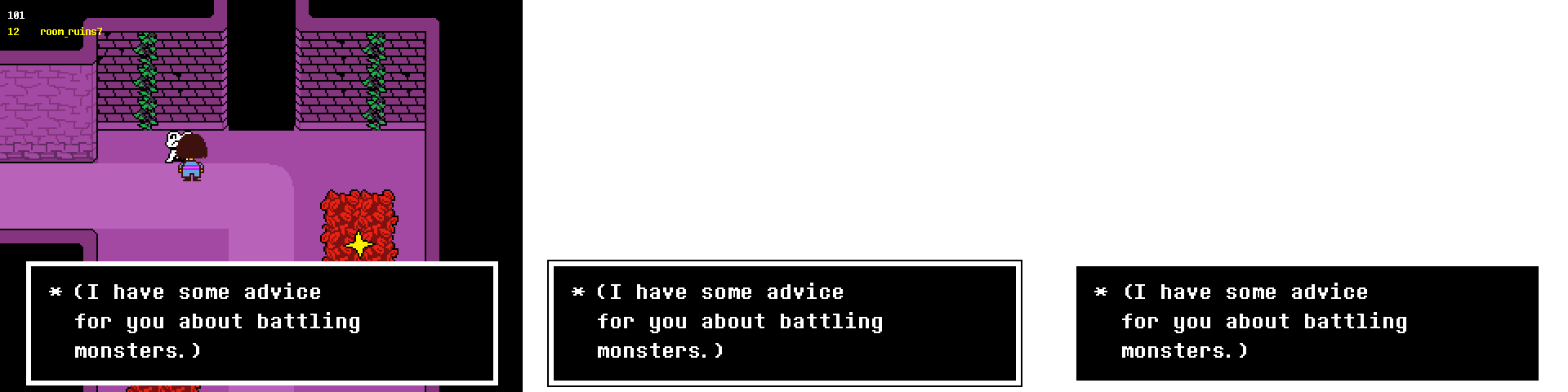
First frame is a screenshot from Undertale, second frame is SoupGen, third frame is Demirramons. Now watch what happens when I overlay them onto the screenshot.
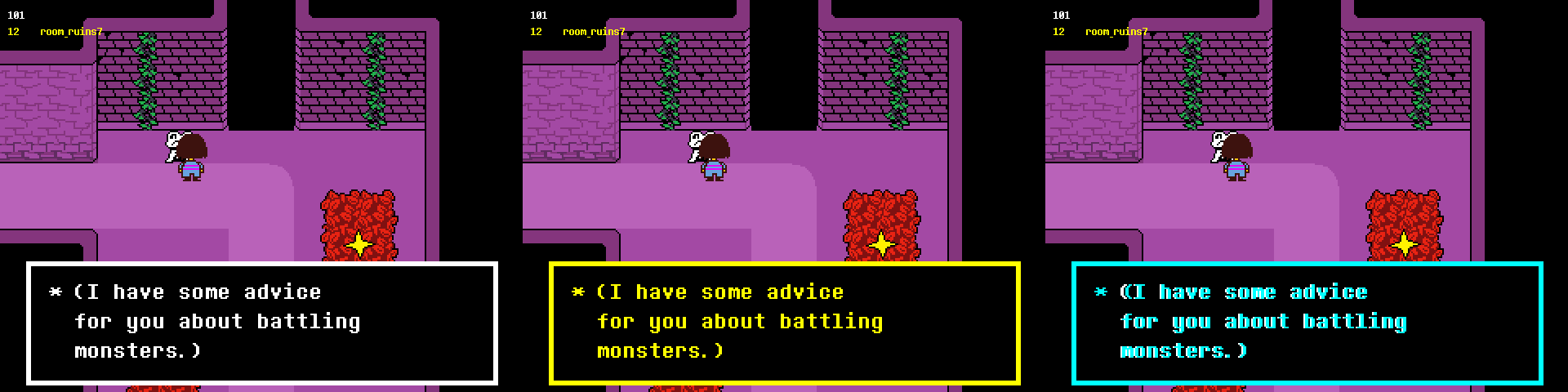
As you can see, SoupGen fits perfectly! Demirramons, not so much. Again, not a big deal at all, but it is something to consider.
SoupGen
About
You're already here!!
Pros & Cons
- Pros
- Open-source and offline. You can easily look at the code on Github! It's written in GameMaker Language. SoupGen also doesn't require an internet connection outside of checking to see if there's an update or not and linking to the guide. That's it! Granted, open-source projects are still vulnerable to attacks. Think of cases like Notepad++, but even then it was their update delivery servers that were hacked and not necessarily their codebase itself, but cases like that are rare. Don't like anything in my tool? Fork the code and make your own version! It's great!
- Feature-packed. SoupGen is extremely customizable! You could make a completely original textbox if you tweak the settings long enough! From custom borders and fonts, to even tweaking how the typewriter animates text, the settings are all right there ready for you to mess with. It has current UTDR features like Tenna's funnytext, mini speeches, dialogue choices, asterisk portraits, you name it!
- Accurate to the source material. You can have SoupGen export directly to 640x480 and it'll position the textbox exactly where the UTDR games would have it. It's how I made my example above! The fonts are accurately spaced too. The only thing that isn't too accurate is how the dialogue choices look, but that's because the UTDR games seem to position its questions randomly and I wanted a more consistent solution everyone could benefit from, so some accuracies had to be lost there. If you provide a reference image, you can even export directly onto that image!
- Easy-to-use, hard-to-master. SoupGen is quite the hefty tool with a lot of customization features, which can be overwhelming at first, but for simple use cases, it's pick-up-and-play! Only edit the options you need to and save the more advanced options for when you get more comfortable using the tool.
- Cons
- No online version. Due to some complications, I unfortunately couldn't make an online version. I, personally, am fine with that since this is meant to be offline anyway, but it does mean SoupGen isn't as easy-to-access. It is currently only available for Windows and Android. With tools like Wine or Whisky, you could get it to run on Mac and Linux just fine.
- No voice blips or video option. See this. SoupGen doesn't solve ALL of the hard parts of animations.
- You're at your machine's mercy. Since SoupGen is a GameMaker game, that means you need a decent computer in order to run it. It's not like a website where you don't have to worry about lag or anything, but you will have to with SoupGen.
Honorable Mentions
https://hyoct.itch.io/undertale-dialogue-creator
https://github.com/python-b5/undertale-dialogue-tool/
Which should you use?
Use whichever you feel most comfortable using! I know, cop-out answer, but it's true. You're not forced to use my tool if you don't like me as a person or whatever. I don't really care at the end of the day. SoupGen isn't meant to replace all other textbox generators. It's just meant to provide another option because options are great. There are pros and cons to everything you use. Pick your poison! If you want my personal opinion on what to use, I'd say use Demirramons if you don't have Windows or Android, or if Wine or Whisky isn't working out for you, or if you don't like the idea of having to install another app or download an exe just to use a small, simple tool(for whatever reason), or perhaps your PC isn't powerful enough to run SoupGen at a steady performance.