JANICARD
FOSS, local-first character card editor for JanitorAI (Im soft-locked out of updating tool since free tier coding agents have been throttled lol)

Guide written with AI help for readability. The tool and the decisions behind it are mine. written with opencode in HTML/Tauri for the downloadable version.
What Is This?
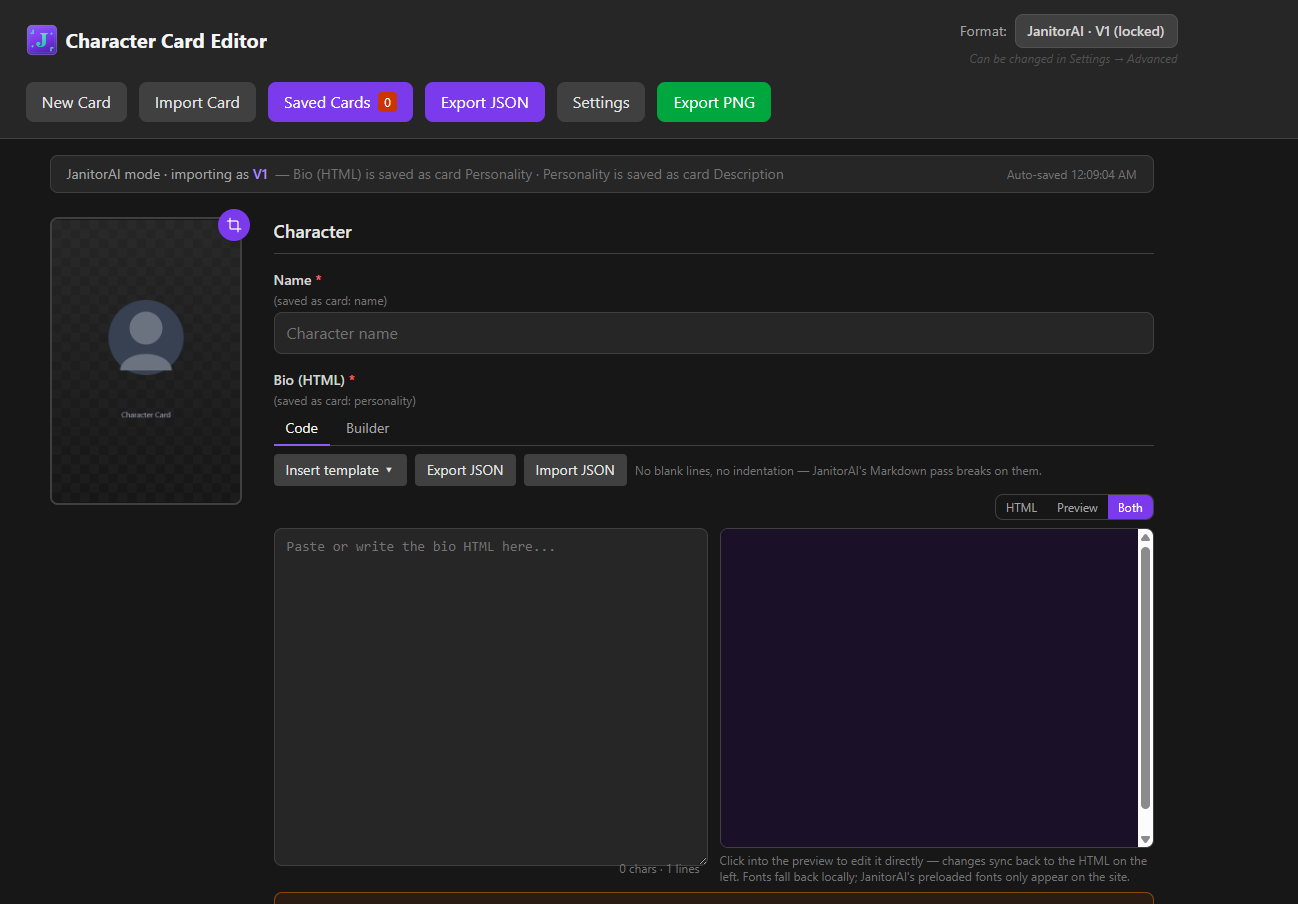
Janicard is a free editor for making JanitorAI character cards. Its main job is styled bios: panels, image grids, colors, and custom layouts that JanitorAI's normal Bio box would strip out.
It runs in your browser or as a Windows app. No account, no uploads, no backend. Everything stays on your computer.
success "You'll want this if you..."
- Want a bio that looks designed instead of plain text
- Are tired of JanitorAI flattening your formatting
- Want to edit cards without touching code (the Builder handles it)
- Know HTML and want a live preview and a checker
Quick Start
The short version. Details for each step are further down.
- Upload your bio images to JanitorAI and copy each image's link
- Open Janicard and go to the Bio tab
- Build your bio with the Builder (or paste HTML into the HTML tab)
- Run the Bio Validator and fix anything it flags
- Fill in the other fields (name, personality, scenario, first message, etc.)
- Export PNG
- On JanitorAI, upload that PNG as your character's image and accept the import
"Don't type in the Bio box after importing"
Even one keystroke re-saves it through JanitorAI's editor and flattens your design. To change anything, edit it in Janicard, export a new PNG, and import again.
Why Does It Work Like This?
JanitorAI's Bio box only keeps basic text formatting. Paste a styled bio into it and it turns every <div> into a plain paragraph and strips fonts, borders, backgrounds, and layout.
The workaround is the card import. JanitorAI can read a character from a PNG card image, and the bio inside that card skips the editor. So you build the bio in a card editor, save it into a PNG, and import that PNG.
Janicard does the card editing, and it also handles the annoying parts: the right format, the right fields, and checking your bio against the things JanitorAI silently breaks.
"Use it fairly"
This only works because JanitorAI's import trusts the card it reads. Don't use it to break JanitorAI's rules, hide things from moderators, or mislead readers. If people abuse it, it gets closed for everyone.
Step by Step
1. Upload Your Images to JanitorAI First
A bio only shows pictures hosted by JanitorAI. Links from Imgur, Discord, or Catbox show up as blank boxes.
- Open the JanitorAI media library
- Click Upload and add your pictures
- Click Copy link under each one
The links start with https://ella.janitorai.com/media-approved/. Keep them somewhere handy.
You can't add images to the bio after the import. Upload everything you want first.
2. Open Janicard
Use the web app or the Windows download.
JanitorAI mode is on by default, so the fields are named the way JanitorAI names them. JanitorAI swaps two card fields on import, and Janicard accounts for that, so you can just fill in the field that matches what you see on the site.
3. Build the Bio
Go to the Bio tab. This is where your styled bio lives, and Janicard puts it in the right place on the card for you.
| Method | Good for |
|---|---|
| Builder | Most people. Build visually with sections, themes, image grids, and templates. It writes the JanitorAI-safe HTML for you. |
| HTML tab | People who know HTML. Paste or write it directly, with a live, editable preview. |
What you see in the preview is exactly what imports.
4. Run the Bio Validator
Before exporting, run the Bio Validator. It catches what JanitorAI silently breaks:
- Blank lines and indented lines (these make raw code print on the page)
- External styles that don't apply
- Image links JanitorAI won't show
Fix anything it flags, then check again.
5. Fill In the Rest of the Card
The other fields work as usual and import with the bio. Here's where each one ends up:
| JanitorAI mode (default) | Original names (Settings → Advanced) | Becomes on JanitorAI |
|---|---|---|
| Bio tab | Personality | Bio |
| Personality | Description | Personality (your character definition) |
| Name | Name | Name |
| Scenario | Scenario | Scenario |
| First Message | First Message | First Message |
| Example Dialogs | Example Messages | Example Dialogs |
"Only if you switched to the original names"
JanitorAI swaps two fields on import. The styled bio goes in the card's Personality field, not Description, and your character definition goes in Description. In JanitorAI mode you don't have to think about this.
6. Export the PNG
Click Export PNG. The format is locked to V1, which is what JanitorAI's import reads. You can unlock other formats in Settings → Advanced, but you shouldn't need to.
7. Import on JanitorAI
- Create a character on JanitorAI (or edit an existing one)
- Upload the exported PNG as the character image
- When it asks if you want to import the image's information, accept
- Check the fields, then save
The Bio box will look flat or broken right after the import. That's normal. It only shows a simplified preview, and the real HTML is what gets saved. Judge it on the published character page, ideally on your phone too.
Opening an Existing Card
You don't have to start from scratch every time. If you already have a card PNG (one you exported earlier, or one downloaded from JanitorAI):
- Drag the PNG onto the image box in Janicard
- It asks if you want to import the character info. Accept.
- The info fills into the fields, with the JanitorAI swap handled for you
Changing Something Later
- Drag your last exported PNG into Janicard and accept the import
- Make the change there
- Export PNG again
- Re-import it on JanitorAI
A new import replaces every field the card holds, so keep the personality, scenario, and greetings up to date in Janicard too. That's easy to forget.
Bio JSON import/export lets you save and load just the bio as a small file, for backups or reusing a layout.
Troubleshooting
| Problem | Cause | Fix |
|---|---|---|
Raw code like <div style=...> shows on the page |
A blank line or indented line broke the bio | Run the Bio Validator, fix what it flags, re-import |
| Images show as blank boxes | The links aren't hosted by JanitorAI | Upload to JanitorAI and use the media-approved links |
| No import question after uploading the PNG | The card data got stripped | Upload the PNG straight from your computer. Chat apps and image hosts can strip it. |
| The bio landed in the Personality box | The HTML went in the wrong field (original names mode) | Put it in the card's Personality field, export again, re-import |
| Bio box looks broken right after import | Normal, it's only a preview | Save and check the published page |
| The design went flat after a small fix | Something was typed in the Bio box after import | Re-import the PNG and make every change in Janicard |
| Fine on desktop, broken on phone | Wide columns or deeply nested panels | Use the Builder's grids, and check on a real phone |
What's Different From the Original
Janicard is a fork of Broseki's character-card-editor, rebuilt around JanitorAI.
| Change | Notes |
|---|---|
| JanitorAI mode (default) | Field names match JanitorAI. Format locked to V1 to match JanitorAI's PNG import. Can be unlocked in Settings → Advanced. |
| HTML Bio field | A dedicated Bio tab with a live, editable preview. What you see is exactly what imports. |
| Bio Builder | Build styled bios visually with sections, themes, image grids, and templates. Compiles down to JanitorAI-safe inline HTML. |
| Bio Validator | Catches the things JanitorAI silently breaks (blank lines, indentation, external styles, invalid images, etc). |
| JanitorAI field swap baked in | When importing a JanitorAI PNG, it maps to the correct fields for how JanitorAI reads them. |
| Drag-and-drop import | Drag a card PNG onto the image box and Janicard asks if you want to import its character info. |
| JanitorAI theme | Purple UI option (and default). |
| Bio JSON import/export | Quickly save/load your bio HTML as JSON. |
| First message preview | Renders JanitorAI-style formatting in the preview (italics, bold, lists, code, etc). |
| Stripped site-only features | Removed the "site-only" nickname/chat panels to keep it focused strictly to card editing. |
| J-card icon | Replaced with the Janicard icon for web + desktop. |
| FOSS & private | Runs in your browser or desktop app. No backend, no account, no uploads. |
Get It
| Version | Link |
|---|---|
| Web app (runs in your browser) | Open Janicard |
| Windows desktop app | Download installer |
| Source code | Download .ZIP |
Source code: github blasted me off the platform appealing.
Sources and Guides
- Broseki's character-card-editor (the original this is forked from)
- Custom HTML Bios on JanitorAI (by @l7a) (the technique this is built around, with more detail on the rules)
- JanitorAI
"Not affiliated"
Independent fan project. Not affiliated with JanitorAI, Broseki, or @l7a.
Credits
- Made by: DoomAI
- Last updated: 10/23/2026