Guide to Installing UserScripts for Milky Way Idle on Multiple Platforms (Steam, PC Browser and Mobile)
Author: 🍑miku
- Guide to Installing UserScripts for Milky Way Idle on Multiple Platforms (Steam, PC Browser and Mobile)
How to install UserScripts on Milky Way Idle for Steam
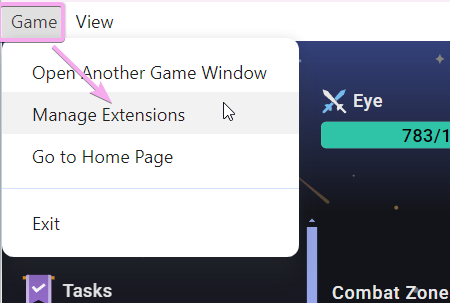
- First open your game and on the top left, find the menu named Game and look for Manage Extensions
- After that it will open a pop up on the side of your game where you can paste the code for any UserScripts that you wish to add
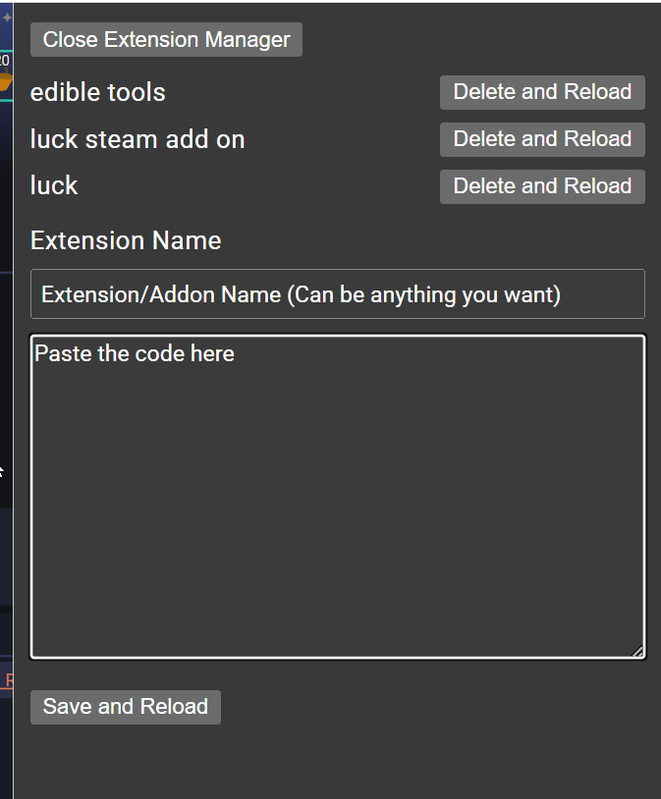
- Then hit save and reload, this should reload your game.
Notes
- When dealing with UserScripts that are primarily made for the browser, you typically need a steam compatibility script that will import all the dependencies that it requires.
- LOAD ORDER IS IMPORTANT, Compatibility scripts have a specific "quirk" that makes it it necessary for them to load before the script that they're supporting, the way to make the scripts work consistently is to name the compatibility script in a way where it loads first alphabetically. although multiple words separated with spaces make it load first, naming your compatibility script "mwitools compatibility script" then "mwitools" for the main script will make it load first.
- this works:

- this doesn't work:

- this works:
- There are times when compatibility scripts can conflict with each other due to them using the same libraries but are of different versions, be careful with this as whichever loads last will be what all the base scripts will use. a way to deal with this is to make it so whichever has the latest version should be the last one to load up, an example would be mooket and mwitools, mwitools uses chartjs 3.7 whereas mooket uses 4.4, so ideally you make sure mwitools compatibility script loads first, and then mooket's.
- Sometimes the UserScripts can be a bit buggy on first time installing so it's recommended to just restart your client or browser instead
How to install UserScripts on Milky Way Idle for PC Browser
Gecko-based browsers: Mozilla Firefox,Tor Browser, Zen
- Install a UserScript manager Extension of your choice from Firefox AMO: ViolentMonkey, TamperMonkey, GreaseMonkey
- Proceed to Installation of Userscripts Section
Chromium-based Browsers: Google Chrome, Microsoft Edge, Opera, Brave, Vivaldi, Arc
- Install a UserScript Manager Extension of your choice from Chrome Web Store: TamperMonkey, ScriptCat
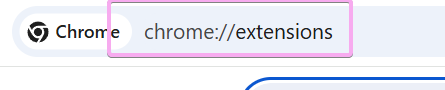
- Enable Developer Mode by going to
chrome://extensions/in your address bar
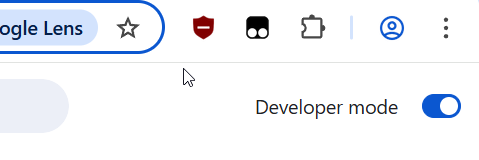
- on the top right, enable the toggle for Developer Mode
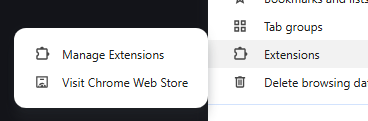
- go to the Extensions Menu on the triple dot drop down and select Manage Extensions
- find your Installed Extension (Userscript Manager) and go to "Details"
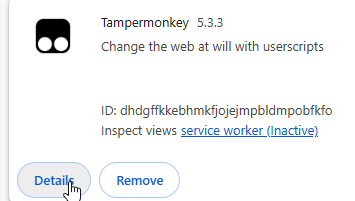
- Scroll down to find "Allow User Scripts" and toggle it on

- Proceed to Installation of Userscripts Section
Where is my Browser?
- There are only ever 3 mainstream browser engines, Blink(Chromium), Gecko(Firefox) and Webkit(Safari) alternative browsers most of the time tend to use Blink(Chromium) that means that the method for Google Chrome works on most browsers unless it's a Firefox-fork or Safari.
Installation of Userscripts
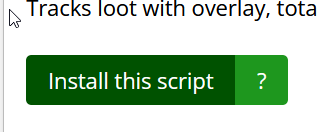
- Assuming you have installed a UserScript Manager of your choice on the Browser of your choice, you can now go to the UserScript link that you want to install and in most cases they come from Greasyfork which already has an install button, all it would take is pressing that and restarting the game tab.
- In some cases where it is posted elsewhere and is just a block of code, you can go to your UserScript Manager of choice and select "Create/Add a New Script" and paste and save the code.
How to install UserScripts on Milky Way Idle for Mobile
There are only a few browsers that support extensions on mobile in general, so most of this section is recommending which browsers to use on what device along with UserScript managers, if the browser you use is not mentioned, it might likely not support extensions(or are untested), which means Userscripts are not possible.
Android
Browsers with Extension Support:
- Firefox: Playstore
- Edge: Playstore
- There is a limited amount of addons available for Edge, however ViolentMonkey and TamperMonkey are all both available in the Extensions Menu to access it you can go to the hamburger menu pop up and look for Extensions
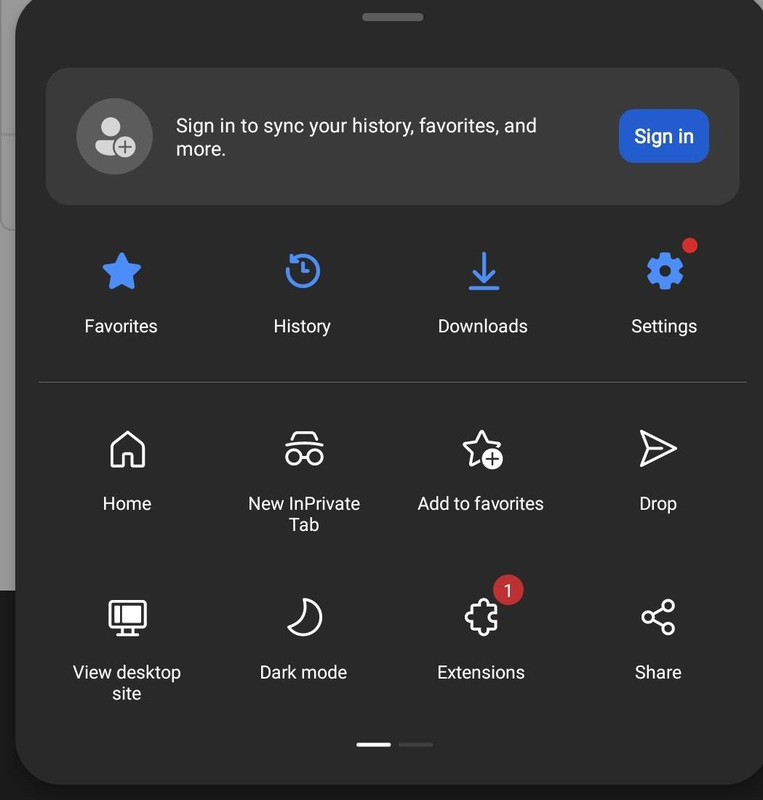
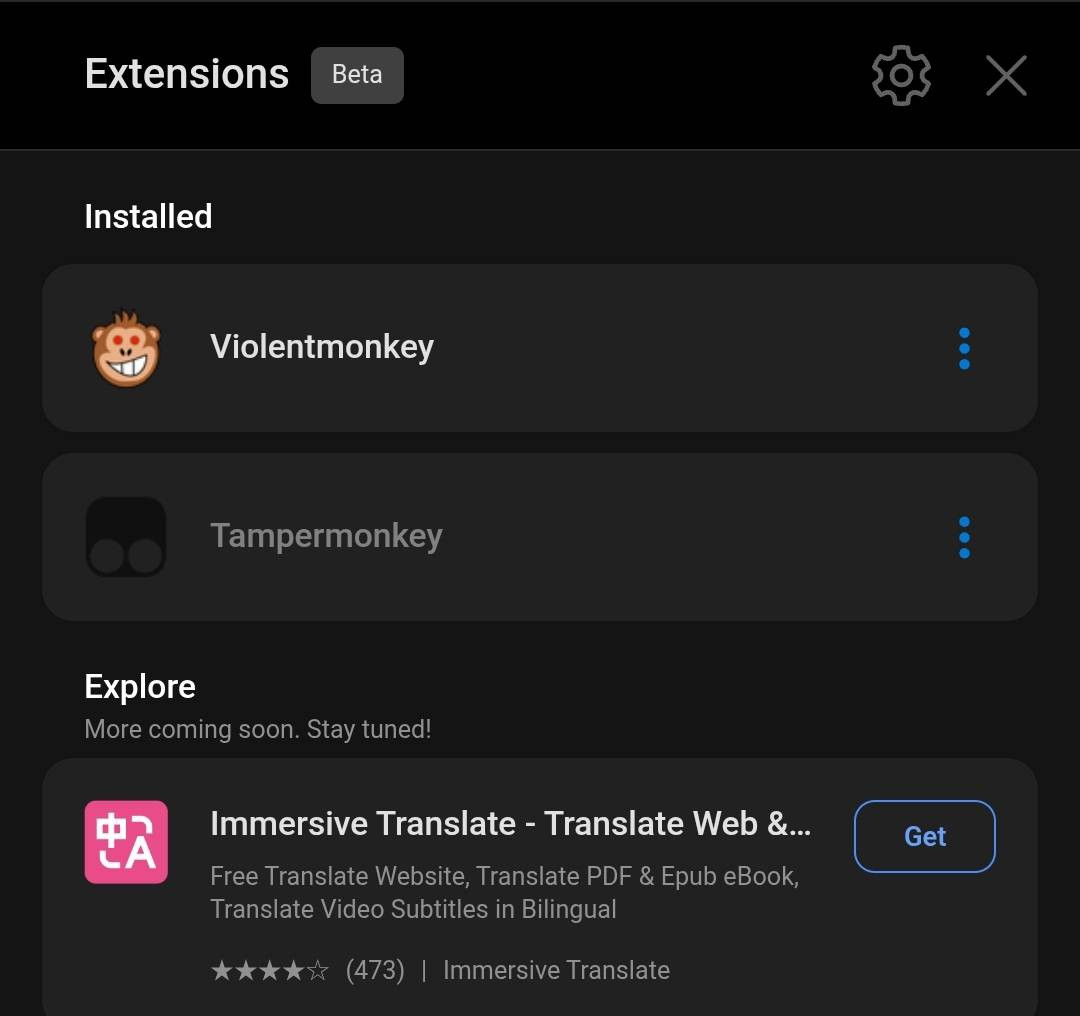
- You may now proceed to Installation of Userscripts Section after Extension Installation.
- There is a limited amount of addons available for Edge, however ViolentMonkey and TamperMonkey are all both available in the Extensions Menu to access it you can go to the hamburger menu pop up and look for Extensions
Native App
- Thirdparty/Unofficial App for Milky Way Idle on Android: Github. The native app works like Steam so UserScripts need compatibility addons for Userscripts, however MWItools and its compatibility script is already preinstalled.
IOS
Browsers with Extension Support:
- Orion: Appstore
- Orion is something I will recommend as it is a browser on IOS that supports both chrome and firefox extensions and is free.
- Violent Monkey Beta
- Installing Violent Monkey
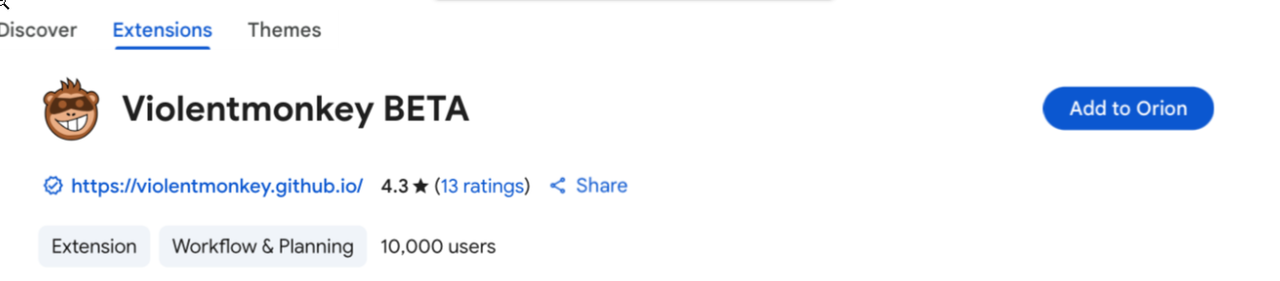
Go to the link for Violent Monkey and then click "Add to Orion" make sure it is the ViolentMonkey BETA as normal versions for chrome or firefox will have issues.
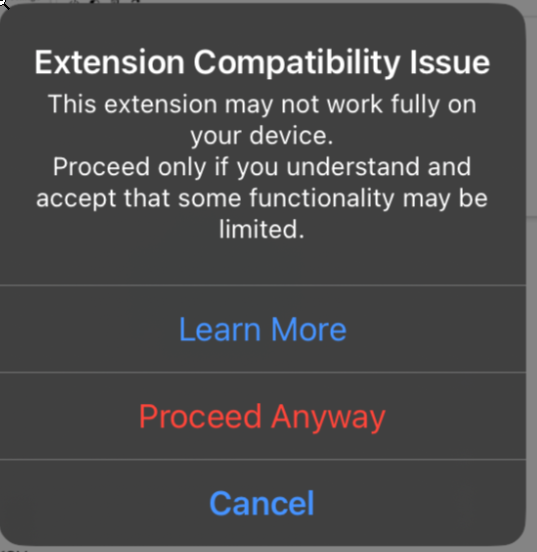
- There will be a pop up that says "Extension Compatibility Issue" and you just click "Proceed anyway"
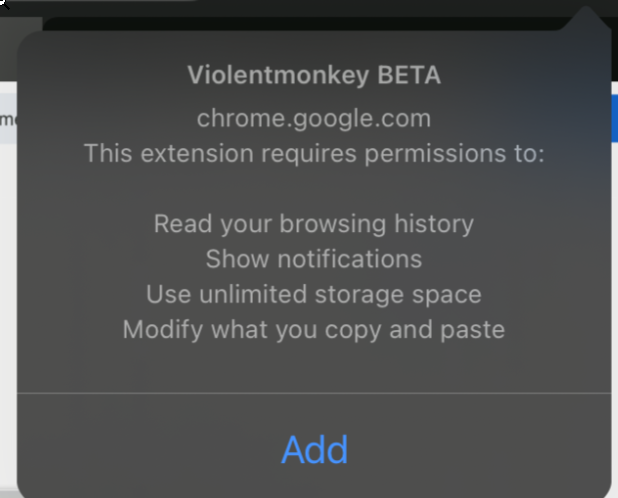
- There will be another pop up that tells you about ViolentMonkey permissions, just click "Add"
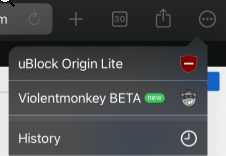
- You can check if ViolentMonkey is installed properly on the triple dot menu on the upper right
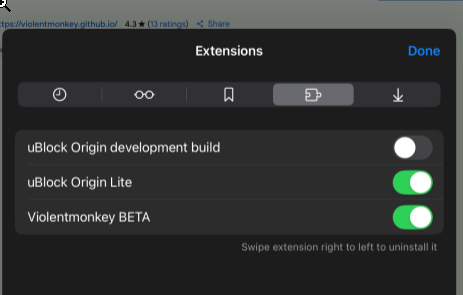
- Make sure to enable the extension by going to "Extensions" in the triple dot menu and then toggling ViolentMonkey Beta On.
- You may now proceed to Installation of Userscripts Section after Extension Installation.
- Installing Violent Monkey
- Safari: Appstore
Where to find UserScripts ?
- most of the popular UserScripts that are extensively used by the community are commonly posted on Greasyfork with rarely some of them posted on Github Gists or OpenUserjs.
What UserScripts do you recommend?
- GreasyFork Copy Button this is a Browser UserScript that is useful for Steam users because this makes copying code from the site easier as there is an issue where if you use
ctrl + aon the site it highlights everything instead of just the code. This requires you to also have had installed a UserScript Manager on your browser which you can read about here - MWItools - MWItools Steam Compatibility is a popular one that people use for general QOL such as calculating the time it takes to craft specific amount of items or displaying your character networth and buildscore.
- Toolasha - Toolasha Steam Version is a new upcoming alternative to MWITools and a lot of popular scripts, its basically a blendered together version that has its own features with active development, you just need to use the appropriate script depending on your platform.
- Mooket - Mooket Steam Compatibility for better market analysis and following item trends.
- Edible Tools for tracking your loot in combat with a nice UI, works with both Steam and Browser without a compatibility script.
Contribute to this Guide
- pm me ingame @miku, will credit appropriately.
Credits
- SteelMoo[IC] for additional steps to allow UserScripts on Chrome