This page is a WIP. If you notice a problem at any time, please report it to my Reddit account or my JAI account. If there is something you would like added to this guide, or if you would just like to ask me a question / message me, please use the above links as well. Thank you.
This guide is for users who already know the basics of CSS for JAI profiles. If you are brand new or find yourself struggling, I recommend checking out either LunaXLee's guide or Ohshii's guide. There is plenty of resources available both in the JAI Subreddit and the JAI Discord. (Note: I am not in the JAI discord so I can't speak from experience about it).
More Advanced CSS for JAI Profiles
By u/IWasTheSyntaxError (Reddit) / NullPointerException (JAI)
Thanks for the support! This is the site I will be using to provide CSS scripts.
I don't have any experience using rentry, so forgive me if this looks a little plain. This guide will likely take some time to complete. Thank you for your patience!
As mentioned before, this is a work in progress (WIP). Even the parts not explicitly marked with WIP may still be in progress and are not necessarily complete or even fully correct. Additionally, I am not a professional. I have had formal training in HTML and CSS, but I will not claim to be an expert. It's also been a bit. My explanations may be off or not fully correct. If at any time you come across something you think is wrong, misleading, or just not a good enough explanation, please let me know so I can address the issue. Thank you.
This page is for complex copy-and-paste code (HTML and CSS). For explanations or descriptions of what things do, please check out this page (Currently a WIP). On this page I will be assuming you already know how to use the code provided - where to put it, how to edit HTML and CSS if necessary, etc. If you don't make sure to check out one of the guides linked above.
Table of Contents
GIFs
How To
GIFs are set up the same way an image would be, except with the URL from a GIF instead of an image.
GIF as page background
Note that this requires removing the default background in the traditional manner, along with not having a background image.
To remove the default background (a gray gradient).
To add the GIF:
GIF as profile section background
Same principle as with the background image, but positioned behind of your default profile section (that section on the left with your username, pfp, and text if you added it).
Note that just like with a gif as a background image the default background gradient must first be removed:
After doing so you can set the image:
Additionally, I would use transform: scale(); in order to scale the image up. By default it is stuck hugging the edges of your profile - by scaling up the image you can add some padding between the edge of the image and the edge of your PFP.
Independently Address Character Cards
Despite what I've seen a lot of people say, it is fully possible to customize your character cards separately from each other, as depicted below using my profile:
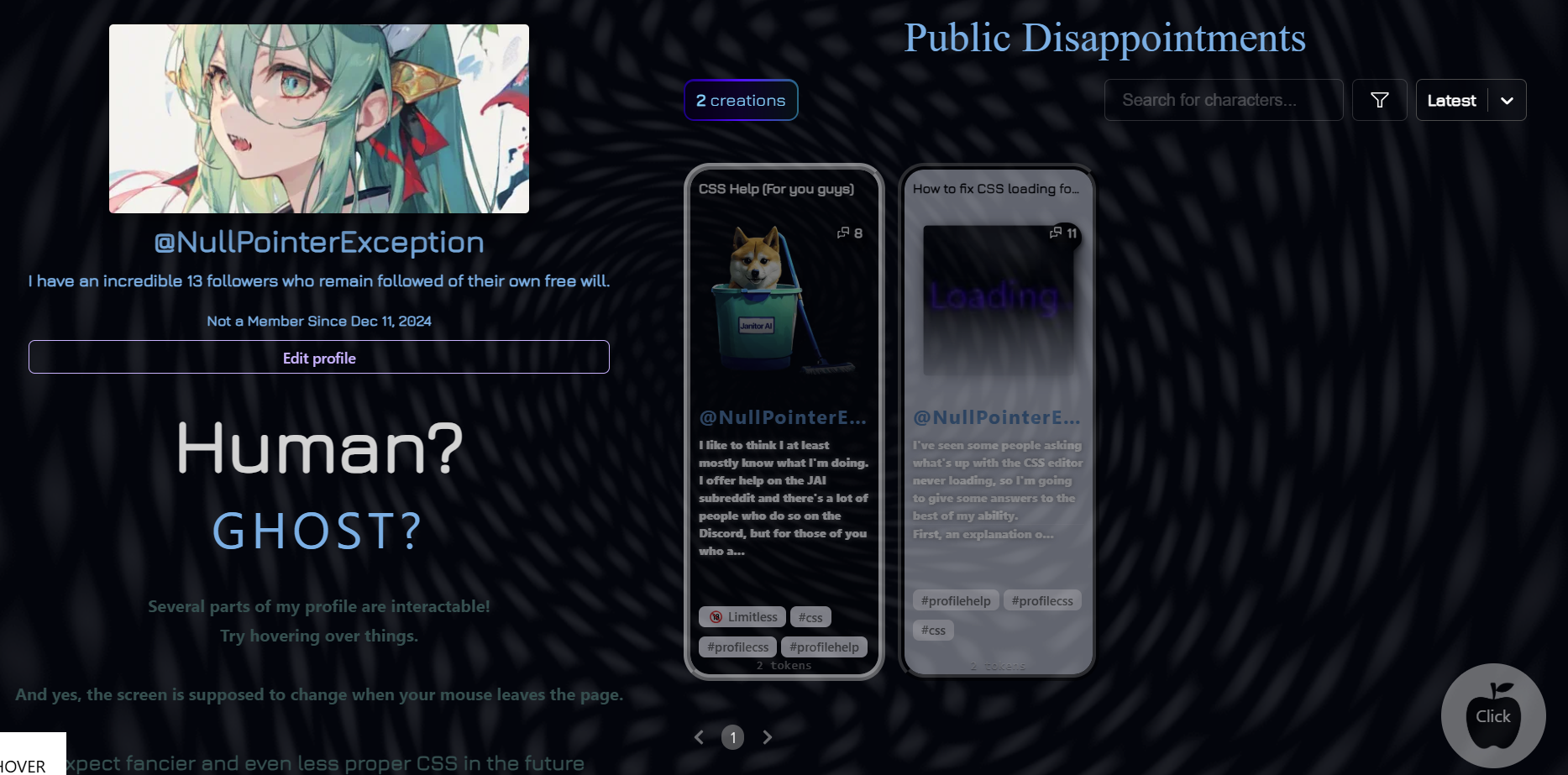
It is a little complicated to do, however, so don't feel bad if you get a little lost during this explanation. This one is going to need some explanation and probably won't work straight out of copy and paste, sorry.
Explanation
The normally used selector for a default bot card (not holiday or special event) is .css-1s5evre. We're going to disregard this guy for now.
The class of the container for each bot card is actually .css-1sxhvxh. (Differs for special event bots. I'll give all the container options later.)
The bot card layout in HTML looks a little like this:
To simplify this in a way that is relevant to us:
Now, why would we want the container? Well, there's this nice little thing is CSS called :nth-child().
.css-1sxhvxh:nth-child(1) would refer only to the first .css-1sxhvxh (kinda... if you want more explanation, read up here. But that's how it will work for us, so I'm going with a simpler explanation).
See where we're going with this? Instead of just using .css-1s5evre, you can use .css-1sxhvxh:nth-child(1) .css-1s5evre to refer to the first bot card.
You could use .css-1sxhvxh:nth-child(2) .css-1s5evre to refer to the second bot card. This can be combined with things like the bot card image, for instance: .css-1sxhvxh:nth-child(2) .css-1s5evre img
Additionally, you can use :nth-child(even) and :nth-child(odd), or even use a formula if you want (read up on this here - same link as before).
Copy and paste
For people who didn't understand anything I said above (It's complicated, I know):
Default bot cards:
Note: this selects only default bot cards - the 'even' selector, therefore, would select the 2nd default card, the 4th default card, the 6th default card...
It ignores any other card in between, meaning if your 6th default card is the 110th card, oh well.
#2025 cards:
Note: this selects only #2025 bot cards - the 'even' selector, therefore, would select the 2nd #2025 card, the 4th #2025 card, the 6th #2025 card...
It ignores any other card in between, meaning if your 6th #2025 card is the 110th card, oh well.
#Christmas2024 cards:
Note: this selects only #Christmas2024 bot cards - the 'even' selector, therefore, would select the 2nd #Christmas2024 card, the 4th #Christmas2024 card, the 6th #Christmas2024 card...
It ignores any other card in between, meaning if your 6th #Christmas2024 card is the 110th card, oh well.
#Valentine2025 cards:
Note: this selects only #Valentine2025 bot cards - the 'even' selector, therefore, would select the 2nd #Valentine2025 card, the 4th #Valentine2025 card, the 6th #Valentine2025 card...
It ignores any other card in between, meaning if your 6th #Valentine2025 card is the 110th card, oh well.
The 2024 Halloween card is way more complicated to do. You wouldn't be able to do it with a copy/paste, sorry.
More to come! :)
Next up - Custom Scrollbar