Are you new to roleplaying with an AI and looking for help on how to get started? Then check out my Practical Index first! It's a comprehensive, up-to-date index to help you set up a free, modern, and secure AI roleplaying environment that beats any of those scummy AI girlfriend apps. This page is intended for people who already grasp the basics.

Sukino's Guides and Tips for AI Roleplay
This isn't a structured guide. It's just me sharing what I've learned about making AI models perform better, creating bots that work well with them, and offering a few quality-of-life tips. Feel free to jump around!
If you have any feedback, wanna talk, make a request, or share something, reach me at [email protected], message @sukinocreates on Discord, or send an anonymous message via Marshmallow. But please, don't assume that I'm your personal tech support. While I don't mind receiving questions that could be added to the index, don't be lazy! Read the guides and the index, especially the FAQ section, to see if your question has already been answered there.
Update Log:
2026-04-11: Smaller rewrites on theThe AI Wrote Something You Don't Like? Get Rid of It. NOW!andDemystifying The Context; Or Common Botmaking Misconceptionssections.
2026-04-10: Rewrote theMake the Most of Your Turn; Low Effort Goes In, Slop Goes Out!section. The content and ideas are practically the same, but I revised the text for better flow and incorporated the changes I made to the introduction of the index.
- Fundamentals of AI Roleplay
- Make the Most of Your Turn; Low Effort Goes In, Slop Goes Out!
- The AI Wrote Something You Don't Like? Get Rid of It. NOW!
- Put Words in the AI’s Mouth to Make It Write What You Want
- Demystifying The Context; Or Common Botmaking Misconceptions
- How the Context Looks Like and Why Your Character Is an Illusion
- Why Does This Matter?
- Your Words Have Power, Especially over the AI
- What You Include Is as Important as What You Omit
- Why Info Dumps Result in Bad Characters
- Only Permanent Details in Permanent Fields
- But Not Being Permanent Doesn’t Mean Less Important
- Prompt Overrides? Do I Have a System Prompt on My Character Card?
- Delimit Your Character Card
- You Can Even Make Your Character Describe Itself
- It Just Requires Practice
- Use Randomness in Your Sessions for Variety and Unpredictability
- Settings and Quality of Life
Fundamentals of AI Roleplay
Make the Most of Your Turn; Low Effort Goes In, Slop Goes Out!
Many people tend to try to roleplay with AIs by writing minimal, low-effort responses when it's their turn, especially when starting out. However, being too passive is exactly what leads to the common complaints: generic responses, the AI controlling your character's actions, monologues about feelings with no real action, and repeated content from previous turns.
So, let's start with one of the most overlooked aspects of roleplaying: how to use your turns effectively.
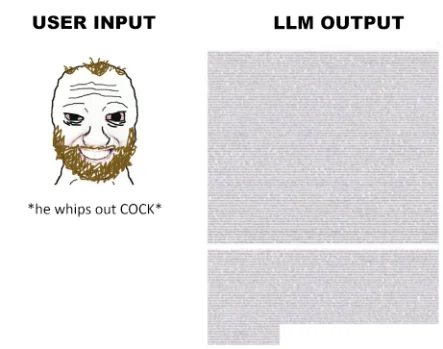
See this guy? Don't be this guy!
A good roleplayer should always look for opportunities to give their partner (yes, even an AI one) something substantial to work with. You shouldn't waste your turn simply reacting to what your partner just did. Don't just react. Act! Maybe, just putting a little more effort into your turns is exactly what's missing to help the AI move the narrative forward.
Why Is That? Because The AI Is Artificial, but Not Intelligent!
If you read the index, then you probably already know this, but the AI is a lie!
Those things we call AIs are not actually artificial intelligences, but
Large Language Models (LLMs), super-smart text prediction tools trained to follow instructions. They can’t think, learn, or create anything new; they simply use math and probability to recombine and replicate the texts from their training data.
LLMs are corporate-made work assistants and problem solvers first. And good professional assistants don't make things up. What is creativity to us is hallucination to them, and they're trained to avoid hallucinating at all costs. LLMs aren't trained to stay in character, remember and build on plot details, challenge you, or push narratives forward on their own. So don't sit back and let the AI do all the work. Be a good roleplaying partner! Contribute to the story and throw your own ideas out there. Be imperfect! Write your own character being weird and fumbling things up sometimes. Hint at where you'd like the story to go, and see what the AI comes up with. Did it get some details wrong or write something out of character? Edit it or let it try again. To get good stories, you need to help the AI overcome its limitations.
That's why it's important to give the AI as much help as you can. Otherwise, it will continue to fall into repetitive patterns. The AI tries to generate enough text that matches the length and style of the online roleplays and creative writing it was trained on, but it doesn't have enough information to work with. From its perspective, it's trying to solve a problem, but you aren't giving it the details it needs.
The problem is that the AI needs to generate text. What can it do then? It can either look back at previous turns for direction on what to write, meandering until you give it more information, or it can move things forward the only way it can: by referencing its training data, noting that many works of fiction are written from the perspective of all characters, and concluding that it's mathematically probable that doing the same and taking over your character is okay.
So, how can you help the AI without making it feel like you're doing its work? The mentality that works best for me is: The more details you incorporate into your writing, the more opportunities the AI has to match them with new information in its training data. You don't even need to be a good writer. If you get stuck, just mirror the AI's writing style. Your narrative nudges can also be much more subtle than you'd expect. Often, just a vague hint about where you want the story to go is enough for the AI to figure out what to write and flesh out the details.
So Here Is an Example Session
You know what? Maybe it's easier to show you what I mean in practice. Let me quickly set up a mundane slice-of-life session with the lovely Lucille, created by our friend momoura, using Mistral Small Instruct 2501, a small, local model that isn't even finetuned for roleplay.
I didn't write anything fancy. I didn't try to make it sound nice. My writing here was completely utilitarian. My only focus is on making each line amount to something.
For the first turn, I don't take many actions. But I hint that I dislike the staff watching us, that I act differently when we're alone, that I'm patient and kind with Lucille, and that I respect her disability without treating her as fragile. I also leave an action hook for the AI to work with at the end. The AI quickly picks up on these things, and just in the next turn, Lucille is already responding as though we are old friends.
However, what I am trying to show is what happens with each subsequent turn when I write with purpose. Lucille's responses become longer and more detailed. This gives me more material to work with, making my turns easier. Then, I make the AI's job easier by creating short sequences of actions in response. It's a snowball effect.
Notice how the AI uses my actions as opportunites to introduce and builds upon its own details. For instance, when it wrote the numerous books stacked neatly on her shelves. and then used it in its next turn with "I think it might be under that pile of books by the window. I was trying to read, but then the dress caught my eye, and then[...]". Or when I went to pick up the dress, it had Lucille's fingers tap anxiously at the bench where she sits and later recontextualized this detail as "Today, I thought I might try to play the piano in the music room. I've been practicing a new piece,".
Can you see the vision? Ground yourself in the scene. Imagine how you would act and feel, how would you move on and interact with your surroundings, and write it down. AI models love patterns and naturally build on existing details, even the smallest ones. You just need to create opportunities for them to generate new patterns so they don't get stuck on the same ones forever.
Look, I'm not claiming to be a wizard at AI roleplay, nor am I claiming that this was an impressive session. My writing wasn't anything special. But that's the point: It doesn't have to be. There's no one right way to roleplay with an AI. But in my experience, the key is putting just a little effort and thought into each turn and considering whether you're providing the AI with something new to build on. Give it a try! Improving your writing skills is also part of the fun, and it's so rewarding to see how the AI responds to a well-crafted turn!
The AI Wrote Something You Don't Like? Get Rid of It. NOW!
Now, here's one more thing that is crucial to always keep in mind: The chat history is like a bible for the AI.
Two parts of the context window heavily influence what the AI writes next: the beginning (your system prompt and character card) and the end (the most recent messages). This means if the AI writes something you don't like, you can't just ignore it. Every subsequent response will be built in its influence, filling the context with more examples of exactly what not to do.
A common pitfall is trying to tell the AI to stop. Remember: the AI isn't a logical being. You can't reason with it or change its mind, because it doesn't have a mind to change. It just has a context window that still contains the bad message. When you tell it to stop, it will just say, "Yes, of course," and then keep doing the exact same thing. As counterintuitive as it seems, by arguing with it, you're essentially saying, "More of this, please!"
So, how should you handle it?
Edit the messages immediately to cut out the bad parts. Is there nothing worth keeping? Just swipe and let the AI try again. Just swiping isn't working and you really want to save that chat? Keep deleting the junk and hitting "continue." Is the response too short? Start putting words in the AI's mouth and clean it up until it's where you want it. Still not working? As a last resort, you can try to redo your last turn to divert the AI's attention to something else. Maybe try asking it to describe the environment or a character's appearance from head to toe? The goal is for every message in the recent context to be completely acceptable.
To make your swipes and continues more effective when using local models, you can temporarily enable the
Exclude Top Choices (XTC)sampler with a probability greater than zero (0.5 is a good starting point). This helps break the model out of its habits by literally stopping it from using its most probable word choices. Just don't leave it enabled, because it also makes the AI worse at following prompts, since it can't write what it thinks it should anymore.
Now, I can already hear you asking, "Do I have to keep correcting it all the time? That's way too much work!"
Well, you're partially right. You'll always have to babysit the AI to some extent. It can't "learn" your playstyle on its own, so some light editing is inevitable. But the good news is that you'll quickly learn to identify AI loops and misbehavior while they're still starting and easy to edit out. And once you get the hang of it, with a smart use of your turns, you will barely need to edit anything at all. You just have to stop accepting everything the AI writes.
The bad news? If your previous chats are already full of clichés, out-of-character behavior, or the AI taking over your character's actions, they are probably beyond saving. The context is likely too poisoned. You're better off summarizing the plot and starting a new chat (or hiding those old messages from the AI).
But remember: that bible effect also works in your favor. Once you have a few good messages, things will catch on quickly. This is why a well-thought-out First Message and strong Example Messages are so powerful. As far as the AI knows, it wrote those messages itself, and they will have a huge impact on the beginning of your session. This is also why people warn against including actions or dialogue for the user in those sections. You don't want your context poisoned from the start by the AI thinking it should speak for you, do you?
Put Words in the AI’s Mouth to Make It Write What You Want
Here's a neat trick you might not have realized yet: you can practically gaslight the AI into thinking it started writing something. It'll pick up right where you leave off. Here's how:
- Hit the edit button on the AI's last response
- Delete the parts you don't want to keep
- Add your own half-finished sentence pointing in the direction you want
- Hit Continue
- Watch as the AI naturally continues writing as if it had written that part itself
You are essentially giving the AI a new jumping-off point. This is useful in a bunch of situations.
- Let's say you're using a multi-character card, but the AI seems to have forgotten about one of them. No problem! Just start a new paragraph with that character's name and hit Continue. The AI will have to bring them back into the scene.
- If the AI responses start to get too short, and hitting Continue isn't generating anything new, try adding a relevant word or phrase at the end of the response and hit Continue again, and the model will pick up from there.
Using The Last Assistant Prefix
You can actually use this knowledge to reinforce rules to the AI while making it invisible for you. Is it constantly writing for you, and you don't know why? Is it not following the character card? The best thing to do is find the root of the problem, sure. But you can go to your instruct template and add things to the Last Assistant Prefix that the AI will say at the start of every response without printing it out in the chat. Something like this:
Remember to check how your instruct actually formats the
Assistant Message Prefix. Does it start with something like<|model|>? You have to do it here too. And these---have a purpose too; most AIs do this when they start writing their response after confirming that it's complying to a instruction.
This is far more powerful than using OOC commands or Author's Notes because you're not asking it to do anything; you're making your additions part of its own thought process. Essentially, you're tricking it into believing that it has agreed to generate what you want. That's how most AI jailbreaks actually work, you can see how I used this exact trick with Gemma 2 on my settings page. Pretty clever, right?
Demystifying The Context; Or Common Botmaking Misconceptions
Even though botmaking is fairly freeform and anything you write will work one way or another, it's still very possible to make mistakes in the form of bad practices or simply doing things incorrectly according to how our AI roleplaying programs expect to receive information. And not knowing how the context works is the source of almost all of those mistakes.
How the Context Looks Like and Why Your Character Is an Illusion
Nooo, not again!
Yeeeah, yes again! Remember how the AI is a lie? Your character is a lie too! There is no character! Really! Wanna see it?
- On SillyTavern, go to your last AI chat session.
- Find the most recent AI-generated message.
- Look for the paper icon at the top of the message.
- Click it to open the
Prompt Itemizationwindow. - Click the paper icon again to
Show Raw Prompt. - Voila, you see exactly what the AI saw when it generated that response.
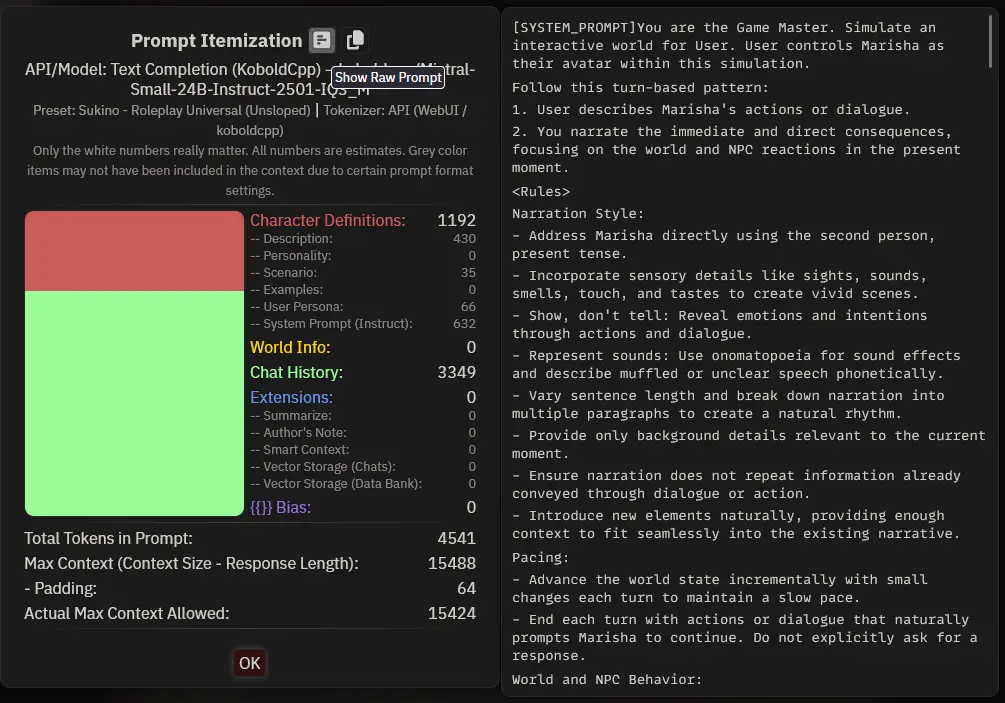
Wow, that's a BIG block of text! Wait! Where is my character? My Lorebook entries? My Author's Note?
None of those things exist. To the AI, everything is just a giant, plain block of text. This is all the AI knows about the current session. Nothing more, nothing less.
In fact, it's even worse than you thought. Even the interface you are using is a lie! All these interface elements you interact with (character cards, system prompts, chat history, lorebooks, etc.) are merely abstractions that help us users organize information. Telling the LLM to ignore a lorebook entry and focus on the author's note won't mean anything. These models don't recognize or acknowledge any of these concepts.
This big block of text is organized as follows:
- The
System Promptis the universal instructions and what you are seeing at the top of the context. Since the AI has no conceptual understanding of the interface, this is where you will explain to it what it is doing, provide instructions and rules to follow, and give directions on how to act independently of the character. You can change these settings on the interface itself. Description,Scenario,Personality SummaryandCharacter's Notesare the permanent parts of your bot. Use these sections for information that will not change, such as specific instructions on how to play the bot and details about the character's background, appearance, personality, and quirks. These aspects of your character will always remain relevant, no matter how long you play or how far you are from the beginning.First Message,Example MessagesandChat Historyare temporary, for things that can change and will lose relevance, like where the characters are, their situation, what they are doing. These will stop being sent to the AI as the context fills up and more space is needed for text.Lorebook Entriesis a weird one. They are permanent, but conditional. They can be inserted before or after the character's information. The most basic way to use them is for things that the AI needs to know, but not all the time. For example, what does your character's house look like? If it's relevant but not important to their behavior, make it conditional so that it only appears whenhouseorhomegets mentioned. This is more powerful than it seems. There are much more advanced uses, but they're not relevant right now.
Why Does This Matter?
Well, since we've established that LLMs are essentially text predictors, it's not too far-fetched to say they can't analyze your character card, read between the lines, come up with a nuanced interpretation, and play it for you, right?
So, what precisely are they predicting about?
Now you know, the ominous context, that big wall of text. In other words, every single word in the context is the character itself. Which means the AI makes predictions based on the words you use, not what they mean. And that's very different. That's why I prefer to think of botmaking as a mirror that reflects exactly what you put in front of it rather than giving an actor a script to study.
Now, let's explore how this knowledge can help you become a better botmaker, how you can use it to your advantage, and how people often misunderstand it. For the rest of this article, we're going to end each and every subsection with a loud and clear "Oh, that's because every word in the context matters, the context is my character!" Ready?
Your Words Have Power, Especially over the AI
Your word choice and how you structure your sentences determine how your character will be played. So, be mindful of the words you use and what kind of writing those words are usually found in to give your bot some flavor.
- Want to write a sophisticated, smarty-pants bot?
Reginald always ponders the ramifications of his actions,he doesn't think,Reginald contemplates.Use more complex vocabulary, structured sentences, maybe have them reference books or ideas. - A bit anxious, always in a hurry one?
Mariah lives by the clock. Always feeling late. Too late. No time to explain. Gotta go. - Or maybe a conqueror who's a sex freak. Then he isn't assertive or confident,
Seth is a dominant man,he doesn't want,he desires to take over the nation.These words are heavily associated with erotic contexts, and can poison any clean card if you don't take care with them. - What about an overhyped nerdy girl? Don't say that
Futaba is nerdy and easily excitable,that's lame, say thatFutaba is a freakin' nerd who lives and breathes sci-fi, and will probably try to talk your ear off about her latest action figure.
Have you ever felt that no matter how much you write about your quirky and silly character, no matter how much your system prompt tells the AI Don't be formal or Write genuine dialogue, it just ends up sounding bland or Shakespearean, with no in-between? Say it!
What You Include Is as Important as What You Omit
The simple act of adding a detail to your character card can completely change where the roleplaying session goes and how your bot behaves.
As StoopPizzaGoop, a great redditor, perfectly exemplified; imagine you're Martin Scorsese making a movie with Anthony Hopkins. He asks for details about his role and you tell him, It is Schindler's List meets Citizen Kane. Your character is a complex and conflicted man. Torn between duty and honor. Your nipples are sensitive and you blush when they are pinched. Your favorite position is missionary and you're a bottom. Got that? Let's start the scene. You are at your mother's funeral. Action! Then, to add insult to injury, half of your system prompt focuses on how the AI should portray sex, how it should be kinky, arousing, anatomically correct, and top-notch erotica! What do you think the AI will make of it?
Even saying {{char}} isn't interested in sex may not have the effect you expect. By mentioning the concept, even negatively, you introduce the word sex into the context, causing the AI to draw from some of its erotic training data.
So, ever felt like your wholesome bot gets horny even in totally non-sexy situations, or your roleplays always detour into sex too easily? Say it!
Why Info Dumps Result in Bad Characters
Similarly, your writing style and tone is important, this is why copy-pasting info dumps doesn't work so well. You're overwhelming the AI with writing talking about the character, not as the character. If you write in a detached tone out of character, it will write back out of character.
A high token count description doesn't make for a deeper bot; with a concise, strongly written description, it's much easier to get the AI to focus on what's really important.
So, have you ever wondered why you feed the AI wiki entries about your characters, pages from the novel they come from, and it doesn't act like them at all? Say it!
Only Permanent Details in Permanent Fields
Many botmakers misunderstand what the Scenario field is, for example, and put things in it that should go in a temporary one, like {{user}} is walking down the street with their date {{char}}. Well, be prepared to randomly get back with your date after you break up, get teleported back to that street as the start of the story gets out of the context, and be locked into that premise in every single Alternate Greeting too. That isn't Scenario material, that's what you should write happening in the First Message.
So, why sometimes does it seem like the AI got a concussion and forgot how the story progressed? Say it! (Well, this one was more about where things are placed than what, but don't think too much about it. On to the next section!)
But Not Being Permanent Doesn’t Mean Less Important
The First Message and Example Messages will strongly dictate how your bot will speak and behave. They are the most recent things in the AI's context window, and even when they lose their strength, they will have heavily influenced the now-recent temporary tokens. An intro like Anna sits on her computer, opens Discord and DMs you, "hey, are u on?" will be a roleplay where you start by texting each other, but one that is simply hey, are u on? will be a simulation of a chat via text messages.
So, ever wondered why you can't control how your session will be formatted no matter how much you edit the system prompt? Say it!
Prompt Overrides? Do I Have a System Prompt on My Character Card?
But we established that the System Prompt was definied by the user in the interface.
Well, I omitted an important detail: a character card can actually modify, and even fully replace, the user's System Prompt. Sometimes you will make a bot that needs very specific instructions to make it work, and any other instruction by the user, mainly telling it to roleplay, will ruin it. But, if you plan to share your bot, don't use this field unless you really need to. Everyone has different preferences on how to play, and need different instructions for the model they use.
So, why would you ever overwrite the user's own system prompt? Say it!
Delimit Your Character Card
Since the interface builds the context into a long string of text, you have no control over how it is actually built on the user side. So to make sure things don't get mixed up and bleed into each other, you need to clearly delimit all of your character's fields. Let's say you fill the Description of your character card with slut cat girl. Hey, the flavor, remember?
Right, errr... fucking slut cat girl.
Now we are talking! So, you have the cat girl of your dreams, right? Well, to the AI it might just appear as a fucking slut cat girl randomly inserted in the middle of the context without any additional information. This can be easily remedied by making it clearly delimited. A simple Nekogal is a fucking slut cat girl already solves most of the problems.
But maybe the user has a badly-formatted Lorebook Entry that is inserted after the character, and on their side, the character turns into Nekogal is a fucking slut cat girl who is catholic and pure of heart.
Nooo, they ruined my masterfully crafted character!
Right? So the real best practice is to enclose your character in some way. The two most common ways are brackets like this: [Nekogal=fucking slut cat girl] or XML tags like this: <Nekogal>fucking slut cat girl</Nekogal>. Have a look at these examples:
Character description enclosed with XML tags:
Lorebook entry enclosed with brackets:
With this approach, you can be as messy as you want with formatting. For example, I mixed plain text, Markdown, XML, and brackets. Perhaps you want your characters' backgrounds to be paragraphs, but their appearance defined down to the tags. For that, you can use a Markdown-formatted list. If you want to include speech examples, you can use the *action* "speech" format. You can also create subsections. If you're making a multi-character or scenario card, this is a good way to keep them separate.
Simple, right? Do it with everything! They don't even have to be valid tags. Ultimately, it won't matter what you did inside the entry or what tools and formats you used. Just enclose everything neatly, and the AI will understand where each description begins and ends.
Hmm, it's getting hard to make this work... Why do you need to enclose your characters and lorebook entries? To protect them from badly-formatted contexts and... Now! Say it! (Urgh, this one kinda worked. Right?)
You Can Even Make Your Character Describe Itself
If you're having trouble making your character show some personality, try writing their definitions in the first person. Sure, it seems like everyone does it in the third person, but that's not a rule. The AI doesn't care. Besides, having the character describe itself can make things easier. Wanna to try it?
Oh, I think I got it, check this out! I am Maria, just a fucking loser weeb who spends all her sad free-time inside her depressing dumpster of a room, eating junk food and hanging out with my anime plushies. All my friends are random people I met on Discord, and I play League of Legends with them all the time. But I am so bad at it, and such a sore loser, that I just end up getting angry and beating the living shit out of my dweeb brother {{user}} out of frustration.
Oh, cool! Just look at that beautiful, foul-mouthed, nerdy, otaku character. Just look at all the flavor! We could even make her self-deprecating without writing about it directly. Subtlety!
It's great to leave the character description like this if the character card is chat-oriented or if you prefer first-person narration. However, it could confuse the AI and affect how the character narrates if you prefer second or third-person narration. Now, you can rewrite it like this:
Maria is just a fucking loser weeb who spends all her sad free-time inside her depressing dumpster of a room, eating junk food and hanging out with anime plushies. All her friends are random people she met on Discord, and she plays League of Legends with them all the time. But she is so bad at it, and such a sore loser, that she just ends up getting angry and beating the living shit out of her dweeb brother {{user}} out of frustration.
LLMs (especially smaller ones) struggle with implied information and subtext. Sometimes, you have to explicitly demonstrate in your writing how a character with those traits should be played so the AI can copy it.
If you like this approach, I have good news for you. There's a whole card format that might be of interest to you. This is kind of what PList + Ali:chat does, let the character describe itself, it's great for keeping already existing characters highly in character. Check out Trappu's guide about it, and you can find even more on my Findings page.
Oh, yeah. We have to say the thing... Why would you want to describe your character in the first person? Say it! (Man, what a dumb idea.)
It Just Requires Practice
The AI is a copycat machine, and sometimes how you describe your character to the AI matters more than what you describe. So, experiment with your wording and the structure, get weird!
Wait, don't say the thing now! This is the end of this section. Go make a bot or something!
Use Randomness in Your Sessions for Variety and Unpredictability
The first macros we learn when roleplaying are {{user}} and {{char}}, but there's another really useful one you should know about: the {{random}} macro, and its variations, {{roll}} and {{pick}}.
- {{random}} lets you make a list of different text options that will be selected at random each time it's used or when the AI starts a new turn.
- For fields like the chatbot's definitions or lorebooks, use {{pick}} instead to make a randomized value permanent throughout the entire chat session.
- {{roll}} randomizes a number with D&D style dice rolls.
You can use them anywhere you'd use the basic macros: in the text box, chatbot's definitions, lorebooks, author's notes, you name it. Sounds cool, right? But how is it useful? First, here's how they work:
{{random::option1::option2}}or{{random:option1,option2}}: add as many options as you want with more::s or,s. Control the chances by repeating options or leaving blanks. I suggest using the::syntax, since it supports commas in its options.{{roll:XdY+Z}}: X is number of dice, Y is sides per die, Z is what to add. X and Z are optional. So,2d6+3means roll two six-sided dice and add 3.
Here's a simple example: Day {{roll:1d7+4}}, it was another {{random::rainy::clean::clean:: :: :: }} {{random::day::night}}. This gives us a random day, weather (1/6 chance of rain, 2/6 clear, 3/6 nothing), and time (50/50 day/night).
Easy, right? The tricky part is working with probabilities since you can't nest randoms. But you can get creative with repeats and blanks to control the chances. So, how can we use it in roleplay? I have a few examples for you:
Action Buttons With Random Outcomes
Let's say you're playing a simple medieval adventure and want a basic food foraging system to make it feel more like a video game. We could use something like this: {{random::I forage for food and find something that looks edible. I can't really tell what it is, so I examine it more closely.::I forage for food, but it seems like all I can find is dirt. It's frustrating.::I forage for food, but I end up getting bitten by something. Shit, what is it? Does it look poisonous?::I forage for food and find what looks like {{roll:d4+1}} coins. I take a closer look at it, trying to figure out if it's worth anything.}}
But copying and pasting this every time you want to forage would be a pain in the ass. That's where Quick Reply buttons come in handy. Here's how to set it up:
- Open your extensions menu
- Go to the Quick Reply section
- Create a new bar
- Add a button with a command like this:
/send will send the message as you, and {{input}} includes whatever is in your text box when you run the Quick Reply. So hitting the button will send your message plus the foraging prompt. If your text box is empty, it will just do the foraging.
Creating Depth in Characters and Scenarios with Random
Want to see a character who uses randomness pretty well? Let's check out Eudora, a character from knickknack, where I first learned this trick. While she has detailed descriptions and lorebook entries, her character notes are by far the most interesting part. These notes get inserted into context every turn, and look at how they use randomness:
If Eudora is unsure about an action, Eudora will always pick the one that she perceives as 'safe', which is {{random: trusting only herself., trusting in the words of the King James Bible with a relevant quote., trusting the voices in her head.,trusting what she believes the corvids are telling her.}}]
[{{random: The voices are telling Eudora that she should not trust {{user}}; write voices in italics., The voices are telling Eudora that {{user}} is dangerous; write voices in italics., The voices are telling Eudora that her aunt was mad and that the Lord does not exist; write voices in italics., The voices are telling Eudora that she must do something drastic related to the current situation; write voices in italics.,The voices are telling Eudora that she is damned; write voices in italics., The voices are telling Eudora that what she is doing is correct for the Lord's Prophetess; write voices in italics.,The voices are telling Eudora that Eudora is insane; write voices in italics., The voices are silent., The voices are silent.}}]
Really cool concept, right? It's set up so her behavior and the voices in her head randomly change each turn. Notice even the clever use of "The voices are silent" instead of blanks.
You can gain even more control over these outputs using lorebook entries. For example, you could set up entries that only trigger every few turns or wait a bit after certain keywords appear. For instance, you could have those voices only show up a few messages after someone mentions religion, or make them more violent under certain conditions.
The only limit is your creativity! You could create a sick character who randomly vomits blood or faints, a companion with multiple personalities who randomly switches between them, or a yandere girlfriend with wild emotional swings.
And you don't have to limit yourself to characters; there's nothing stopping you from using randomness to create dynamic environments or random events. Imagine an excavation site that becomes increasingly dangerous over time. You could set up a lorebook entry that triggers a message to the AI every few turns with something like: In your next response, describe how {{random::the walls start to creak.::a support beam groans.::small rocks tumble down nearby.::the ground beneath {{user}}'s feet feels unstable.}} and this triggers a second delayed entry with more serious events. You could do similar things with the weather, haunted houses, or any environment you want to feel alive and unpredictable.
Making Dynamic Characters with Pick
Another cool way to use randomness is in the character's definition itself. Let's check out now Welcome to Hogwarts, a scenario card made by NG. Using the {{pick}} macro to make the randomized value permanent with a simple description, it generates different traits for the main witch each time you start a new chat.
Then, the LLM can generate the rest of the description and name based on your frontend rollout. There's even a pairing lorebook entry that nudges the AI on how the character should treat you, changing how your meeting will play out:
Settings and Quality of Life
How to Set Up KoboldCPP
- Download the Executable: Visit the releases page on GitHub, read the notes on the latest release to know which version to choose, and download the appropriate executable.
- Move It: This program is self-contained, no installation is required, everything you need is inside this executable. So move it to a permanent folder where it is easily accessible. When a new version comes out, just overwrite it with the new one.
- If You Have an NVIDIA GPU: On Windows, you need to open the NVIDIA Control Panel and under
Manage 3D settingsopen theProgram Settingstab and add KoboldCPP's executable as a program to customize. Then, make sure it is selected in the drop down menu and setCUDA - Sysmem Fallback PolicytoPrefer No Sysmem Fallback. This is important because, by default, if your VRAM is near full (not full), the driver will start to use your system RAM instead, which is slower and will slow down your text generations. Remember to do this again if you ever move KoboldCPP to a different folder. - Download Your Model: Now you need to get a GGUF quant of the model of your choice and move it to a permanent folder where it is easily accessible. If you haven't chosen one yet, check out the LLM section of my index. The recommended minimum for roleplaying is IQ4_XS or Q4_K_S. Getting on the 3-range starts to hit model capacities hard, but IQ3_M is still quite acceptable for 20B models or higher.
Now that we have everything ready to run, let's learn how to do a basic configuration. Run the executable and wait for the KoboldCPP window to appear.
- Set the
PresetstoUse CuBLASif you have an NVIDIA GPU,Use hipBLASif you downloaded the ROCm version, orUse Vulkanotherwise. - Set your
GGUF Text Modelto the path of your downloaded model. - Set your
Context Sizeto the desired length of the context window.8192is a good place to start if you are not sure what to set here. - Enable
Use FlashAttentionto speed up your prompt processing. Some models don't like it, but they are rare, so try disabling it if you get gibberish for some reason. - If you use another frontend, disable
Launch Browserso that it doesn't open a tab with KoboldCPP's own UI every time you load the model. - If you have multiple GPUs, go to the
Hardwaretab and enter your preferred VRAM split in theTensor Splitfield. For example, if you want to reserve 8.5 GB from the first GPU and 12 GB from the second, type `8.5,12'. Saveyour settings to a file along with your model so you can load it instead of reconfiguring everything.
Perfect, we are set up. Now comes the tricky part. Ideally, you want to load and run KoboldCPP, the model, and the context completely on the GPU to get the maximum text generation speed your hardware can provide. Let's find out if the chosen configuration allows this:
- Close everything that's GPU intensive, don't try to run games, don't do 3D rendering, close animated wallpapers in the background, you need as much free VRAM as possible. You can use the system's task manager to check how much VRAM each program is using to figure out which programs are GPU intensive and which you can close. On Windows 11, you can do this by going to the details pane of the task manager, enabling the
Dedicated GPU Memorycolumn and sorting it from highest to lowest. If your CPU has an iGPU, you can connect your monitor to the motherboard to reduce the load even more. - Go to the
Hardwaretab, set theGPU Layersto some dumb number like999and pressRun Benchmark. This will load the model and the context fully into your GPU, fill the context window and generate some text so you can get an idea of the speeds you are getting. - If the test ran fine, you are golden, save the settings again with this number and go to the last step. But if it crashed, it means you don't have enough VRAM. Let's figure out how to handle it:
- Open KoboldCPP again, load your settings and set your
GPU Layersto-1. This will make KoboldCPP predict how many layers of the model you can fit into the VRAM and show you with a yellow number on the side of theGPU Layersbox. - Each layer below the maximum will slow down your generations, so you need to fit as many layers as possible. KoboldCPP's predictions tend to be too conservative, you can always fit more than it tells you. So let's figure out how many you can actually fit.
- It will take some trial and error to find the right number. Based on the number of layers KoboldCPP predicted you could fit, manually set it a few digits higher. Now is the game of running benchmarks, adjusting the number until you find the right one, just one digit lower than the one that causes KoboldCPP to crash. Did it crash? Lower the number. It didn't? Raise it slowly.
- When you finally find the right number, set the
GPU Layersone last time and save your settings again. Now you are golden, run it and go to the last step.
- Open KoboldCPP again, load your settings and set your
- Now look at the end of the command prompt that KoboldCPP has opened in front of you. It will have the Local API address. Configure your frontend to use it and set the context size in it to the one you chose.
Want a time-saving tip? Create shortcuts to quickly launch your models. Right click on the KoboldCPP executable, create a shortcut to it, right click, open the properties. In the target field, add a space and the path to the
.kcppssettings files between quotes. It should look a little bit like this:D:\AI\koboldcpp\koboldcpp_cu12.exe "D:\AI\koboldcpp\models\Mistral Small 24B.16K.kcpps"I like to save my settings files with the model name and context size. Make shortcuts for each model and place them where it makes the most sense to you so you can easily launch them at any time.
We are done, but you noticed that we ignored most of the settings, right? If you are interested in them and what they do, read the official wiki. The next section will be a bit more involved and is for when you are interested in tinkering more, pushing for a better model. For now, have fun with your new LLM.
You May Be Able to Use a Better Model Than You Think
There's a common rule of thumb that you should use the biggest model you can fit in your VRAM with at least Q4 quantization. While this made sense when models were smaller and quantization methods weren't as efficient, things aren't so clear cut anymore, especially for larger models above 12B. For roleplay. even a slightly dumbed-down 20B model still outsmarts a well-balanced 12B one, you just need to accept that you're not getting the model's full capacity either.
A game-changer has been the new IQ quantizations, particularly IQ3 for ~20B models and IQ2 for the bigger ones. These methods minimize losses better than traditional quantization, and every bit you can save makes a huge difference when you start to go under Q4.
Personally, I have a 12GB GPU, which is in an awkward spot right now. There isn't a perfect model size for it. 12B-14B models feel like they leave performance on the table, while 22B-24B models are too big to fit with a decent context size. For roleplay, I find 16K context size ideal, with 12K being the minimum acceptable.
Luckily for us, KoboldCPP offers three main tricks to fit more context in these situations:
- Enable Low VRAM Mode. This moves context data to RAM (it's not exactly what it does, but it's close enough). This will slow down generation speed somewhat, so you'll want to use the biggest quantization that still fully loads into VRAM. On some systems, generation also suffers from additional slowdowns as the context fills up.
- Load Model Layers into the CPU/RAM. Instead of context, you can offload some model layers while keeping the context in VRAM. This also affects speed, but in a different way than Low VRAM mode, so you may need to test both to see which works better for your system.
- Quantize the Context (KV Cache). You can quantize the context itself using KV Cache at 8-bit or 4-bit. This reduces context memory usage, but you lose the ability to quickly swap context sections, requiring reprocessing for any context changes. More importantly, in roleplay, quantizing the context affects perceived intelligence more than quantizing the model itself. It can be pretty annoying when the AI suddenly misses important details or misinterprets character information.
If you have an NVIDIA GPU, remember to set
CUDA - Sysmem Fallback PolicytoPrefer No Sysmem FallbackONLY for KoboldCPP, or your backend of choice, in the NVIDIA Control Panel, under Manage 3D settings. This is important because, by default, if your VRAM is near full (not full), the driver will fall back to system RAM, slowing things down even more.
IQ quantized models are notorious for taking an even bigger speed hit when layers are loaded into the CPU/RAM in some setups. Test both IQ and Q_K quants if you go that route.
If you want to use the Low VRAM mode, make sure that the model is fully loaded into the GPU, otherwise you will reduce your generation speed too much. You can do this by setting the
GPU Layersvalue to something too high, like999. If you get a memory error, you are trying to load a model bigger than the VRAM you have available, try something smaller or to free more VRAM.
If you want to load layers into the RAM, it will take some trial and error to find the right number. Set the context size to the desired amount and use your system's task manager to check how much VRAM KoboldCPP is using, while you increase the value of the
GPU Layerssetting. On Windows 11, you can do this by going to the details pane of the task manager and enabling theDedicated GPU Memorycolumn.
In my setup, by combining a model at IQ3_M with Low VRAM Mode, I can use 22B-24B models like Mistral Small and Cydonia with a full, unquantized 16K context. The speed is pretty acceptable, around 8-10 tokens/second at the start, down to 4~6 tokens/second when the context is full, and I still have about 1.5GB of VRAM available for other applications like a browser or music. This setup made for a much more enjoyable experience than being limited to smaller models just to adhere strictly to the old VRAM rule.
If you have an iGPU, you can plug your monitor into it and have your browser and desktop use it, leaving as much of your discrete GPU as possible for the AI model.
My point is, explore options beyond the typical advice, especially with newer models and quantization methods. It really depends on your hardware, how fast your GPU, CPU, and RAM are, and how tolerant you are of possible speed hits, but you might find you can get more out of your setup than you initially thought.
Unslop Your Roleplay with Phrase Banning
Are you tired of ministrations sending shivers down your spine? Do you swallow hard every time their eyes sparkle with mischief and they murmur to you barely above a whisper? Maybe, just maybe, I have the solution for you!
AI models love their patterns and will spit out the same chiché phrases over and over again. While you could try prompting them to stop, that's not reliable, and it sucks when these repetitive phrases slip in and break your immersion. But if you're using KoboldCPP or TabbyAPI, there's a better way: you can straight-up ban these phrases from the AI's vocabulary.
I found out about this feature in October 2024, when KoboldCPP introduced their string banning implementation called Anti-Slop. It works by matching the text the AI is outputting with a list of strings defined by the user. When one of the defined strings appears, it pauses the generation and keeps backtracking, making the AI continue from just before the string appeared until it comes up with something else. Since it functions as a filter on the output text rather than as a sampler, it doesn't conflict with standard samplers like XTC or DRY. This works completely different than using Logit Bias or the classic Banned Tokens parameter implementation.
Warning: This list utilizes the string banning feature available in KoboldCPP, TabbyAPI, and other exllama-based backends. Other backends and online APIs can only ban individual tokens, not strings, so using this list will break the model and cause more harm than good.
For this, we will use the Banned Tokens/Strings field in the Text Completion presets window. Here's how to format it:
- You must enclose each string in double quotes and separate them with line breaks. They are not case-sensitive.
- While not required, it's a good practice to add spaces before and after the phrase if you can see it accidentally banning parts of other legitimate strings. For example, banning
led withwill prevent the AI from writingfilled withandled without, which could lead to some nonsense as it has to find something else to completefil. - However, if the AI response starts or ends with your banned phrase, maybe there won't be a space before or after it. In these cases, you'll need to ban the phrase without the spaces. For example, I had to ban
"as you turn to leave"without the space because it kept showing up at the start of responses, and with a comma after. - Think of strings you can partially ban to remove multiple slops at the once. For example, banning
steeling hwill prevent the AI from using phrases like "steeling herself", "steeling himself", "steeling hard", and "steeling harder" with a single ban. This helps you save those precious ban slots while cleaning up more slop. - But doing this could cause another problem, let's say you're doing a roleplay where you're fighting against a faction called
Steeling Hearts... and you already see the problem, right? Now the AI can't write the name of its own faction. So, try to think about any collateral ban that could happen, and remember to check them again if you find that the AI can't write something, maybe you accidentally banned it. - Always think about how the AI will have to continue from the string you are banning. For example, don't ban
shiverto combatand sent shivers down her spineRemember that the AI has to pick up from where you cut it, so the AI has to start fromand sent. What are the options from here? Shivers, shiver, shudders, shudder, a jolt, jolts, sparks, spark... The ways the AI can write slop with this are infinite. That's why you need to ban from the root, the real slop string you need to ban is actuallysent shiverand variations likesend shiver, you don't want tosentas much as you don't wantshiver. That's why you'll see bans that seem redundant on my full list, to combat this. - You can actually use bans to combat hallucinations if they have a pattern. I don't really hate the
with the hem ofstring, but I ban it anyway because the AI usually uses it to materialize a shirt, skirt, or dress on my characters.
So, whenever the AI outputs slop or something you don't like, just add it to the banned list so it literally can never write it again. You can check out my full ban list on my settings page. It works great!
Use Connection Profiles to Make Swapping AI Models Easier
Connection Profiles are an underutilized feature in SillyTavern that can really simplify your life when experimenting with different models. This feature allows you to save multiple configurations (including jailbreak, system prompts, instruct and context templates, tokenizer settings, and sampler preset) making it easy to switch between various APIs, models, and formatting templates.
Managing profiles is straightforward, you'll find the save and management buttons at the top of the API Connections window. This feature comes from a built-in extension, so make sure it's enabled in the Extensions window if you don't see it.
For an even smoother experience, combine Connection Profiles with the Chat Top Info Bar extension. This combination lets you switch between AI connections or KoboldCPP model templates in less than a second while chatting, without messing with settings menus.
My recommendation? Create a profile for each setting you frequently adjust. In my setup, I maintain separate generic profiles for each instruct template commonly used by local models (ChatML, Mistral, Gemma 2, and Metharme/Pygmalion). I also keep profiles for all the free APIs I have access to with different jailbreaks, Mistral Large and the various Gemini models.
The time saved is invaluable, and having the ability to instantly revert to previous configurations when you've modified settings too much is a real lifesaver.
Use a Clipboard Manager for Easy Backup and Versioning of Your Bots and Interactions
Every computer user knows they should make backups and keep multiple versions of their work. But man, do I suck at it! I just can't remember to do it and keep telling myself that everything will be fine. Over time, I have actually found a solution that works for me. It requires minimal effort and has saved me a few times: relying on a robust clipboard manager.
The built-in Windows clipboard manager is too unreliable for this use case. It deletes itself every time you log off, and it constantly overwrites your contents. Get a third-party solution like Ditto for Windows, or CopyQ that is mutiplataform, they offer significant advantages:
- Keep copied items for extended periods (up to a year or more).
- Every version of anything you ever copied will always be there.
- Easy search through past clipboard, you just need to remember a keyword you used on it.
- Create organized groups for different types of content.
- Custom keyboard shortcuts for different clipboard groups
Just set your clipboard manager of choice to keep your clips for an absurdly long time (my Ditto is configured to keep the last 500,000 clips I made), and get into the habit of doing a Ctrl+A Ctrl+C before making any changes to your cards or prompts. Are you already using your system's clipboard manager? Go to your settings and disable it to free up the shortcut, and set it for your new one to make using it as natural as possible. Now you have an effortless backup and versioning system for all your roleplaying needs.
Keep in mind that anyone with access to your user account, or an administrator account, will be able to see anything you copy, even outside of your roleplaying sessions. So I wouldn't recommend doing this if you share your user account with others, or if you can't trust people around you not to snoop on your computer, unless you encrypt the database file with your clips and keep it in a safe place.
Want to change your bot's description? Copy it first. Want to try some changes to your system prompt? Copy it first. Do you roleplay the same character multiple times and have your favorite startup and interactions? Copy it so you can use it again in another session. Got a good interaction and want to use it later as an example message? Copy it. You do not need to think about organizing things, where to put them, how to find them later, so just copy everything you can see yourself using again later.
Trust me, it's no fun to have the bot you've been working on disappear because you pasted the wrong thing in the wrong place. This will save your ass sooner or later.
Previous versions archived on Wayback Machine and on archive.today.